> ## Documentation Index
> Fetch the complete documentation index at: https://docs.ahaslides.com/llms.txt
> Use this file to discover all available pages before exploring further.
# Slides and Participants lists in Reports
> See how every slide performed and who took part across all your presentations from the Slides and Participants tabs on the Reports page.
The **Slides** and **Participants** tabs on the **Reports** page show results across all of your presentations, not just one. For the report of a single presentation, see [Presentation and participant reports](/after-the-presentation/your-ahaslides-presentation-report).
## See how every slide performed across your presentations
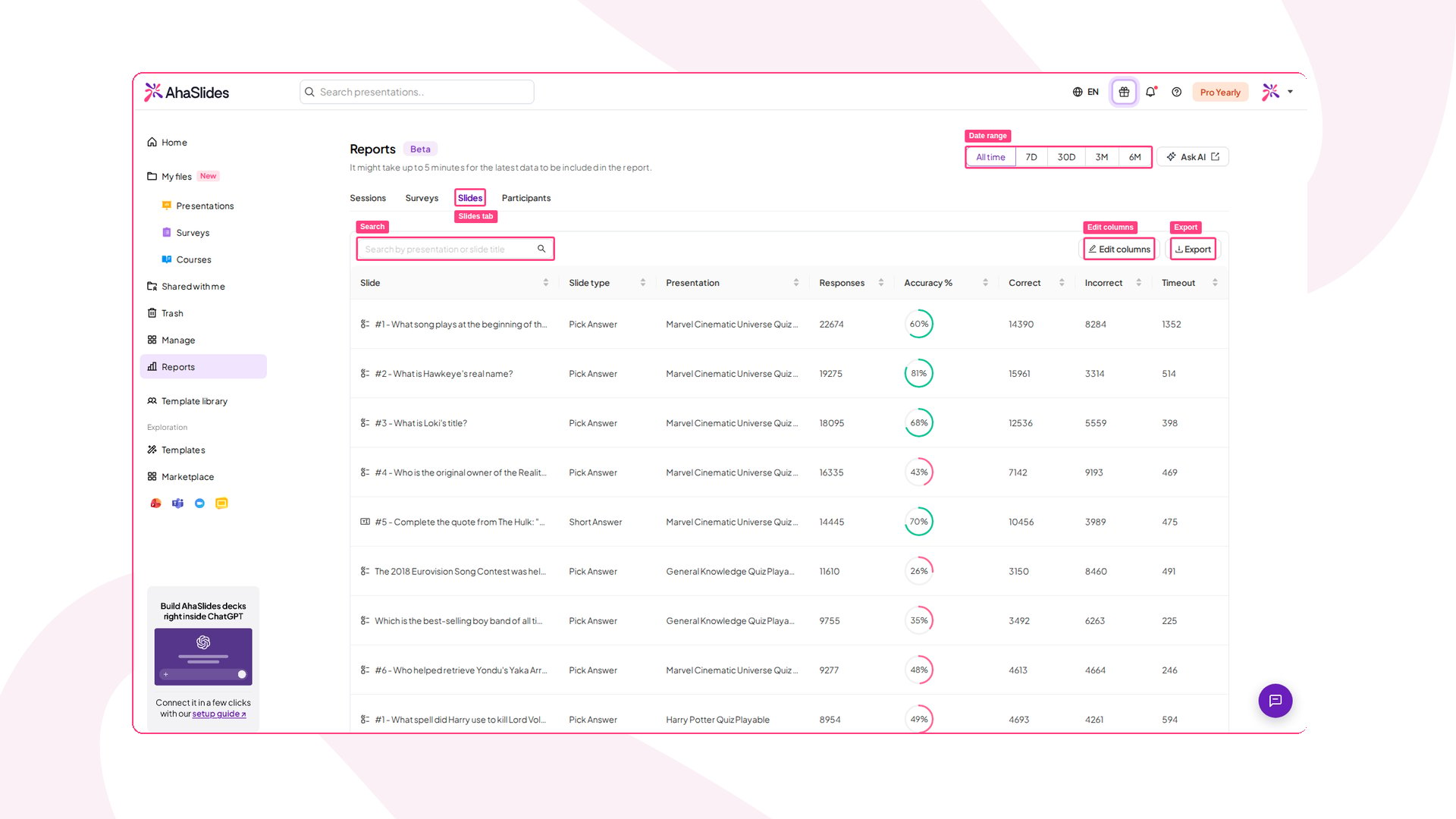
The **Slides** tab on the **Reports** page lists every slide that has received responses, across all of your presentations. Use it to spot which questions your audience found hard, skipped or ignored, without opening each report one by one.
### How to open the Slides tab
1. Click **Reports** in the left-hand menu.
2. Open the **Slides** tab.
 ### What each row shows
Each row is one slide, with these columns:
* **Slide:** The slide's type icon and title.
* **Slide type:** The type of slide, such as Pick Answer or Short Answer.
* **Presentation:** The presentation the slide belongs to.
* **Responses:** The total number of responses the slide received.
* **Accuracy %:** The percentage of correct answers.
* **Correct**, **Incorrect** and **Timeout:** How many answers were right, wrong or left unanswered when time ran out.
The accuracy, **Correct**, **Incorrect** and **Timeout** columns stay blank for slides that have no correct answer, such as word clouds or polls without a correct answer.
### Search, sort and export
* **Date range:** Use **All time**, **7D**, **30D**, **3M** or **6M** at the top right to narrow the data.
* **Search:** Type in the **Search by presentation or slide title** box to find a slide.
* **Sort:** Click a column heading to sort the table by it.
* **Edit columns:** Choose which columns to show. Only the **Slide** column is always visible.
* **Export:** Download the table as a CSV file.
New activity can take up to 5 minutes to appear in the report.
## See every participant in one list
The **Participants** tab on the **Reports** page (the **All Participants** list) shows everyone who has joined your presentations, with their totals across all sessions. When you want to know how one person did over time, open their profile to see all of their responses in one place.
### How to open the participants list
1. Click **Reports** in the left-hand menu.
2. Open the **Participants** tab.
### What each row shows
Each row is one slide, with these columns:
* **Slide:** The slide's type icon and title.
* **Slide type:** The type of slide, such as Pick Answer or Short Answer.
* **Presentation:** The presentation the slide belongs to.
* **Responses:** The total number of responses the slide received.
* **Accuracy %:** The percentage of correct answers.
* **Correct**, **Incorrect** and **Timeout:** How many answers were right, wrong or left unanswered when time ran out.
The accuracy, **Correct**, **Incorrect** and **Timeout** columns stay blank for slides that have no correct answer, such as word clouds or polls without a correct answer.
### Search, sort and export
* **Date range:** Use **All time**, **7D**, **30D**, **3M** or **6M** at the top right to narrow the data.
* **Search:** Type in the **Search by presentation or slide title** box to find a slide.
* **Sort:** Click a column heading to sort the table by it.
* **Edit columns:** Choose which columns to show. Only the **Slide** column is always visible.
* **Export:** Download the table as a CSV file.
New activity can take up to 5 minutes to appear in the report.
## See every participant in one list
The **Participants** tab on the **Reports** page (the **All Participants** list) shows everyone who has joined your presentations, with their totals across all sessions. When you want to know how one person did over time, open their profile to see all of their responses in one place.
### How to open the participants list
1. Click **Reports** in the left-hand menu.
2. Open the **Participants** tab.
 ### What each row shows
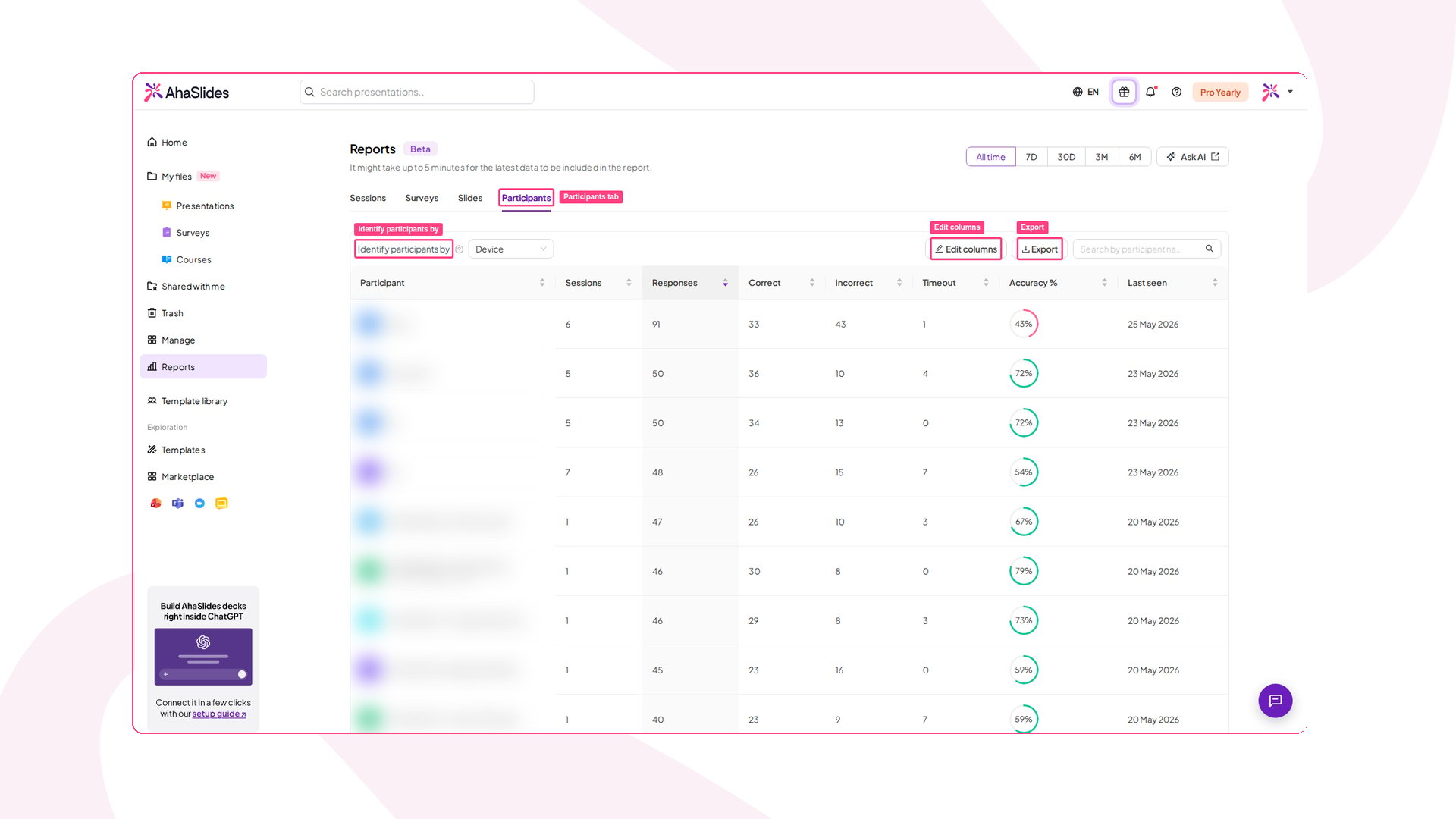
* **Participant:** The participant's name and email address, if they gave them. Participants who joined without a name appear as *(anonymous)*.
* **Sessions:** How many sessions they joined.
* **Responses:** How many responses they submitted.
* **Correct**, **Incorrect**, **Timeout** and **Accuracy %:** Their quiz results across those sessions.
* **Last seen:** When they last took part.
If you [collect audience information](/features-and-functions/collecting-audience-information), the fields you collect, such as team or department, are available as extra columns.
### Choose how participants are matched
The same person can join several sessions, and AhaSlides can't always tell they are the same person. Use **Identify participants by** to choose how records are merged into one participant:
* **Device:** Records from the same device are merged. This is the default.
* **Name:** Records with the same name are merged.
* **Email:** Records with the same email address are merged.
* **Sign-in:** Records from the same signed-in account are merged.
* **No merging:** Every participation stays a separate row.
### Search, sort and export
* **Date range:** Use **All time**, **7D**, **30D**, **3M** or **6M** to narrow the data.
* **Search:** Type in the **Search by participant name or email** box to find someone.
* **Sort:** Click a column heading to sort the table by it.
* **Edit columns:** Choose which columns to show.
* **Export:** Download the list as a CSV file.
### Open a participant profile
Click a participant's name to open their profile. It shows every response that person gave, grouped by session, so you can see how they took part from one presentation to the next.
### What each row shows
* **Participant:** The participant's name and email address, if they gave them. Participants who joined without a name appear as *(anonymous)*.
* **Sessions:** How many sessions they joined.
* **Responses:** How many responses they submitted.
* **Correct**, **Incorrect**, **Timeout** and **Accuracy %:** Their quiz results across those sessions.
* **Last seen:** When they last took part.
If you [collect audience information](/features-and-functions/collecting-audience-information), the fields you collect, such as team or department, are available as extra columns.
### Choose how participants are matched
The same person can join several sessions, and AhaSlides can't always tell they are the same person. Use **Identify participants by** to choose how records are merged into one participant:
* **Device:** Records from the same device are merged. This is the default.
* **Name:** Records with the same name are merged.
* **Email:** Records with the same email address are merged.
* **Sign-in:** Records from the same signed-in account are merged.
* **No merging:** Every participation stays a separate row.
### Search, sort and export
* **Date range:** Use **All time**, **7D**, **30D**, **3M** or **6M** to narrow the data.
* **Search:** Type in the **Search by participant name or email** box to find someone.
* **Sort:** Click a column heading to sort the table by it.
* **Edit columns:** Choose which columns to show.
* **Export:** Download the list as a CSV file.
### Open a participant profile
Click a participant's name to open their profile. It shows every response that person gave, grouped by session, so you can see how they took part from one presentation to the next.
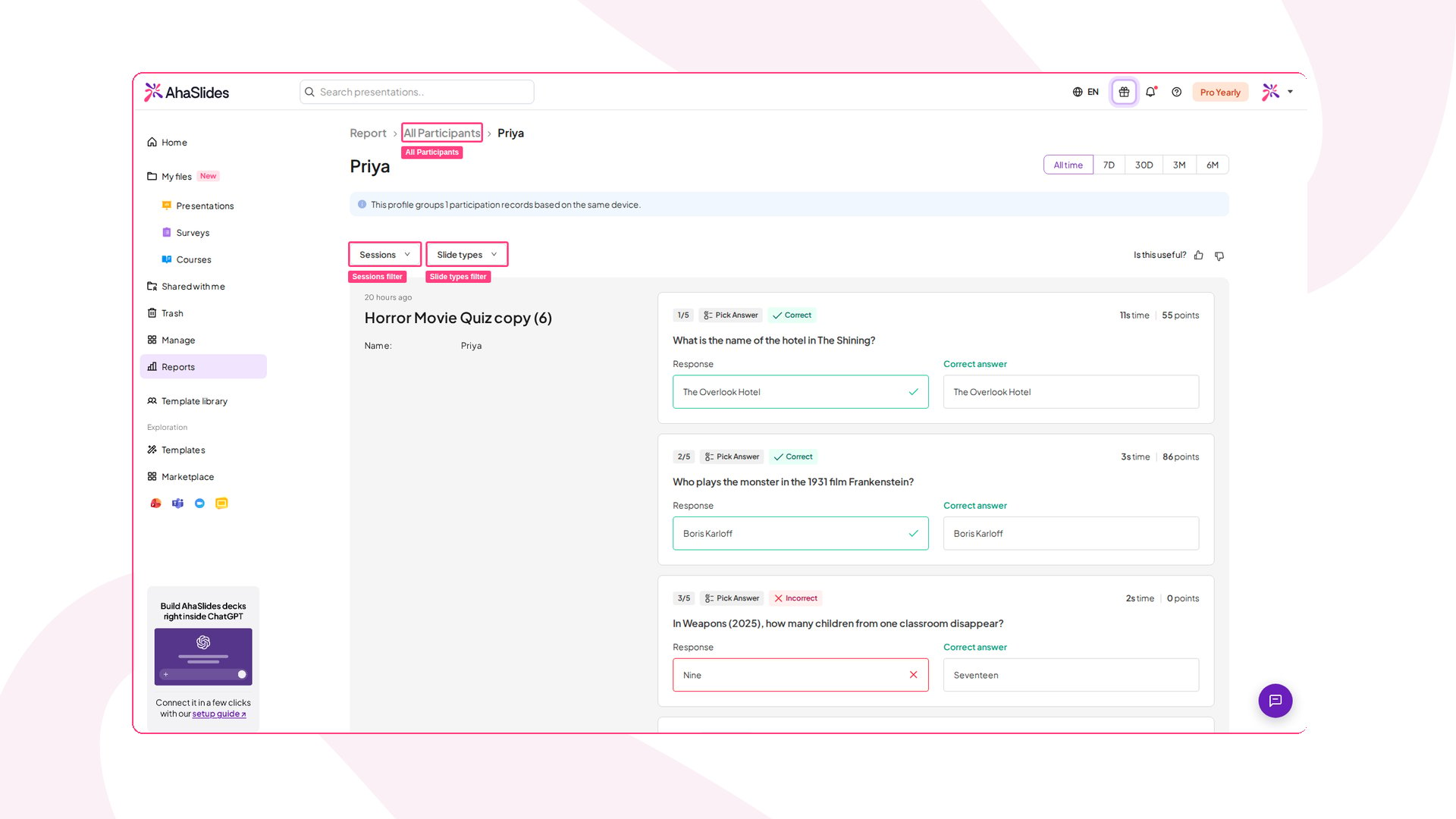 On a profile you can:
* **See who is grouped:** A note at the top tells you how many participation records the profile groups and what they have in common, such as the same device. If they used different names, you'll also see **Also seen as**.
* **Filter by session:** Use **Sessions** to pick the sessions to show, or search for one by name.
* **Filter by slide type:** Use **Slide types** to show only certain kinds of slide, such as quiz questions.
* **Read their responses:** Each session lists the participant's answer to every slide they responded to, along with their name, email and organisation if they gave them. On quiz questions you also see whether the answer was correct, the correct answer, their response time and the points they earned.
* **Change the date range:** Use **All time**, **7D**, **30D**, **3M** or **6M** at the top right.
You can also reach a profile from a single presentation. Open the [presentation report](/after-the-presentation/your-ahaslides-presentation-report#how-to-find-your-presentation-report), click a participant in the **Participants** tab, then click **View response history**.
**Have a question?**
Contact our support team — if you're logged in, use the chat bubble in the bottom-right of your dashboard; otherwise [contact us here](https://ahaslides.com/contact-us/) or email [hi@ahaslides.com](mailto:hi@ahaslides.com).
Want to connect with other users? Join the [AhaSlides community](https://community.ahaslides.com/) to share tips, request features, and see how others engage their audiences.
This documentation is built and hosted on [Mintlify](https://mintlify.com), a developer documentation platform.
On a profile you can:
* **See who is grouped:** A note at the top tells you how many participation records the profile groups and what they have in common, such as the same device. If they used different names, you'll also see **Also seen as**.
* **Filter by session:** Use **Sessions** to pick the sessions to show, or search for one by name.
* **Filter by slide type:** Use **Slide types** to show only certain kinds of slide, such as quiz questions.
* **Read their responses:** Each session lists the participant's answer to every slide they responded to, along with their name, email and organisation if they gave them. On quiz questions you also see whether the answer was correct, the correct answer, their response time and the points they earned.
* **Change the date range:** Use **All time**, **7D**, **30D**, **3M** or **6M** at the top right.
You can also reach a profile from a single presentation. Open the [presentation report](/after-the-presentation/your-ahaslides-presentation-report#how-to-find-your-presentation-report), click a participant in the **Participants** tab, then click **View response history**.
**Have a question?**
Contact our support team — if you're logged in, use the chat bubble in the bottom-right of your dashboard; otherwise [contact us here](https://ahaslides.com/contact-us/) or email [hi@ahaslides.com](mailto:hi@ahaslides.com).
Want to connect with other users? Join the [AhaSlides community](https://community.ahaslides.com/) to share tips, request features, and see how others engage their audiences.
This documentation is built and hosted on [Mintlify](https://mintlify.com), a developer documentation platform.