> ## Documentation Index
> Fetch the complete documentation index at: https://docs.ahaslides.com/llms.txt
> Use this file to discover all available pages before exploring further.
# 获取对演示文稿的反馈
> 在演示结束时,让观众留下星级评分和文字评论,然后在 Presentation Report 中查看全部内容。
在演示结束时,您可以让观众以评分和文字评论的形式留下反馈。
## 允许演示反馈
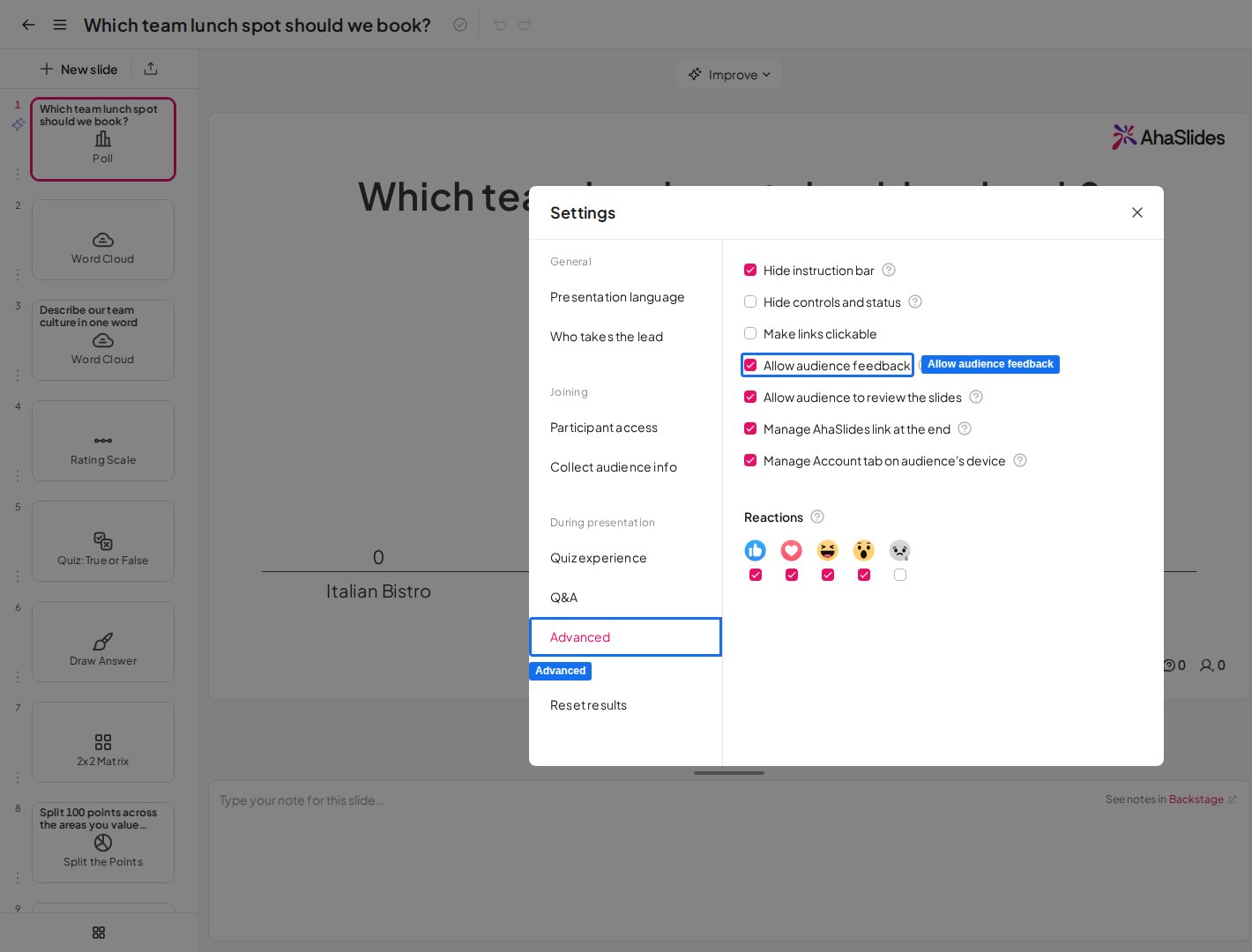
要让参与者在演示结束时提供反馈,请打开 **设置** (Settings),进入 **高级** (Advanced) 选项卡,并勾选 **允许观众提出反馈意见** (Allow audience feedback)。
 在演示的最后一张幻灯片上,点击幻灯片右侧标有 **获取反馈** (Get Feedback) 的选项卡。在打开的反馈侧边栏中,点击 **获取反馈** (Get Feedback) 按钮,让每位参与者通过手机提交反馈。
## 观众界面
观众通过手机提交反馈时,可以做两件事:
1. 为您的演示打 1 到 5 星。
2. 留下对演示的文字反馈。
## 在哪里查看演示反馈
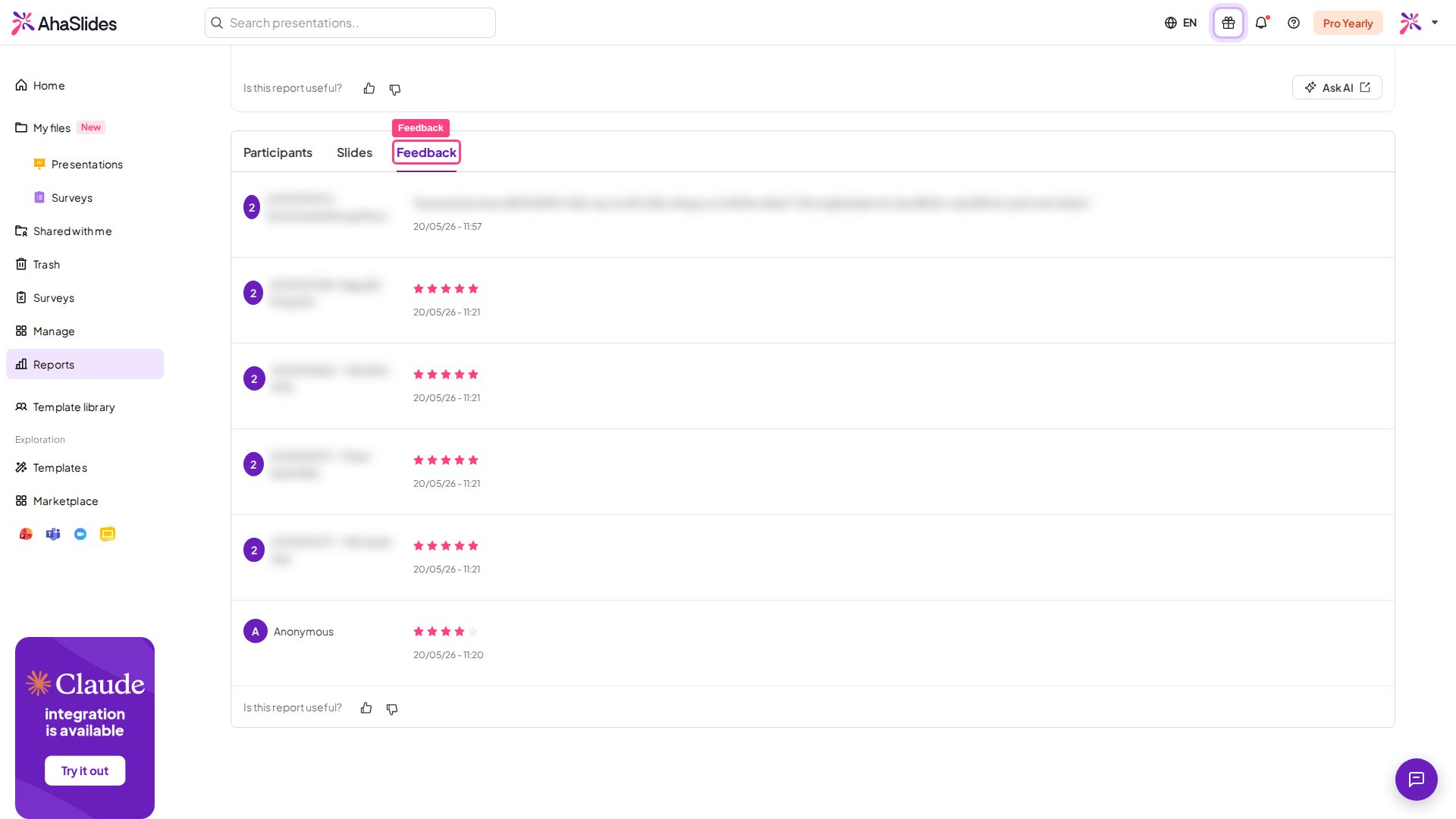
您可以在 [Presentation Report](/cn/after-the-presentation/your-ahaslides-presentation-report) 中查看所有收集到的反馈。要访问它,请点击右上角工具栏中的 **成果** (Results) 按钮,点击 **查看更多** (View more) 打开报告,然后选择 **反馈意见** (Feedback) 选项卡(鼠标悬停时标有 *反馈意见* (Feedback) 的图标)即可查看演示反馈。
在演示的最后一张幻灯片上,点击幻灯片右侧标有 **获取反馈** (Get Feedback) 的选项卡。在打开的反馈侧边栏中,点击 **获取反馈** (Get Feedback) 按钮,让每位参与者通过手机提交反馈。
## 观众界面
观众通过手机提交反馈时,可以做两件事:
1. 为您的演示打 1 到 5 星。
2. 留下对演示的文字反馈。
## 在哪里查看演示反馈
您可以在 [Presentation Report](/cn/after-the-presentation/your-ahaslides-presentation-report) 中查看所有收集到的反馈。要访问它,请点击右上角工具栏中的 **成果** (Results) 按钮,点击 **查看更多** (View more) 打开报告,然后选择 **反馈意见** (Feedback) 选项卡(鼠标悬停时标有 *反馈意见* (Feedback) 的图标)即可查看演示反馈。
 **有疑问?**
请联系我们的支持团队:如果您已登录,请使用控制面板右下角的聊天图标;如果尚未登录,请[在此联系我们](https://ahaslides.com/contact-us/),或发送邮件至 [hi@ahaslides.com](mailto:hi@ahaslides.com)。
想与其他用户交流?欢迎加入 [AhaSlides 社区](https://community.ahaslides.com/),分享使用技巧、提出功能建议,了解其他人如何与观众互动。
This documentation is built and hosted on [Mintlify](https://mintlify.com), a developer documentation platform.
**有疑问?**
请联系我们的支持团队:如果您已登录,请使用控制面板右下角的聊天图标;如果尚未登录,请[在此联系我们](https://ahaslides.com/contact-us/),或发送邮件至 [hi@ahaslides.com](mailto:hi@ahaslides.com)。
想与其他用户交流?欢迎加入 [AhaSlides 社区](https://community.ahaslides.com/),分享使用技巧、提出功能建议,了解其他人如何与观众互动。
This documentation is built and hosted on [Mintlify](https://mintlify.com), a developer documentation platform.