> ## Documentation Index
> Fetch the complete documentation index at: https://docs.ahaslides.com/llms.txt
> Use this file to discover all available pages before exploring further.
# 如何恢复已删除的演示文稿
> 不小心删除了演示文稿?只需几次点击,即可从 AhaSlides 账户的垃圾桶文件夹中将其恢复。
不小心删除了演示文稿?别担心,按照以下步骤即可将其恢复。
## 恢复已删除的演示文稿
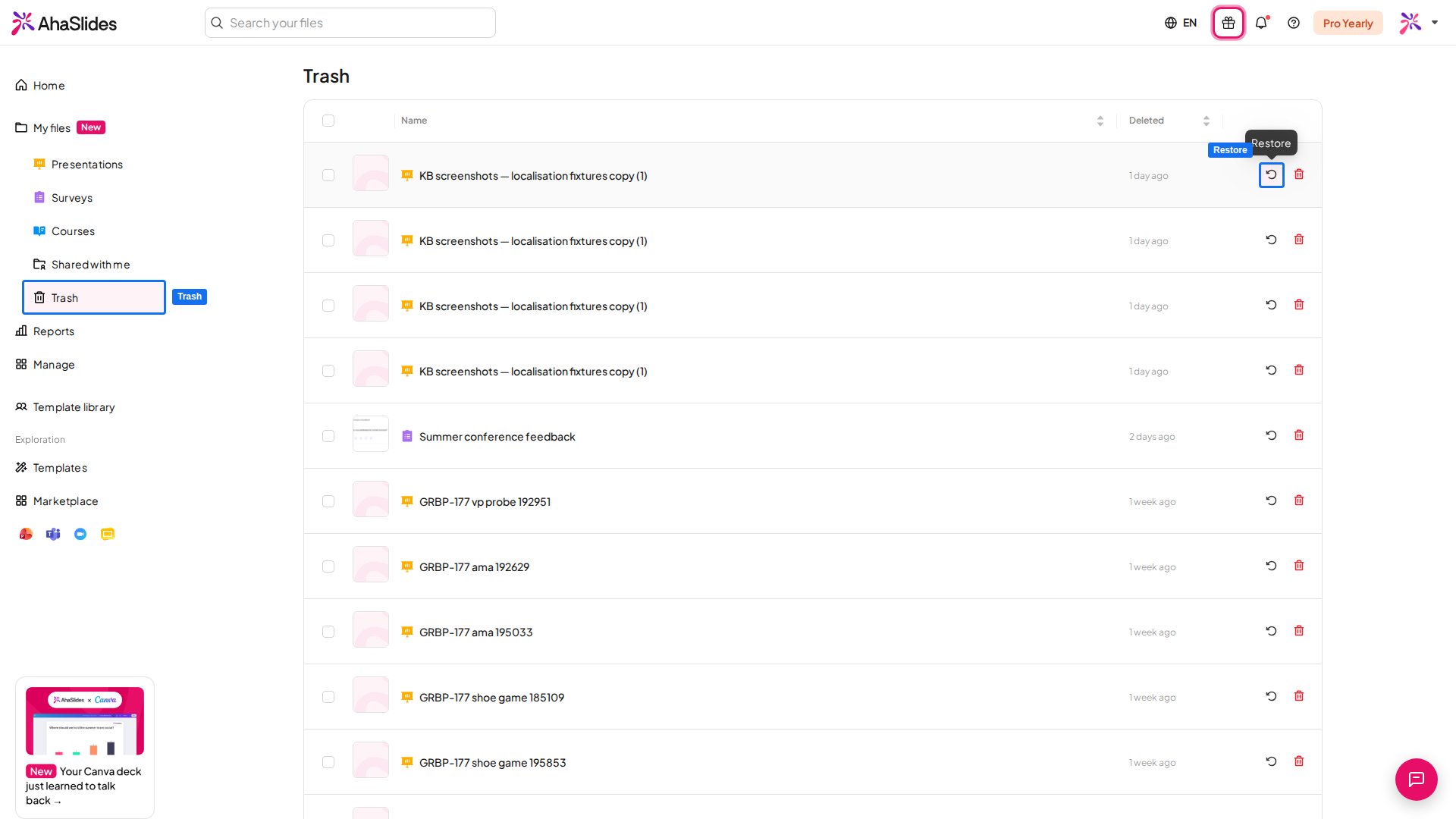
登录您的 AhaSlides 账户,然后在左侧边栏中选择 **垃圾桶** (Trash)。
垃圾桶会列出您已移入垃圾桶的演示文稿和调查。滚动列表,找到您要恢复的那一项。
点击其所在行的 **恢复** (Restore) 图标。如需一次恢复多项,请勾选它们的复选框,然后点击操作栏中的 **恢复** (Restore)。恢复的项目会回到 **我的文件** (My Files),您可以像往常一样编辑或演示它们。
 ## 垃圾桶可以和不能恢复的内容
垃圾桶中也保存着已删除的[调查](/cn/using-slide-types/using-the-surveys-tool),因此您可以用同样的方式恢复调查。在垃圾桶中点击 **永久删除** (Delete forever) 会彻底移除项目,而已删除的文件夹不会进入垃圾桶,因此这两种情况都无法恢复。
这样就完成了,您的演示文稿已恢复,可以继续使用。
**有疑问?**
请联系我们的支持团队:如果您已登录,请使用控制面板右下角的聊天图标;如果尚未登录,请[在此联系我们](https://ahaslides.com/contact-us/),或发送邮件至 [hi@ahaslides.com](mailto:hi@ahaslides.com)。
想与其他用户交流?欢迎加入 [AhaSlides 社区](https://community.ahaslides.com/),分享使用技巧、提出功能建议,了解其他人如何与观众互动。
This documentation is built and hosted on [Mintlify](https://mintlify.com), a developer documentation platform.
## 垃圾桶可以和不能恢复的内容
垃圾桶中也保存着已删除的[调查](/cn/using-slide-types/using-the-surveys-tool),因此您可以用同样的方式恢复调查。在垃圾桶中点击 **永久删除** (Delete forever) 会彻底移除项目,而已删除的文件夹不会进入垃圾桶,因此这两种情况都无法恢复。
这样就完成了,您的演示文稿已恢复,可以继续使用。
**有疑问?**
请联系我们的支持团队:如果您已登录,请使用控制面板右下角的聊天图标;如果尚未登录,请[在此联系我们](https://ahaslides.com/contact-us/),或发送邮件至 [hi@ahaslides.com](mailto:hi@ahaslides.com)。
想与其他用户交流?欢迎加入 [AhaSlides 社区](https://community.ahaslides.com/),分享使用技巧、提出功能建议,了解其他人如何与观众互动。
This documentation is built and hosted on [Mintlify](https://mintlify.com), a developer documentation platform.