> ## Documentation Index
> Fetch the complete documentation index at: https://docs.ahaslides.com/llms.txt
> Use this file to discover all available pages before exploring further.
# 在 AhaSlides 上用 AI 改善写作
> 使用 AI 驱动的“改善写作”工具润色幻灯片文字:一键调整语气、更改风格,或缩短、延长内容。
AhaSlides 的 AI 驱动 **改善写作** (Improve Writing) 工具可让您的幻灯片内容更有感染力、更吸引人,只需一键即可调整语气、风格和长度。
改善写作功能目前适用于除 YouTube、QR Code 和 Google Slides 之外的所有幻灯片。
## 使用改善写作
先创建一张新幻灯片,用于添加或改进文字。
像往常一样在幻灯片上写下您的问题或内容。
点击 **改进** (Improve) 以打开改善写作功能。它会根据您的目标提供多个主题来优化文字:
**语气** (Tone)
* 🤩 **让它幽默** (Make it Humorous):加入俏皮轻松的语气,逗乐您的观众。
* 💼 **让它专业** (Make it Professional):让文字更正式,适合商务场合。
**样式** (Style)
* 📊 **让它分析** (Make it Analytical):让内容更以数据为导向、更精确。
* 🎨 **让它有创意** (Make it Creative):增添个性与创意,让文字脱颖而出。
**长度** (Length)
* ✂️ **缩短** (Shorten it):精简文字,表达更简洁。
* ✍️ **延长** (Lengthen it):扩充内容,提供更多细节或背景。
如果对建议不满意,点击 **撤消** (Undo) 即可恢复原文。
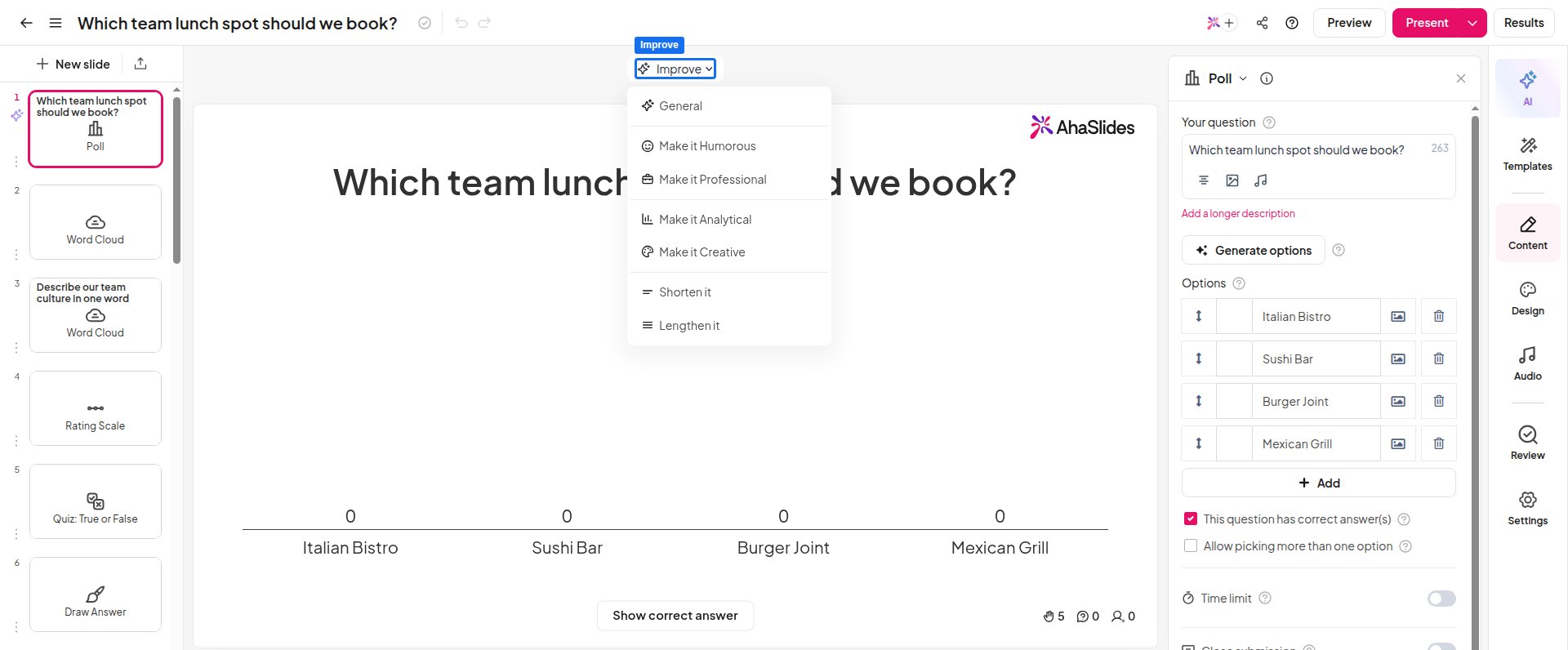 借助这些选项,您可以快速调整内容,使其契合您的受众和演示目标。
**有疑问?**
请联系我们的支持团队:如果您已登录,请使用控制面板右下角的聊天图标;如果尚未登录,请[在此联系我们](https://ahaslides.com/contact-us/),或发送邮件至 [hi@ahaslides.com](mailto:hi@ahaslides.com)。
想与其他用户交流?欢迎加入 [AhaSlides 社区](https://community.ahaslides.com/),分享使用技巧、提出功能建议,了解其他人如何与观众互动。
This documentation is built and hosted on [Mintlify](https://mintlify.com), a developer documentation platform.
借助这些选项,您可以快速调整内容,使其契合您的受众和演示目标。
**有疑问?**
请联系我们的支持团队:如果您已登录,请使用控制面板右下角的聊天图标;如果尚未登录,请[在此联系我们](https://ahaslides.com/contact-us/),或发送邮件至 [hi@ahaslides.com](mailto:hi@ahaslides.com)。
想与其他用户交流?欢迎加入 [AhaSlides 社区](https://community.ahaslides.com/),分享使用技巧、提出功能建议,了解其他人如何与观众互动。
This documentation is built and hosted on [Mintlify](https://mintlify.com), a developer documentation platform.