> ## Documentation Index
> Fetch the complete documentation index at: https://docs.ahaslides.com/llms.txt
> Use this file to discover all available pages before exploring further.
# 创建并发布系列课程
> 用课程、页面和模块构建自定进度的系列课程,发布并分享学员链接,还可邀请其他 AhaSlides 用户一起制作。
系列课程是一组自定进度的课程,学习者可按自己的速度学习。您用课程来构建它,每个课程由页面组成,每个页面由文本、图片、视频和知识测验等模块组成。准备好后,您发布它,并将一个链接分享给学员。之后您可以[管理谁来学习](/cn/features-and-functions/manage-learners-for-courses),并[查看学员的学习情况](/cn/features-and-functions/read-your-course-report)。
## 创建系列课程
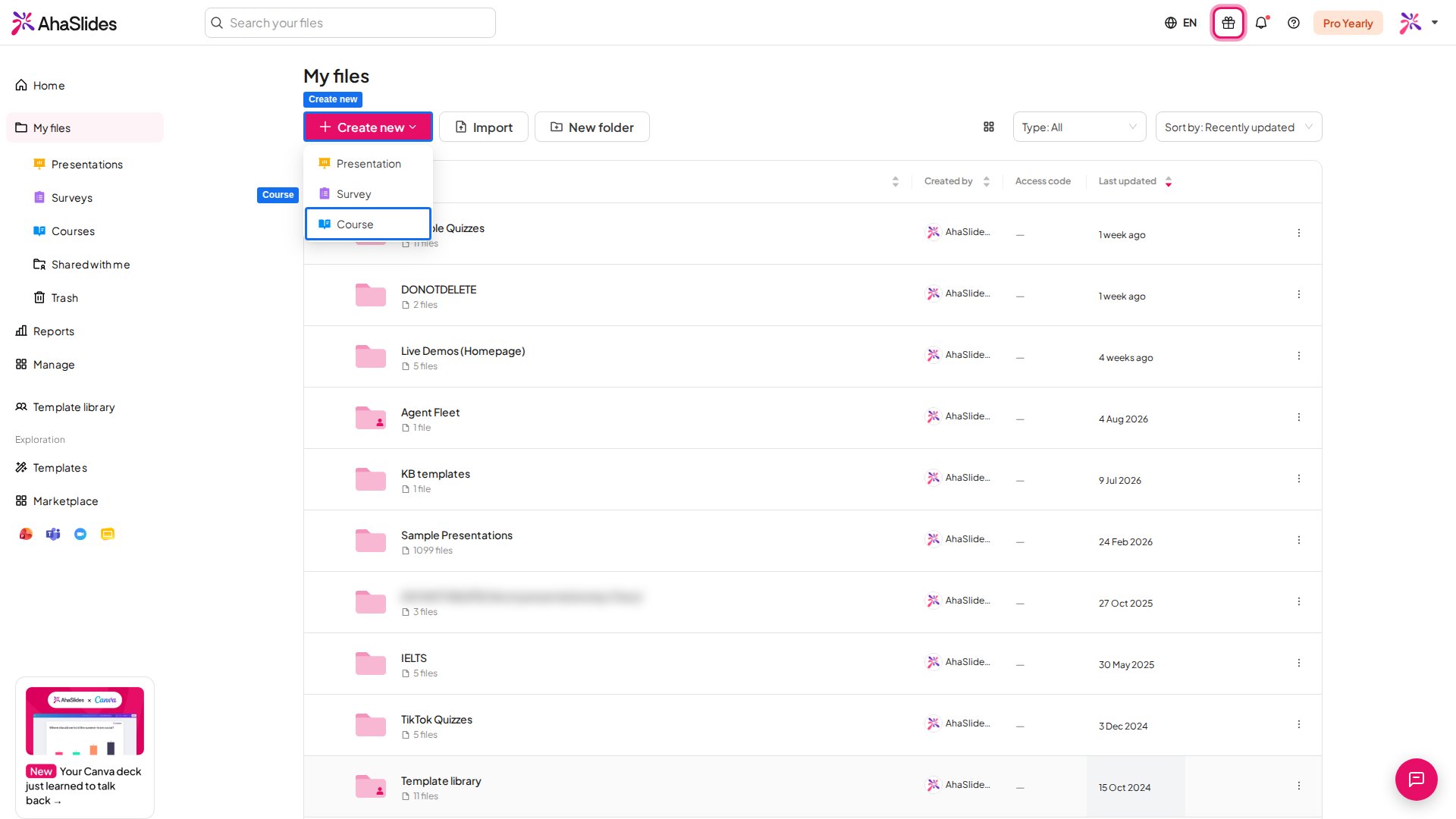
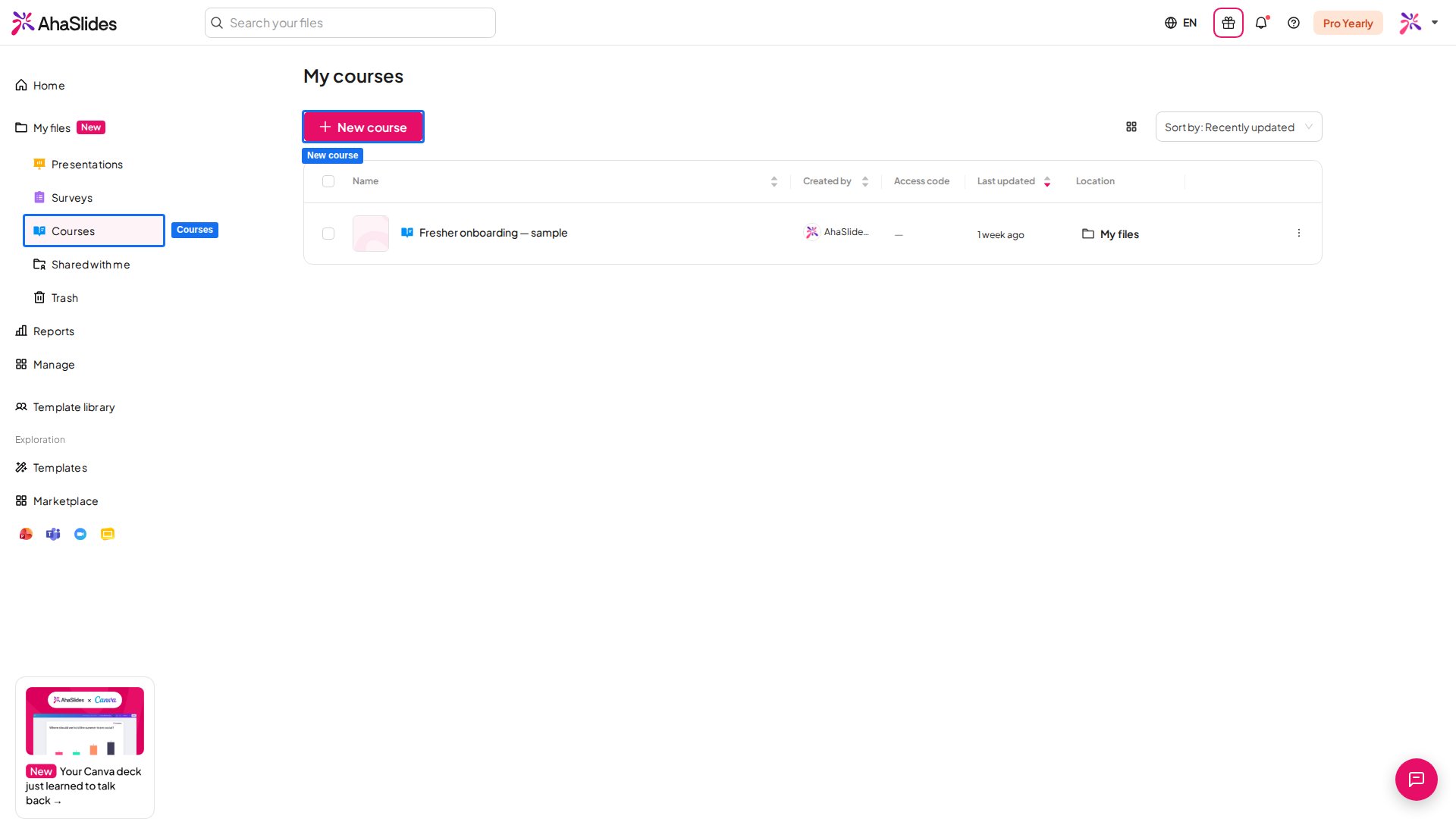
打开 **My files**,单击 **Create new** 并选择 **Course**。您也可以在侧边栏的 **My files** 下单击 **系列课程** (Courses),然后单击 **New course**。系列课程目前处于测试阶段。AhaSlides 会打开课程编辑器,其中有一个名为 **Untitled course** 的新系列课程。
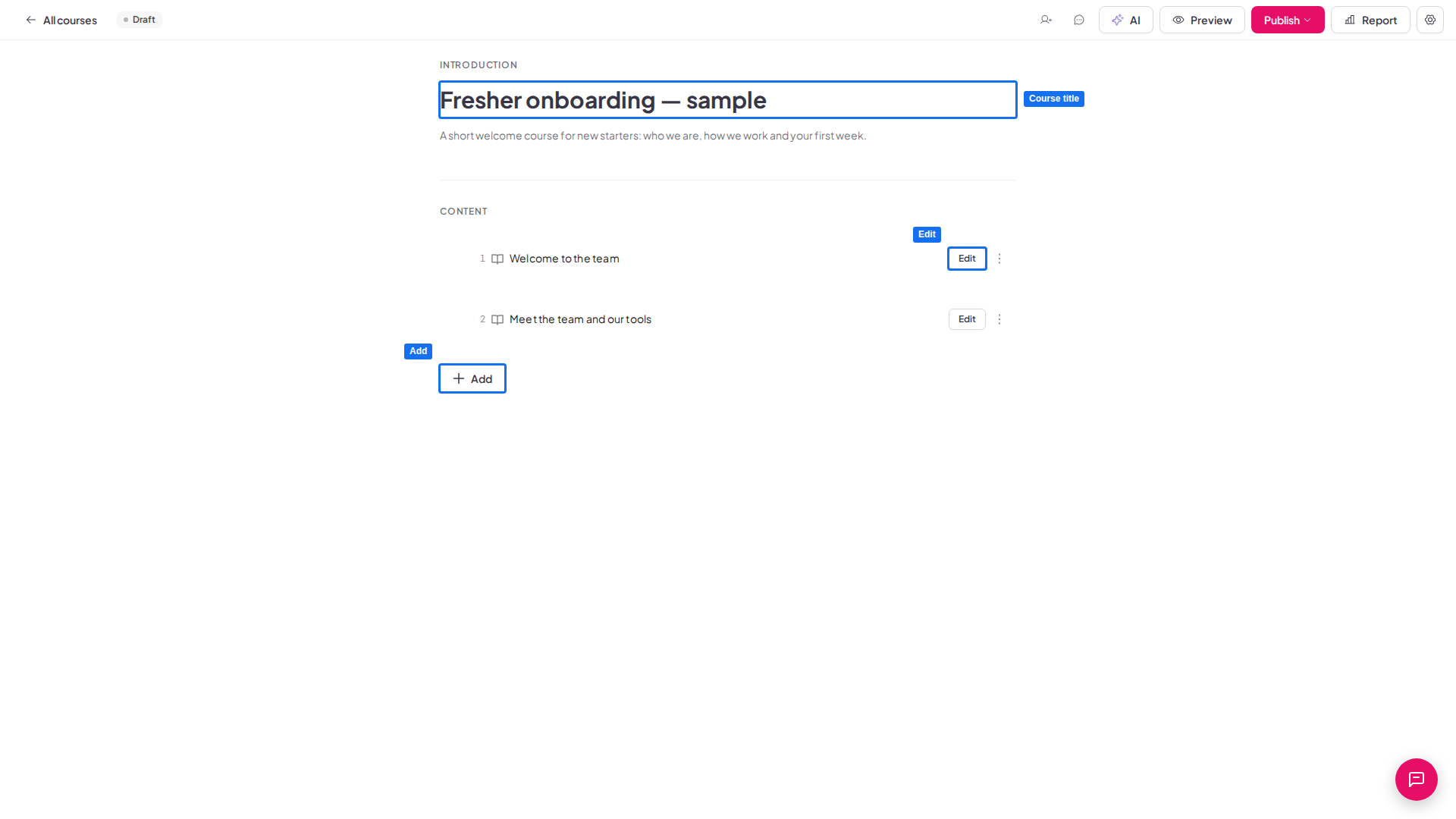
 将 **Untitled course** 替换为您自己的标题,如有需要可添加说明。学员会在课程页面上看到这两项。
您的新系列课程已有一个 **First lesson**。若要添加另一个,请单击列表下方的 **添加** (Add) 并选择 **课程** (Lesson)。每个新课程都以 **Untitled lesson** 开始。
您构建的每个系列课程都列在侧边栏的 **系列课程** (Courses) 下。单击某个系列课程可再次打开它,或单击其所在行末尾的 **⋮** 菜单来 **重新命名** (Rename)、**重复** (Duplicate)、**移至** (Move to) 某个文件夹或 **移到垃圾桶** (Move to Trash)。
将 **Untitled course** 替换为您自己的标题,如有需要可添加说明。学员会在课程页面上看到这两项。
您的新系列课程已有一个 **First lesson**。若要添加另一个,请单击列表下方的 **添加** (Add) 并选择 **课程** (Lesson)。每个新课程都以 **Untitled lesson** 开始。
您构建的每个系列课程都列在侧边栏的 **系列课程** (Courses) 下。单击某个系列课程可再次打开它,或单击其所在行末尾的 **⋮** 菜单来 **重新命名** (Rename)、**重复** (Duplicate)、**移至** (Move to) 某个文件夹或 **移到垃圾桶** (Move to Trash)。
 ## 整理您的课程
课程按学员学习的顺序显示为编号列表。
1. 若要编写某个课程,请单击其所在行的 **编辑** (Edit)。
2. 若要重命名某个课程,请单击其所在行的 **⋮** 菜单并选择 **重新命名** (Rename)。
3. 若要更改顺序,请拖动课程的手柄。
4. 若要删除某个课程,请单击 **⋮** 菜单,选择 **删除** (Delete) 并确认。学员对该课程的回答会从您的报告中移除。
## 整理您的课程
课程按学员学习的顺序显示为编号列表。
1. 若要编写某个课程,请单击其所在行的 **编辑** (Edit)。
2. 若要重命名某个课程,请单击其所在行的 **⋮** 菜单并选择 **重新命名** (Rename)。
3. 若要更改顺序,请拖动课程的手柄。
4. 若要删除某个课程,请单击 **⋮** 菜单,选择 **删除** (Delete) 并确认。学员对该课程的回答会从您的报告中移除。
 ## 用页面和模块构建课程
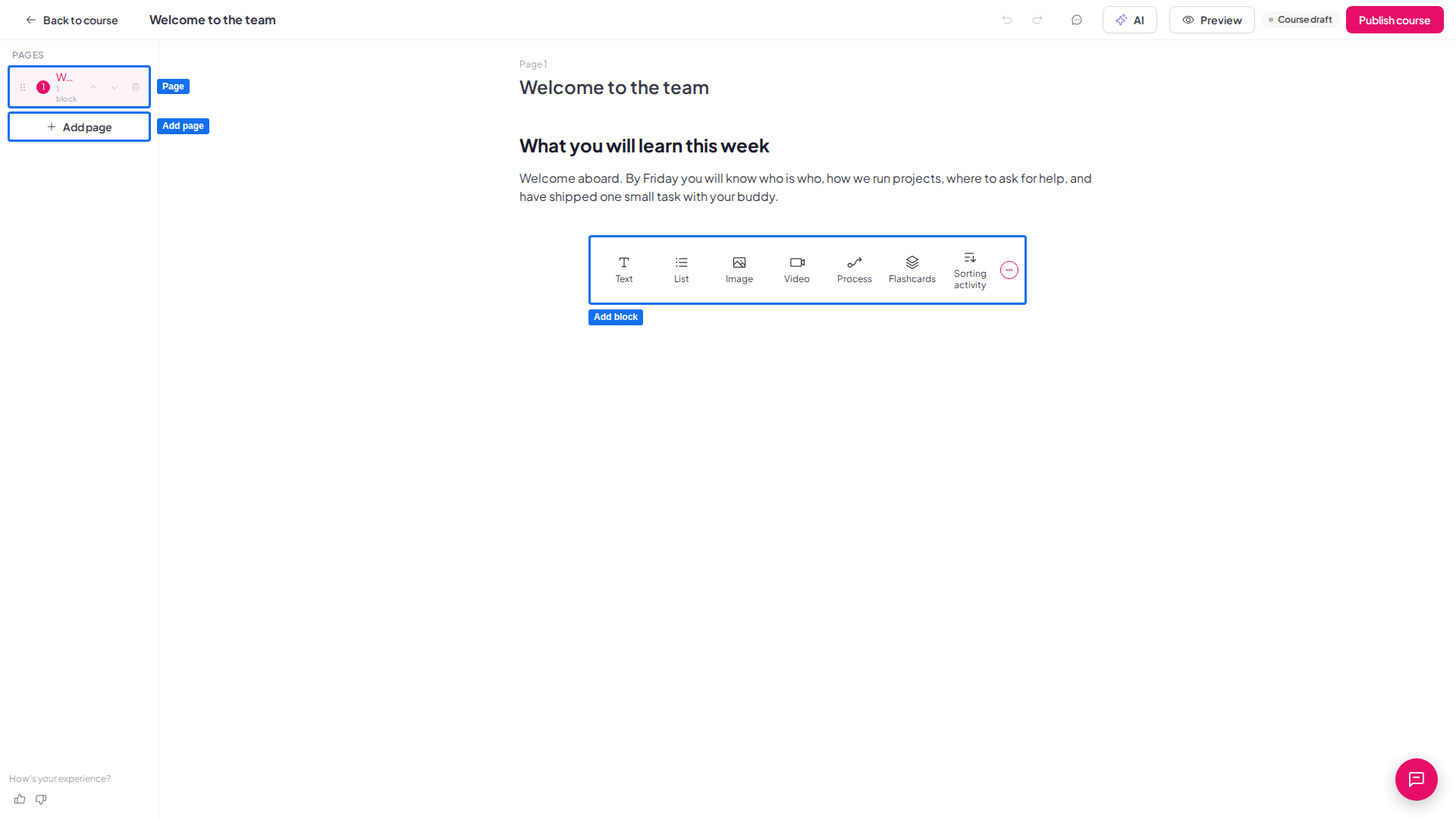
每个课程都在自己的编辑器中打开。课程是页面列表,显示在 **Pages** 面板中,每个页面包含学员阅读和回答的模块。
* **页面:** 单击 **Add page**,为其命名,并拖动页面来重新排序。删除页面也会删除其上的所有模块。
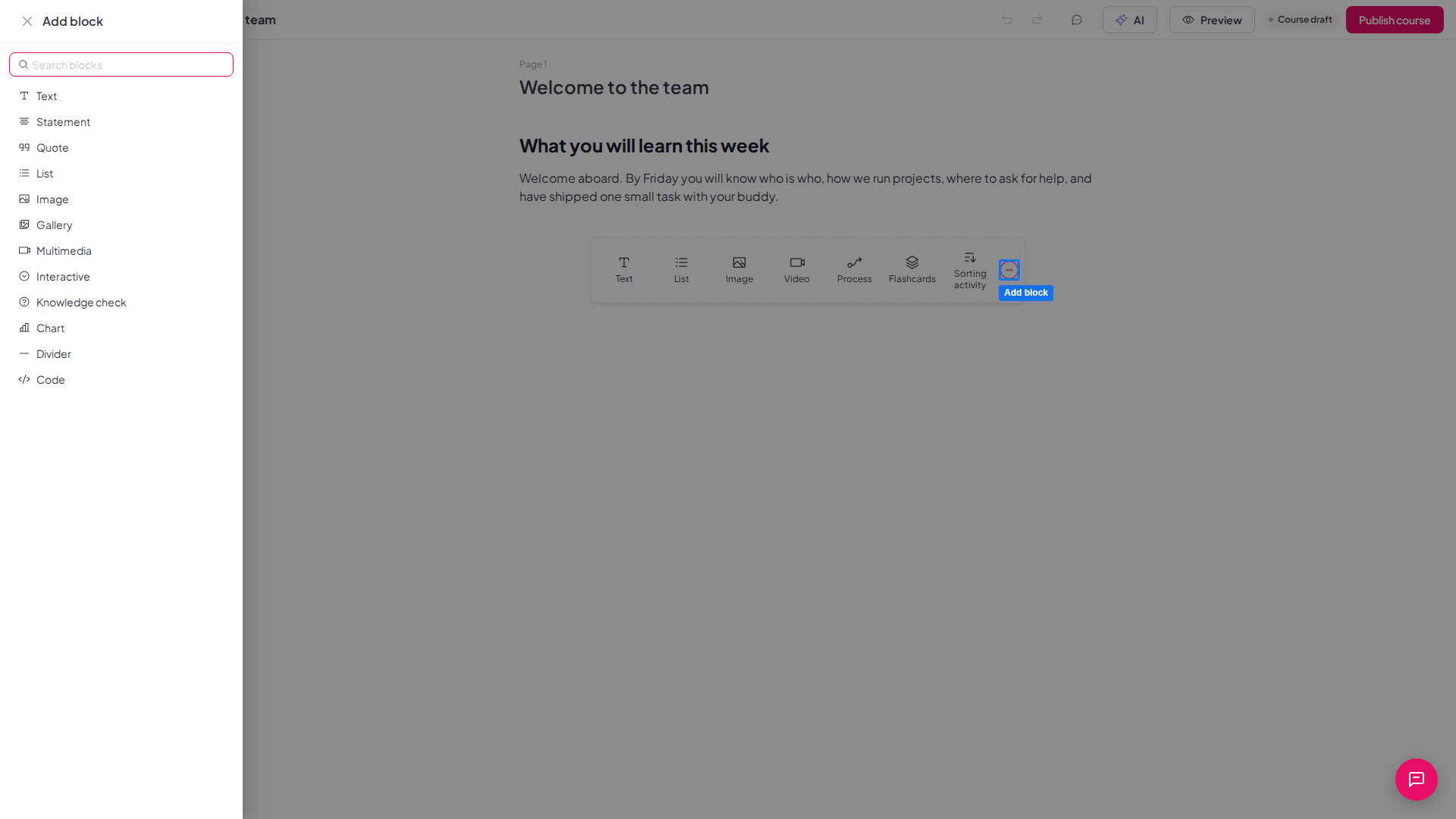
* **模块:** 从内容下方的栏中选择模块类型,或单击 **Add block** 打开抽屉,然后选择一个类别或在 **Search blocks** 中输入。每个类别提供不同的布局。
* **编辑模块:** 单击它即可更改其内容。您可以通过其控件复制、移动或删除模块。
## 用页面和模块构建课程
每个课程都在自己的编辑器中打开。课程是页面列表,显示在 **Pages** 面板中,每个页面包含学员阅读和回答的模块。
* **页面:** 单击 **Add page**,为其命名,并拖动页面来重新排序。删除页面也会删除其上的所有模块。
* **模块:** 从内容下方的栏中选择模块类型,或单击 **Add block** 打开抽屉,然后选择一个类别或在 **Search blocks** 中输入。每个类别提供不同的布局。
* **编辑模块:** 单击它即可更改其内容。您可以通过其控件复制、移动或删除模块。
 | 模块类别 | 您可以添加的内容 |
| - | - |
| **Text** | 段落和标题,包括两栏文本 |
| **Statement** | 多种样式的提示文本 |
| **Quote** | 带或不带头像或图片的引文 |
| **List** | 项目符号列表、编号列表或复选框列表 |
| **Image** | 单张图片、全宽、带文字或文字在上方 |
| **Gallery** | 轮播或图片网格 |
| **Multimedia** | **Video**、**Audio**、**Attachment** 和 **嵌入** (Embed) |
| **Interactive** | **Reveal list**、**Flashcards**、**Sorting activity**、**Scenario**、**Labeled graphic**、**Cards** 和 **Button** |
| **Knowledge check** | **Multiple choice**、**Multiple response**、**Fill in the blank** 和 **Matching** |
| **Chart** | 条形图、折线图或饼图 |
| **Divider** | 分隔线、间隔或带编号的分隔线,以及 **继续** (Continue) 模块 |
| **Code** | 格式化代码 |
| 模块类别 | 您可以添加的内容 |
| - | - |
| **Text** | 段落和标题,包括两栏文本 |
| **Statement** | 多种样式的提示文本 |
| **Quote** | 带或不带头像或图片的引文 |
| **List** | 项目符号列表、编号列表或复选框列表 |
| **Image** | 单张图片、全宽、带文字或文字在上方 |
| **Gallery** | 轮播或图片网格 |
| **Multimedia** | **Video**、**Audio**、**Attachment** 和 **嵌入** (Embed) |
| **Interactive** | **Reveal list**、**Flashcards**、**Sorting activity**、**Scenario**、**Labeled graphic**、**Cards** 和 **Button** |
| **Knowledge check** | **Multiple choice**、**Multiple response**、**Fill in the blank** 和 **Matching** |
| **Chart** | 条形图、折线图或饼图 |
| **Divider** | 分隔线、间隔或带编号的分隔线,以及 **继续** (Continue) 模块 |
| **Code** | 格式化代码 |
 您可以从设备上传图片或粘贴图片链接。对于视频、音频和附件,请改为粘贴链接:视频使用 **YouTube、Vimeo 或直接视频 URL**,音频使用音频 URL,附件使用文件 URL。请为每张图片添加替代文字,让看不到图片的学员也能理解它,或将其标记为装饰性图片。
您的更改会在工作时自动保存。当一切都是最新状态时,编辑器会显示 **已保存** (Saved)。
## 用 AI 构建系列课程
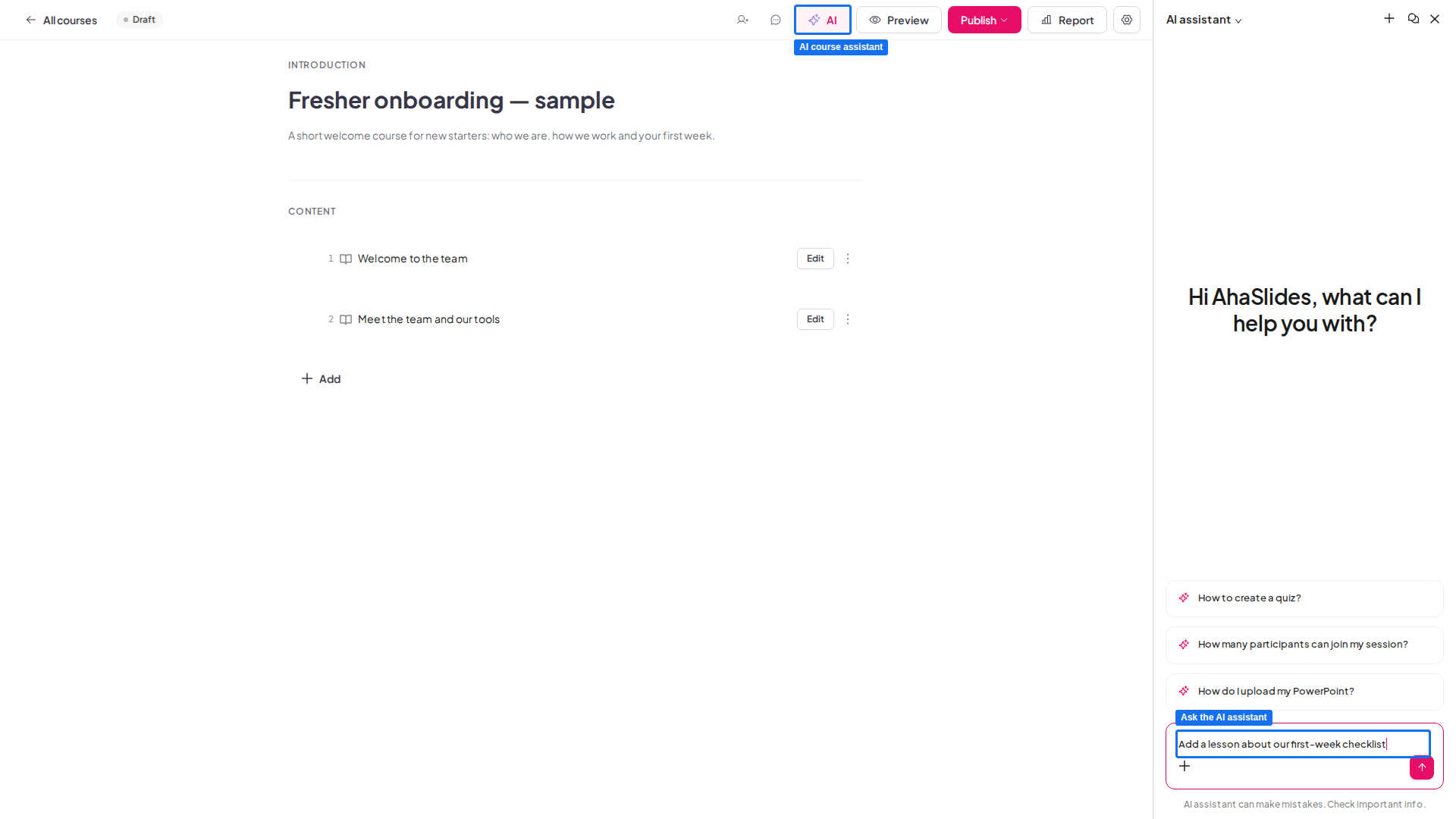
单击课程编辑器顶部栏中的 **AI**,打开 **AI assistant**。描述您的需求,它会在您打开的系列课程中添加和编辑课程。
您可以从设备上传图片或粘贴图片链接。对于视频、音频和附件,请改为粘贴链接:视频使用 **YouTube、Vimeo 或直接视频 URL**,音频使用音频 URL,附件使用文件 URL。请为每张图片添加替代文字,让看不到图片的学员也能理解它,或将其标记为装饰性图片。
您的更改会在工作时自动保存。当一切都是最新状态时,编辑器会显示 **已保存** (Saved)。
## 用 AI 构建系列课程
单击课程编辑器顶部栏中的 **AI**,打开 **AI assistant**。描述您的需求,它会在您打开的系列课程中添加和编辑课程。
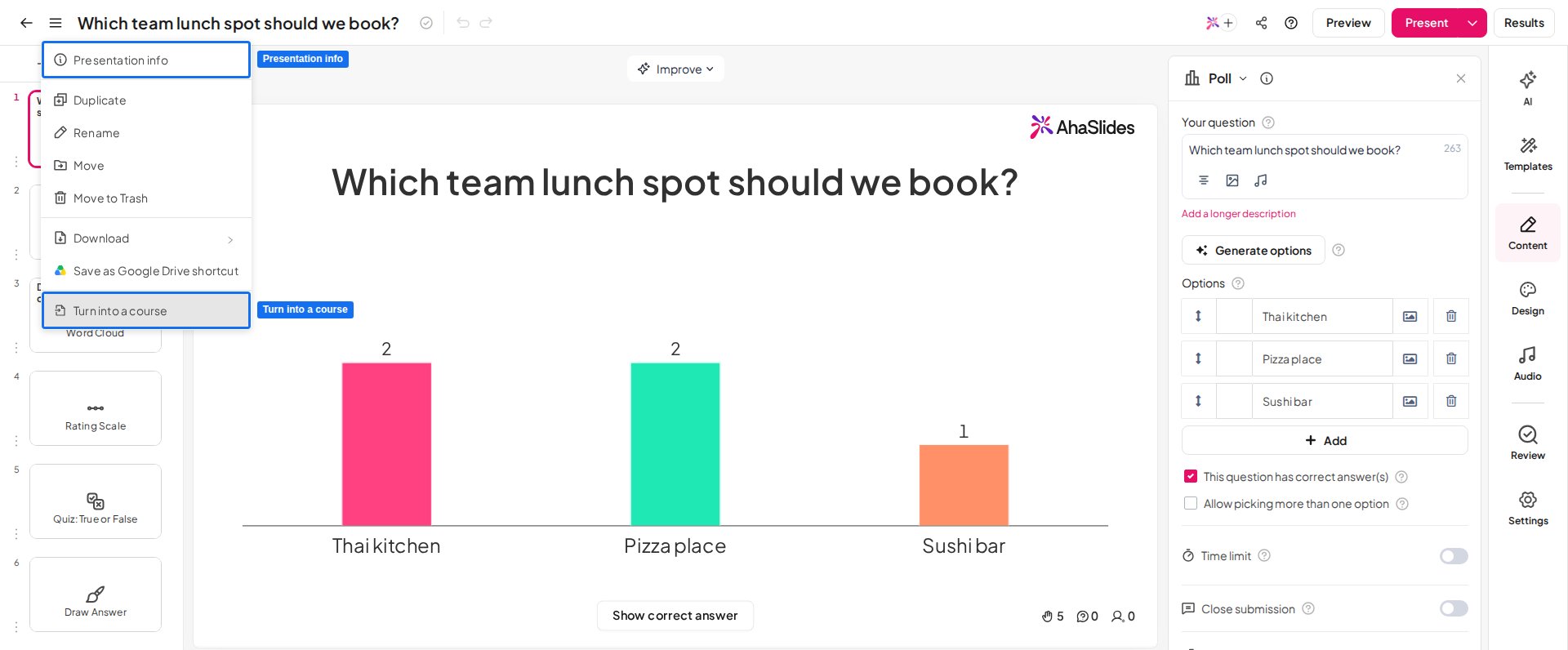
 您也可以从已有的演示文稿开始。在演示文稿编辑器中,打开左上角演示文稿名称旁的菜单并选择 **转为系列课程** (Turn into a course)。在 **My files** 中,您也可以单击某个演示文稿的 **⋮** 菜单并选择 **Create course**。AhaSlides 会创建一个新的系列课程草稿,AI 助手会将您的幻灯片转换到其中。发布前请检查结果。
 ## 预览您的系列课程
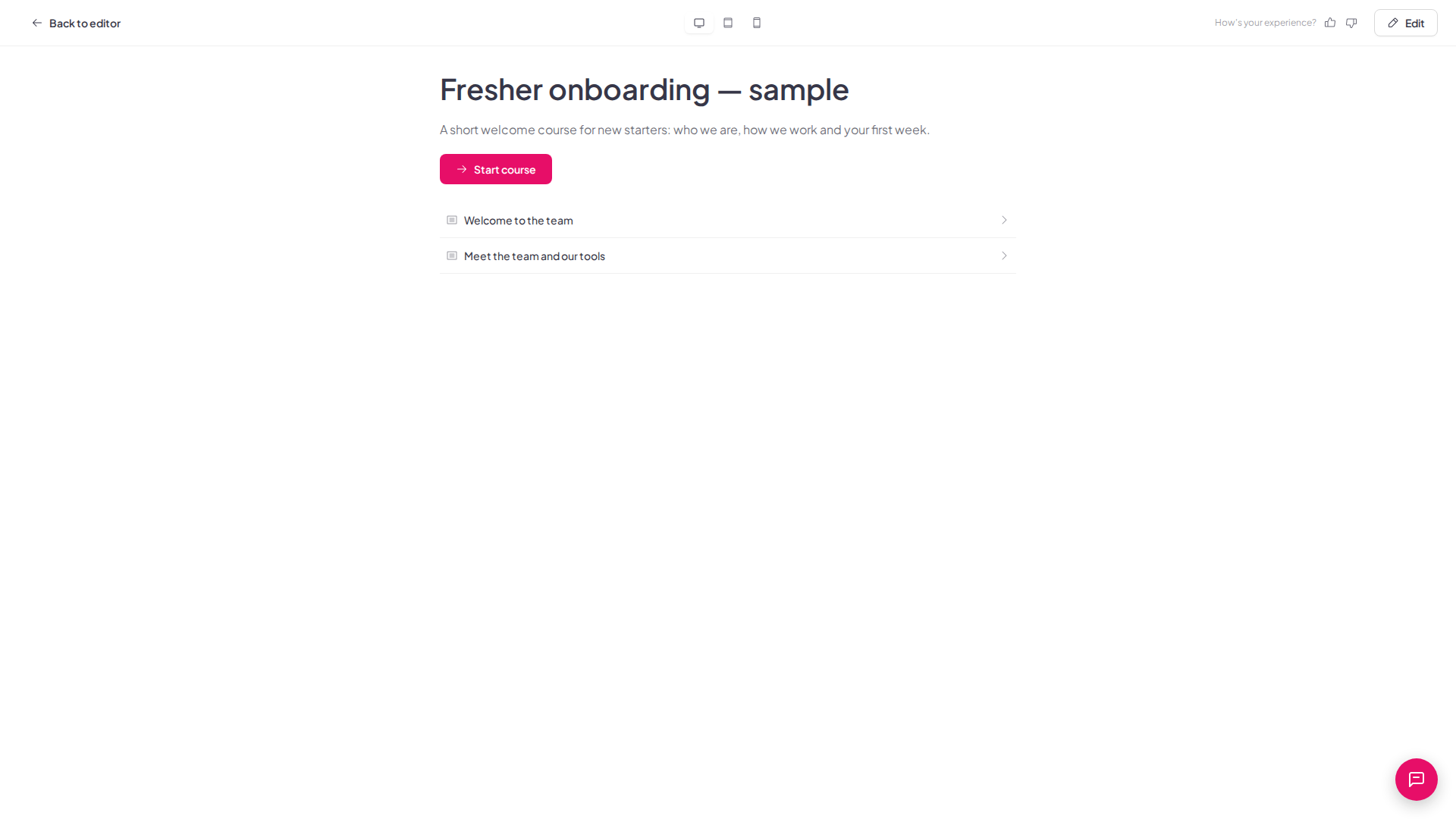
单击顶部栏中的 **预览** (Preview),在发布前按学员的视角查看系列课程。使用顶部的图标在桌面、平板和手机视图之间切换,并使用 **Back to editor** 继续构建。
## 预览您的系列课程
单击顶部栏中的 **预览** (Preview),在发布前按学员的视角查看系列课程。使用顶部的图标在桌面、平板和手机视图之间切换,并使用 **Back to editor** 继续构建。
 ## 设置完成要求和缩略图
从课程标题栏打开 **Course settings**。它有一个用于添加缩略图的 **一般** (General) 选项卡,以及一个用于选择何为完成的 **Completion** 选项卡。
* **缩略图:** 单击 **Add thumbnail** 并上传图片,或单击 **Use image URL** 并粘贴链接。请使用至少 1280 × 720 像素的 16:9 图片。缩略图显示在您的系列课程卡片上,让您能在列表中认出该系列课程。单击 **更改** (Change) 或 **删除** (Remove) 来更换或删除它。
* **完成规则:** 在 **Completion rules** 下,**All lessons finished** 始终开启。开启 **Minimum correct answers** 可设置学员在已回答的知识测验中必须答对的百分比,范围为 0 至 100。开启 **Minimum learning time** 可设置学员必须在系列课程中花费的分钟数,范围为 0 至 10,000。只开启您想要的项目,然后单击 **保存** (Save)。
最短学习时间会跨多次访问累计,闲置时间或停留在其他浏览器标签页的时间不计算在内。学员尚未回答的测验不计入正确率。学员在学习时会看到每项要求以及自己的进度,完成时会看到结果。有关学员看到的内容,请阅读[以学员身份参加系列课程](/cn/features-and-functions/take-a-course-as-a-learner)。
已保存的更改适用于当前学员,并且他们的进度会保留。
## 发布并分享您的系列课程
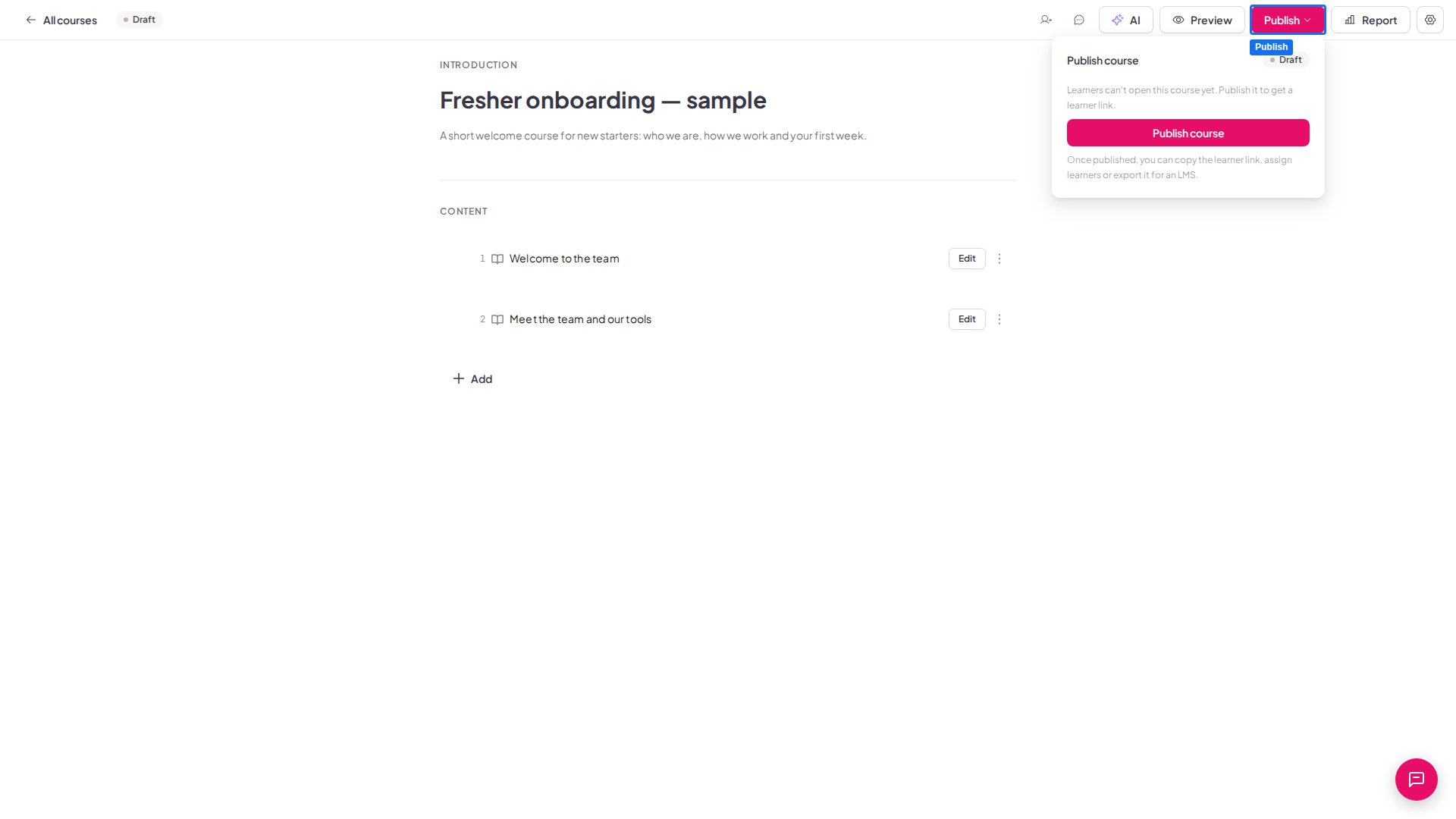
系列课程需要您自己的标题(而不是 **Untitled course**)以及某个课程中的一些内容。如果缺少什么,**出版** (Publish) 按钮会呈灰色,并有消息告诉您需要添加什么。
单击顶部栏中的 **出版** (Publish),然后单击 **Publish course**。系列课程会显示 **已发布** (Published) 标签,顶部栏的按钮会变为 **分享** (Share)。
## 设置完成要求和缩略图
从课程标题栏打开 **Course settings**。它有一个用于添加缩略图的 **一般** (General) 选项卡,以及一个用于选择何为完成的 **Completion** 选项卡。
* **缩略图:** 单击 **Add thumbnail** 并上传图片,或单击 **Use image URL** 并粘贴链接。请使用至少 1280 × 720 像素的 16:9 图片。缩略图显示在您的系列课程卡片上,让您能在列表中认出该系列课程。单击 **更改** (Change) 或 **删除** (Remove) 来更换或删除它。
* **完成规则:** 在 **Completion rules** 下,**All lessons finished** 始终开启。开启 **Minimum correct answers** 可设置学员在已回答的知识测验中必须答对的百分比,范围为 0 至 100。开启 **Minimum learning time** 可设置学员必须在系列课程中花费的分钟数,范围为 0 至 10,000。只开启您想要的项目,然后单击 **保存** (Save)。
最短学习时间会跨多次访问累计,闲置时间或停留在其他浏览器标签页的时间不计算在内。学员尚未回答的测验不计入正确率。学员在学习时会看到每项要求以及自己的进度,完成时会看到结果。有关学员看到的内容,请阅读[以学员身份参加系列课程](/cn/features-and-functions/take-a-course-as-a-learner)。
已保存的更改适用于当前学员,并且他们的进度会保留。
## 发布并分享您的系列课程
系列课程需要您自己的标题(而不是 **Untitled course**)以及某个课程中的一些内容。如果缺少什么,**出版** (Publish) 按钮会呈灰色,并有消息告诉您需要添加什么。
单击顶部栏中的 **出版** (Publish),然后单击 **Publish course**。系列课程会显示 **已发布** (Published) 标签,顶部栏的按钮会变为 **分享** (Share)。
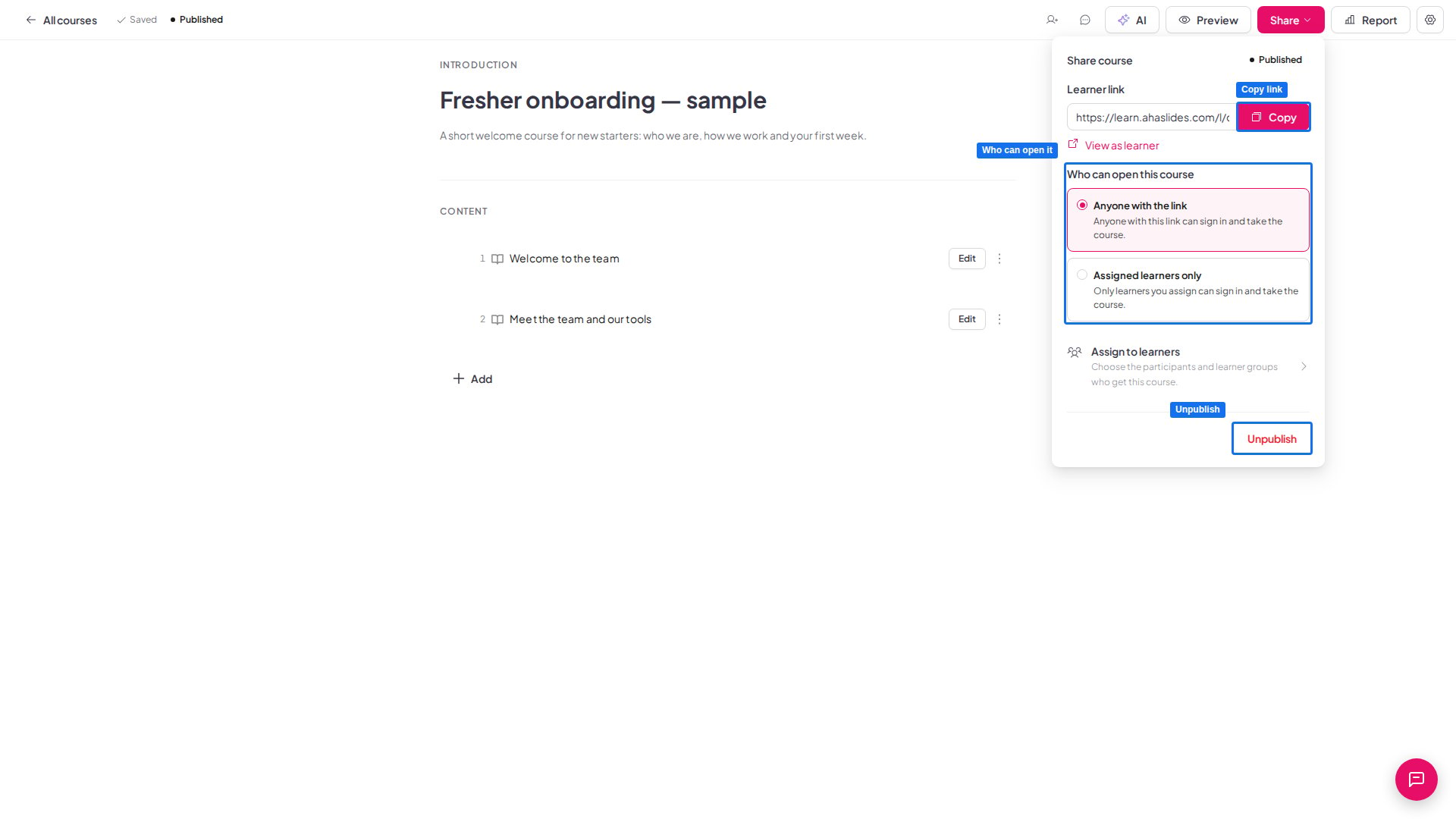
 单击 **分享** (Share) 打开 **Share course** 面板,然后单击 **Learner link** 旁的 **复制** (Copy),并将链接发送给您的学员。在 **Who can open this course** 下,选择 **任何获得链接的人** (Anyone with the link) 或 **Assigned learners only**。他们会看到 **Start course**,随着进度推进再看到 **Continue course** 和 **Review course**。**View as learner** 会打开学员页面,方便您检查效果。
 ### 选择谁可以打开系列课程
在 **Share course** 面板中,**Who can open this course** 有两个选项:**任何获得链接的人** (Anyone with the link),或 **Assigned learners only**。选择第二个时,只有您分配的学员才能登录并学习该系列课程。要添加参与者并选择分配对象,请参阅[管理系列课程的学员](/cn/features-and-functions/manage-learners-for-courses)。
**Share course** 面板中还有 **Assign to learners**,您可在此选择获得该系列课程的参与者。
若要下线系列课程,请单击 **分享** (Share),单击 **取消出版** (Unpublish) 并确认。在您再次发布之前,学员无法打开它,但他们的进度会保留。
若要查看学员的学习情况,请单击 **報告** (Report)。它显示 **概览** (Overview)、**By lesson** 结果和 **Learners** 选项卡,单击某位学员会打开其完整的活动记录。完整介绍请参阅[查看您的系列课程报告](/cn/features-and-functions/read-your-course-report)。
## 邀请协作者
您可以邀请其他 AhaSlides 用户来制作或审阅您的系列课程。在课程编辑器中,单击顶部栏中的 **添加协作者** (Add collaborators) 图标,输入一个或多个电子邮件地址,选择 **可以编辑** (Can edit) 或 **可以查看** (Can view),然后单击 **邀请** (Invite)。只有系列课程的所有者才能邀请或移除他人。
拥有 **可以编辑** (Can edit) 权限的协作者可以更改系列课程。拥有 **可以查看** (Can view) 权限的协作者可以打开和预览它,但不能编辑。受邀者可在 **Shared with me** 下找到该系列课程。完整步骤(包括更改或移除某人的访问权限)请参阅[向系列课程添加协作者](/cn/features-and-functions/how-to-collaborate-on-presentations-and-folders)。
## 常见问题
不可以。任何获得链接的人都可以打开它,但会先被要求登录或创建账户,以便将进度保存到其账户。
在学员门户 `learn.ahaslides.com`。**My courses** 列出学员的系列课程以及各自的进度。请参阅[以学员身份参加系列课程](/cn/features-and-functions/take-a-course-as-a-learner)。
不可以。只有系列课程的所有者才能发布或取消发布系列课程。拥有 **可以编辑** (Can edit) 权限的协作者仍可更改其内容。
会被保留。您再次发布系列课程后,学员可以从停下的地方继续学习。
**有疑问?**
请联系我们的支持团队:如果您已登录,请使用控制面板右下角的聊天图标;如果尚未登录,请[在此联系我们](https://ahaslides.com/contact-us/),或发送邮件至 [hi@ahaslides.com](mailto:hi@ahaslides.com)。
想与其他用户交流?欢迎加入 [AhaSlides 社区](https://community.ahaslides.com/),分享使用技巧、提出功能建议,了解其他人如何与观众互动。
This documentation is built and hosted on [Mintlify](https://mintlify.com), a developer documentation platform.
### 选择谁可以打开系列课程
在 **Share course** 面板中,**Who can open this course** 有两个选项:**任何获得链接的人** (Anyone with the link),或 **Assigned learners only**。选择第二个时,只有您分配的学员才能登录并学习该系列课程。要添加参与者并选择分配对象,请参阅[管理系列课程的学员](/cn/features-and-functions/manage-learners-for-courses)。
**Share course** 面板中还有 **Assign to learners**,您可在此选择获得该系列课程的参与者。
若要下线系列课程,请单击 **分享** (Share),单击 **取消出版** (Unpublish) 并确认。在您再次发布之前,学员无法打开它,但他们的进度会保留。
若要查看学员的学习情况,请单击 **報告** (Report)。它显示 **概览** (Overview)、**By lesson** 结果和 **Learners** 选项卡,单击某位学员会打开其完整的活动记录。完整介绍请参阅[查看您的系列课程报告](/cn/features-and-functions/read-your-course-report)。
## 邀请协作者
您可以邀请其他 AhaSlides 用户来制作或审阅您的系列课程。在课程编辑器中,单击顶部栏中的 **添加协作者** (Add collaborators) 图标,输入一个或多个电子邮件地址,选择 **可以编辑** (Can edit) 或 **可以查看** (Can view),然后单击 **邀请** (Invite)。只有系列课程的所有者才能邀请或移除他人。
拥有 **可以编辑** (Can edit) 权限的协作者可以更改系列课程。拥有 **可以查看** (Can view) 权限的协作者可以打开和预览它,但不能编辑。受邀者可在 **Shared with me** 下找到该系列课程。完整步骤(包括更改或移除某人的访问权限)请参阅[向系列课程添加协作者](/cn/features-and-functions/how-to-collaborate-on-presentations-and-folders)。
## 常见问题
不可以。任何获得链接的人都可以打开它,但会先被要求登录或创建账户,以便将进度保存到其账户。
在学员门户 `learn.ahaslides.com`。**My courses** 列出学员的系列课程以及各自的进度。请参阅[以学员身份参加系列课程](/cn/features-and-functions/take-a-course-as-a-learner)。
不可以。只有系列课程的所有者才能发布或取消发布系列课程。拥有 **可以编辑** (Can edit) 权限的协作者仍可更改其内容。
会被保留。您再次发布系列课程后,学员可以从停下的地方继续学习。
**有疑问?**
请联系我们的支持团队:如果您已登录,请使用控制面板右下角的聊天图标;如果尚未登录,请[在此联系我们](https://ahaslides.com/contact-us/),或发送邮件至 [hi@ahaslides.com](mailto:hi@ahaslides.com)。
想与其他用户交流?欢迎加入 [AhaSlides 社区](https://community.ahaslides.com/),分享使用技巧、提出功能建议,了解其他人如何与观众互动。
This documentation is built and hosted on [Mintlify](https://mintlify.com), a developer documentation platform.