> ## Documentation Index
> Fetch the complete documentation index at: https://docs.ahaslides.com/llms.txt
> Use this file to discover all available pages before exploring further.
# Adding and Deleting a Leaderboard on your Quiz
> How to add, delete, and re-enable a leaderboard slide on an AhaSlides quiz, and how to open the pop-up leaderboard during a live presentation.
A leaderboard displays the rankings and scores of participants in an AhaSlides quiz. After the final question, the leaderboard displays the winner.
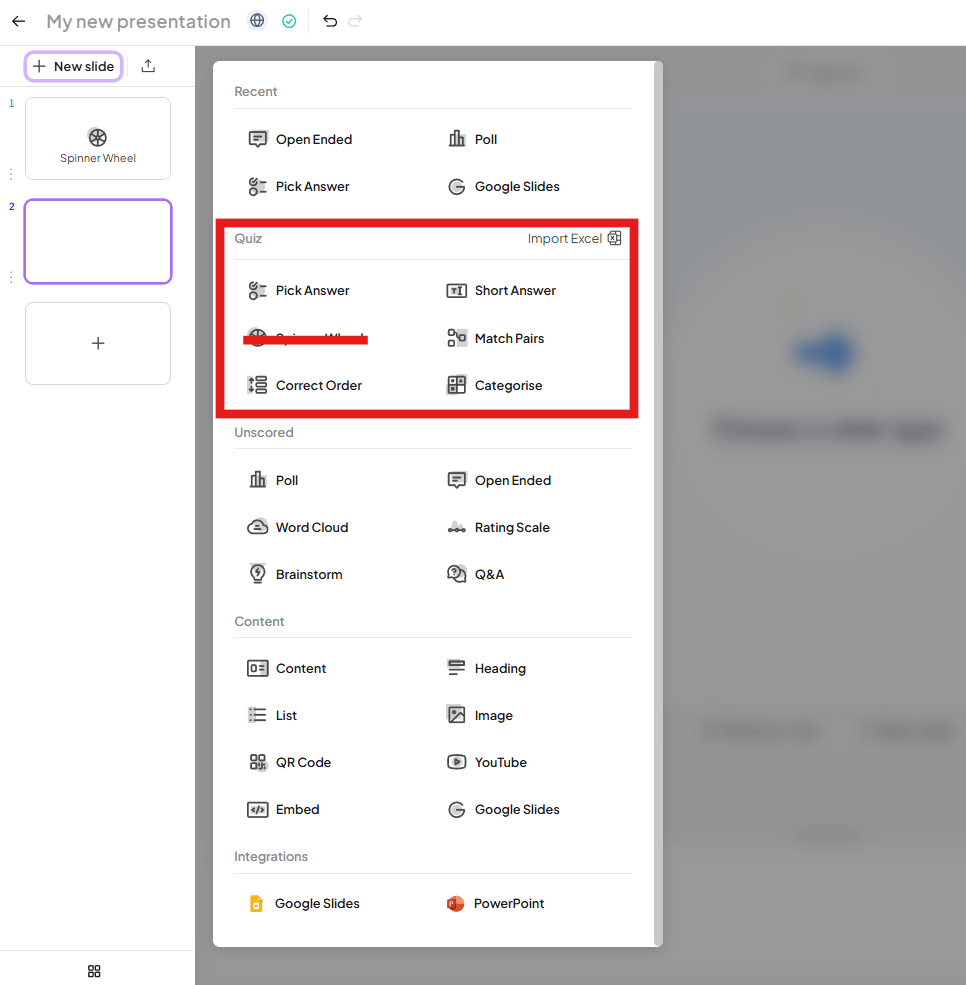
Leaderboards work only with quiz slide types: Pick Answer, Short Answer, Match Pairs, Correct Order, and Categorize. They do not work with Poll slides.
A leaderboard slide does not update in real time. It fetches the latest results only when you refresh it, or when you return or move to it from another slide, because it is designed for live presentations.
For more on building a quiz, see [How to make and run a quiz](/using-slide-types/how-to-make-and-run-a-quiz).
Below is an interactive demo, which will help you experience this function:
## The Leaderboard slide
### On the presenter screen
When you add a quiz slide (except the Spinner Wheel), AhaSlides automatically creates a leaderboard slide and places it after the quiz slide. If you do not see a leaderboard, you may have added a Poll slide instead of a quiz slide type.
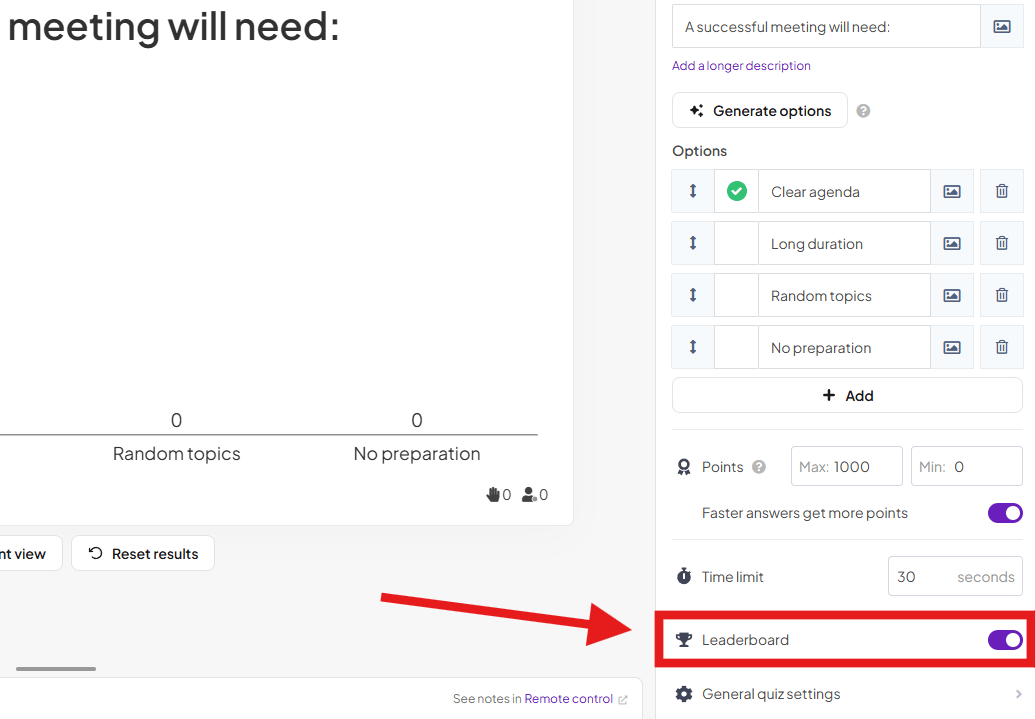
 You can delete any leaderboard slide without affecting the quiz slide that generated it. To show the leaderboard once per round instead of after every question, delete every leaderboard slide except the last one in each round.
To add a deleted leaderboard back, open the Content tab of the quiz slide and turn on the Leaderboard switch.
You can delete any leaderboard slide without affecting the quiz slide that generated it. To show the leaderboard once per round instead of after every question, delete every leaderboard slide except the last one in each round.
To add a deleted leaderboard back, open the Content tab of the quiz slide and turn on the Leaderboard switch.
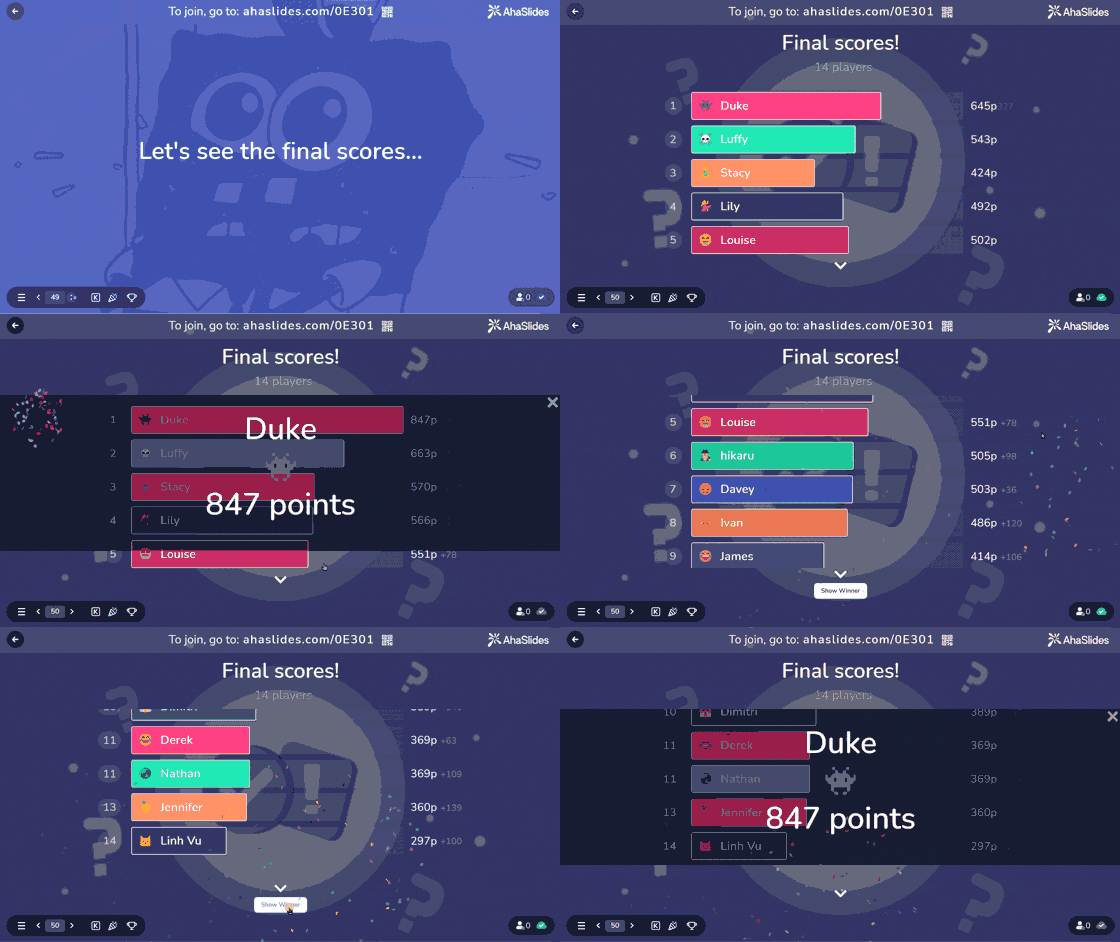
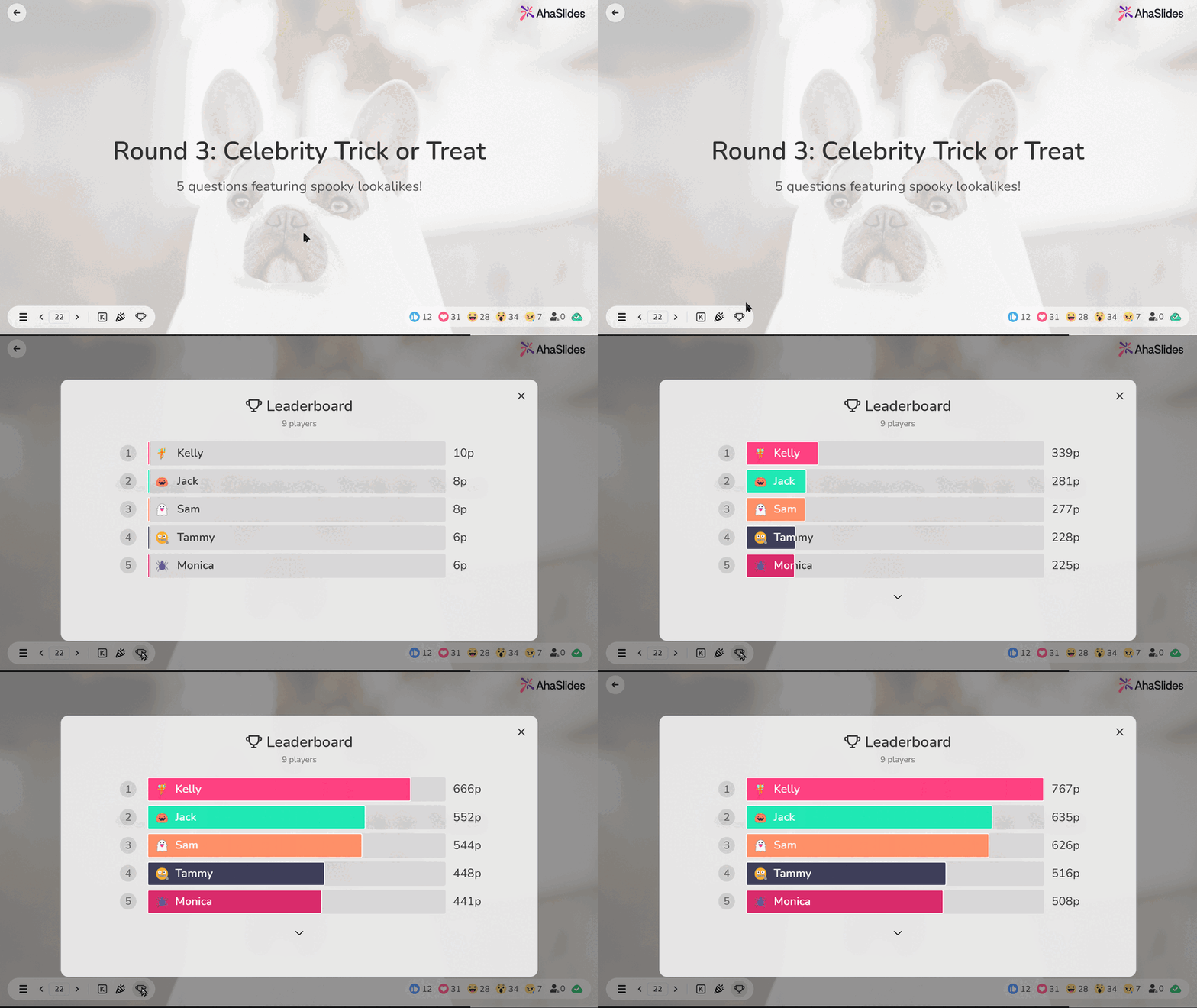
 Each leaderboard slide shows the top 5 participants, and the presenter can scroll down to see everyone else. The final leaderboard slide of your presentation displays the final scores and announces the winner of your quiz.
 ### On the audience screen
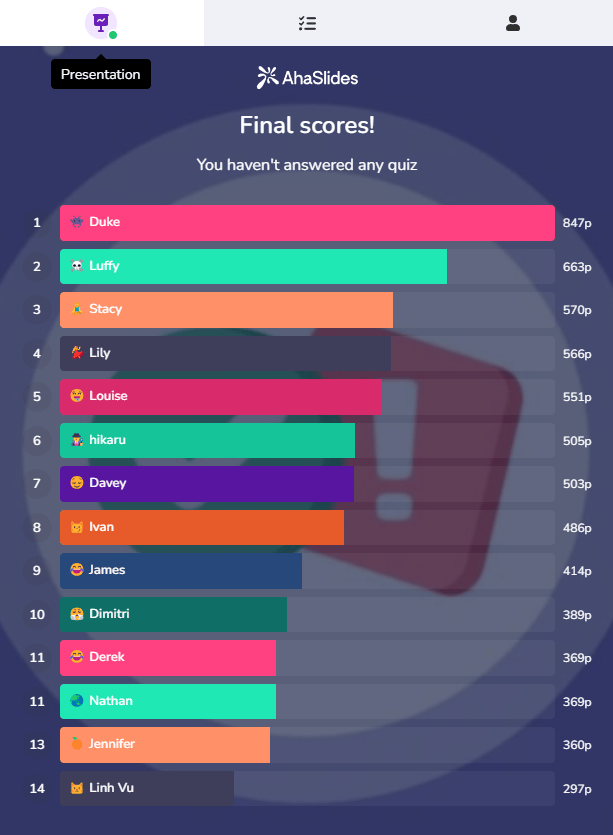
The leaderboard is also viewable on the audience's mobile devices. Every quiz player can see their own position in the table and can scroll up and down to reveal all positions on the leaderboard.
### On the audience screen
The leaderboard is also viewable on the audience's mobile devices. Every quiz player can see their own position in the table and can scroll up and down to reveal all positions on the leaderboard.
 ## The pop-up Leaderboard
The pop-up leaderboard lets a presenter check live scores at any point during a presentation. Press **L** on the keyboard, or click the **Trophy icon** in the control bar, to open it.
When you open the pop-up leaderboard, the audience screens stay unchanged. The leaderboard slides placed in your presentation still display as usual when they appear in the presentation flow.
The pop-up leaderboard always displays the final scores accumulated from all completed quizzes, regardless of when or where you open it.
## The pop-up Leaderboard
The pop-up leaderboard lets a presenter check live scores at any point during a presentation. Press **L** on the keyboard, or click the **Trophy icon** in the control bar, to open it.
When you open the pop-up leaderboard, the audience screens stay unchanged. The leaderboard slides placed in your presentation still display as usual when they appear in the presentation flow.
The pop-up leaderboard always displays the final scores accumulated from all completed quizzes, regardless of when or where you open it.
 ## Removing past participants from the leaderboard
The leaderboard keeps the names and scores of everyone who has played until you clear the presentation's results. If you reuse the same quiz with a new audience, the previous players will keep showing up alongside the new ones.
To remove past participants, **reset the results** of the presentation. This erases all participant submissions, including the leaderboard scores, and returns the quiz to its pre-audience state so only your next audience appears. Your questions, answers, and slides are not affected.
You can reset the results for the whole presentation or for a single slide. For the exact steps, see [Resetting the Results](/after-the-presentation/resetting-the-results).
Each reset starts a **new session** in your report, so the earlier players' scores are still saved in [Your AhaSlides Presentation Report](/after-the-presentation/your-ahaslides-presentation-report) even after they leave the live leaderboard.
## Frequently asked questions
A leaderboard is added automatically when you create any quiz slide except the Spinner Wheel, and it is placed right after that quiz slide. If you turned a leaderboard off, open the Content tab of the quiz slide and turn on the Leaderboard switch.
Delete the leaderboard slide the same way you delete any slide. This does not affect the quiz slide that generated it.
Open the Content tab of the quiz slide that the leaderboard belonged to, then turn on the Leaderboard switch.
Leaderboards work only with quiz slide types: Pick Answer, Short Answer, Match Pairs, Correct Order, and Categorize. If you added a Poll slide instead of a quiz slide, no leaderboard is created.
A leaderboard slide is designed for live presentations, so it does not update in real time. It fetches the latest results only when you refresh it or when you move to it from another slide.
Press **L** on your keyboard, or click the **Trophy icon** in the control bar. The audience screens stay unchanged, and it always shows the final scores accumulated from all completed quizzes.
Reset the presentation's results. The leaderboard holds every past player's name and score until the results are cleared, so resetting removes them and leaves only your next audience. You can reset the whole presentation or a single slide — see [Resetting the Results](/after-the-presentation/resetting-the-results). The earlier scores remain saved as a separate session in your [presentation report](/after-the-presentation/your-ahaslides-presentation-report).
## Related topics
- [How to Award and Deduct Extra Points on an AhaSlides Quiz](/presenting/how-to-award-and-deduct-extra-points-on-an-ahaslides-quiz.md)
- [How to Make and Run a Quiz in AhaSlides](/using-slide-types/how-to-make-and-run-a-quiz.md)
- [Creating and Importing Quiz Questions from a Spreadsheet/Excel file](/features-and-functions/creating-and-importing-quiz-questions-from-a-spreadsheet.md)
- [Using PowerPoint's AhaSlides Add-in](/integrations/using-powerpoint-s-ahaslides-add-in.md)
- [How to Create and Score a Pick Answer Quiz Slide](/using-slide-types/using-the-pick-answer-slide.md)
## Removing past participants from the leaderboard
The leaderboard keeps the names and scores of everyone who has played until you clear the presentation's results. If you reuse the same quiz with a new audience, the previous players will keep showing up alongside the new ones.
To remove past participants, **reset the results** of the presentation. This erases all participant submissions, including the leaderboard scores, and returns the quiz to its pre-audience state so only your next audience appears. Your questions, answers, and slides are not affected.
You can reset the results for the whole presentation or for a single slide. For the exact steps, see [Resetting the Results](/after-the-presentation/resetting-the-results).
Each reset starts a **new session** in your report, so the earlier players' scores are still saved in [Your AhaSlides Presentation Report](/after-the-presentation/your-ahaslides-presentation-report) even after they leave the live leaderboard.
## Frequently asked questions
A leaderboard is added automatically when you create any quiz slide except the Spinner Wheel, and it is placed right after that quiz slide. If you turned a leaderboard off, open the Content tab of the quiz slide and turn on the Leaderboard switch.
Delete the leaderboard slide the same way you delete any slide. This does not affect the quiz slide that generated it.
Open the Content tab of the quiz slide that the leaderboard belonged to, then turn on the Leaderboard switch.
Leaderboards work only with quiz slide types: Pick Answer, Short Answer, Match Pairs, Correct Order, and Categorize. If you added a Poll slide instead of a quiz slide, no leaderboard is created.
A leaderboard slide is designed for live presentations, so it does not update in real time. It fetches the latest results only when you refresh it or when you move to it from another slide.
Press **L** on your keyboard, or click the **Trophy icon** in the control bar. The audience screens stay unchanged, and it always shows the final scores accumulated from all completed quizzes.
Reset the presentation's results. The leaderboard holds every past player's name and score until the results are cleared, so resetting removes them and leaves only your next audience. You can reset the whole presentation or a single slide — see [Resetting the Results](/after-the-presentation/resetting-the-results). The earlier scores remain saved as a separate session in your [presentation report](/after-the-presentation/your-ahaslides-presentation-report).
## Related topics
- [How to Award and Deduct Extra Points on an AhaSlides Quiz](/presenting/how-to-award-and-deduct-extra-points-on-an-ahaslides-quiz.md)
- [How to Make and Run a Quiz in AhaSlides](/using-slide-types/how-to-make-and-run-a-quiz.md)
- [Creating and Importing Quiz Questions from a Spreadsheet/Excel file](/features-and-functions/creating-and-importing-quiz-questions-from-a-spreadsheet.md)
- [Using PowerPoint's AhaSlides Add-in](/integrations/using-powerpoint-s-ahaslides-add-in.md)
- [How to Create and Score a Pick Answer Quiz Slide](/using-slide-types/using-the-pick-answer-slide.md)