> ## Documentation Index
> Fetch the complete documentation index at: https://docs.ahaslides.com/llms.txt
> Use this file to discover all available pages before exploring further.
# Manage learners for your courses
> Add course participants, import and export them with CSV, add custom fields, view learner profiles and control who can open your courses.
**Manage** is where you keep the people who take your courses: participants and the custom fields that describe them. Use it with a [course you have published](/features-and-functions/create-and-publish-a-course) to decide who can open it and see each learner's progress.
## Manage at a glance
| Part of Manage | What it holds |
| - | - |
| **Participants** | Everyone in your workspace directory: add, search, edit, remove, import and export |
| **Custom fields** | Extra details about participants, such as department or position |
Participants and custom fields are shared across your workspace, so one person has one profile however many courses they take.
## Open Manage
Click **Manage** in the left sidebar of your AhaSlides dashboard. You can also get there from a published course: in the course editor, click **Share**, open **Assign to learners**, then click **Open Manage**.
Use the **Participants** and **Custom fields** tabs to move between participants and their custom fields.
## Choose who can open a course
In the **Share course** panel (the one that shows your learner link), use **Who can open this course** to pick one of two options.
| Option | Who can open the course |
| - | - |
| **Anyone with the link** | Anyone with the link, after they sign in or create an account. Learners who join this way appear on the course's learner list. |
| **Assigned learners only** | Only learners you assign can sign in and take the course. |
To choose who is assigned, click **Assign to learners** in the same panel and pick the participants who get the course. Assigning a course does not send an invitation email. Send the course link to your learners yourself.
## Add participants
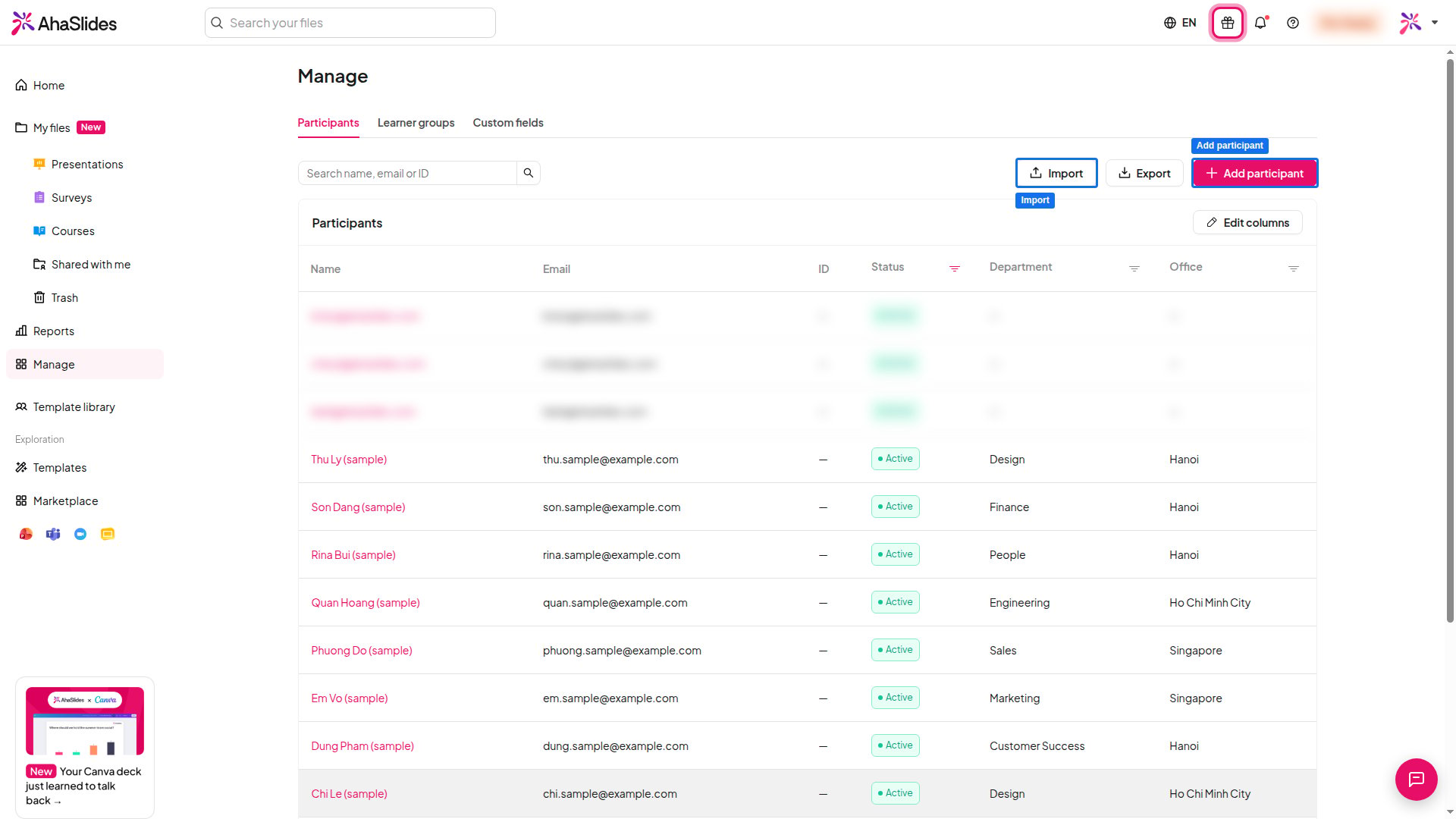 In Manage, open the **Participants** tab.
Click **Add participant**, then enter an email address, a display name and, if you use one, an external ID such as an employee or student code. Each email address and external ID can belong to one participant only.
Complete any custom fields you have created. Fields marked as required must have a value.
To find someone, type their name, email or ID into the search box. Click a participant to edit their details or remove them. A removed participant loses access to every course they were added to.
## Import and export participants with a CSV file
Import many participants at once from a CSV file with a header row. A file can hold up to 1,000 rows and be up to 1 MB.
On the **Participants** tab, click **Import**. To start from a ready-made file, click **Download CSV template**. It includes your current custom fields and an example row to replace.
Click **Upload file** or drag a `.csv` file onto the window.
Under **Column mapping**, check each destination in the **Maps to** column. Change a match, or map an unfamiliar header to an existing field. One column must map to **Email**, and each destination can be used only once. To add a field that does not exist yet, choose **Create field** in the **Maps to** menu. The field is saved straight away, even if you cancel the import.
Fix anything the check flags, then click **Import**. The import report shows how many participants were created, updated and skipped, with a reason for every skipped row.
Format values like this: dates as `YYYY-MM-DD`, yes/no values as `true` or `false`, numbers with a decimal point, and phone numbers with the country code. For a multi-select field, separate options with `;` or `|`. If a required custom field is not mapped or has a blank cell in any row, **Import** stays unavailable until you fix it.
To export your participants, click **Export** on the **Participants** tab.
## View a learner profile
Click a participant to open their profile. It shows their details and custom fields, and the courses they are assigned to, with their progress in each.
For a closer look at one course, open the [course report](/features-and-functions/read-your-course-report).
## Add custom fields
Custom fields hold extra details about each participant, such as department or position. You can use them in CSV imports. A workspace can have up to 50.
1. Open the **Custom fields** tab and click **Add field**.
2. Enter a **Label** and a **Key**. The key is the CSV column name, can use lowercase letters, digits and underscores, and cannot be changed later.
3. Choose a **Type**: text, select, multi-select, date, number, yes/no, email, URL or phone. A select or multi-select field needs at least one option.
4. Turn on **Required** if every participant must have a value.
Deleting a field removes its value from every participant.
## Frequently asked questions
No. Assigning a course gives access but does not send an invitation. Share the course link with your learners, who can then follow it as described in [Take a course as a learner](/features-and-functions/take-a-course-as-a-learner).
No. Learners cannot see another learner's private data, and only authorised admins can manage their workspace's participants.
Check that the file is a `.csv` with a header row, no larger than 1 MB and with no more than 1,000 rows. One column must map to **Email**, and every required custom field must be mapped and filled in on every row.
**Have a question?**
Contact our support team — if you're logged in, use the chat bubble in the bottom-right of your dashboard; otherwise [contact us here](https://ahaslides.com/contact-us/) or email [hi@ahaslides.com](mailto:hi@ahaslides.com).
Want to connect with other users? Join the [AhaSlides community](https://community.ahaslides.com/) to share tips, request features, and see how others engage their audiences.
This documentation is built and hosted on [Mintlify](https://mintlify.com), a developer documentation platform.
In Manage, open the **Participants** tab.
Click **Add participant**, then enter an email address, a display name and, if you use one, an external ID such as an employee or student code. Each email address and external ID can belong to one participant only.
Complete any custom fields you have created. Fields marked as required must have a value.
To find someone, type their name, email or ID into the search box. Click a participant to edit their details or remove them. A removed participant loses access to every course they were added to.
## Import and export participants with a CSV file
Import many participants at once from a CSV file with a header row. A file can hold up to 1,000 rows and be up to 1 MB.
On the **Participants** tab, click **Import**. To start from a ready-made file, click **Download CSV template**. It includes your current custom fields and an example row to replace.
Click **Upload file** or drag a `.csv` file onto the window.
Under **Column mapping**, check each destination in the **Maps to** column. Change a match, or map an unfamiliar header to an existing field. One column must map to **Email**, and each destination can be used only once. To add a field that does not exist yet, choose **Create field** in the **Maps to** menu. The field is saved straight away, even if you cancel the import.
Fix anything the check flags, then click **Import**. The import report shows how many participants were created, updated and skipped, with a reason for every skipped row.
Format values like this: dates as `YYYY-MM-DD`, yes/no values as `true` or `false`, numbers with a decimal point, and phone numbers with the country code. For a multi-select field, separate options with `;` or `|`. If a required custom field is not mapped or has a blank cell in any row, **Import** stays unavailable until you fix it.
To export your participants, click **Export** on the **Participants** tab.
## View a learner profile
Click a participant to open their profile. It shows their details and custom fields, and the courses they are assigned to, with their progress in each.
For a closer look at one course, open the [course report](/features-and-functions/read-your-course-report).
## Add custom fields
Custom fields hold extra details about each participant, such as department or position. You can use them in CSV imports. A workspace can have up to 50.
1. Open the **Custom fields** tab and click **Add field**.
2. Enter a **Label** and a **Key**. The key is the CSV column name, can use lowercase letters, digits and underscores, and cannot be changed later.
3. Choose a **Type**: text, select, multi-select, date, number, yes/no, email, URL or phone. A select or multi-select field needs at least one option.
4. Turn on **Required** if every participant must have a value.
Deleting a field removes its value from every participant.
## Frequently asked questions
No. Assigning a course gives access but does not send an invitation. Share the course link with your learners, who can then follow it as described in [Take a course as a learner](/features-and-functions/take-a-course-as-a-learner).
No. Learners cannot see another learner's private data, and only authorised admins can manage their workspace's participants.
Check that the file is a `.csv` with a header row, no larger than 1 MB and with no more than 1,000 rows. One column must map to **Email**, and every required custom field must be mapped and filled in on every row.
**Have a question?**
Contact our support team — if you're logged in, use the chat bubble in the bottom-right of your dashboard; otherwise [contact us here](https://ahaslides.com/contact-us/) or email [hi@ahaslides.com](mailto:hi@ahaslides.com).
Want to connect with other users? Join the [AhaSlides community](https://community.ahaslides.com/) to share tips, request features, and see how others engage their audiences.
This documentation is built and hosted on [Mintlify](https://mintlify.com), a developer documentation platform.