> ## Documentation Index
> Fetch the complete documentation index at: https://docs.ahaslides.com/llms.txt
> Use this file to discover all available pages before exploring further.
# How to present AhaSlides live inside Canva
> Paste your AhaSlides presenting link into Canva's Embed app to run live polls and quizzes on your Canva slide while your audience joins on their phones.
Run your AhaSlides polls, quizzes and other interactive slides directly from a Canva presentation. It is one of the [AhaSlides integrations](/integrations/index). Your audience joins and responds on their phones as usual, and the results appear live on your Canva slide.
## Before you start
* An AhaSlides account that is allowed to present the deck: you own it, or you're a collaborator who can present.
* A Canva design you want to add the presentation to.
* A deck that is not in private mode. A private deck shows in Canva as a link card rather than the live presentation.
## Step 1: Copy your live presenting link from AhaSlides
Open your presentation in AhaSlides. Click the **Share** icon in the top-right corner, then choose **Embed**. This is the same window you use to [embed your live presenting screen on a website](/presenting/embedding-ahaslides-to-your-website).
Or, from **My presentations**, open the deck's **⋮** menu, choose **Share**, then **Embed**.
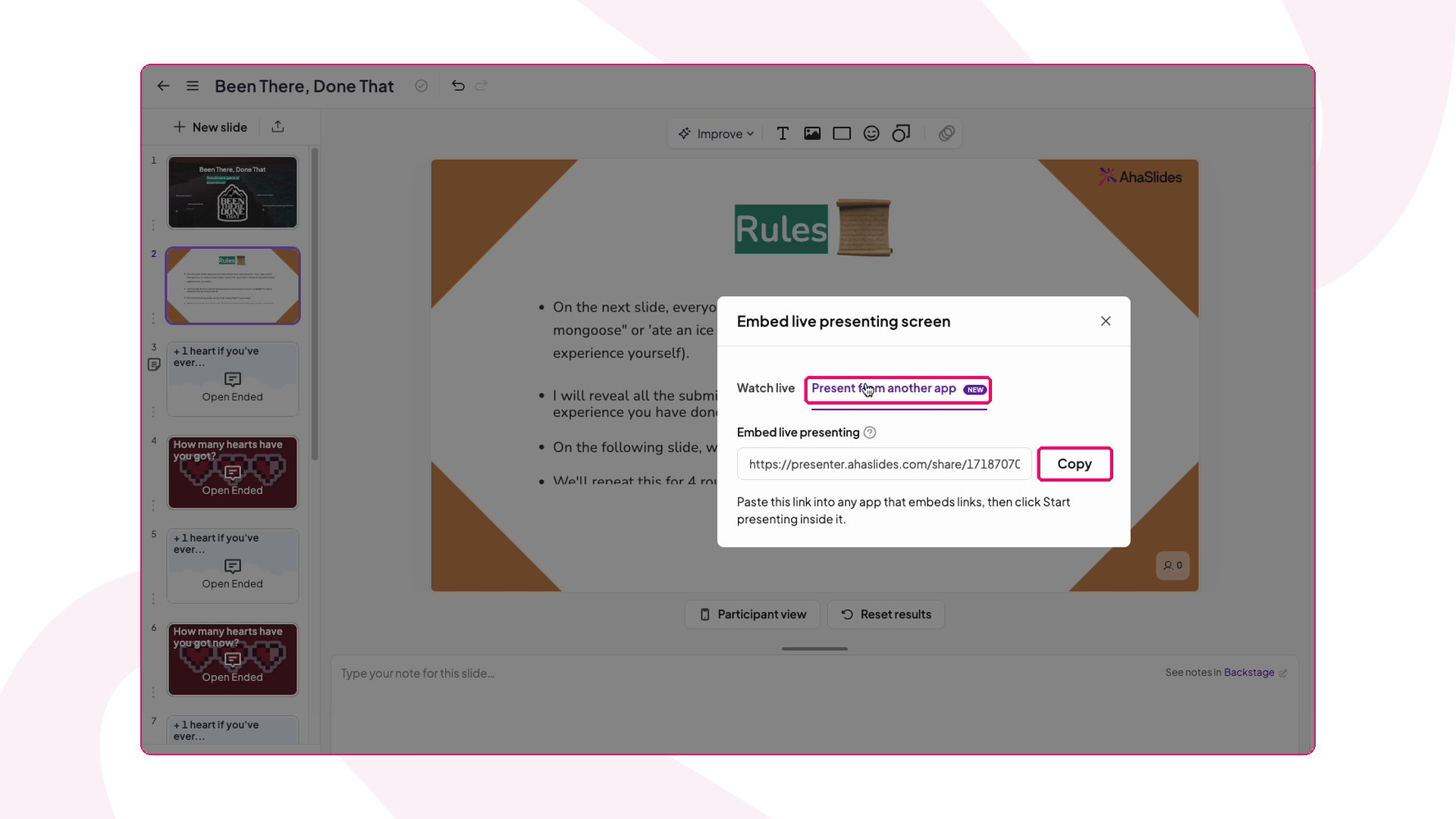
In the **Embed live presenting screen** window, open the **Present from another app** tab.
Click **Copy**. The link looks like `https://presenter.ahaslides.com/share/…/present`.
 ## Step 2: Add it to your Canva design
Open your design in Canva and go to the slide where you want the activity. In the left side panel, click **Apps**, then search for and open **Embed**.
## Step 2: Add it to your Canva design
Open your design in Canva and go to the slide where you want the activity. In the left side panel, click **Apps**, then search for and open **Embed**.
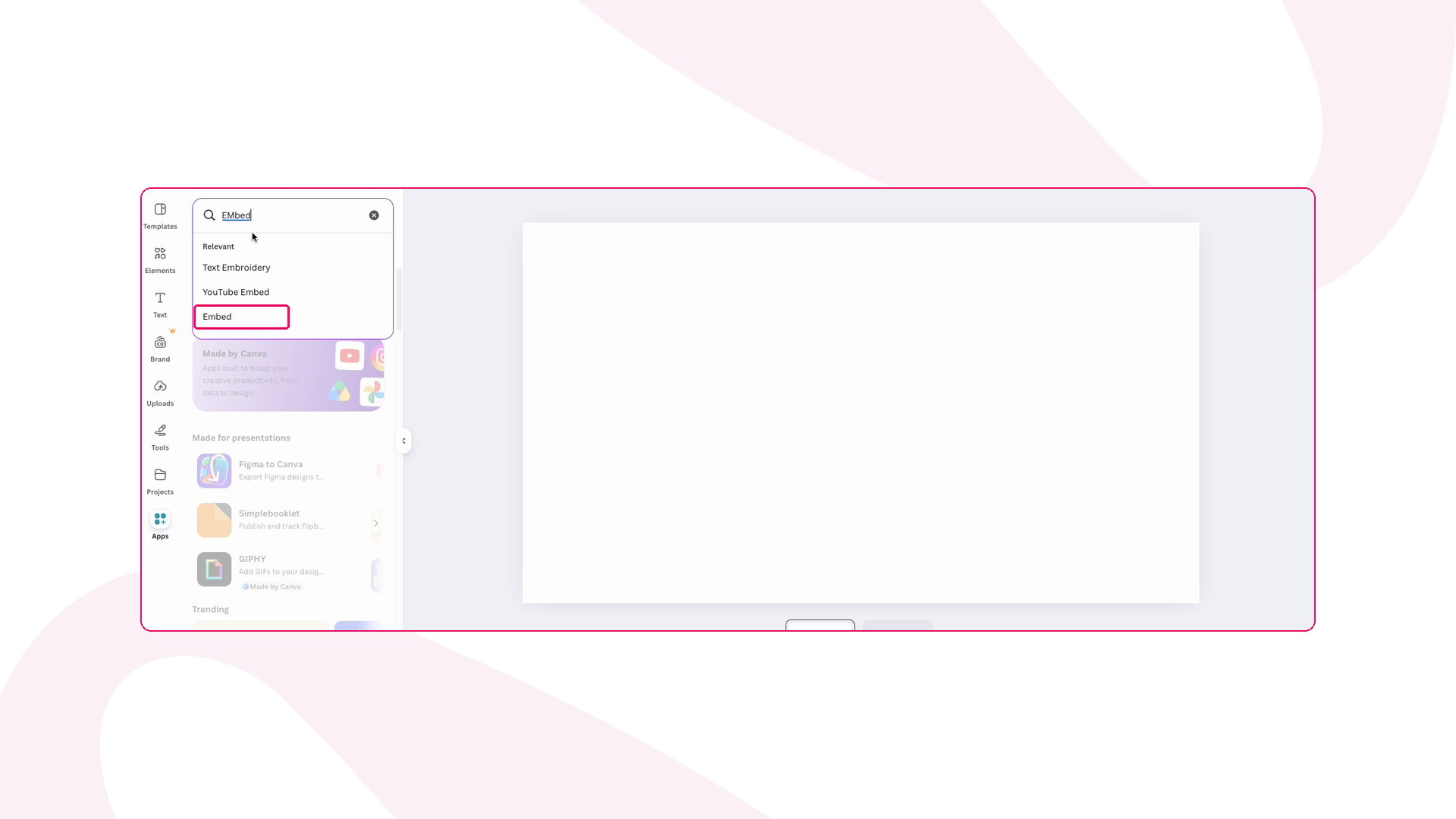 Paste your AhaSlides link and click **Add to design**.
Resize the embed to fill the slide. Your AhaSlides deck now appears live in the design.
## Step 3: Present from Canva
Start presenting your Canva design as usual and go to the slide with the embed.
If you see **Log in to present** in the top-right corner of the embed, click it and log in to AhaSlides in the pop-up window. When the pop-up closes, the button changes to **Start presenting**. You only need to do this the first time.
Click **Start presenting**. The AhaSlides presenting screen opens inside your Canva slide.
Paste your AhaSlides link and click **Add to design**.
Resize the embed to fill the slide. Your AhaSlides deck now appears live in the design.
## Step 3: Present from Canva
Start presenting your Canva design as usual and go to the slide with the embed.
If you see **Log in to present** in the top-right corner of the embed, click it and log in to AhaSlides in the pop-up window. When the pop-up closes, the button changes to **Start presenting**. You only need to do this the first time.
Click **Start presenting**. The AhaSlides presenting screen opens inside your Canva slide.
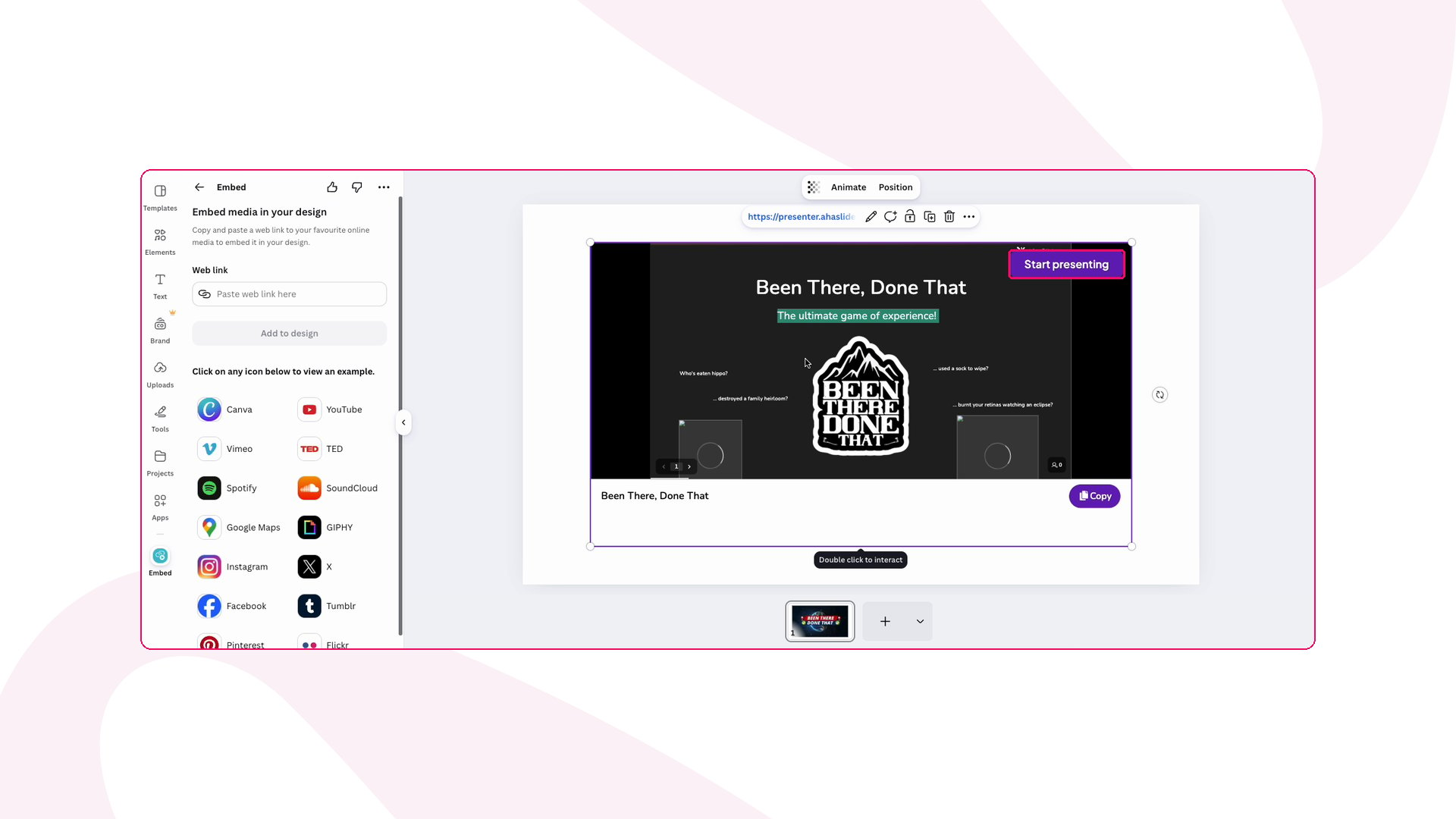 Your audience joins with the code or QR code on screen and responds on their phones. Results update live, and you move through your AhaSlides slides as usual.
## Good to know about presenting in Canva
* **Nothing goes live by accident.** Opening or editing the Canva design never starts your AhaSlides session. It only starts when you click **Start presenting**.
* **Who sees what.** People who can present the deck see **Start presenting**. Everyone else just sees your slides, with no button.
* **Just want to show the slides?** Paste the ordinary share link instead. It shows a live, view-only version of your deck in Canva.
* **Reloading resets the embed.** If you reload the Canva slide, the embed returns to the **Start presenting** screen. It doesn't resume on its own.
## Troubleshoot presenting in Canva
| What you see | What to do |
| - | - |
| A link card or thumbnail instead of your deck | Turn off private mode for the deck, and check you copied the link from the **Present from another app** tab. |
| A message asking you to allow pop-ups | Allow pop-ups for Canva in your browser, then click **Log in to present** again. |
| `You are logged in. Return to your app and click Log in to present again.` | Go back to your Canva tab and click **Log in to present** once more. |
| No **Start presenting** button after you log in | Your account can view this deck but can't present it. Ask the owner to give you presenting rights, or log in with the account that owns the deck. |
**Have a question?**
Contact our support team — if you're logged in, use the chat bubble in the bottom-right of your dashboard; otherwise [contact us here](https://ahaslides.com/contact-us/) or email [hi@ahaslides.com](mailto:hi@ahaslides.com).
Want to connect with other users? Join the [AhaSlides community](https://community.ahaslides.com/) to share tips, request features, and see how others engage their audiences.
This documentation is built and hosted on [Mintlify](https://mintlify.com), a developer documentation platform.
Your audience joins with the code or QR code on screen and responds on their phones. Results update live, and you move through your AhaSlides slides as usual.
## Good to know about presenting in Canva
* **Nothing goes live by accident.** Opening or editing the Canva design never starts your AhaSlides session. It only starts when you click **Start presenting**.
* **Who sees what.** People who can present the deck see **Start presenting**. Everyone else just sees your slides, with no button.
* **Just want to show the slides?** Paste the ordinary share link instead. It shows a live, view-only version of your deck in Canva.
* **Reloading resets the embed.** If you reload the Canva slide, the embed returns to the **Start presenting** screen. It doesn't resume on its own.
## Troubleshoot presenting in Canva
| What you see | What to do |
| - | - |
| A link card or thumbnail instead of your deck | Turn off private mode for the deck, and check you copied the link from the **Present from another app** tab. |
| A message asking you to allow pop-ups | Allow pop-ups for Canva in your browser, then click **Log in to present** again. |
| `You are logged in. Return to your app and click Log in to present again.` | Go back to your Canva tab and click **Log in to present** once more. |
| No **Start presenting** button after you log in | Your account can view this deck but can't present it. Ask the owner to give you presenting rights, or log in with the account that owns the deck. |
**Have a question?**
Contact our support team — if you're logged in, use the chat bubble in the bottom-right of your dashboard; otherwise [contact us here](https://ahaslides.com/contact-us/) or email [hi@ahaslides.com](mailto:hi@ahaslides.com).
Want to connect with other users? Join the [AhaSlides community](https://community.ahaslides.com/) to share tips, request features, and see how others engage their audiences.
This documentation is built and hosted on [Mintlify](https://mintlify.com), a developer documentation platform.