> ## Documentation Index
> Fetch the complete documentation index at: https://docs.ahaslides.com/llms.txt
> Use this file to discover all available pages before exploring further.
# 請求先住所
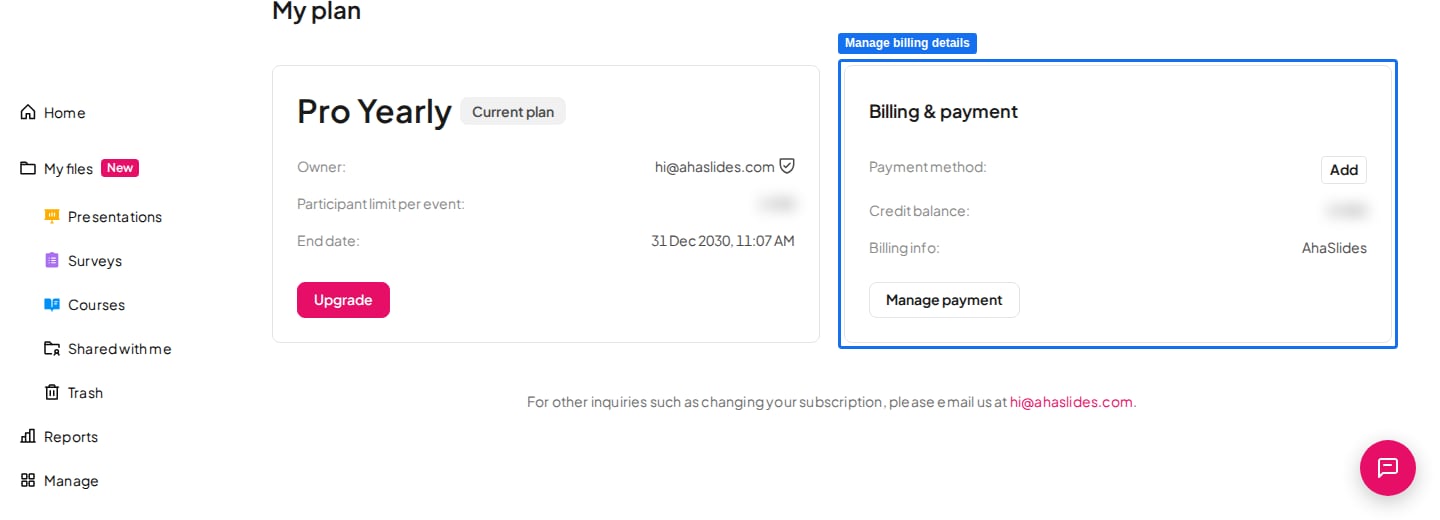
> My Plan ページで請求情報を更新し、請求先住所などの詳細を領収書に追加できます。
請求先住所などの情報を追加すると、領収書に表示されます。
## 請求先住所を更新する
AhaSlides アカウントにログインし、[My Plan](https://presenter.ahaslides.com/apps/user-plan) ページに移動します。
**請求と支払い** (Billing & payment) セクションで **支払いを管理** (Manage payment) をクリックし、安全な請求ポータルを開きます。
請求先住所などの詳細を更新し、変更を保存します。
 購入前に請求の詳細を更新してください。支払い処理の完了後は、発行済みの請求書を修正できません。請求書と請求情報の詳細については、[請求情報と請求書・領収書](/jp/after-purchase/billing-information-and-invoicereceipt)をご覧ください。
**ご質問はありますか?**
サポートチームまでお問い合わせください。ログイン済みの場合はダッシュボード右下のチャットアイコンから、ログインしていない場合は[こちらからお問い合わせ](https://ahaslides.com/contact-us/)いただくか、[hi@ahaslides.com](mailto:hi@ahaslides.com) までメールをお送りください。
他のユーザーと交流したい方は、[AhaSlides コミュニティ](https://community.ahaslides.com/)に参加して、コツを共有したり、機能をリクエストしたり、他の人がどのように聴衆を巻き込んでいるかを確認しましょう。
This documentation is built and hosted on [Mintlify](https://mintlify.com), a developer documentation platform.
購入前に請求の詳細を更新してください。支払い処理の完了後は、発行済みの請求書を修正できません。請求書と請求情報の詳細については、[請求情報と請求書・領収書](/jp/after-purchase/billing-information-and-invoicereceipt)をご覧ください。
**ご質問はありますか?**
サポートチームまでお問い合わせください。ログイン済みの場合はダッシュボード右下のチャットアイコンから、ログインしていない場合は[こちらからお問い合わせ](https://ahaslides.com/contact-us/)いただくか、[hi@ahaslides.com](mailto:hi@ahaslides.com) までメールをお送りください。
他のユーザーと交流したい方は、[AhaSlides コミュニティ](https://community.ahaslides.com/)に参加して、コツを共有したり、機能をリクエストしたり、他の人がどのように聴衆を巻き込んでいるかを確認しましょう。
This documentation is built and hosted on [Mintlify](https://mintlify.com), a developer documentation platform.