> ## Documentation Index
> Fetch the complete documentation index at: https://docs.ahaslides.com/llms.txt
> Use this file to discover all available pages before exploring further.
# 청구지 주소
> 내 플랜 페이지에서 결제 정보를 수정해 영수증에 청구지 주소와 기타 정보를 추가하세요.
영수증에 표시되도록 청구지 주소와 기타 정보를 추가하세요.
## 청구지 주소 수정하기
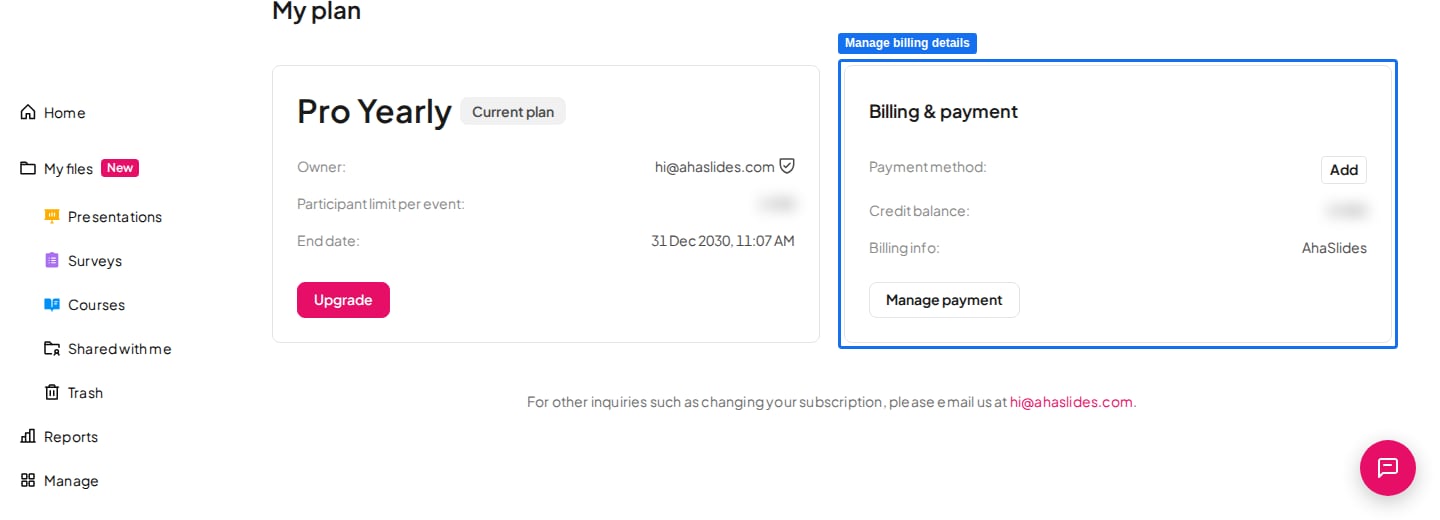
AhaSlides 계정에 로그인한 뒤 [My Plan](https://presenter.ahaslides.com/apps/user-plan) 페이지로 이동합니다.
**청구 및 결제** (Billing & payment) 섹션에서 **결제 관리** (Manage payment)를 클릭하면 보안 결제 포털이 열립니다.
청구지 주소와 기타 세부 정보를 수정한 다음 변경 사항을 저장합니다.
 결제 세부 정보는 구매 **전에** 수정하세요. 결제가 처리된 후에는 기존 인보이스를 수정할 수 없습니다. 인보이스와 결제 정보에 대한 자세한 내용은 [결제 정보 및 인보이스/영수증](/ko/after-purchase/billing-information-and-invoicereceipt)을 참고하세요.
**궁금한 점이 있으신가요?**
지원팀에 문의해 주세요. 로그인한 상태라면 대시보드 오른쪽 아래의 채팅 아이콘을 사용하시고, 그렇지 않다면 [여기에서 문의하시거나](https://ahaslides.com/contact-us/) [hi@ahaslides.com](mailto:hi@ahaslides.com)으로 이메일을 보내 주세요.
다른 사용자와 소통하고 싶으신가요? [AhaSlides 커뮤니티](https://community.ahaslides.com/)에 참여해 팁을 공유하고, 기능을 제안하고, 다른 사람들이 청중의 참여를 이끄는 방법을 살펴보세요.
This documentation is built and hosted on [Mintlify](https://mintlify.com), a developer documentation platform.
결제 세부 정보는 구매 **전에** 수정하세요. 결제가 처리된 후에는 기존 인보이스를 수정할 수 없습니다. 인보이스와 결제 정보에 대한 자세한 내용은 [결제 정보 및 인보이스/영수증](/ko/after-purchase/billing-information-and-invoicereceipt)을 참고하세요.
**궁금한 점이 있으신가요?**
지원팀에 문의해 주세요. 로그인한 상태라면 대시보드 오른쪽 아래의 채팅 아이콘을 사용하시고, 그렇지 않다면 [여기에서 문의하시거나](https://ahaslides.com/contact-us/) [hi@ahaslides.com](mailto:hi@ahaslides.com)으로 이메일을 보내 주세요.
다른 사용자와 소통하고 싶으신가요? [AhaSlides 커뮤니티](https://community.ahaslides.com/)에 참여해 팁을 공유하고, 기능을 제안하고, 다른 사람들이 청중의 참여를 이끄는 방법을 살펴보세요.
This documentation is built and hosted on [Mintlify](https://mintlify.com), a developer documentation platform.