> ## Documentation Index
> Fetch the complete documentation index at: https://docs.ahaslides.com/llms.txt
> Use this file to discover all available pages before exploring further.
# Zoom으로 AhaSlides 화면 공유
> Zoom에서 화면을 공유해 온라인 청중에게 AhaSlides 프레젠테이션을 진행하고, QR 코드를 표시해 원격 참가자가 참여하고 응답하게 하세요.
Zoom에서 화면을 공유해 온라인 청중에게 AhaSlides 프레젠테이션을 진행할 수 있습니다.
## Zoom에서 AhaSlides를 공유하는 방법
AhaSlides 프레젠테이션을 엽니다.
Zoom 회의를 진행하거나 참가합니다.
회의에서 **Share Screen** 버튼을 클릭합니다.
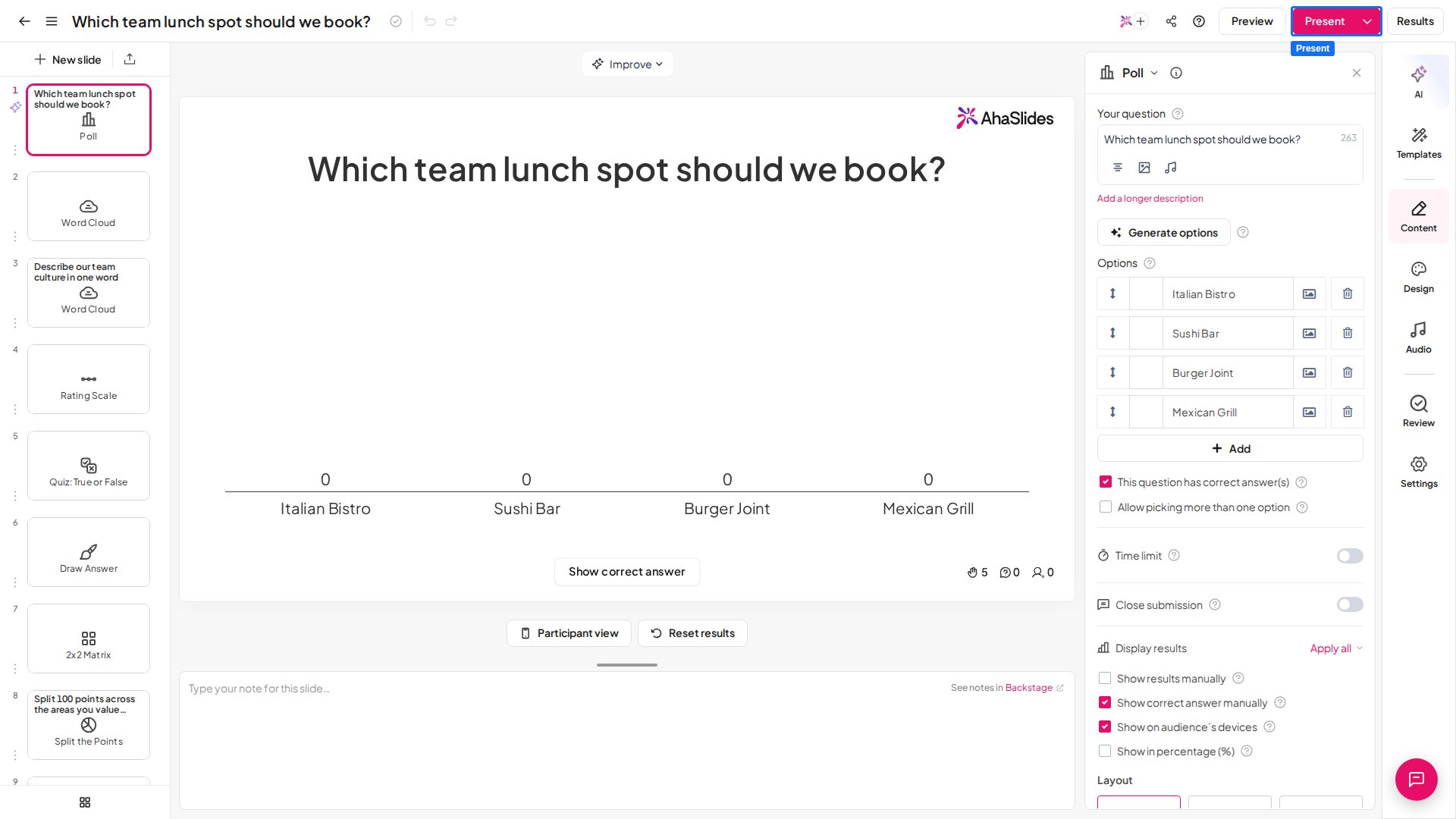
AhaSlides가 열려 있는 창을 선택하고 **Share**를 클릭합니다.
**발표 시작** (Present)을 클릭합니다.
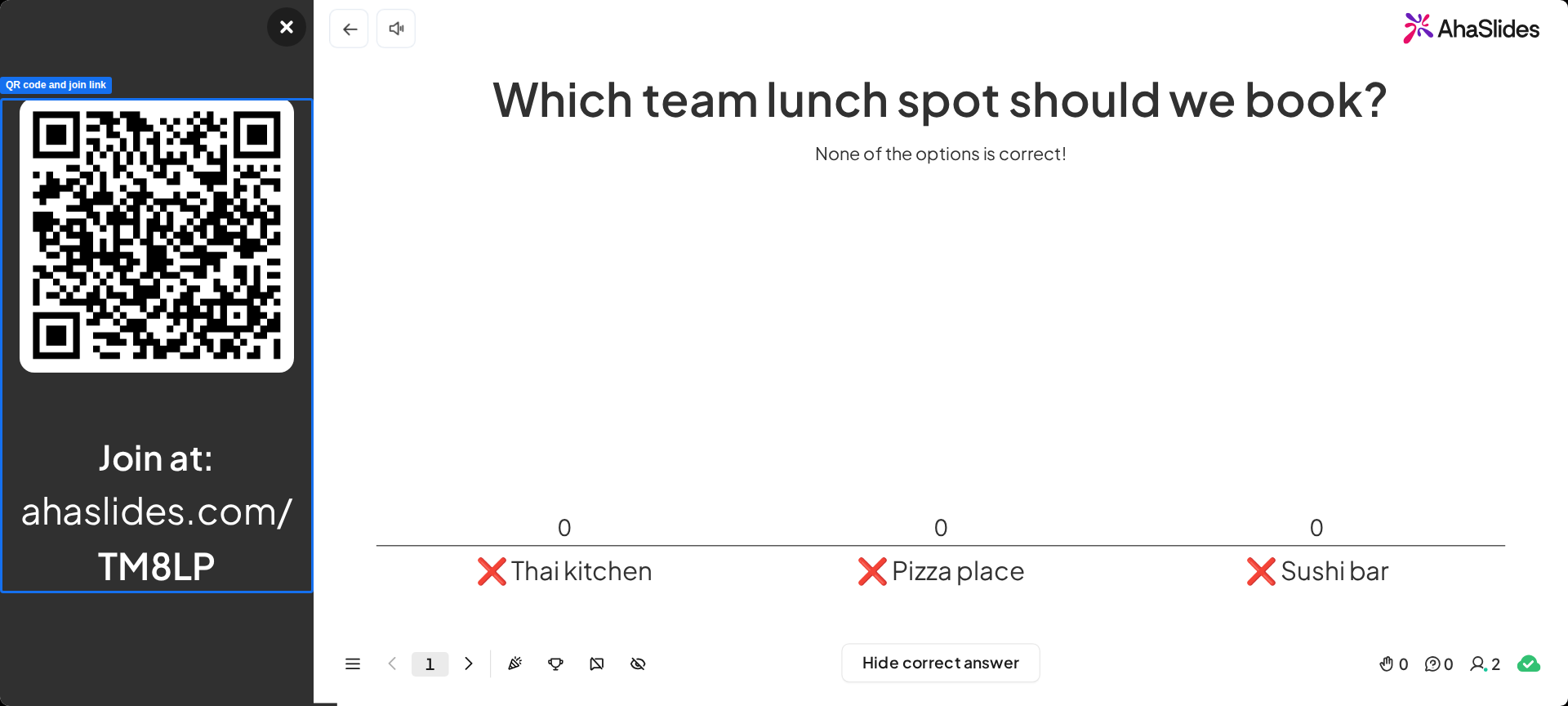
 이제 발표하는 동안 화면 왼쪽 패널에 표시되는 QR 코드와 참가 링크로 참가자들과 [프레젠테이션을 공유](/ko/presenting/sharing-your-presentation-for-participants-to-join)할 수 있습니다. 원격 참석자는 이를 스캔하거나(또는 접속 링크를 열어) 공유된 화면을 보면서 각자의 기기로 응답합니다.
 ## 팁
* 라이브를 시작하기 전에 예행연습을 해서 발생할 수 있는 문제를 미리 해결하세요.
* 로딩 속도를 높이려면 AhaSlides와 Zoom을 제외한 다른 탭은 모두 닫으세요.
**궁금한 점이 있으신가요?**
지원팀에 문의해 주세요. 로그인한 상태라면 대시보드 오른쪽 아래의 채팅 아이콘을 사용하시고, 그렇지 않다면 [여기에서 문의하시거나](https://ahaslides.com/contact-us/) [hi@ahaslides.com](mailto:hi@ahaslides.com)으로 이메일을 보내 주세요.
다른 사용자와 소통하고 싶으신가요? [AhaSlides 커뮤니티](https://community.ahaslides.com/)에 참여해 팁을 공유하고, 기능을 제안하고, 다른 사람들이 청중의 참여를 이끄는 방법을 살펴보세요.
This documentation is built and hosted on [Mintlify](https://mintlify.com), a developer documentation platform.
## 팁
* 라이브를 시작하기 전에 예행연습을 해서 발생할 수 있는 문제를 미리 해결하세요.
* 로딩 속도를 높이려면 AhaSlides와 Zoom을 제외한 다른 탭은 모두 닫으세요.
**궁금한 점이 있으신가요?**
지원팀에 문의해 주세요. 로그인한 상태라면 대시보드 오른쪽 아래의 채팅 아이콘을 사용하시고, 그렇지 않다면 [여기에서 문의하시거나](https://ahaslides.com/contact-us/) [hi@ahaslides.com](mailto:hi@ahaslides.com)으로 이메일을 보내 주세요.
다른 사용자와 소통하고 싶으신가요? [AhaSlides 커뮤니티](https://community.ahaslides.com/)에 참여해 팁을 공유하고, 기능을 제안하고, 다른 사람들이 청중의 참여를 이끄는 방법을 살펴보세요.
This documentation is built and hosted on [Mintlify](https://mintlify.com), a developer documentation platform.