> ## Documentation Index
> Fetch the complete documentation index at: https://docs.ahaslides.com/llms.txt
> Use this file to discover all available pages before exploring further.
# How to Create and Run Surveys on AhaSlides
> Build a multi-question Survey with 9 question types — from Multiple Choice and Ranking to Matrix and Contact Info — then share it by link, embed, or live in a presentation.
AhaSlides Surveys let you collect structured, multi-question feedback. Build the Survey once, then either share a standalone link for people to complete at their own pace, or drop it live into a presentation for your audience to fill in on the spot.
## Creating a Survey
Log in to AhaSlides and click **Surveys** in the left-hand menu. Surveys live in their own dashboard section, separate from your presentations.
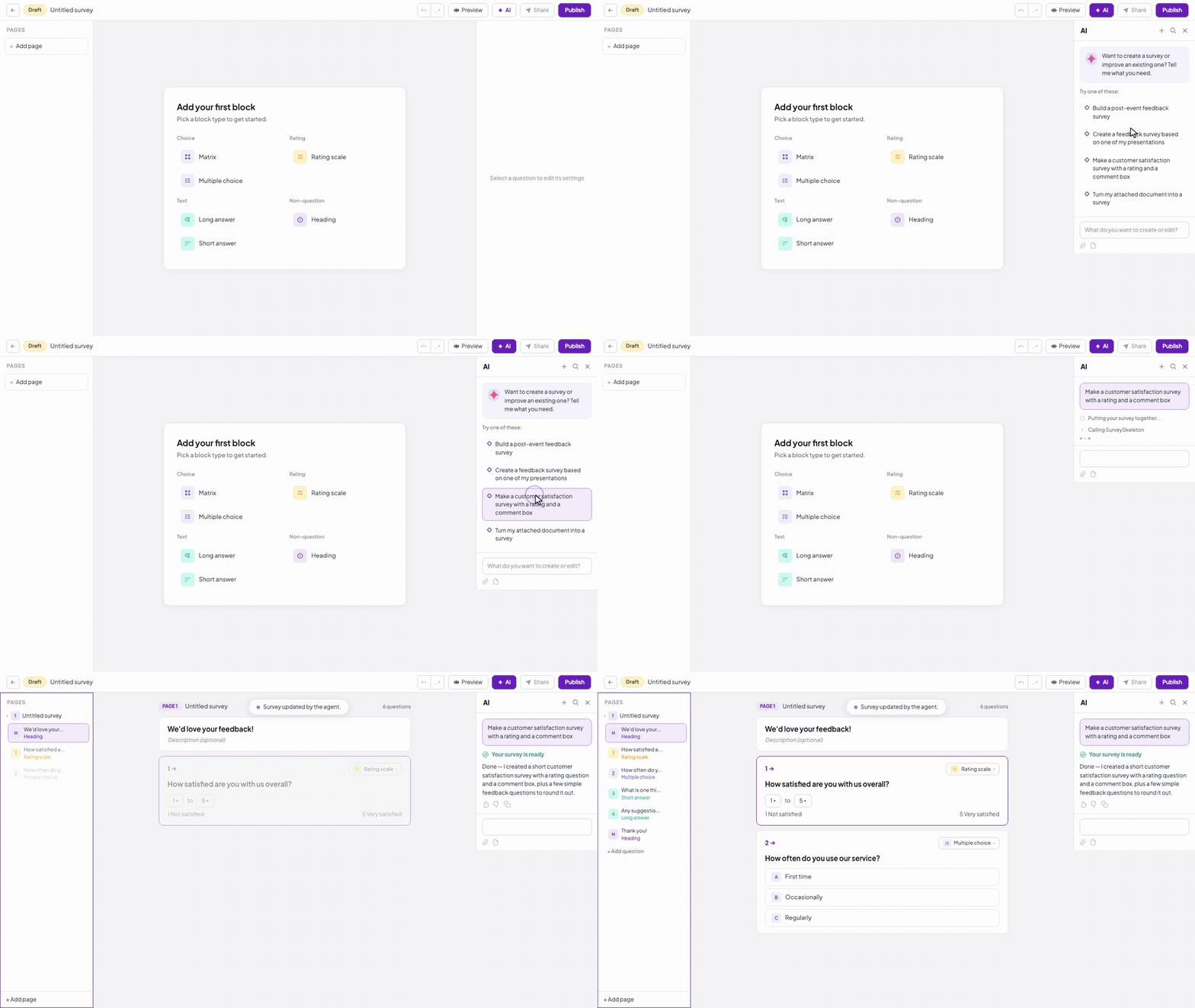
Pick **Generate with AI** to describe your Survey goal and let AhaSlides generate the questions, **Use a template** to pick a pre-built template and customise it, or **Start from scratch** to open a blank editor.
## Question Types
Mix as many question types as you need in a single Survey:
Respondents pick one option from a list you define — or turn on **Multiple answers** so they can select as many as apply.
A slider between two labels you set — for example, *Not useful* to *Extremely useful*.
A quick 5-star rating — a simpler visual alternative to the slider scale.
A single-line box for a brief free-text answer.
A multi-line paragraph box for longer written feedback.
Several sub-questions sharing the same answer choices — great for Likert tables.
Respondents pick a specific date, with a format you can customise.
Respondents drag options to order them from most to least preferred.
One block that collects Name, Email, Phone, and Company together — no need to stitch four separate questions.
Beyond questions, you can add a **Heading** block to group and label sections of the form.
**Multiple Choice** questions can include an **Other** option — a text field respondents fill in when their answer isn't in the list. For a **Ranking** question, turn on **Randomize initial order** so every respondent sees the options in a different order, reducing position bias. Use the AI assistant to generate a full questionnaire from a prompt, attach an image to any question for extra context, and mark a question **Required** so respondents can't submit without answering it. Changes auto-save as a **Draft** until you publish.
## Publishing and Sharing
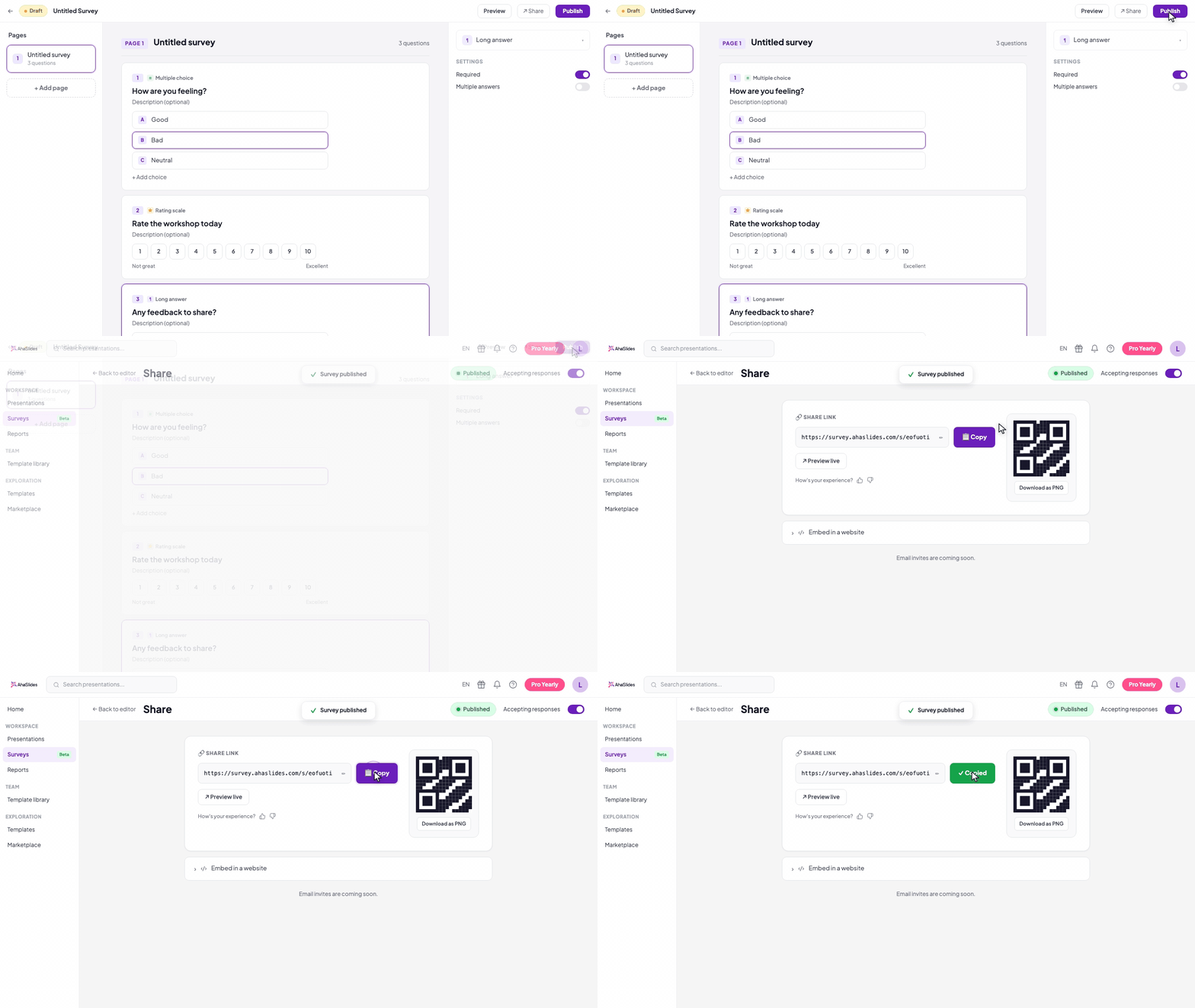
While a Survey is a **Draft** it isn't collecting responses. When you're happy with your questions, publish it — the status changes to **Published** and it's ready for respondents.
A published Survey can be shared three ways:
1. **Share link** — copy the link and send it anywhere (email, Slack, LMS, poster). You can edit the link to a custom, memorable slug — the QR code updates automatically to match.
2. **QR code** — display or download the QR code for print, slides, or on-screen scanning.
3. **Website embed** — embed the Survey directly on any web page, so people can answer without leaving your site.
Participants open the Survey on any device (phone, tablet, or computer) with no download or account needed.
Responses collect for as long as the Survey stays open. To stop accepting new responses, close the Survey (its status returns to **Draft**).
Use this when you want structured feedback from your audience while they're still in the room — end-of-session forms, mid-workshop check-ins, event feedback.
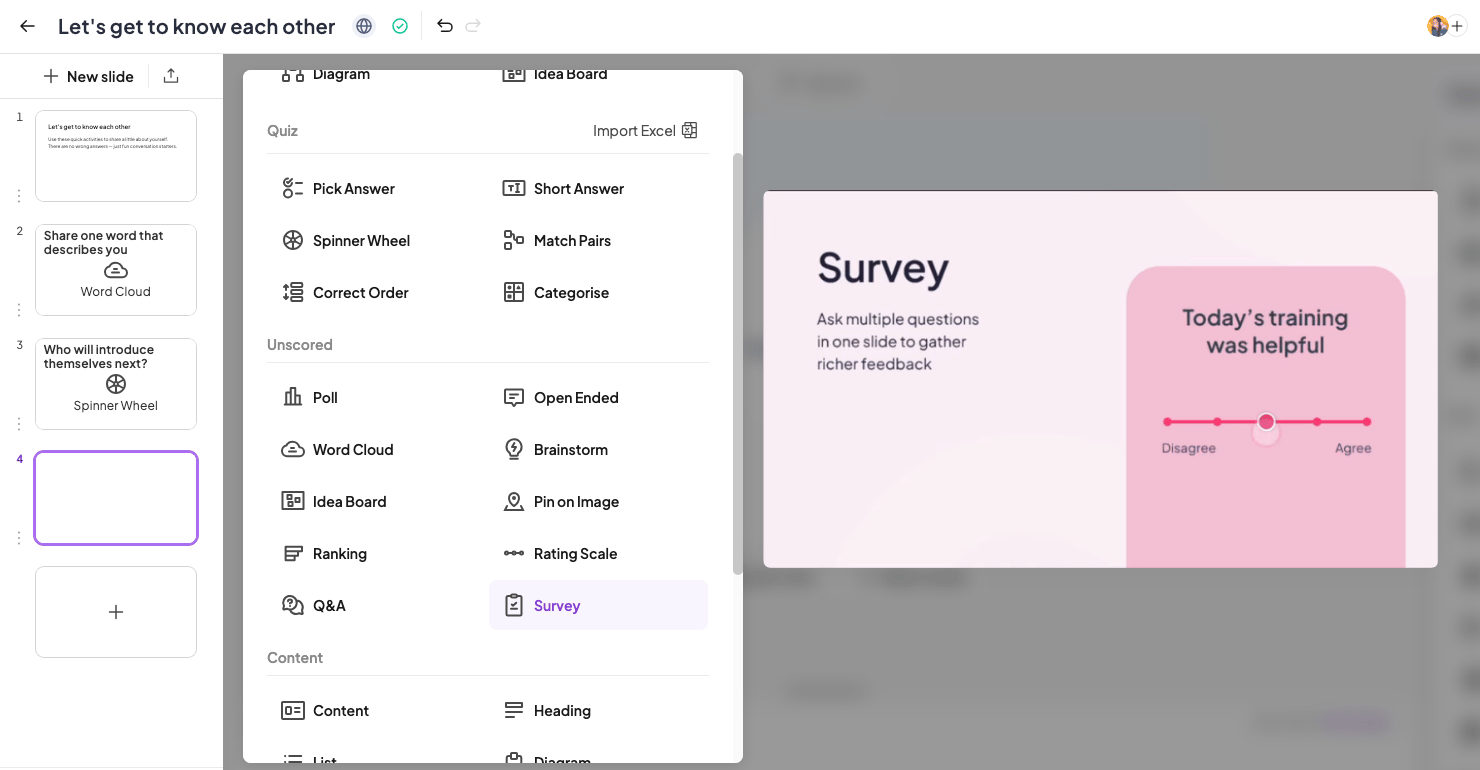
1. Open your presentation in the editor and add a new slide.
2. Select the **Survey** slide type.
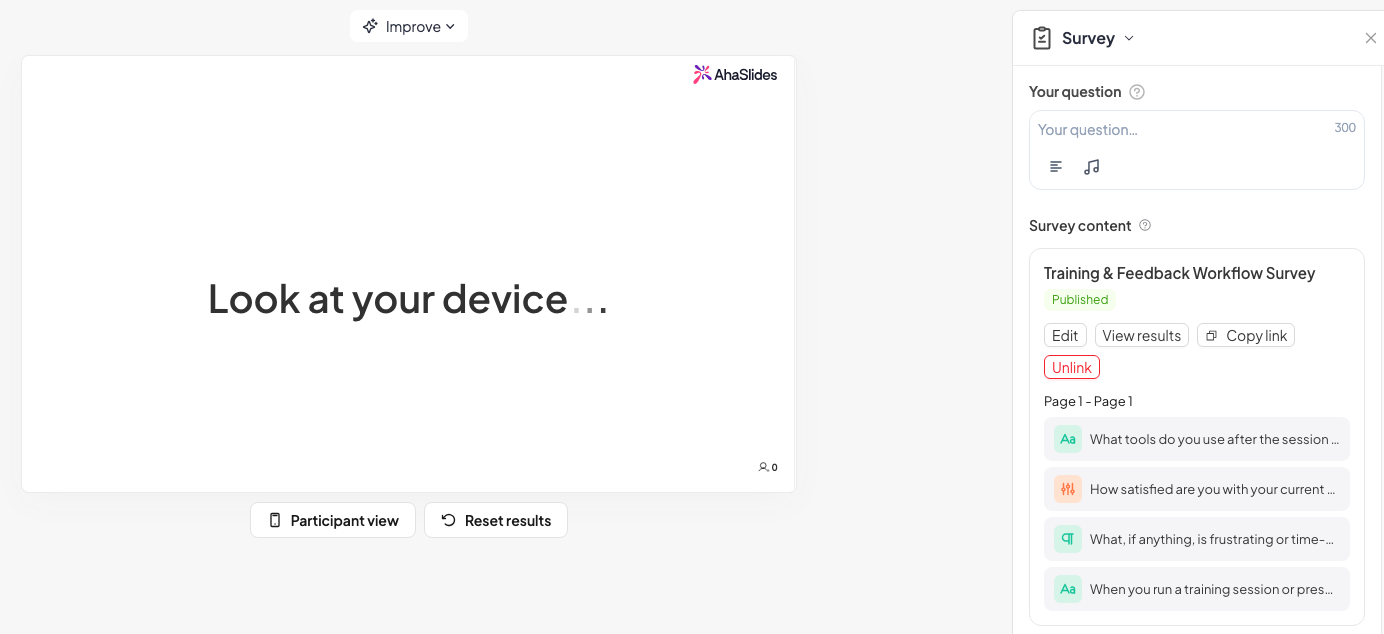
3. On the slide, click **Link survey** and choose the published Survey you want to show.
4. Present your deck as usual — participants join with the normal join code or QR code.
5. When you reach the Survey slide, the Survey is revealed on every participant's device.
6. Each participant scrolls through the questions, answers them, and presses **Submit**.
Because the Survey appears at the exact moment you present the slide, response rates are much higher than emailing a Survey afterwards — your audience answers while the session is still fresh.
Presentation **templates** can include Survey slides too, so applying such a template brings its linked Survey along with it — ready to present.
## Checking Your Responses
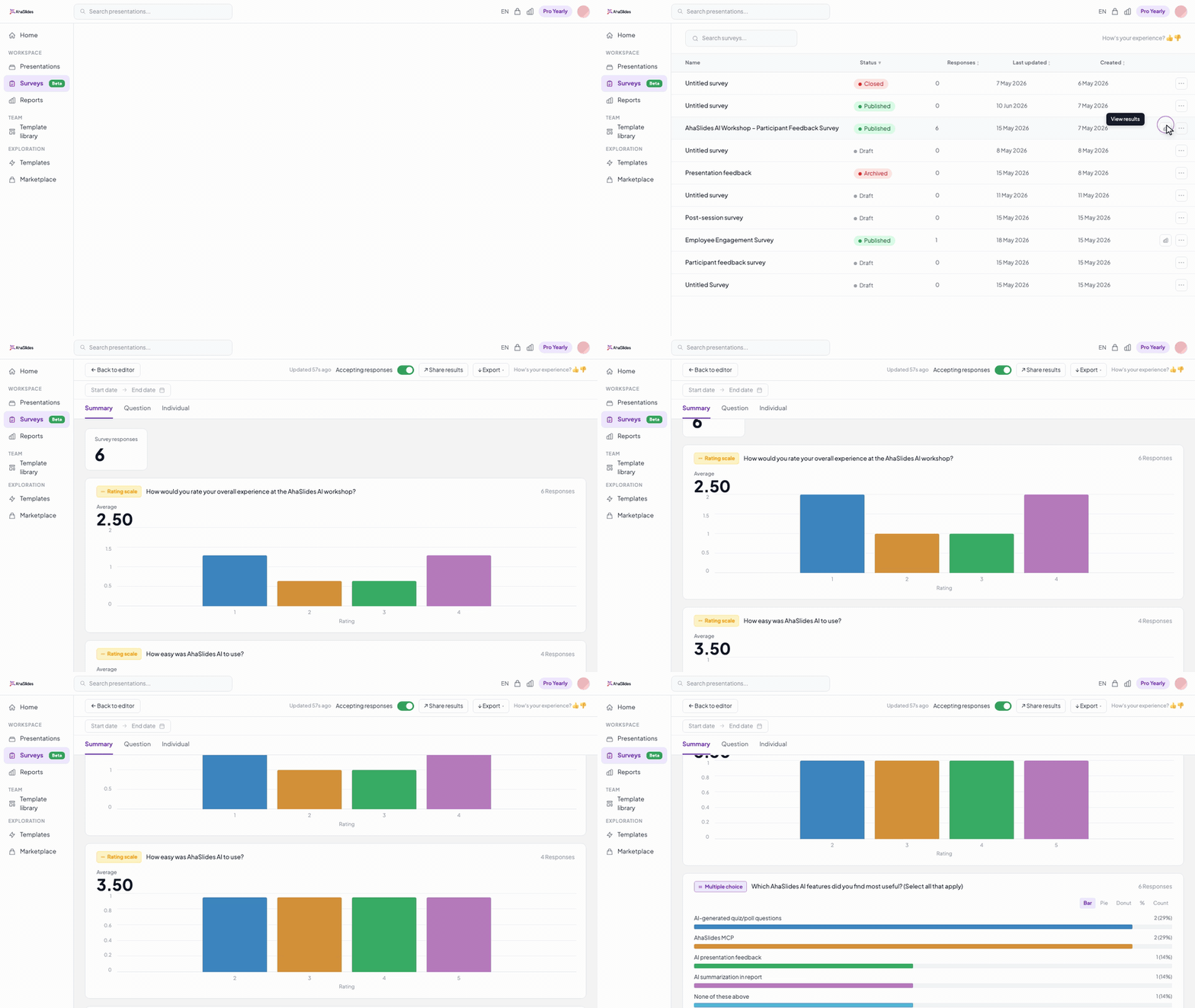
You can check results at any time. Open a Survey and click **View results**, or find every Survey's results together under the main **Reports** page — the **Surveys** tab — with search and date filters to narrow things down.
At the top of the results page, a summary shows five key metrics at a glance:
* **Started answering** — how many people began the Survey.
* **Completions** — how many submitted it.
* **Completion rate** — the share of starters who finished.
* **Dropout rate** — the share who started but didn't finish.
* **Average duration** — how long a response took on average.
Below the summary, results are broken down question by question.
**Export your results** — Click to export the responses to **Excel (.xlsx)** or **CSV** from the results page, then analyse them in your own tools.
**Manage responses** — As the Survey owner you can delete a single response or clear all responses from the results page. Deletions apply for you only and are never reflected in the public shared-results view.
## Two Ways to Run the Same Survey
1. **Standalone Survey** — share a link (or QR code, or website embed) so respondents complete it any time, at their own pace, with no presenter needed.
2. **A slide in your presentation** — add the Survey as a slide in your deck. When you reach that slide while presenting, the Survey appears live on every participant's device.
Both options show your audience exactly the same thing: the full Survey on one page.
## Video Tutorial
## Frequently Asked Questions
A Poll slide asks one question at a time, results show live on the big screen, and everyone answers together while you present. A Survey is a multi-question form on one page — participants scroll through all the questions and submit once. Use polls for in-the-moment reactions; use a Survey when you want structured feedback across several questions.
No. Participants just open the link or scan the QR code and answer in any browser — nothing to install.
Yes. You can keep responses anonymous for more honest feedback, or add a **Contact Information** question (or an email question) to collect respondent details when you need to follow up.
Yes. From the results page you can export all responses to **Excel (.xlsx)** or **CSV** and work with the raw data in your own tools.
Yes. As the Survey owner you can delete a single response or clear all of them from the results page. Deleted responses never appear in the public shared-results view.
No. Deleting a Survey is permanent — a deleted Survey cannot be recovered, and its responses are removed with it. If you might need the data later, export your results first, and only delete the Survey once you're sure.
Check the Survey's status in your Surveys list. If it's still **Draft**, it hasn't been published yet — participants can't see it until you publish.
Yes. Click **Preview** to see how it looks on respondent devices and submit a test response. Remember to remove your test submission from the results before sharing the Survey for real.
## Have a question?
Contact our support team — if you're logged in, use the chat bubble in the bottom-right of your dashboard; otherwise [contact us here](https://ahaslides.com/contact-us/) or email [hi@ahaslides.com](mailto:hi@ahaslides.com).
## Related topics
- [AhaSlides App for Hopin](/integrations/ahaslides-app-for-hopin.md)
- [How to Create and Present a Ranking Slide in AhaSlides](/using-slide-types/using-the-ranking-slide.md)
- [How to Make and Run a Quiz in AhaSlides](/using-slide-types/how-to-make-and-run-a-quiz.md)
- [How to Create a Pin on Image Slide in AhaSlides](/using-slide-types/using-the-pin-on-image-slide.md)
- [How to Create and Configure a Poll Slide in AhaSlides](/using-slide-types/creating-a-poll-question-on-ahaslides.md)

 Responses collect for as long as the Survey stays open. To stop accepting new responses, close the Survey (its status returns to **Draft**).
 3. On the slide, click **Link survey** and choose the published Survey you want to show.
 4. Present your deck as usual — participants join with the normal join code or QR code.
5. When you reach the Survey slide, the Survey is revealed on every participant's device.
6. Each participant scrolls through the questions, answers them, and presses **Submit**.
4. Present your deck as usual — participants join with the normal join code or QR code.
5. When you reach the Survey slide, the Survey is revealed on every participant's device.
6. Each participant scrolls through the questions, answers them, and presses **Submit**.
 Because the Survey appears at the exact moment you present the slide, response rates are much higher than emailing a Survey afterwards — your audience answers while the session is still fresh.
Presentation **templates** can include Survey slides too, so applying such a template brings its linked Survey along with it — ready to present.
Because the Survey appears at the exact moment you present the slide, response rates are much higher than emailing a Survey afterwards — your audience answers while the session is still fresh.
Presentation **templates** can include Survey slides too, so applying such a template brings its linked Survey along with it — ready to present.
 **Export your results** — Click to export the responses to **Excel (.xlsx)** or **CSV** from the results page, then analyse them in your own tools.
**Manage responses** — As the Survey owner you can delete a single response or clear all responses from the results page. Deletions apply for you only and are never reflected in the public shared-results view.
## Two Ways to Run the Same Survey
1. **Standalone Survey** — share a link (or QR code, or website embed) so respondents complete it any time, at their own pace, with no presenter needed.
2. **A slide in your presentation** — add the Survey as a slide in your deck. When you reach that slide while presenting, the Survey appears live on every participant's device.
Both options show your audience exactly the same thing: the full Survey on one page.
## Video Tutorial
## Frequently Asked Questions
**Export your results** — Click to export the responses to **Excel (.xlsx)** or **CSV** from the results page, then analyse them in your own tools.
**Manage responses** — As the Survey owner you can delete a single response or clear all responses from the results page. Deletions apply for you only and are never reflected in the public shared-results view.
## Two Ways to Run the Same Survey
1. **Standalone Survey** — share a link (or QR code, or website embed) so respondents complete it any time, at their own pace, with no presenter needed.
2. **A slide in your presentation** — add the Survey as a slide in your deck. When you reach that slide while presenting, the Survey appears live on every participant's device.
Both options show your audience exactly the same thing: the full Survey on one page.
## Video Tutorial
## Frequently Asked Questions