

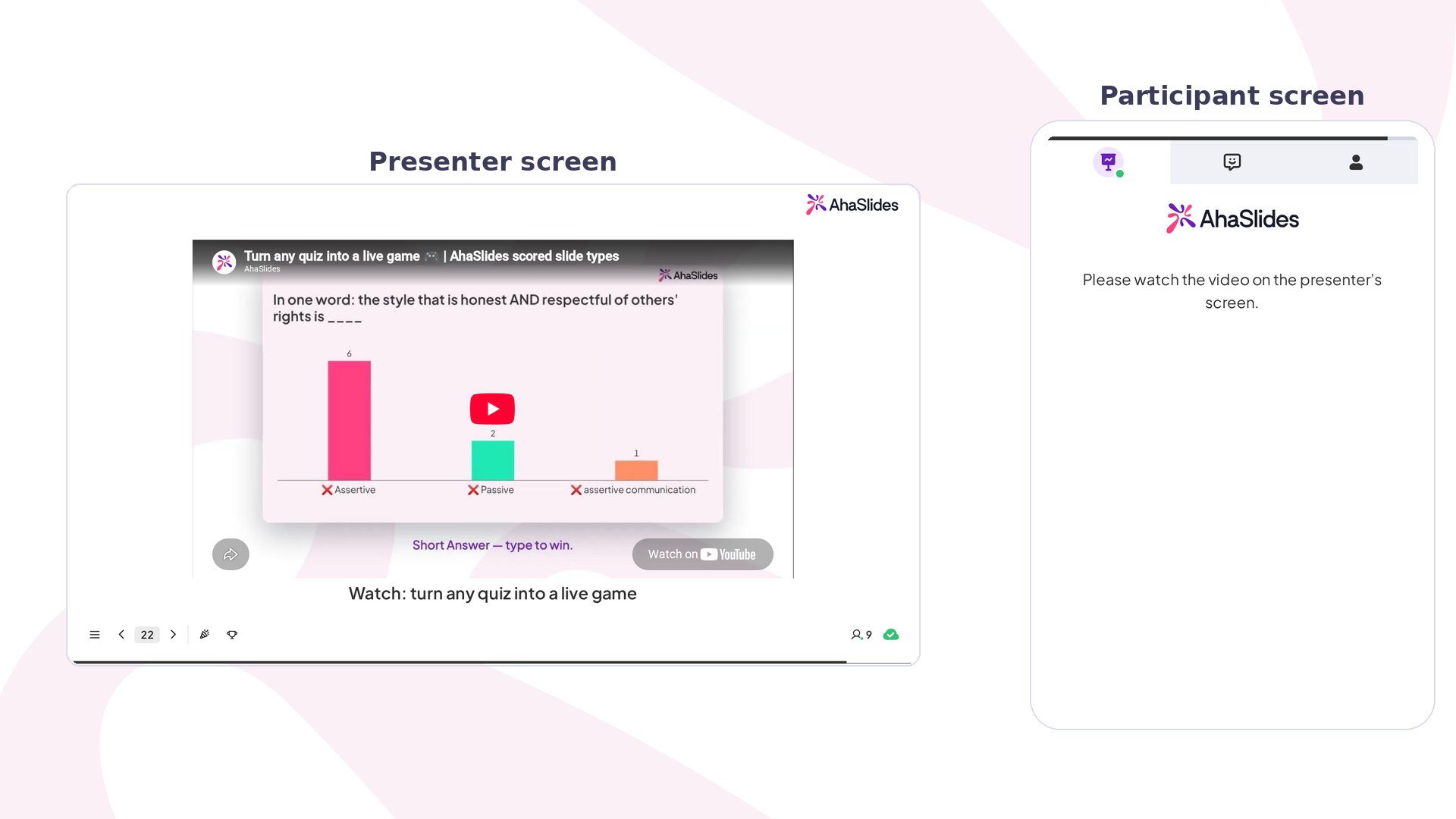
YouTube slide at a glance
Create a YouTube slide
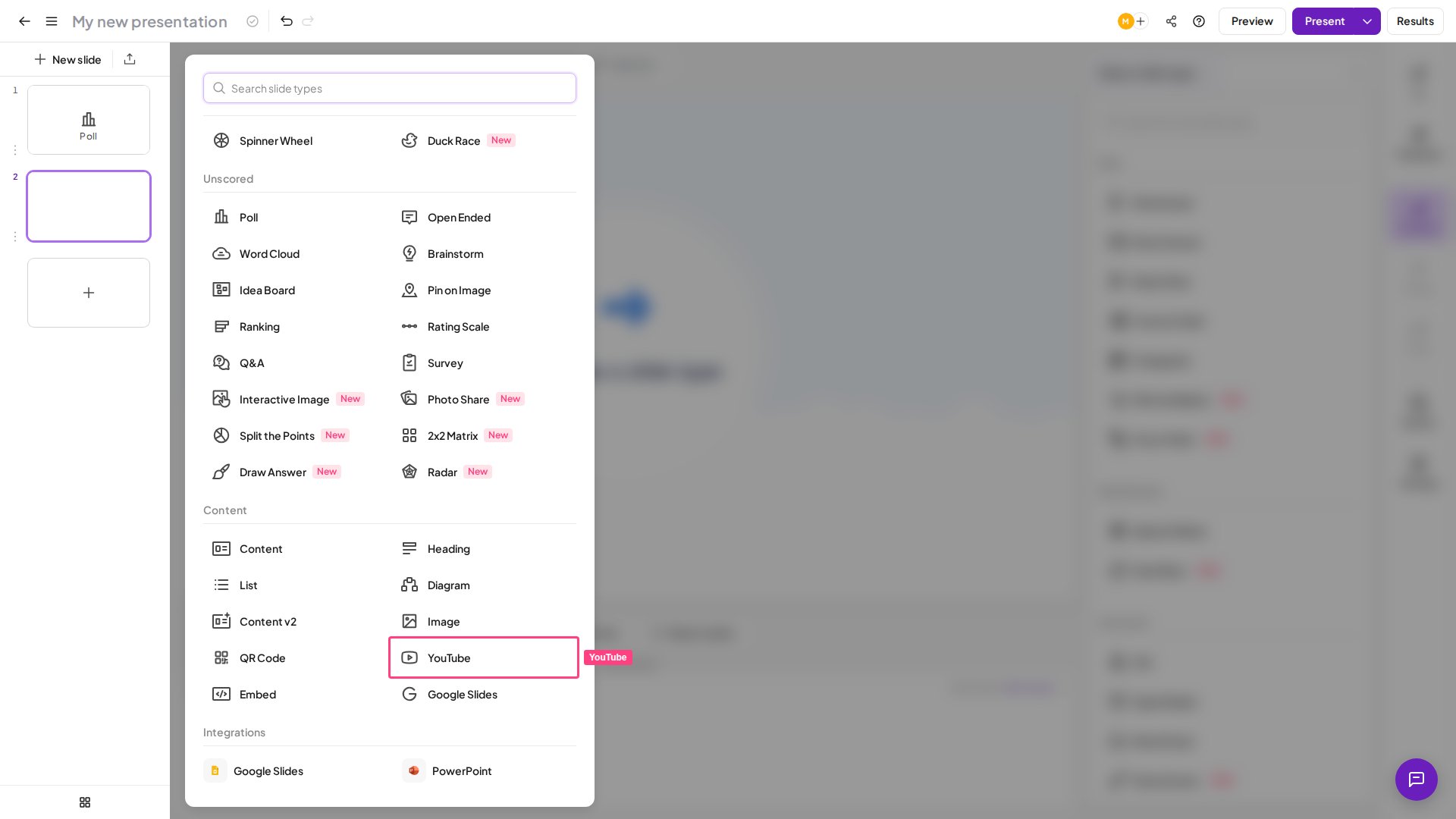
1
Choose your video
Choose the YouTube video that you want to play on AhaSlides and copy its link.
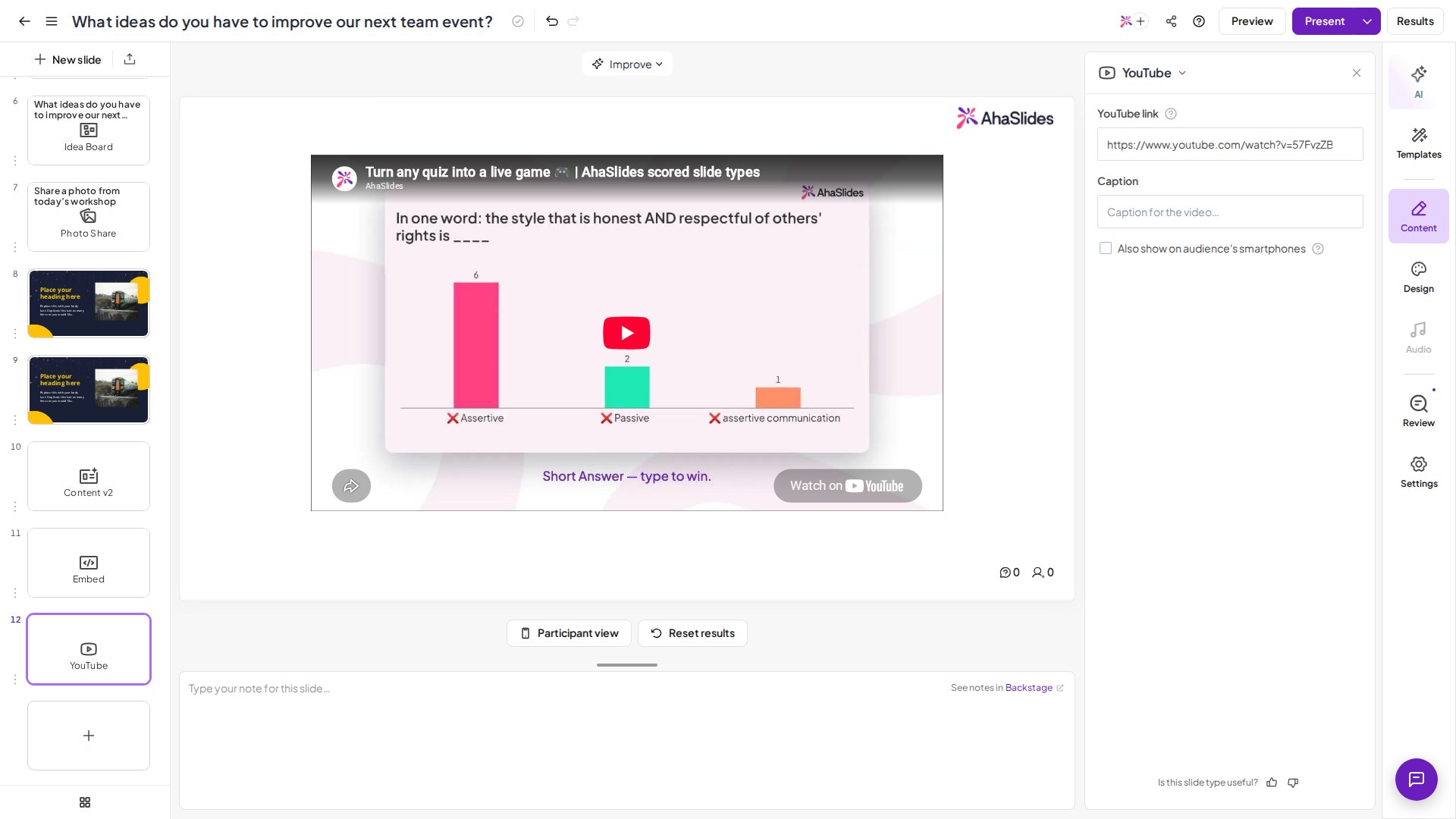
2
Paste the link
Paste the link of the YouTube video into the YouTube link field.
3
Show it on audience devices (optional)
Check the box Also show on audience’s smartphones if you want the YouTube video to also be shown on the audience’s smartphones.
Your audience will need to click the Play button on the video themselves.
Embed a YouTube Short
1
Open the Short
Open the YouTube Shorts video.
2
Copy the URL
Click on the URL in the browser’s address bar.
3
Replace the word
Replace the word shorts with watch in the URL, then press Enter.
Frequently asked questions
Can I upload an MP4 or other video file directly to a slide?
Can I upload an MP4 or other video file directly to a slide?
No. AhaSlides doesn’t have a direct video-file upload — videos are added by link instead. Use a YouTube slide for a YouTube video, or the Embed slide for other supported platforms and for HTML embed code.If your video is an MP4 on your computer, upload it to YouTube (or another platform the Embed slide supports) first, then paste that link into your slide.If you’d rather not put the video on YouTube, there’s another way round it: upload the video into a Google Slides presentation, then bring that presentation into AhaSlides with the Google Slides slide. Your video plays from inside the Google Slides deck.
Which files can I upload directly to AhaSlides?
Which files can I upload directly to AhaSlides?
Images and audio can be uploaded from your device — see Image Upload Guidelines and Slide Audio, Presentation Audio and Sound Effects. You can also import PowerPoint and PDF files, covered in Importing a PowerPoint Presentation or PDF File.
Why doesn't my YouTube video start playing on its own?
Why doesn't my YouTube video start playing on its own?
On a YouTube slide, you and your audience press Play on the video yourselves. If you need the video to start automatically, add it through the Embed slide instead and include the
autoplay=1 parameter in the embed code.