

Slide audio and Presentation audio are available only on paid plans. Sound effects are available on all plans.
Before you start: how slide and presentation audio work
On AhaSlides, you can set audio to play on each slide as you present (Slide audio) or throughout the entire presentation (Presentation audio). Both are set up in the Audio tab of the right-hand editing panel, which has two sub-tabs: Slide for Slide audio and Presentation for Presentation audio and the sound-effect toggles. Slide audio and Presentation audio need a paid plan; sound effects are available on every plan.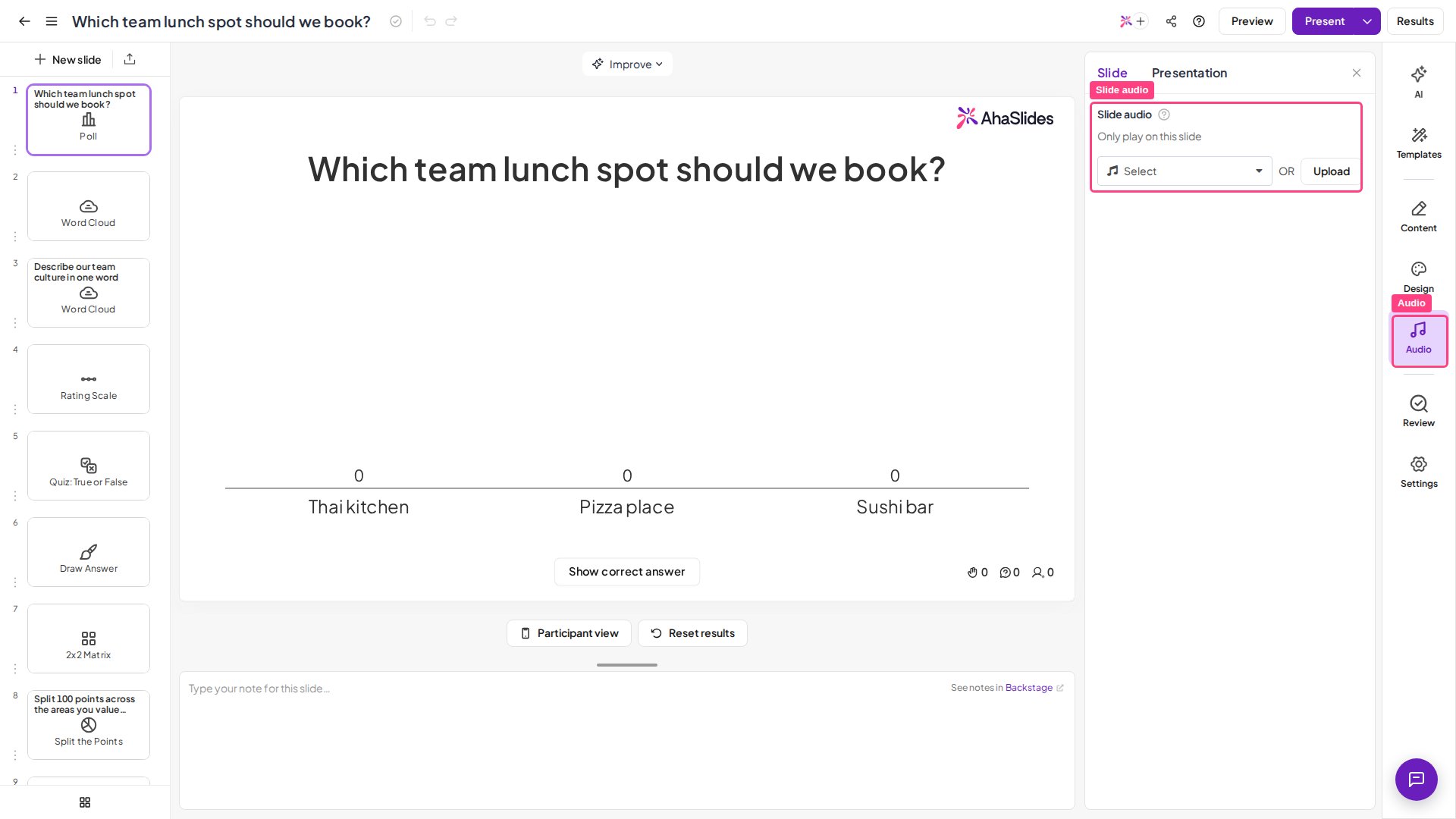
The quiz Lobby screen plays its own music by default. To silence it, use the volume control described below; on a paid plan, you can replace it by choosing a Presentation audio track. You cannot set up audio on the Spinner Wheel, YouTube, Google Slides, or QR Code slides.
Play and control audio while you present
While you present, the audio controls sit in the top bar at the top-left of the slide, next to the back arrow: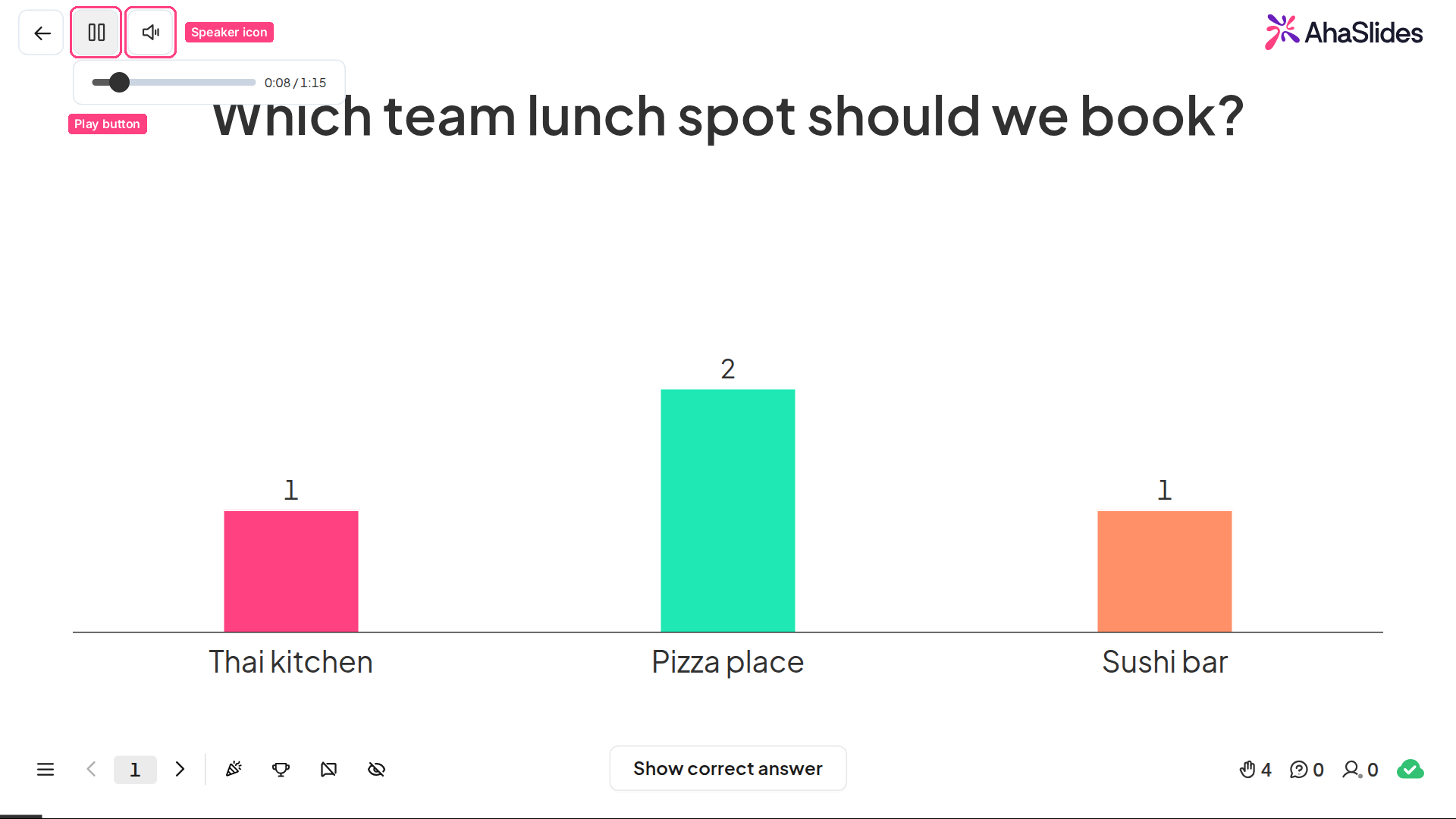
- Play button: plays or pauses the audio. On a slide with Slide audio it controls that track; on other slides it controls the Presentation audio. It stays on screen whenever there is audio to play. Hover over it to open the progress bar and time, and drag the bar to skip ahead or back.
- Speaker icon: the volume control for everything you hear on the presenter screen — Slide audio, Presentation audio, and sound effects. Move your mouse to reveal it, then click it to mute or unmute, or hover over it to reveal a slider and set the volume level.
Set up Slide audio
Slide audio works the same way on interactive slides and on the original Content slide. On a Content v2 slide, you can also insert an Audio block from the Media section of the + Insert panel; see Add audio.
1
Open the Audio tab
Select the slide you want to play audio on, click Audio in the right-hand editing panel, and make sure the Slide sub-tab is selected.
2
Choose or upload a track
Under Slide audio, click Select to pick a track from the AhaSlides audio library, or click Upload to add your own. Uploads must be mp3 format with a maximum size of 15 MB.
3
Configure playback settings
Once a track is set, the playback settings appear below it:
- Autoplay: the audio plays immediately when you arrive at the slide on your presenting screen. This is on by default — turn it off if you’d rather start the track yourself while you present.
- On repeat: the audio plays again automatically when it finishes.
- Playable on audience’s devices: the audio plays through the audience’s devices as well as the presenter’s. When on, a Show media controls option lets the audience pause, resume, and seek on their own devices.
Some devices prevent audio from playing automatically. On those devices, the participant sees a prompt to press the play button.
Set up Presentation audio
1
Open the Presentation sub-tab
Click Audio in the right-hand editing panel, then select the Presentation sub-tab.
2
Choose a track
Under Presentation audio, click Select and choose a track from the AhaSlides library.
3
Change or remove the track (optional)
Once a track is chosen, its name and a player appear with two buttons. Click Change audio track to pick a different one, or Remove to clear the Presentation audio.
You cannot upload your own audio file as Presentation audio yet. Presentation audio does not play on slides that already have Slide audio.
Where sound effects play
Sound effects can play on both the presenter screen and participants’ devices, depending on the interaction. On the presenter screen, sound effects help guide the flow of the presentation:- Micro-interactions: button clicks and answer reveals
- Transitions: moving to the next slide, a QR code appearing, submissions closing
- High-impact moments: countdowns, drumrolls, leaderboard reveals
- When submitting answers on quiz slides
- Result notifications, including correct or incorrect answers, time’s up, and answer streaks
Turn sound effects on or off
1
Open the Presentation sub-tab
Click Audio in the right-hand editing panel, then select the Presentation sub-tab.
2
Toggle sound effects
Under Sound effects, use the toggles next to On the presenting screen or On participants’ devices to enable or disable them.
- On the presenting screen: music and sound effects for quiz slides, the leaderboard, and the spinner wheel, plus interaction sound effects for other slide types. It does not control the quiz lobby music, which plays by default — use the volume control while presenting to mute it, or replace it with a Presentation audio track.
- On participants’ devices: interaction sound effects that play from participants’ devices during audience interaction.
Frequently asked questions
What is the difference between Slide audio and Presentation audio?
What is the difference between Slide audio and Presentation audio?
Slide audio plays on a single slide and can play on participants’ devices. Presentation audio plays across the whole presentation but autoplays only on the presenter’s device.
How do I add audio to a single slide on AhaSlides?
How do I add audio to a single slide on AhaSlides?
Select the slide, click Audio in the right-hand editing panel, and on the Slide sub-tab click Select to choose a library track or Upload to add your own mp3 (up to 15 MB). The playback settings — Autoplay, On repeat, and Playable on audience’s devices — appear once a track is set. This works on the original Content slide too; on a Content v2 slide you can also insert an Audio block from the Media section.
My slide audio doesn't play when I present. Why?
My slide audio doesn't play when I present. Why?
The most common cause is that Autoplay has been turned off (it’s on by default). Open the Audio tab, select the Slide sub-tab, and turn Autoplay back on so the track starts when you reach the slide. You can also start it at any time with the play button in the top bar while you present. To have the audience hear it on their own phones too, turn on Playable on audience’s devices.
How do I play or pause audio while presenting?
How do I play or pause audio while presenting?
Click the play button in the top bar at the top left of the slide. It controls the current slide’s audio, or the Presentation audio on slides without their own track. On a slide with Slide audio, you can also press P to play or pause it. The Speaker icon next to the play button sets the volume for all audio.
Does Slide audio stop when time runs out or everyone has answered?
Does Slide audio stop when time runs out or everyone has answered?
No. On a quiz slide, Slide audio keeps playing when the timer ends, when everyone has answered, and when you end the question early. It stops when you move to another slide. To stop it sooner, click the play button in the top bar or press P. If On repeat is on, the track loops until you leave the slide. A quiz slide with its own Slide audio doesn’t play the built-in quiz music.
What happens when a slide has both Slide audio and Presentation audio?
What happens when a slide has both Slide audio and Presentation audio?
Slide audio takes priority on the slides that have it. Any slide without Slide audio reverts to playing the Presentation audio.
How do I turn sound effects on or off?
How do I turn sound effects on or off?
Click Audio in the right-hand editing panel, select the Presentation sub-tab, and under Sound effects use the toggles for On the presenting screen and On participants’ devices.
Which plans include Slide and Presentation audio?
Which plans include Slide and Presentation audio?
Slide audio and Presentation audio are available only on paid plans. Sound effects are available on all plans.