

- Word clouds
- Open Ended slides
- Q&A slides
- Short answer quiz slides
- Any place in which participants can enter their names
- In the Settings tab in the Edit screen.
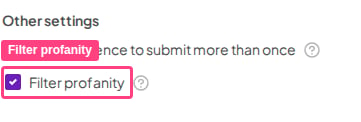
- Under Other settings in the Content tab of Open Ended, Q&A, Brainstorm, and Word Cloud slides — toggling the profanity filter on or off here will take effect across all slides.
- While presenting, to turn on the profanity filter, you can click the Menu icon and select Filter profanity.
Frequently asked questions
Which AhaSlides features let me moderate what my audience submits?
Which AhaSlides features let me moderate what my audience submits?
AhaSlides has four moderation tools:
- Q&A moderation — turn on Moderate audience’s questions on a Q&A slide and every question waits as Pending until you approve or dismiss it.
- Profanity filter — swear words typed by participants are replaced with asterisks, as described on this page.
- Quiz name censoring — click a player’s name in the quiz lobby, or the eye icon on the leaderboard, to censor an inappropriate name.
- Removing responses — click a word on a Word Cloud slide, or the X next to an Open Ended response, to remove it.