

Embed your live presenting screen
1
Open the Share menu
Open your presentation in the editor and click the Share icon in the top-right corner, next to Preview.
2
Choose Embed
Click Embed. The Embed live presenting screen window opens.
3
Copy the embed code
Next to HTML embed code, click Copy. If your website builder asks for a link rather than HTML, copy the Embed URL instead.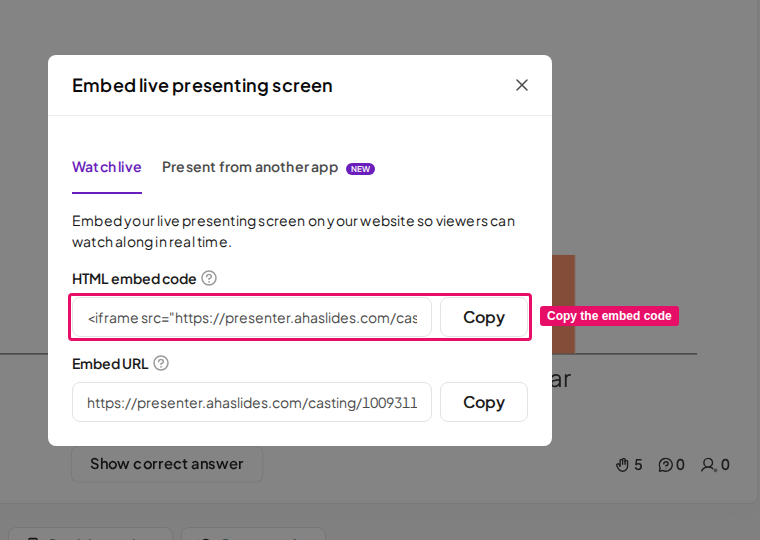
4
Paste it into your page
Paste the code into the HTML of your webpage, or into your website builder’s embed or custom-code block, then publish the page.
iframe. It is set to 960 × 569 pixels by default — change the width and height values in the code to fit your page layout.
What visitors see
- While you present, the embedded screen mirrors your presenter screen live, including results as they come in.
- When you are not presenting, the embedded screen shows Presentation paused.
- The embedded screen is view-only — visitors watch along but can’t click or control your slides. To take part, they join from their own device using the access code shown on your slides, just like any other participant. See Invite participants to your presentation.
Alternative: Embed the participant view
If you’d rather let visitors respond directly on your page, you can embed your presentation’s audience link in aniframe instead. This shows the participant screen, so visitors can answer polls and quizzes without leaving your site.
1
Copy your join link
Click the Share icon and choose Get audience link, then copy your presentation’s join link.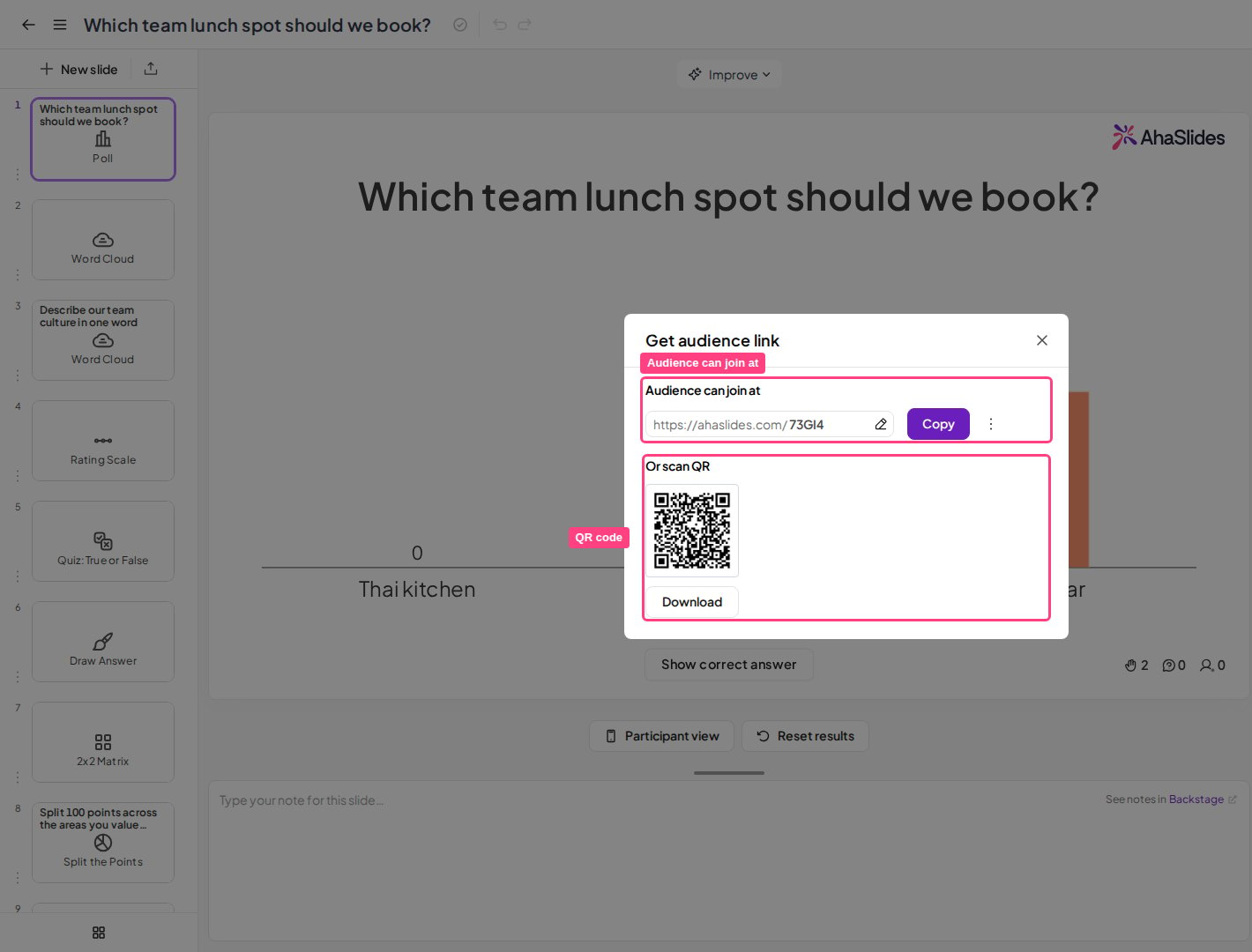
2
Add the iframe to your page
Paste your link into the
src value of this code, then add the code to your page:The participant-view embed isn’t part of the Share menu’s Embed option, so test it on your page before a live session.