

You can import any PowerPoint or PDF file up to 50 MB and 100 slides. Larger files may take a while to fully import.
Find the Import button
There are two ways to import your file into AhaSlides.- From the Dashboard
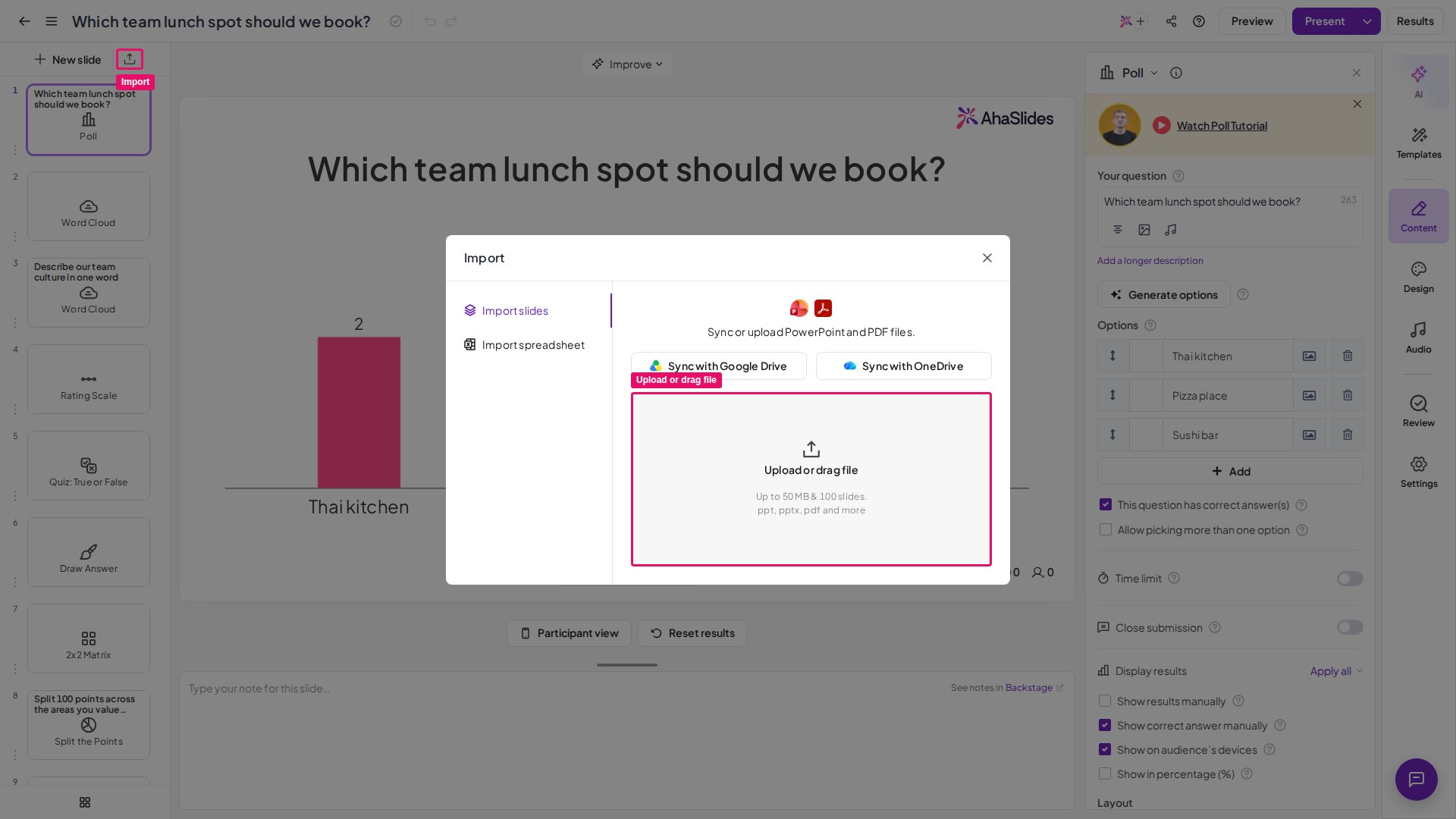
- From the Editor
On the My Presentations dashboard, click the Import button. A pop-up window asks you to browse your computer for your PPT, PPTX, or PDF file. You can also drag and drop your file onto the window.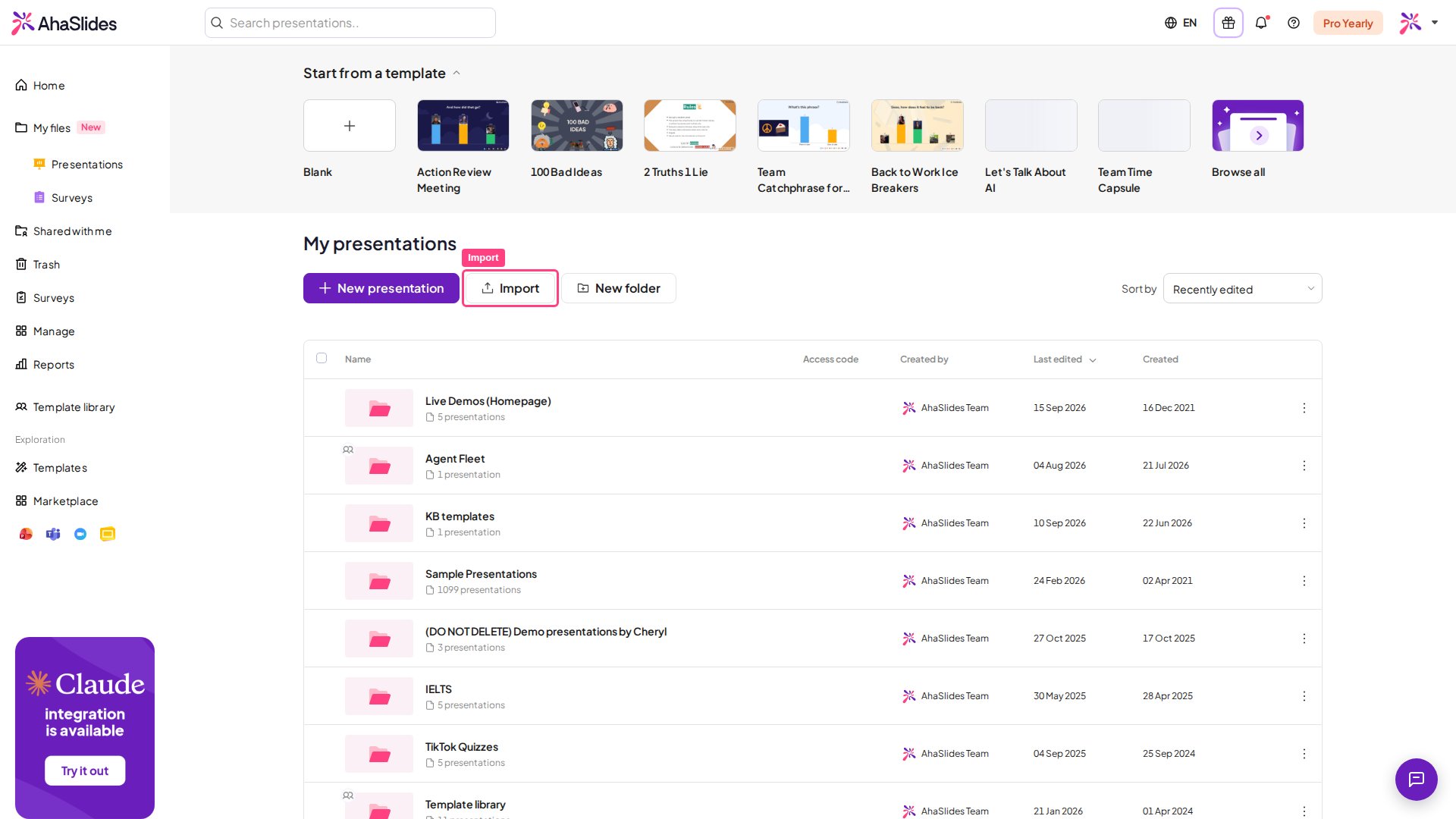
Choose an import option
After selecting the file to upload, you have three options:1
Import and generate slides with AI
Imports your file as slides, then AI suggests and inserts interactive slides after relevant sections.
2
Generate interactive slides
Uses AI to create interactive slides from your file content, without importing the originals.
3
Import slides
Imports your file exactly as it is, with no AI-generated slides.
Import a PowerPoint as editable slides
When you upload a PowerPoint (.pptx) file, you may see two options instead: Import slides and Import as editable slides. Import as editable slides converts your PowerPoint into editable AhaSlides slides, so text and shapes stay editable. Complex elements may be imported as images. If a file can’t be converted, choose Import slides to import it as images instead.Import as editable slides is rolling out gradually, so it may not appear for you yet. Until it does, your PowerPoint imports with the three options above.
Already imported your file and now want AI-generated slides?
Open the presentation, click Import in the editor, upload the same file again, and choose Generate interactive slides, then click Start. AI reads the file and adds interactive slides to the presentation you have open, without importing your original slides a second time.For more on generating slides with AI, see Generating slides from imported files on AhaSlides.
What happens to an imported PowerPoint or PDF
With Import slides, each slide of your file is displayed as a separate Content slide. These slides contain static images of each original slide, so animations, embedded audio, embedded video, and links are not imported into AhaSlides. Each slide still has the functionality of a normal Content slide, which means you can add text, images, GIFs, and emojis. Each imported slide is named with its slide number followed by the name of the file you uploaded. You can rename these in the Content tab of each slide, but the name is only for your own navigation because your audience cannot see slide names.Add back a video from your PowerPoint
A video embedded in your original deck does not survive the import — the slide it was on arrives as a still image, so there is nothing to press play on. Add the video back as its own slide in AhaSlides instead:- If the video is on YouTube, use a YouTube slide.
- If it is on another supported platform, or you have embed code for it, use an Embed slide.
- If it is a video file on your computer, upload it to YouTube first and then use a YouTube slide. If you would rather not put it on YouTube, upload it into a Google Slides presentation and bring that deck in with a Google Slides slide — the video plays from inside the Google Slides deck.
AhaSlides has no direct video-file upload. Videos are always added by link, whichever route you take.
Make a PowerPoint interactive
You cannot make the imported slides themselves interactive, apart from the default emoji reactions. To add interaction, you can generate slides using AI, or place AhaSlides interactive slides between your imported slides to encourage responses from your audience.Troubleshooting PowerPoint and PDF imports
If your file will not import, or gets stuck on “loading,” it is usually caused by one of the following:- The file is over the 50MB / 100-slide import limit — decks over 100 slides can’t be imported at all.
- Heavy embedded video, animations, or high-resolution images slow processing. These are not imported anyway — only static images are kept.
- The file is corrupted or was exported in an unusual format.
- Your connection dropped mid-upload, leaving the import stuck on “loading.”
1
Over 100 slides
Split the file into decks of 100 slides or fewer and import each separately, then reorder the slides within AhaSlides. Or use the PowerPoint Add-in instead — it embeds a live AhaSlides slide rather than importing or converting the file, so it isn’t subject to the 100-slide limit at all.
2
Re-export as PDF
Re-export or convert the file to PDF, then retry the import.
3
Clear your browser cache
Use Chrome, clear your browser cache, or switch networks, then retry.
4
Refresh and retry
If it’s stuck on “loading” for a few minutes, refresh the page and retry.
5
Contact support
Still stuck? Contact support at hi@ahaslides.com with the file attached.
Frequently asked questions
How do I import a PowerPoint presentation into AhaSlides?
How do I import a PowerPoint presentation into AhaSlides?
Click the Import button on the My Presentations dashboard, or the Import button inside the editor to add a file to an existing presentation. Browse for your PPT, PPTX, or PDF file, or drag and drop it onto the window.
Can I import only some of the slides in my file?
Can I import only some of the slides in my file?
No. AhaSlides imports every slide or page in your file — you can’t pick a range during the import. Either delete the slides you don’t need from the file before you import it, or import the whole file and delete the extra slides in AhaSlides afterwards. Syncing from Google Drive or OneDrive also imports the whole file.
Can I import a PDF file into AhaSlides?
Can I import a PDF file into AhaSlides?
Yes. AhaSlides accepts PPT, PPTX, and PDF files through the same Import button.
What file size and slide limits apply to imports?
What file size and slide limits apply to imports?
You can import any PowerPoint or PDF file up to 50 MB and 100 slides. Larger files may take a while to fully import.
What happens to animations, audio, and video when I import a PowerPoint?
What happens to animations, audio, and video when I import a PowerPoint?
Each slide is imported as a static image on a Content slide, so animations, embedded audio, embedded video, and links are not imported. You can still add text, images, GIFs, and emojis to each Content slide.
Why won't my video play after I imported my PowerPoint?
Why won't my video play after I imported my PowerPoint?
The slide came across as a still image, so the video is not there to play. Add it back as its own slide: a YouTube slide for a YouTube video, an Embed slide for other supported platforms or embed code, or a Google Slides slide if you want to play a video file without putting it on YouTube.
Why does changing the background do nothing on an imported slide?
Why does changing the background do nothing on an imported slide?
It is working — you just can’t see it. The imported slide arrives as a static image sized to fill the AhaSlides slide, so it sits on top of the AhaSlides background and hides it completely. Changing the background colour or image updates the layer underneath, which stays covered. Resize or move the imported image and the new background appears behind it. To change the design of the original PowerPoint content itself, edit the PPT file and import it again. For a slide brought in from another AhaSlides presentation, use Design > Customize > Apply to other slides instead — see How to use and create a presentation theme.
Can I import only some slides from my file?
Can I import only some slides from my file?
No. An import always brings in every slide of the file, and syncing a file from Google Drive or OneDrive does the same. To import only some slides, delete the ones you don’t need from the file before you import it, or import the whole file and delete the extra slides in AhaSlides afterwards.
Can I change the design of my imported slides with an AhaSlides theme?
Can I change the design of my imported slides with an AhaSlides theme?
Not the imported content itself. Each slide arrives as a static image that covers the slide, so a theme or background change stays hidden behind it. To change the design, edit the original file and import it again. The themes do apply to any AhaSlides slides you add.
How do I make my imported PowerPoint interactive?
How do I make my imported PowerPoint interactive?
You cannot make the imported slides themselves interactive, apart from default emoji reactions. Instead, use AI to generate interactive slides, or place AhaSlides interactive slides between your imported slides.