

- Instantly apply a professional look using ready-made themes.
- Build reusable brand themes with your logo, colours, and fonts.
- Fine-tune individual slides when you need something special.
Choose a level of design customisation
AhaSlides offers three levels of design customization, depending on how much control you need:- Quick polish → Pre-made themes. Best when you want a clean, professional look instantly. Apply professionally designed colour schemes and backgrounds in one click.
- Brand consistency → Custom themes. Best for recurring sessions, team alignment, and brand credibility. Create reusable themes with your logo, colours, and fonts.
- Creative flexibility → Individual slide customisation. Best when specific slides need unique visuals. Customise backgrounds and styling at the slide level.
What each design setting affects
Plan requirements
A row marked Not on every plan means the feature isn’t included in every plan. If your plan doesn’t include the feature, AhaSlides prompts you to upgrade.Presentation themes
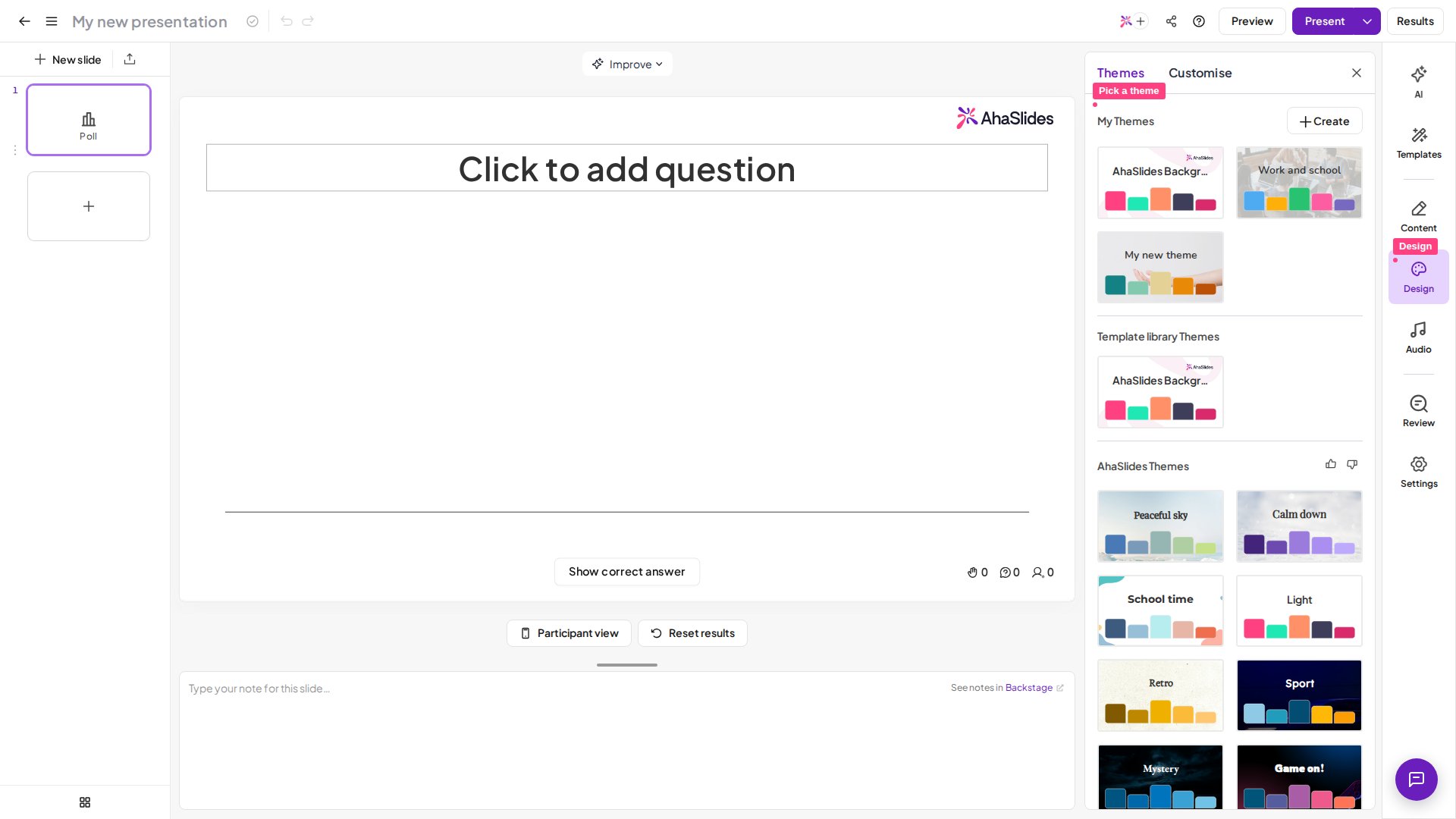
Apply a pre-made theme
Pre-made themes provide a quick and easy way to style your presentation.1
Open the Design tab
Click on the Design tab in the toolbar.
2
Go to Themes
Navigate to the Themes tab.
3
Pick a theme
Select one of the Official Themes or AhaSlides Team Themes.
Create a custom theme
Custom themes are best for consistent branding across multiple presentations. You can create your own theme by selecting the Create button next to My Themes. From there, you can:- Add a theme name.
- Upload your logo.
- Upload a background image or choose a background colour.
- Change the text font.
- Customise the text colour and visualisation colours.
Customise a slide
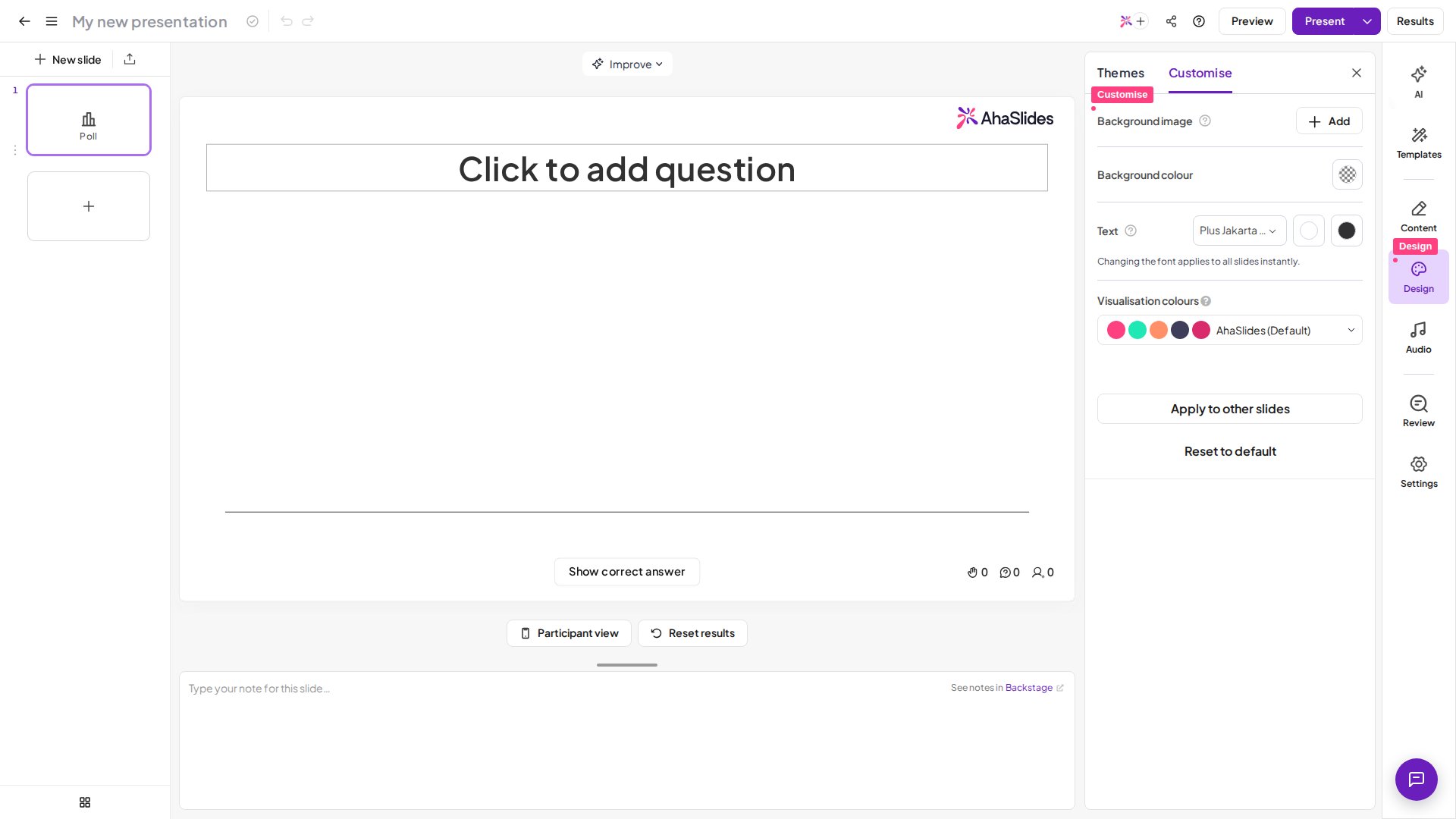
If you prefer a more personalized design, you can customize each slide using the Customise menu. You can open it by:- Clicking the Design tab > Customise, or
- Right-clicking on your slide and choosing Design.
Change the background colour
1
Open the Customize menu
Click the Design tab > Customize (or right-click your slide and choose Design).
2
Pick a colour
Click the colour icon next to Background colour, then choose the colour you would like to use.
Set a background image
Background images aren’t available on every plan. If your plan doesn’t include background images, AhaSlides prompts you to upgrade.1
Add an image
Click the Add button next to the Background image section on the Design menu to upload or add an image.
2
Check quality
Ensure the image is high-quality and fits your presentation style.
Adjust background transparency
Modify the Background Transparency to set the transparency level, with 100% being fully visible.Change the text font
Changing the font applies across your entire presentation, and it is also visible on your audience’s screens. This feature isn’t available on every plan; if yours doesn’t include it, you’ll be prompted to upgrade. For step-by-step guidance, see How to Change and Manage Fonts.Change visualisation colours
Changing this setting applies to all charts in quiz, poll, and scale slides, and to audience response displays in word cloud, open-ended, and brainstorm slides. Click the colour bar under Visualisation Colours and select the colour palette you would like to use for your presentation. AhaSlides does not offer custom colours or hex codes for visualisation colour palettes, so choose one of the preset palettes.Apply one slide’s design to other slides
Once you have one slide looking the way you want, you don’t have to repeat the work slide by slide.1
Select the slide you styled
Click the slide whose background you want to reuse.
2
Open the Customize menu
Click the Design tab > Customize (or right-click the slide and choose Design).
3
Click Apply to other slides
Click Apply to other slides at the bottom of the panel, then confirm the prompt — “Do you want to apply the same colour and background to all other slides in this presentation?” — with OK.
Apply to other slides copies the background colour, the background image and its crop, the background transparency, and the text colour. It does not copy the font: the font is a presentation-level setting that already applies to every slide the moment you change it, so there is nothing to copy across.
Best practices for slide design
- Design for readability: use strong contrast between text and background, especially for projector rooms and large screens.
- Keep colours consistent: using the same visualisation colours helps audiences read charts and results faster.
- Avoid visual clutter: clean slides keep attention on interaction, not decoration.
- Reuse your theme: save time and stay consistent across sessions.
- Preview once before presenting: open the audience view on another device to check text size and contrast.
Frequently asked questions
Why does my theme not apply to all slides?
Why does my theme not apply to all slides?
When you customize individual slides using the Customize menu, those slides are excluded from automatic theme updates. To reset a slide, go to Design > Customize and click Reset to default.
Can I use my own fonts?
Can I use my own fonts?
Yes, on plans that include it. Go to Design > Customise, click the font dropdown under Text, and select + More fonts to access additional options. See How to Change and Manage Fonts for details.
What do visualization colours affect?
What do visualization colours affect?
Visualization colours control the palette for all charts in quiz, poll, and scale slides, plus audience response displays in word cloud, open-ended, and brainstorm slides. Changing this setting applies to the entire presentation.
Can I edit a saved custom theme?
Can I edit a saved custom theme?
Editing a saved custom theme directly isn’t supported yet. Under My Themes, you can share, unshare, or delete a saved theme. To update a theme’s design, create a new one with your revised logo, colours, or fonts and Save it — then delete the old version if you no longer need it.
What image size works best for a background?
What image size works best for a background?
Use high-resolution images (1920x1080 pixels or higher) that match your presentation aspect ratio. Lower-quality images may appear pixelated when projected. Use the transparency slider to ensure text remains readable over busy images.
I moved a slide in from another presentation and its background doesn't match. How do I fix it?
I moved a slide in from another presentation and its background doesn't match. How do I fix it?
Style one slide of the destination deck the way you want it, then open Design > Customize and click Apply to other slides to push that background colour, background image, transparency, and text colour onto every other slide in the presentation. If the odd slide out was imported from a PowerPoint or PDF file, changing its background will look like it does nothing — see what happens to an imported PowerPoint or PDF.
Can I apply different themes to different slides?
Can I apply different themes to different slides?
Themes apply presentation-wide, but you can customize individual slides to override theme settings. Use the Customize menu to set unique backgrounds for each slide while maintaining your overall theme.
Will my audience see the same styling I see?
Will my audience see the same styling I see?
Yes. All design elements (backgrounds, fonts, colours, and logos) display on your audience’s devices exactly as you see them in the presenter view.