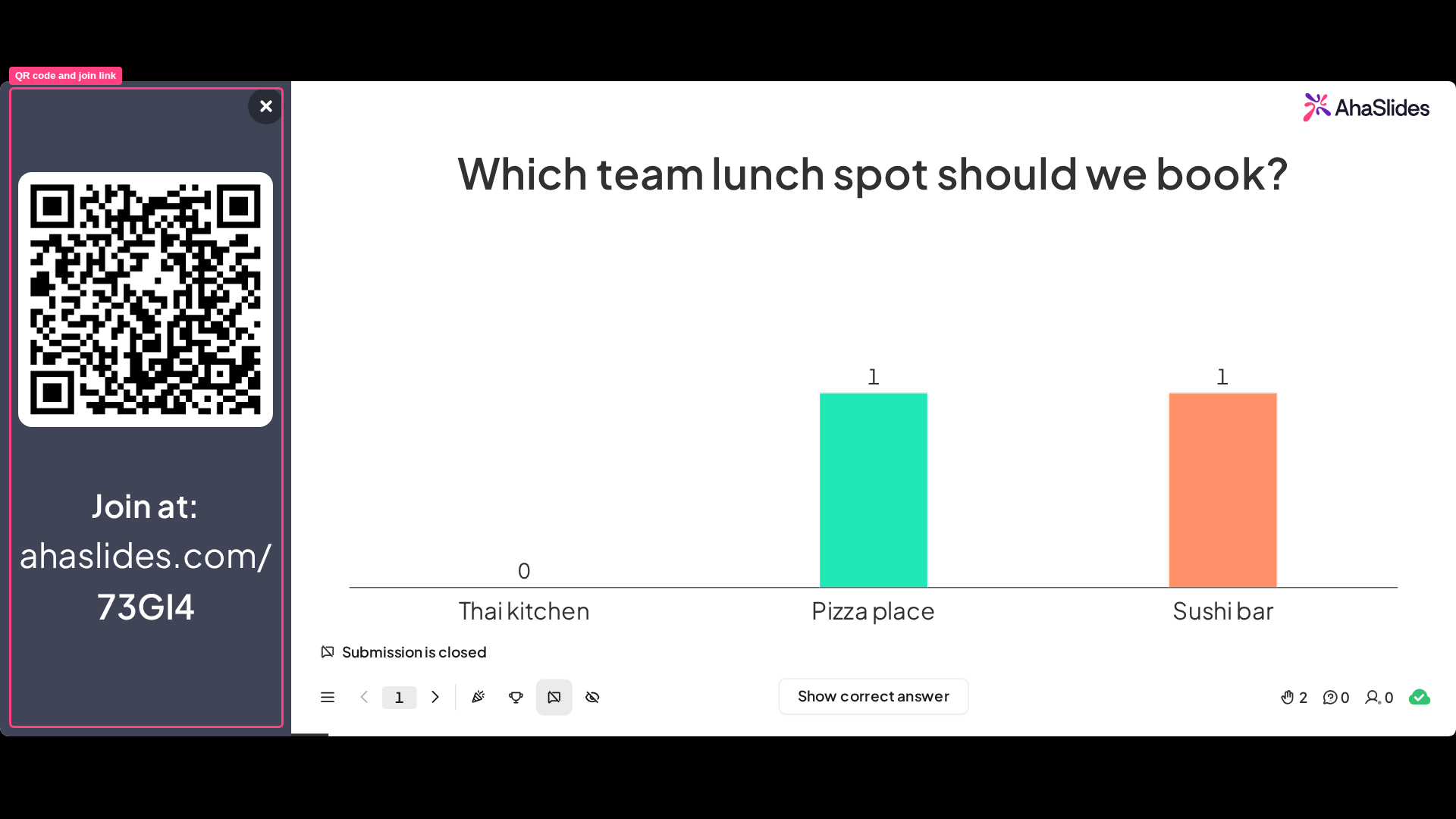
- A unique URL (AKA ‘access link’ or ‘access code’) that participants type into their phones.
- A unique QR code that participants can scan with their phone cameras.
Do participants need an AhaSlides account to join?
No. Participants do not need an AhaSlides account and don’t have to sign up or log in to join your presentation. They simply open the join URL or scan the QR code on their phone, enter their name if you ask for it, and they’re in. The only exception is if you’ve deliberately turned on audience verification for your presentation — for example, to restrict access to specific people. In that case, participants are asked to verify before joining. See Participant verification and Using audience authentication for how that works.Does the presentation time out, or do participants have to rejoin?
No. There is no time limit on joining and no idle timeout, and participants who stay in the same browser on the same device keep their details and progress. See Does the presentation time out, or do participants have to rejoin?.Sharing the URL/join link or access code
Participants join in the web browser of any device — a phone, tablet, laptop or desktop computer — in one of three ways: they scan your presentation’s QR code with their phone camera (see Sharing the QR code below), they type the join URL (ahaslides.com/ followed by your access code), or they go to audience.ahaslides.com and enter the access code there. This URL and access code can be found on the joining instruction bar at the top of every slide in your presentation. You can view it on the slide canvas in the presentation editor, and it will also be visible during your presentation. The access code is the string after ahaslides.com/ in the URL.Hide controls and status
You can hide the presenter’s controls and status bar so your audience sees only your slide content. This hides three things at once: the joining instruction bar at the top, the control bar at the bottom, and the live participant/voter count — the counter that shows how many people have responded. Turn it on in either place:- Before you present — open Settings, go to the Advanced tab, and tick “Hide controls and status”.
- While presenting — click the menu button (the ☰ icon) in the control bar, open Display, and choose “Hide controls and status”.
When presenting, you can click the URL access link to copy it to your clipboard. Then, you can paste it somewhere for your participants.
Changing your URL access code
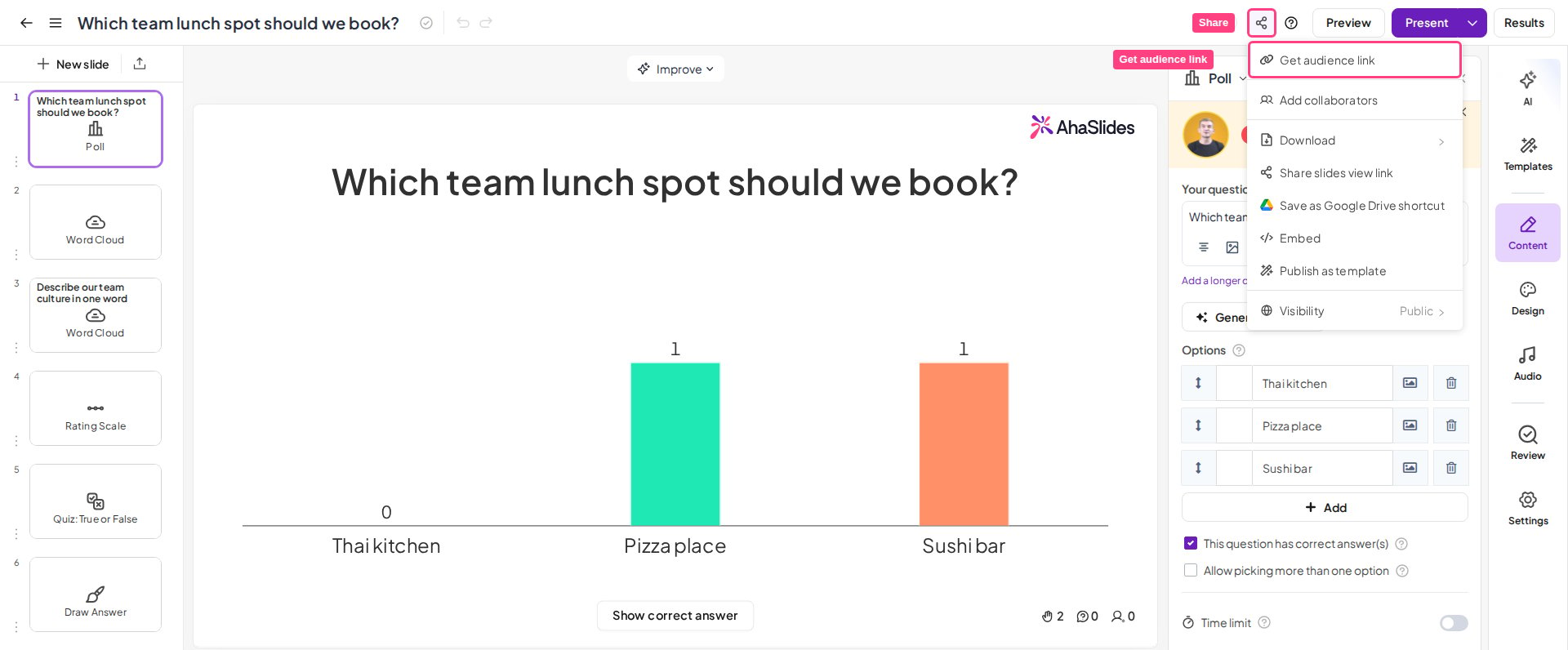
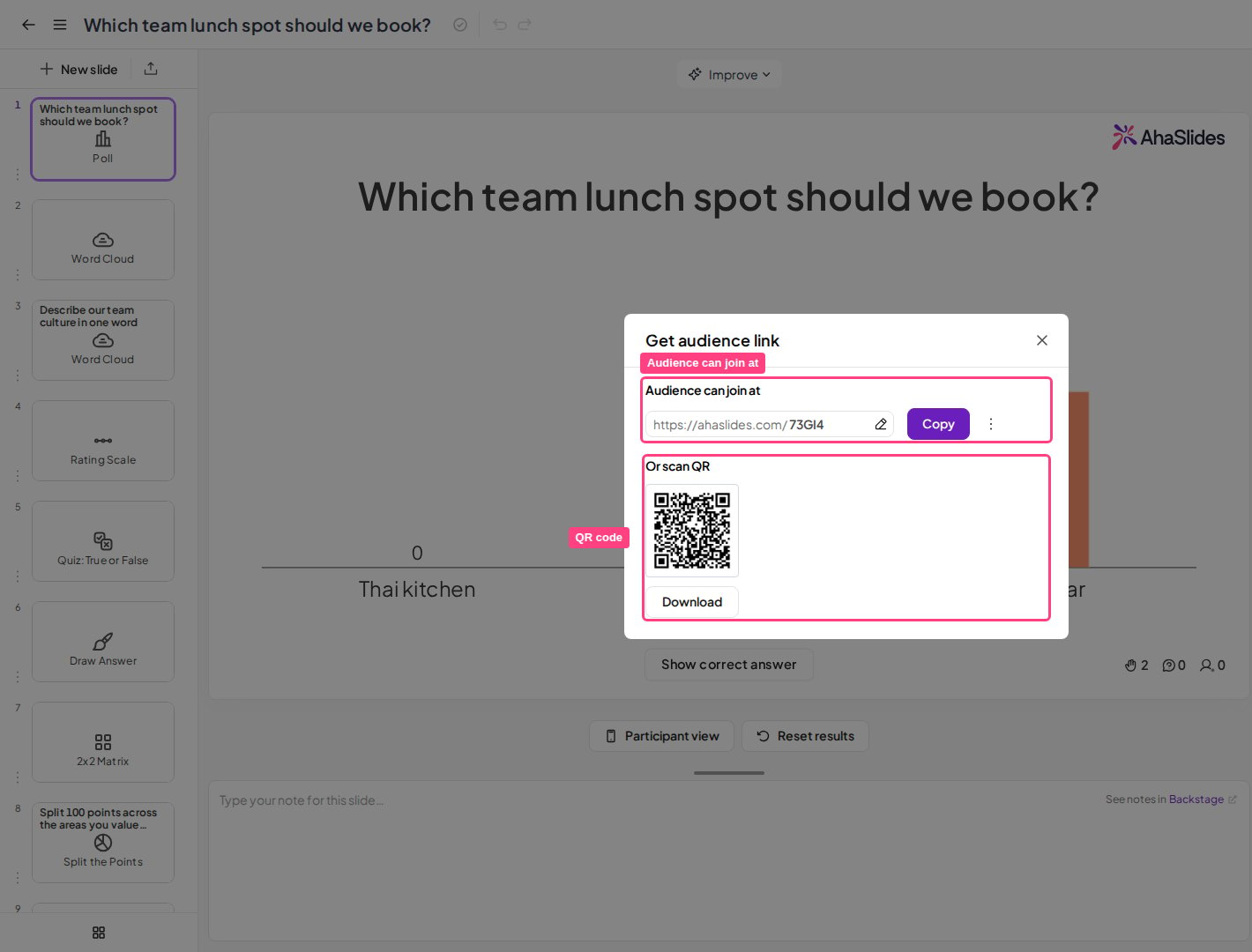
A custom join link is the join link of your presentation with an access code that you choose. To change the access code, click Share, choose Get audience link, then click the code under Audience can join at. The access code belongs to the whole presentation. A single slide, such as one Poll slide, does not have its own join link or access code.Changing the access code isn’t available on every plan. If your plan doesn’t include changing the access code, AhaSlides prompts you to upgrade.
- Be unique (it must not be the same as any other AhaSlides presentation’s code)
- Be 3 to 10 characters long
- Contain only letters and numbers
If your access code is already in use
An access code can be used by only one presentation at a time. If you try to save a code that another presentation is already using, AhaSlides won’t accept it and will tell you the code is already taken. That code only becomes available again when the presentation currently holding it is either:- Deleted, or
- Changed to a different code.
Your permanent access code
From Get audience link in the Share menu of the presentation editor, you can also copy your permanent access code. This long URL code will also provide your participants access to your presentation, but this link cannot be changed. No matter how many times you change your short access code, your long URL code will remain the same. To get the link, click the three-dot icon next to the Copy button, which will reveal the Copy permanent link.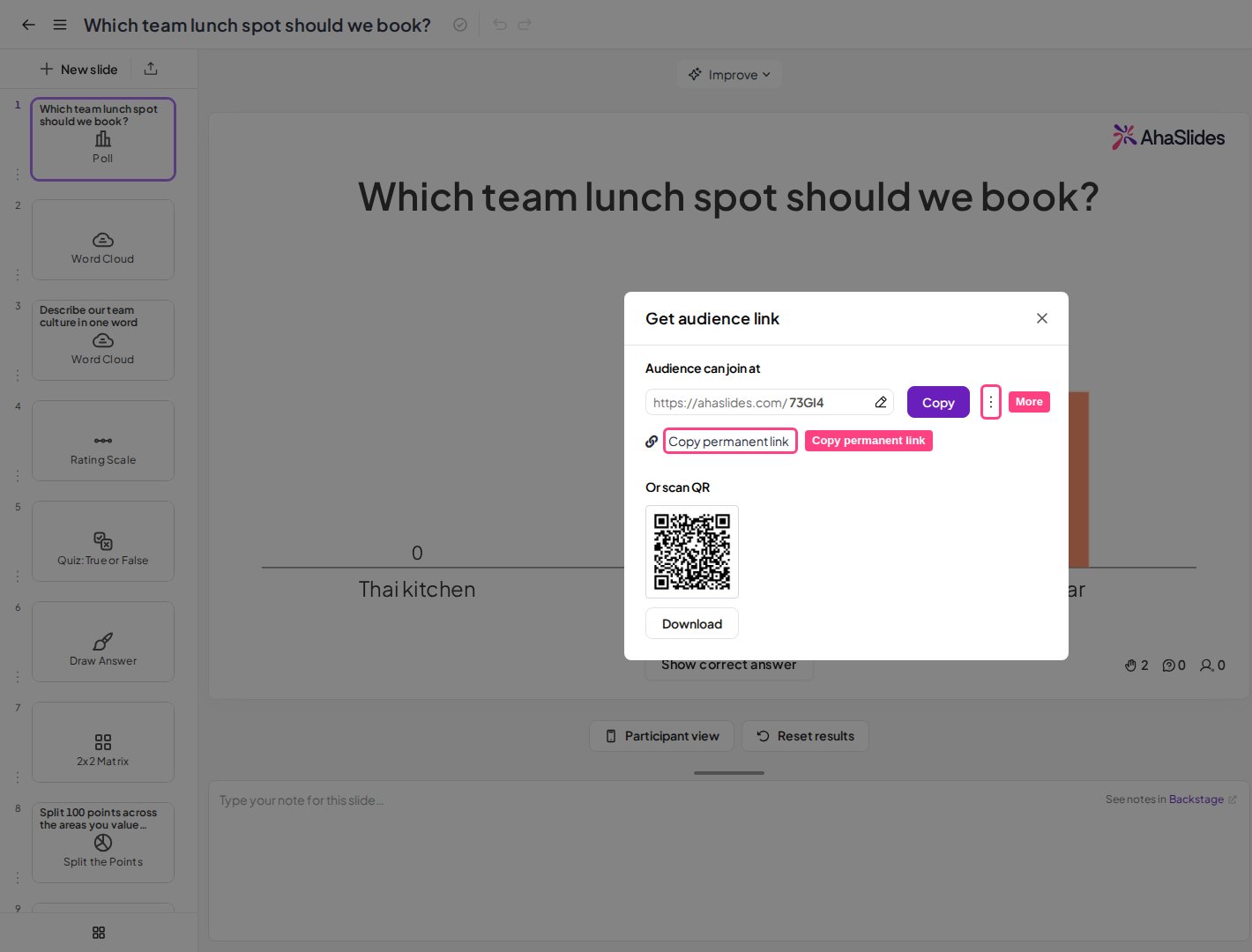
Start presenting
Select Present at the top right of the editor, then choose Present from the current slide, Present from the first slide or Present with Backstage.Sharing the QR code
Each presentation will have only one unique QR code. This QR code does not change, even if you change the URL access code.
Presentation side column
When you start presenting, a join panel with your QR code and access code slides in on the left of the slide. Click anywhere in the top bar (or press ‘Q’ on your keyboard) to show or hide it at any time. The panel stays there while you present your slides (until you manually close it), allowing participants to scan the code with their phone cameras at any time during your session.