

Install the add-in
- From a Channel or Chat Tab
- From the Meeting Toolbar
1
Open the channel or chat
Navigate to the Teams channel or group chat where you want to add AhaSlides.
2
Click the + (Add a tab) button
Find and click the + button at the top of the channel or chat.
3
Search for AhaSlides
Type AhaSlides in the search bar and select it from the results.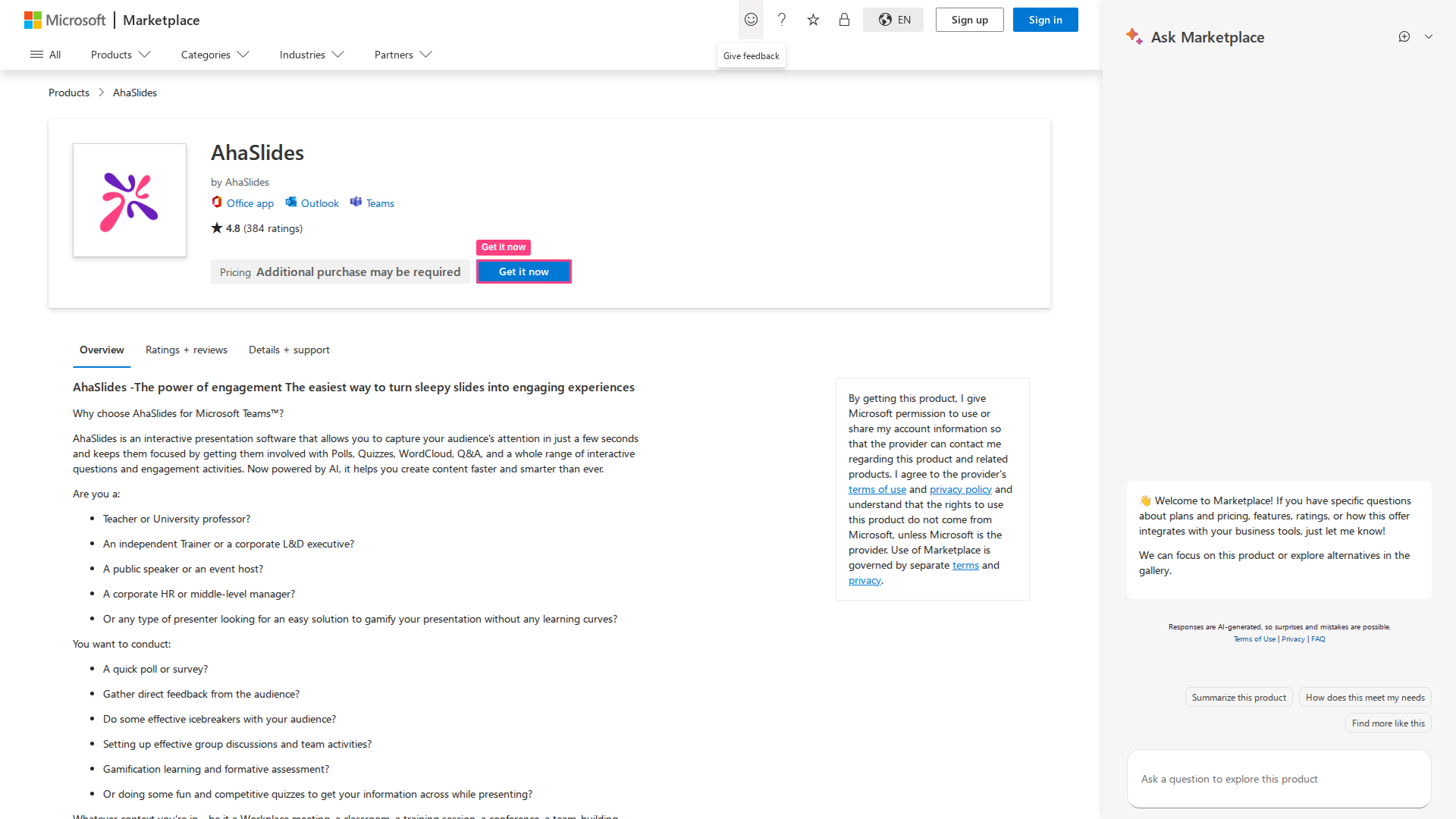
4
Sign in
Sign in with your AhaSlides account. AhaSlides opens as a persistent tab in that channel or chat.
Present in a meeting
1
Open the panel
Click AhaSlides in the meeting toolbar. The panel opens on the right side of the Teams window, showing your presentation library — individual presentations and folders, each with slide count and participant stats.
2
Browse your library
Your presentations appear as a scrollable list with folder groupings. Tap any folder to browse the presentations inside it.
3
Start a presentation
Click Share on any presentation to go live. Your slides appear in the main meeting view, visible to all participants.
4
Navigate slides
Use the ← → arrows or click any thumbnail in the slide strip at the bottom to jump between slides. The current slide number (e.g. 4 / 10) is shown in the centre.
5
Use presenter notes
A Notes panel sits to the right of the slide. Click to add or view speaker notes for the current slide — only you can see these.
6
Switch presentations if needed
The AhaSlides panel stays open alongside your presentation. Browse and switch to a different presentation at any time without leaving the meeting.
What participants see
Participants open the AhaSlides panel on their own devices — no join code needed when they’re already in the Teams meeting. The participant screen is split into four tabs: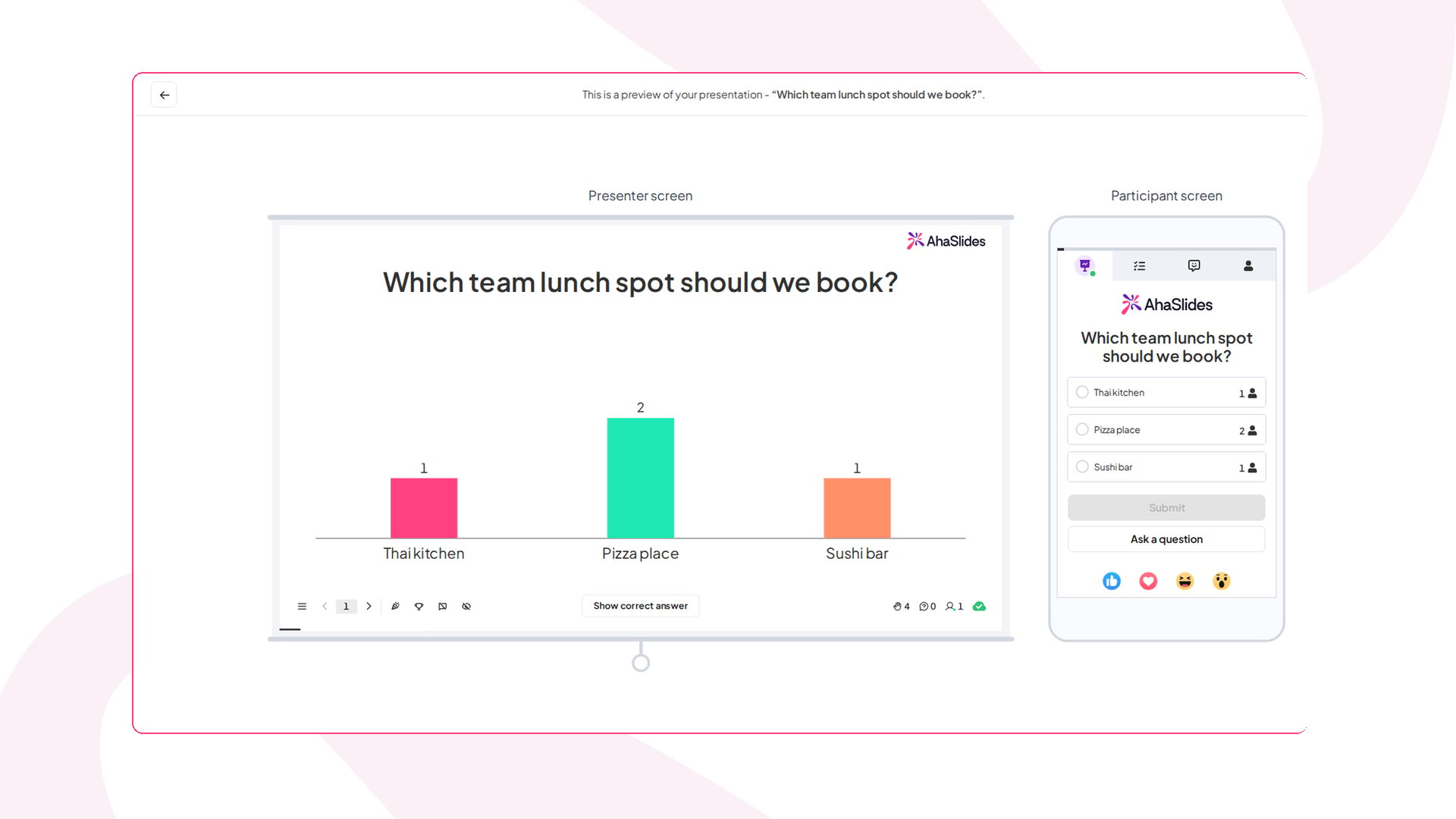
How participants respond to slides
Participants interact directly from the panel:- Word Cloud — type up to 3 words and submit; words appear instantly on the presenter’s cloud
- Poll — select an answer; bar chart updates live for the presenter
- Open Ended — type a response and optionally upload an image
- Rating Scale — drag or tap to rate; results appear as a wavy line chart
- Brainstorm — submit ideas, then vote on others’ submissions in a second phase
- Quiz — choose an answer before the timer runs out; get instant right/wrong feedback
- Q&A — type and submit questions at any time; upvote questions from other participants
Emoji reactions
At the bottom of the participant panel, five emoji reactions (👍 ❤️ 😂 😮 😠) let participants express themselves at any time during the session. Reaction counts are visible to both presenter and participants.Ask a question
An Ask a question button is always visible on the participant panel, regardless of which slide is active. This lets participants submit Q&A questions at any point — not just on a dedicated Q&A slide.Tips for running the Teams add-in
Troubleshooting the Teams add-in
Frequently asked questions
Do participants need to install the Teams add-in?
Do participants need to install the Teams add-in?
No. Participants see the AhaSlides panel automatically when you share a presentation. They only need to be in the Teams meeting.
Do participants need an AhaSlides account?
Do participants need an AhaSlides account?
No. Participants join as guests with a display name. An account is only required to create and present.
Can I use AhaSlides without the add-in?
Can I use AhaSlides without the add-in?
Yes. Open your presentation in a browser, go live, then use Teams’ screen sharing to present. Participants join via the access code as usual. This works but doesn’t give participants the integrated panel experience.
Can I switch between presentations mid-meeting?
Can I switch between presentations mid-meeting?
Yes. The AhaSlides panel stays open while you present. Browse your library and click Share on a different presentation at any time.
Is the add-in available on mobile Teams?
Is the add-in available on mobile Teams?
The presenter experience is optimised for desktop Teams. Participants can always respond from any device.
Does the add-in work in Teams breakout rooms?
Does the add-in work in Teams breakout rooms?
The AhaSlides panel lives in the main meeting stage, so it does not follow participants into a Teams breakout room. To keep your presentation reachable inside breakout rooms, share the access code (or the join link) with participants and have them open the live presentation in any browser on a phone or laptop. This works independently of Teams, so it reaches participants wherever they are.