How to skip (hide) and unskip slides so they are bypassed while presenting without deleting them.
The Skip Slide feature lets you temporarily hide slides from your presentation without deleting them. This is useful when you want to keep certain slides for future use but don’t need them in your current session.
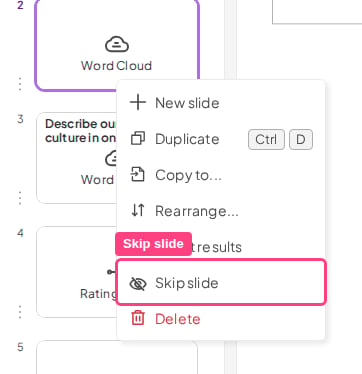
In the slide list, right-click the slide you want to skip (or click the small three-dot button to the left of it) and choose Skip slide.It is then hidden under an eye icon, and a message appears stating that the slide will be skipped when presenting.
When you start presenting, any skipped slides are automatically bypassed. For example, if you skip slide 2, moving forward from slide 1 takes you directly to slide 3.
To include a skipped slide in your presentation again, right-click it (or click the three-dot button) and select Unskip slide. Alternatively, click Unskip next to the message “This slide is skipped while presenting” in the slide canvas.The hidden eye icon disappears, and the slide appears normally during your next presentation.Have a question?Contact our support team — if you’re logged in, use the chat bubble in the bottom-right of your dashboard; otherwise contact us here or email hi@ahaslides.com.Want to connect with other users? Join the AhaSlides community to share tips, request features, and see how others engage their audiences.