

Backstage
How to open Backstage
There are two ways to start presenting with Backstage. 1. In the editor On the editor screen, go to the Present button in the top-right corner, press the down arrow, and choose Present with Backstage.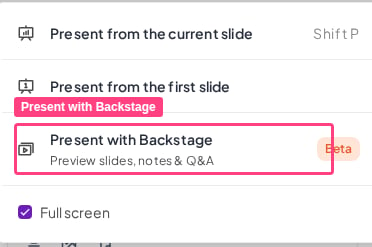
- Hover the cursor over the Menu icon in the bottom-left corner.
- Click Show Backstage.
Using Backstage
When the Backstage window opens, you’ll see a stripped-down version of the editor:- In the centre, the slide you are currently presenting. You can interact with this area to control the slides, just as you would on the presenter screen.
- On the right, any slide notes you’ve made for that slide. You can type notes into this field, and moderate participant questions in Q&A.
- At the bottom, thumbnails of all the slides in your presentation. Click any thumbnail to jump to that slide.
Remote Control
How to open the Remote Control
In the top-right corner of Backstage, click the Remote control button to get a QR code / link for the Remote Control function. Scan the QR code or copy the link to use Remote Control on a separate device. This is ideal for presenters who prefer to move around, since you no longer need to be at the presenting computer. It also lets another person take control of the slides without needing account access or the presenting device. More than one person can open the same Remote Control link at once, for example two moderators approving Q&A questions on their own phones. To cut off every device using it, click Reset link: this generates a new link, and all currently connected devices lose access.Using the Remote Control
With the Remote Control you can perform the following actions: 1. Live controls- Navigate to the next / previous slide
- Jump to a specific slide
- Trigger effects (confetti, applause, drumroll)
- Show / hide the QR code on screen (for late joiners)
- Show / hide the instruction bar
- Switch between public and private mode
- Control presentation audio (audio that plays across the entire presentation)
- Control slide audio (audio tied to a specific slide)
- Control sound effects (on quiz slides only)
- Pin questions
- Mark a question as answered
- Approve questions
- Dismiss a question
- View slide notes