

- Teachers who want to assign a quiz as homework.
- Quiz masters who want to give their players freedom to complete a quiz at a time that suits them.
- Trainers who want to carry out a survey that participants can complete at their own pace.
How to turn on self-paced mode
1
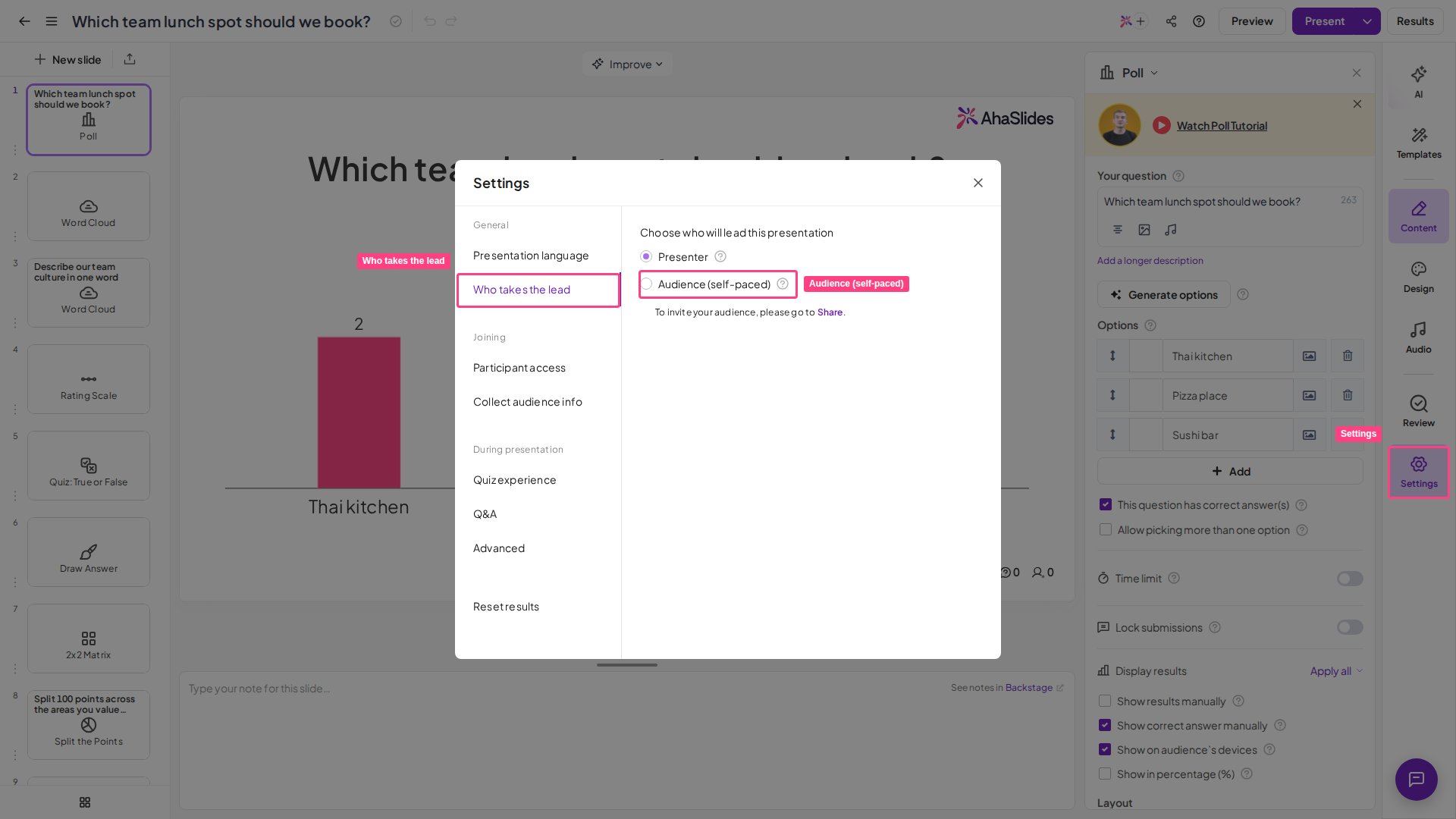
Open Settings
In the presentation editor, click the Settings icon in the right-hand toolbar to open the Settings window.
2
Click Who takes the lead
Click on Who takes the lead.
3
Choose Audience (self-paced)
Choose Audience (self-paced).
On the audience’s screen
Once you turn on the Self-paced feature, your audience will be able to navigate through the slides at their own pace, without the need for a presenter. The Back and Next navigation bars can be used to move to the previous or next slide. This feature makes it easy for your audience to follow along with your presentation and complete it on their own time.Frequently asked questions
Does self-paced mode change the participant limit?
Does self-paced mode change the participant limit?
No. Self-paced mode only changes who advances the slides — it doesn’t change how many people can join. The limit on how many people can be online at once is the same as a host-led session and depends on your plan, not on the mode. One difference: if your account has a monthly participant allowance, self-paced presentations aren’t counted towards it. To see the limit that applies to your account, check your My Plan page.
Does the quiz timer still apply in self-paced mode?
Does the quiz timer still apply in self-paced mode?
Yes. Each quiz question keeps its time limit, and the countdown runs on each participant’s own device from the moment they open the question. If time runs out before they answer, the question closes for them. To give participants more time, raise each question’s Time limit in the Content tab.
Can participants leave and resume a self-paced session later?
Can participants leave and resume a self-paced session later?
Yes. Because self-paced sessions are exactly the kind participants complete over time, AhaSlides saves each participant’s details and the answers they’ve already given in their browser storage on the device they joined with. So as long as they stay on the same browser and device and don’t clear their cache, they can close the tab and come back later with their answers kept, for up to three days after they last took part. The slide they were on isn’t saved, so reopening the join link starts from the first slide — quiz questions they’ve already answered open on their results screen.If they switch to a different browser or device, use a private/incognito window, or clear their cache, they return as a brand-new participant and can’t carry on from where they stopped. For the full details of how rejoining works, see does the presentation time out, or do participants have to rejoin?.
Can participants see a ranking or leaderboard if they play the quiz at different times?
Can participants see a ranking or leaderboard if they play the quiz at different times?
Yes. A self-paced quiz keeps its leaderboard just like a host-led one — each participant sees the leaderboard slide as they reach it, with their own ranking marked.Because a self-paced session has no host advancing the slides, each participant’s screen works out the standings live the moment they reach the leaderboard, rather than waiting for a presenter to reveal them. So the ranking is cumulative: it reflects everyone who has taken the quiz so far, even though people play at different times. A participant who plays early sees only the results collected up to that point; one who plays later sees a fuller board.
Do participants move on by themselves after answering?
Do participants move on by themselves after answering?
On some slides, yes. After a participant submits an answer, they move on to the next slide automatically on a Rating Scale slide, on a Poll slide when the results aren’t shown on their devices, and on a Word Cloud or Open Ended slide where Allow audience to submit more than once is off. Quiz questions don’t move on by themselves: once the result shows, participants tap the forward arrow next to the slide counter to continue.
If people play on different days, do their answers add up together?
If people play on different days, do their answers add up together?
Yes. Answers from different days are added to the same results and leaderboard until you reset the results.
Can participants go back and change a quiz answer they've already given?
Can participants go back and change a quiz answer they've already given?
They can move back to earlier slides with the left arrow in the slide navigation bar, but a quiz question they’ve already answered reopens on its results screen, not the question — so a submitted quiz answer is final and can’t be changed by going back. This means a participant can’t return to an earlier question to improve their score after seeing the leaderboard.