

Before you start
Collecting audience information, and downloading it in the Excel export after the presentation ends, aren’t available on every plan; if yours doesn’t include them, you’ll be prompted to upgrade. See Your AhaSlides presentation report for the report itself.
Collect audience info
You can collect audience info in two places: on the join form, or on an Open Ended or Brainstorm slide.In the settings menu
1
Open Collect audience info
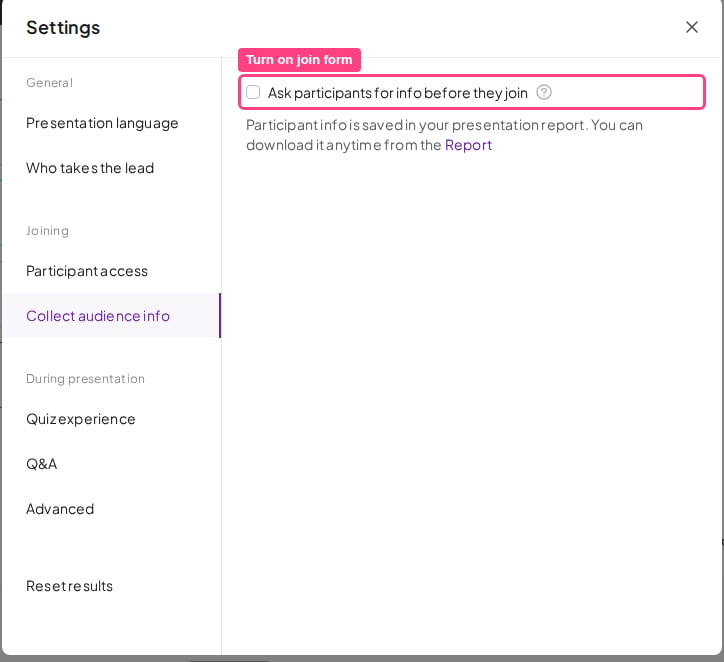
Go to the Settings menu and click Collect audience info.
2
Turn on the join form
Check the box labelled Ask participants for info before they join. This shows an entry form that participants fill in when they join your presentation.
3
Add fields
Write the heading for your form, then click the button next to Add fields to select which information fields to add.
In an Open Ended or Brainstorm slide
1
Open Collect audience info on the slide
While editing an Open Ended or Brainstorm slide, click the button next to Collect audience info. This collects information from participants when they answer that specific slide.
2
Add a field
Click the field you want to add.
Add information fields
You can add up to 8 fields: 3 default fields (Name, Email, Avatar) and up to 5 custom fields.Default fields
To add a default field, choose one of the three default fields after clicking the add button. You cannot rename a default field, but you can edit the question that participants see on their devices.Custom fields
To add a custom field, choose Custom field + after clicking the add button. A window opens for you to set up the field with these options:- Field name: your internal label, used for sorting or filtering data in the Excel report. Participants do not see this name.
- Question shown to participants: the question or label participants see when filling out the form.
- Required: turn on this switch to make the field mandatory for participants.
Reordering and editing fields
To remove a field or mark it as required, click the three-dot button next to it. On a slide’s own Collect audience info list, the same menu also has Hide on slide, which keeps collecting the field without showing it on the slide. To rearrange fields, drag them using the six-dot button at the front of each field.What participants see on their devices
When participants join your presentation, they see a form prompting them to enter the information you requested before they can join.When participants join, they see the same background as the slide the presenter is displaying at that moment.
See who has joined
Names of the people who have joined appear live in the quiz lobby. There’s no separate live list of joined names on other slides. After your presentation, the full list is in the Participants sheet of the Excel export.See collected info in the Excel export
Once participants enter their info, it is stored in the Excel file that contains your full presentation report. If your plan includes the Excel export, you can download this file from the Presentation Report: click Export, then choose Excel (see Export data to Excel). Open the downloaded file and go to the sheet labelled Participants to see all collected participant info.Frequently asked questions
How do I collect names and emails from my audience on AhaSlides?
How do I collect names and emails from my audience on AhaSlides?
Go to the Settings menu, click Collect audience info, check Ask participants for info before they join, then add the fields you want. You can also collect info on an individual Open Ended or Brainstorm slide.
Can I use AhaSlides to track attendance or capture who attended?
Can I use AhaSlides to track attendance or capture who attended?
Yes — use the join form as an attendance list. In Settings → Collect audience info, turn on Ask participants for info before they join and add the fields you need — for example the Name and Email default fields, plus a custom field such as Job title marked Required. Everyone who joins fills the form in before entering, and you can download the full list afterwards from the Participants sheet of the Excel report.
When does the form appear if my presentation starts with a title slide?
When does the form appear if my presentation starts with a title slide?
The form appears as soon as someone joins, even on a title slide. At the first quiz question, the join screen shows the name they already gave, filled in and ready to confirm.
How do I add custom fields to the audience info form?
How do I add custom fields to the audience info form?
After clicking the add button, choose Custom field +. You can set an internal field name, the question shown to participants, and whether the field is required.
How many fields can I add to the audience info form?
How many fields can I add to the audience info form?
You can add up to 8 fields: 3 default fields (Name, Email, Avatar) and up to 5 custom fields.
Where do I find the participant information I collected?
Where do I find the participant information I collected?
It is stored in the Excel file with your presentation report. Download it from the Presentation Report by clicking Export and choosing Excel, then open the sheet labelled Participants.
Can every plan collect audience information?
Can every plan collect audience information?
No. Collecting audience information isn’t available on every plan; if yours doesn’t include it, you’ll be prompted to upgrade. The same applies to downloading the collected information in the Excel export.
Can I filter, separate, or segment audience responses?
Can I filter, separate, or segment audience responses?
AhaSlides doesn’t have a built-in “response segmentation” or a live in-app filter that splits results by audience group on screen. There are a few ways to get the same outcome:Let the report’s AI build the segmentation for you (easiest). Open your presentation report and use Ask AI, then ask it to break the responses down by your group field — for example, “summarise the responses grouped by Team.” It generates the segmented summary from the collected data for you, with no spreadsheet work. (You still need to collect a group field, as below.)Break responses down by group (segment or filter in Excel). If you collect a group field, you can cross-reference it against responses after the presentation:
- Turn on Collect audience info in Settings and add a custom field for the group (for example, “Team”), or collect it via a field on an Open Ended or Brainstorm slide.
- After presenting, request the Excel export from the Report page.
- The Participants sheet has each participant’s ID plus your group field. The Quiz Answers and Opinion Answers sheets have their responses, linked by the same participant ID.
- Build a Pivot Table in Excel keyed on participant ID to cross-reference group against responses.