

Add the AhaSlides app
1
Log in to your Zoom account
Log in with your Zoom account on the Zoom Workplace/Webinar desktop app.
2
Add the app from the Marketplace
Click Apps > Add apps, search for AhaSlides in the Zoom App Marketplace, and click Add.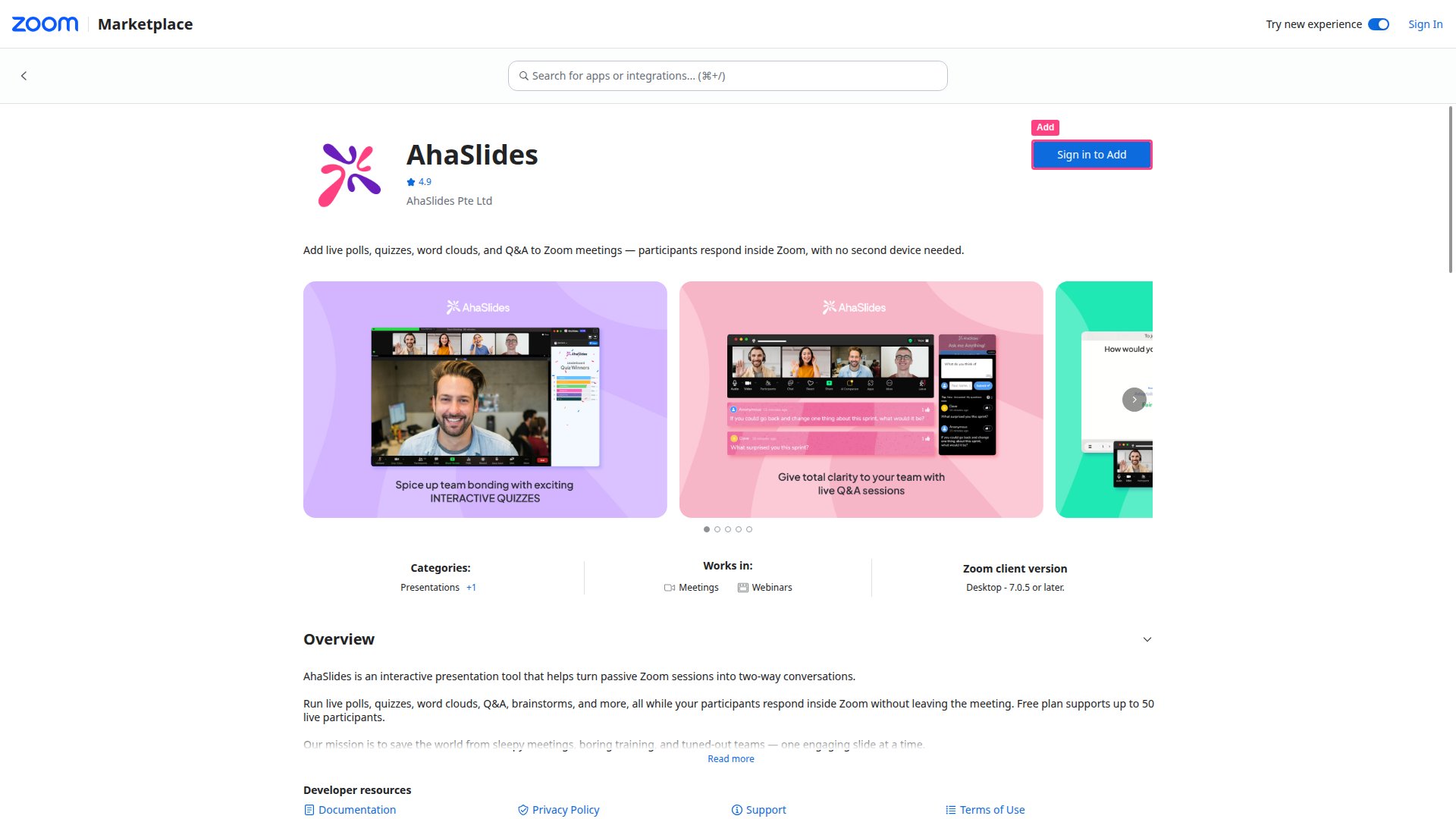
3
Allow access
Select Allow to add AhaSlides to your Zoom account. The app is now available in your My Apps section.
Host a presentation in a Zoom meeting
1
Open the AhaSlides app
Open the AhaSlides app in your Zoom Apps, or start a new Zoom meeting and launch AhaSlides from your Zoom Apps.
2
Host a presentation
Select Host a presentation, then log in to your AhaSlides account when prompted.
3
Choose a presentation
Choose a presentation from your list or inside a folder, and select Allow to enable screensharing.
4
Send invitations
Select Allow to send invitations to all the meeting participants.
5
Present
Run your AhaSlides presentation as usual — your audience will respond live within the Zoom meeting.
How participants join
Participants have three ways to open the AhaSlides panel during the meeting:- From an invite — click Open in the invitation notification they receive when the host starts the presentation.
- Automatically — click Apps in the Zoom meeting, find and add the AhaSlides app; it connects automatically when the host starts.
- By entering a code — click Apps, add the AhaSlides app, select Join as a Participant, and enter the access code.
Uninstall the app
1
Go to the Zoom App Marketplace
Log in to the Zoom App Marketplace.
2
Open your added apps
Click Manage, then Added apps, and search for AhaSlides.
3
Remove the app
Click the three-dot button next to the AhaSlides app, then select Remove.
Frequently asked questions
Do participants need to install the AhaSlides app?
Do participants need to install the AhaSlides app?
No. Participants can accept the host’s invitation or open AhaSlides from their Zoom Apps panel. They do not need a separate AhaSlides account.
Can I use AhaSlides in Zoom without the Marketplace app?
Can I use AhaSlides in Zoom without the Marketplace app?
Yes. Open your presentation in a browser, go live, then use Zoom’s screen sharing to present. Participants join via the access code as usual. This works but does not give participants the integrated in-Zoom experience.
Is this available on Zoom mobile?
Is this available on Zoom mobile?
No. The AhaSlides Zoom integration is only supported on the Zoom Workplace/Webinar desktop app (PC/laptop). Participants on mobile cannot use the in-Zoom panel and should join via the access code in a browser instead.