

The presentation is in private mode
The presentation is in private mode
Participants can only join and interact when a presentation is in public mode. If it’s still in private mode — the setting you use while editing — the join link won’t open for anyone.Click the Share icon in the top-right corner of the editor, open Visibility, and choose Public. Private mode is available on every plan, so this is never a plan restriction. See Turning on private mode for your presentation.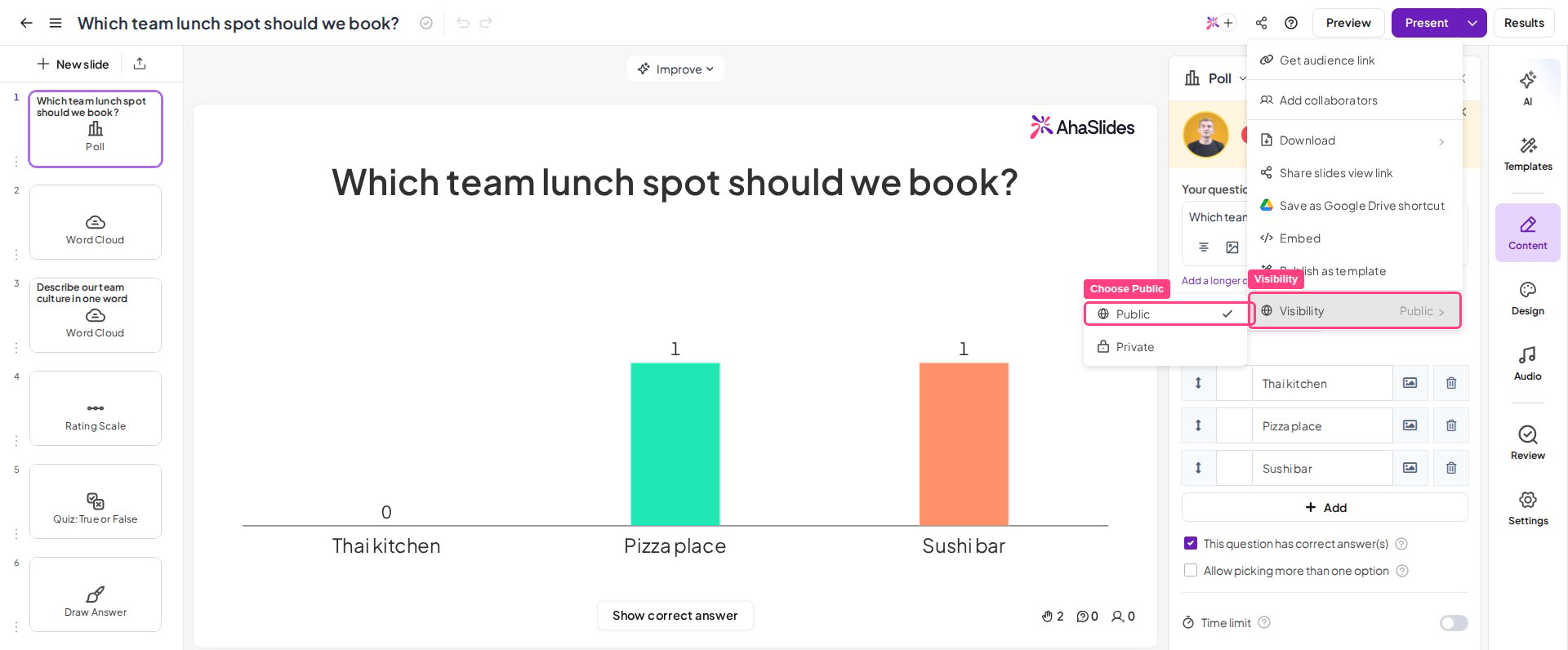
You're not in Present mode yet (or, for a quiz, not on a quiz slide)
You're not in Present mode yet (or, for a quiz, not on a quiz slide)
In the default host-led setup, participants can only join while you are actually presenting. If you’re still on the edit screen, or you’ve shared the link before pressing Present, the session isn’t open yet.Press Present first, then share the link or QR code. For a quiz, participants also need you to be on a quiz slide — a host-led quiz isn’t “open” before you press Present or while a non-quiz slide is on screen. See How to Make and Run a Quiz and Quiz troubleshooting and FAQs.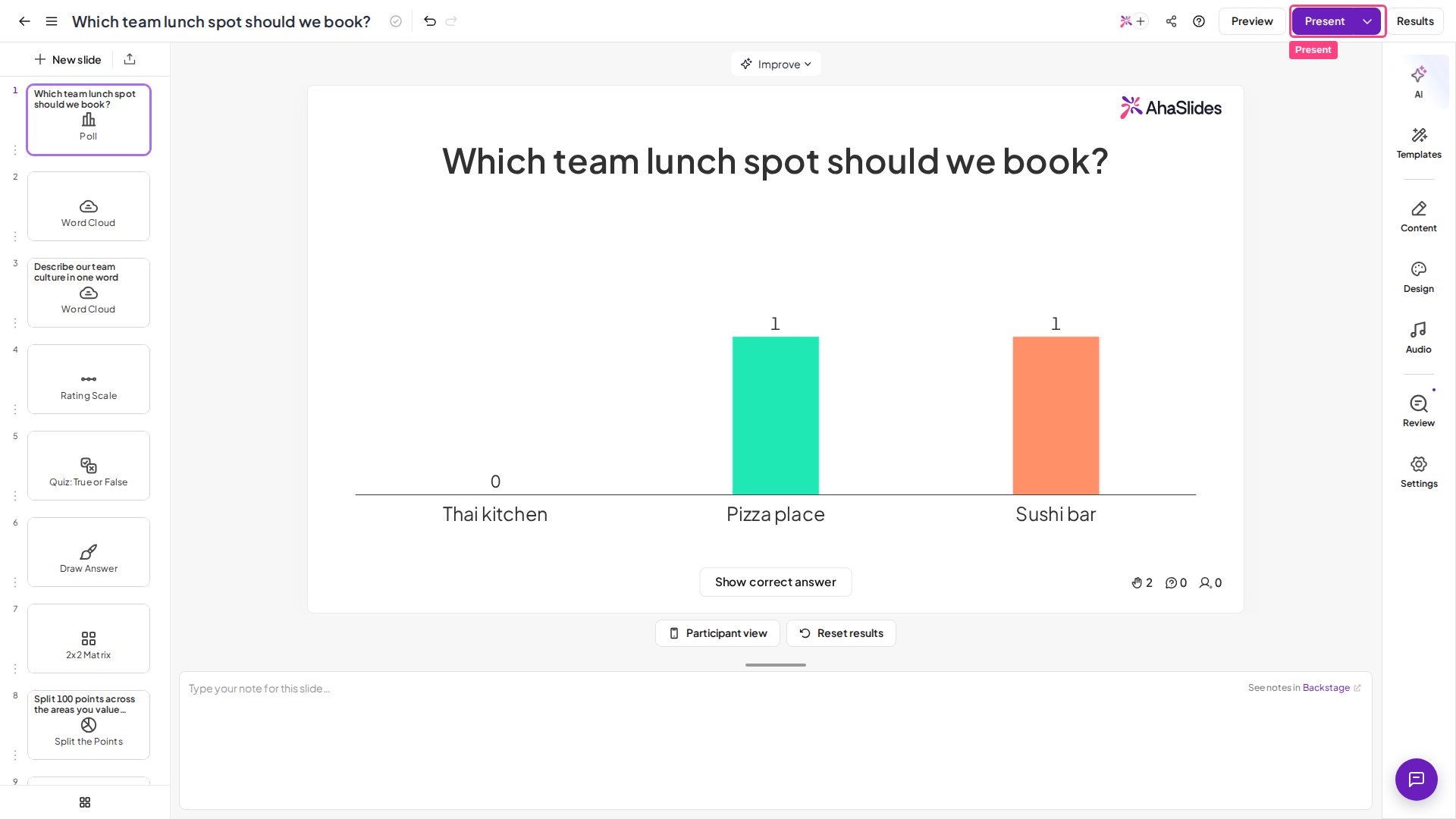
A restricted network is blocking AhaSlides
A restricted network is blocking AhaSlides
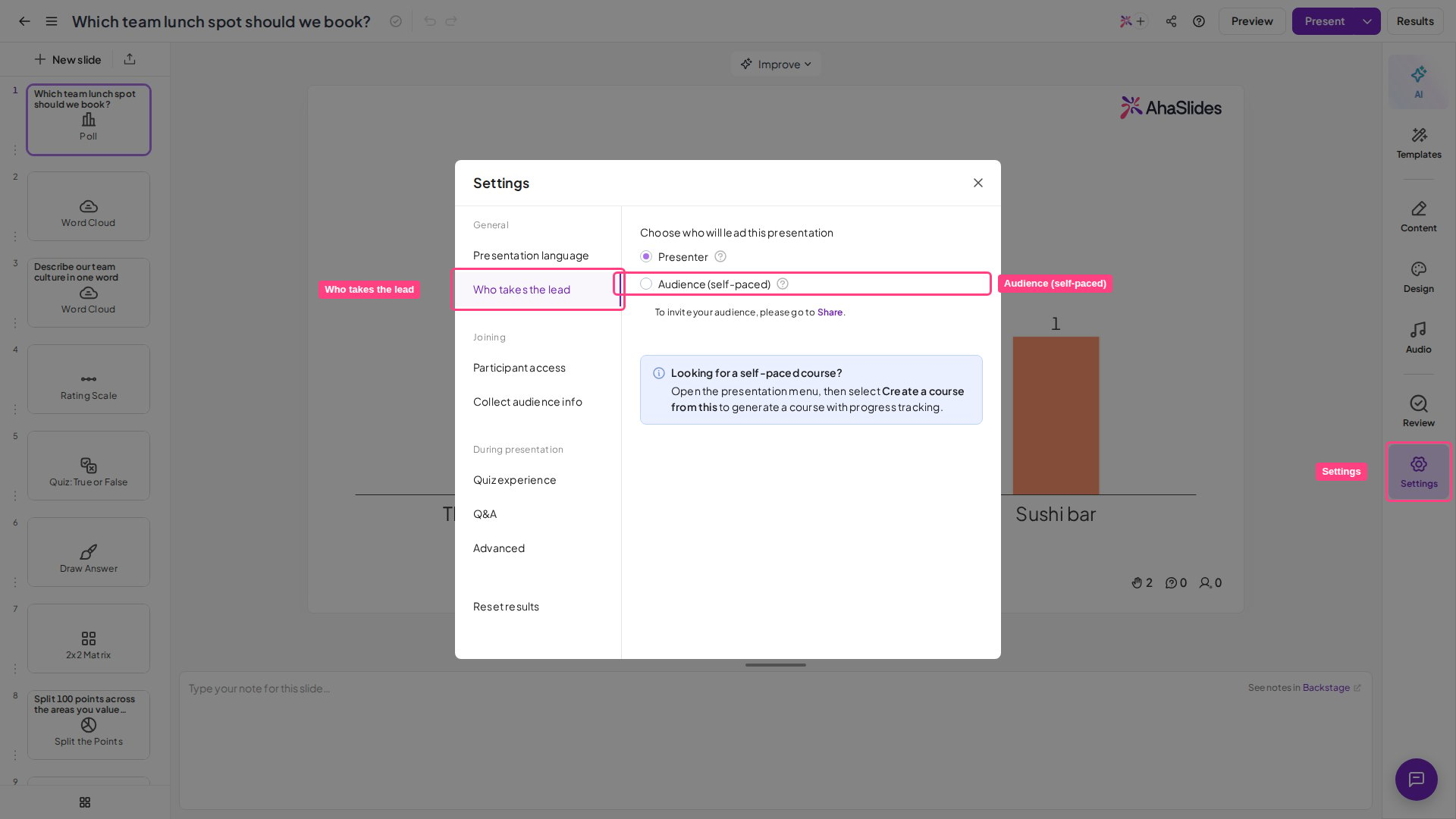
If AhaSlides won’t load at all — for you or for your participants — the block is usually coming from a company, organisation or school network, or from an internet service provider.Ask whoever manages the network to whitelist AhaSlides, and check the participants’ own connection is stable. The full list of ports and domains to allow is in Using AhaSlides on a restricted network.
Participants are using the wrong or an old join link
Participants are using the wrong or an old join link
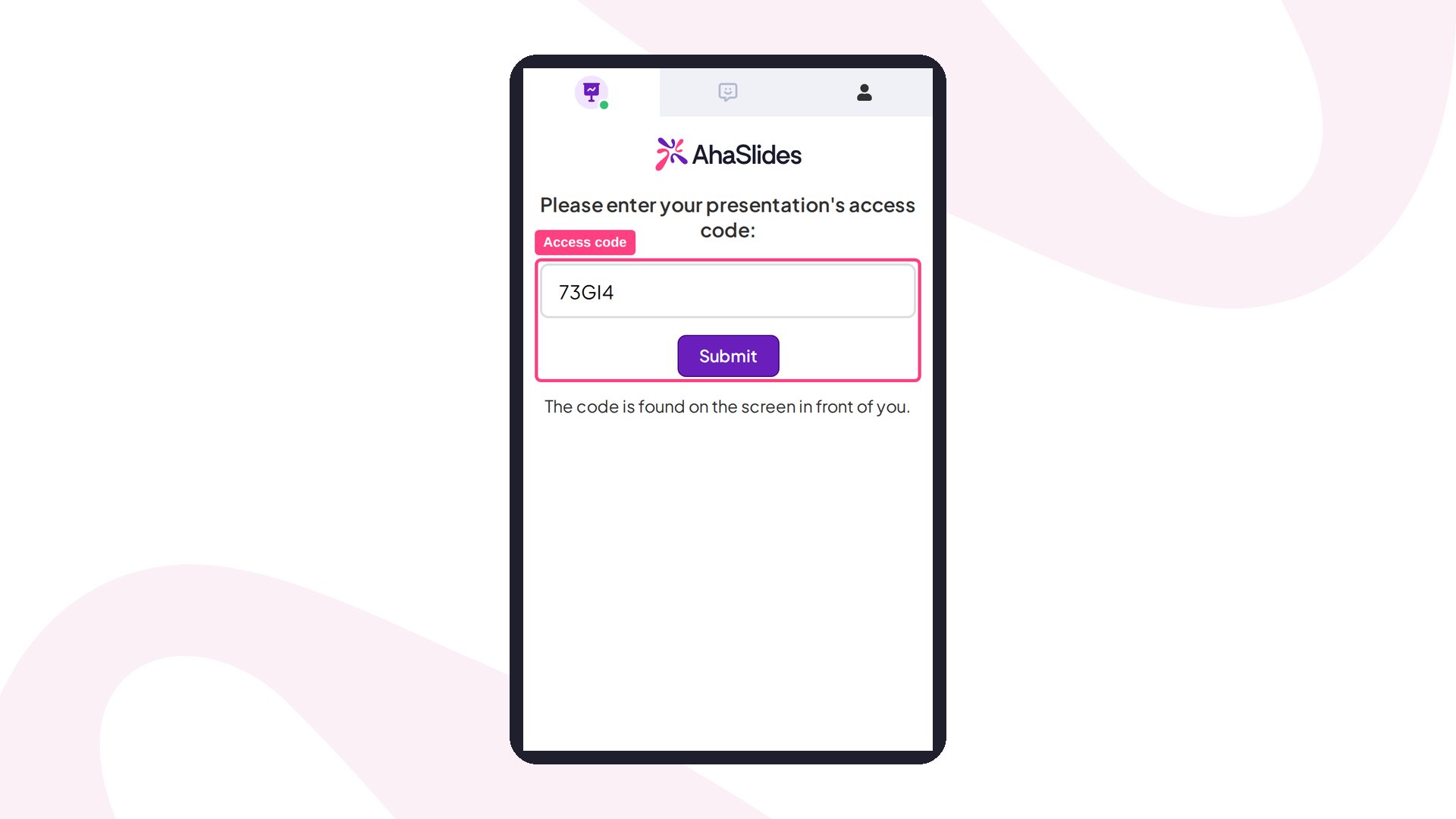
Each presentation has its own unique access code and QR code. If someone is using a link or code from a different presentation — or a screenshot from an earlier session — they won’t get in.Share the current link or QR code straight from the Share menu of the presentation you’re running, and ask participants to enter the code exactly as shown. See Sharing your presentation for participants to join.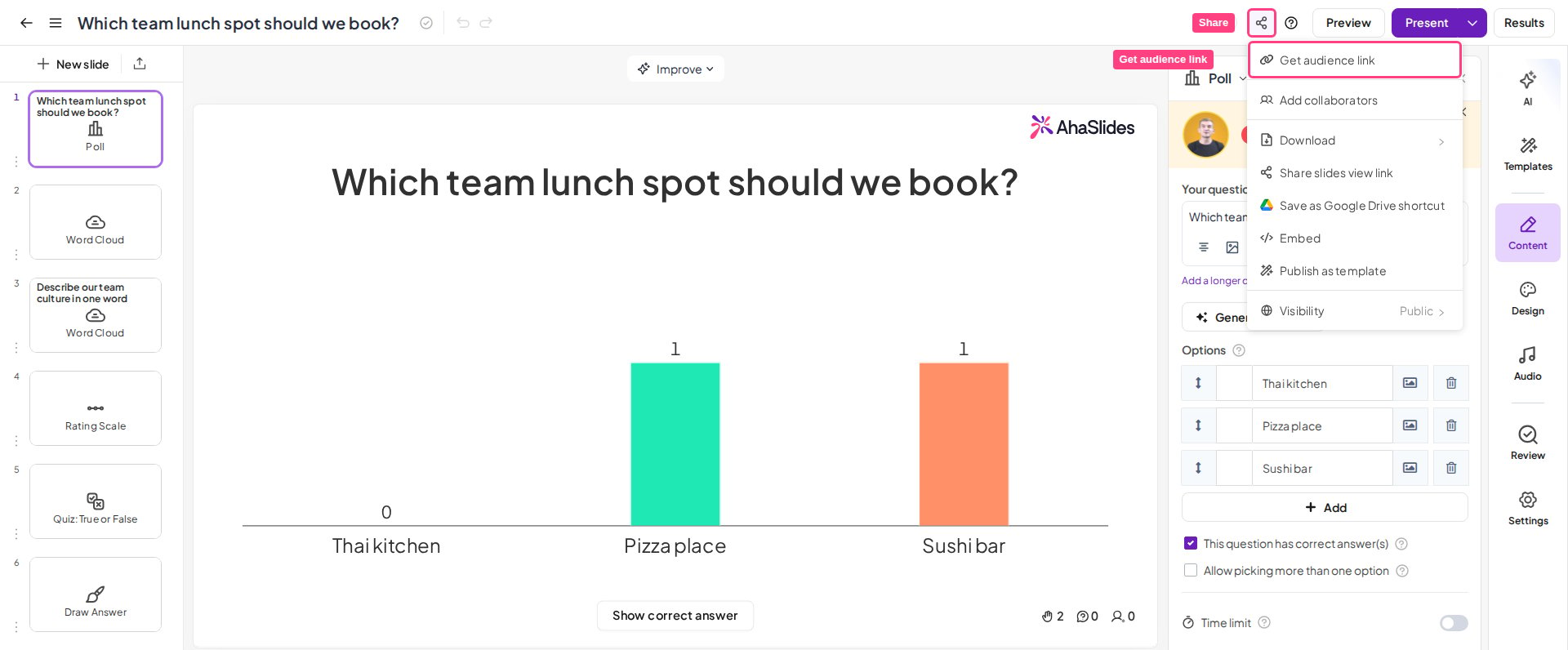
Audience verification is switched on
Audience verification is switched on
If you’ve deliberately turned on audience verification or authentication — for example, to restrict a presentation to specific people — participants are asked to verify before they can join. Anyone who isn’t allowed, or hasn’t completed the step, won’t get in.Check whether you meant to have this on, and confirm the right people are on the list. See Participant verification and Using audience authentication.
Sharing your presentation for participants to join
How to share the access link and QR code, and whether participants need an account.
Using AhaSlides on a restricted network
The ports and domains to whitelist when a company, school or ISP network is blocking AhaSlides.