

Before you start
The two settings are independent. Changing your presenter interface language does not change what your audience sees, and changing the audience display language does not change your menus.
Change the language in the presenter app
The presenter interface language controls the menus, buttons, and labels you see as a presenter. This setting applies to your whole account.1
Log in to your account
Log in to your AhaSlides account and open the dashboard.
2
Open the language menu
Click the globe icon in the top-right corner of the dashboard.
3
Find and select your language
The dropdown opens with a search box at the top, and the most popular languages — with the one you are currently using shown first — pinned above the full list. Start typing to filter by language name or its two- or three-letter code (for example, 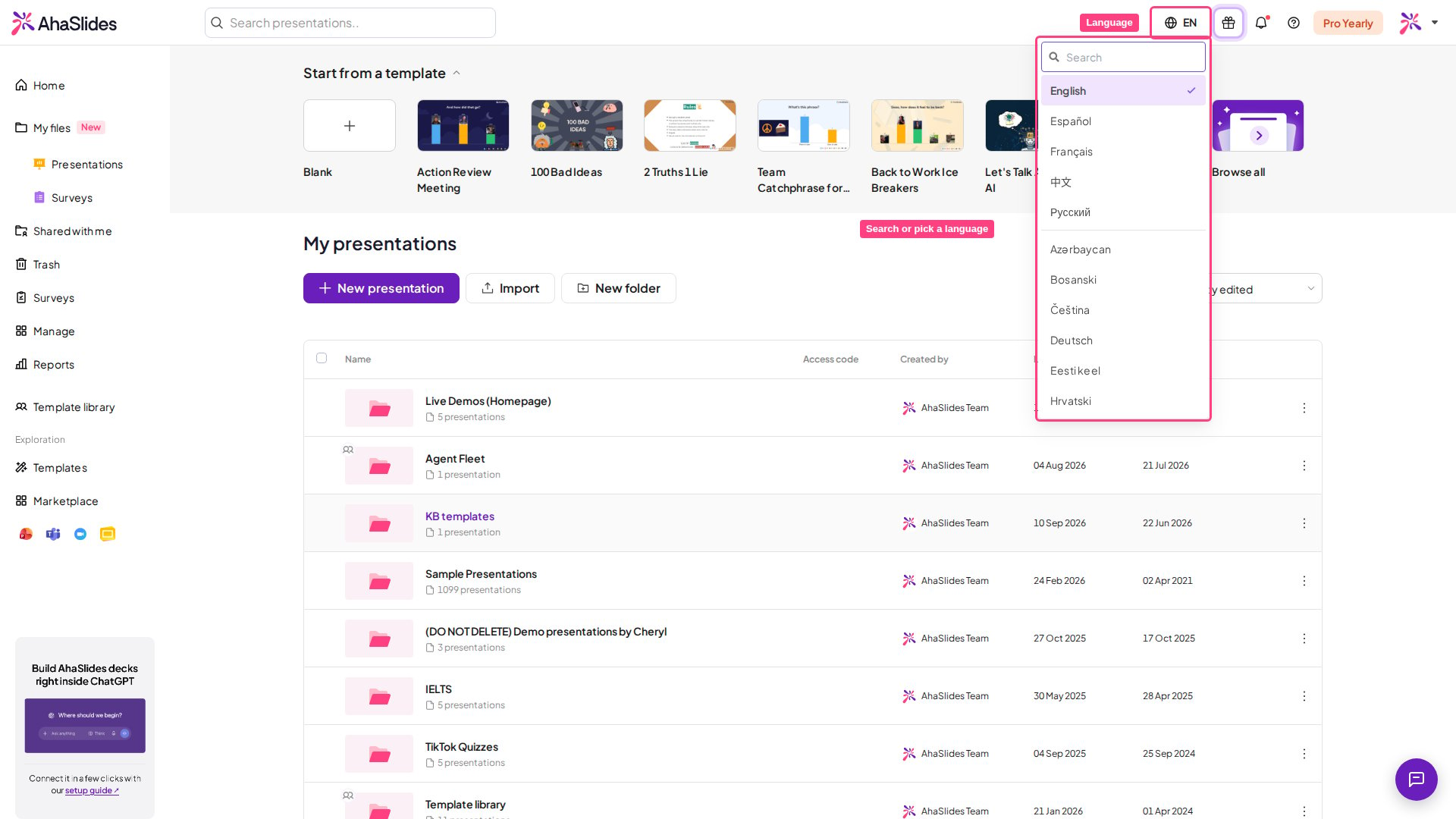
vi or vie for Tiếng Việt), or scroll to browse every supported language. Select your preferred language, and the interface switches instantly.Change the display language for the audience
The audience display language sets the language of the AhaSlides text participants see on their devices, such as the join screen, buttons and system messages. It doesn’t translate the questions or answer options you’ve written — write those in your audience’s language yourself. This setting is per presentation and lives in the presentation Settings, so different presentations can use different audience languages.1
Open the presentation
Open any presentation in the editor, or create a new one.
2
Open the settings panel
Click the Settings icon in the right-hand panel.
3
Open presentation language
In the Settings panel, click Presentation language in the left menu.
4
Select your audience's language
Use the dropdown to select your audience’s language. The change takes effect immediately.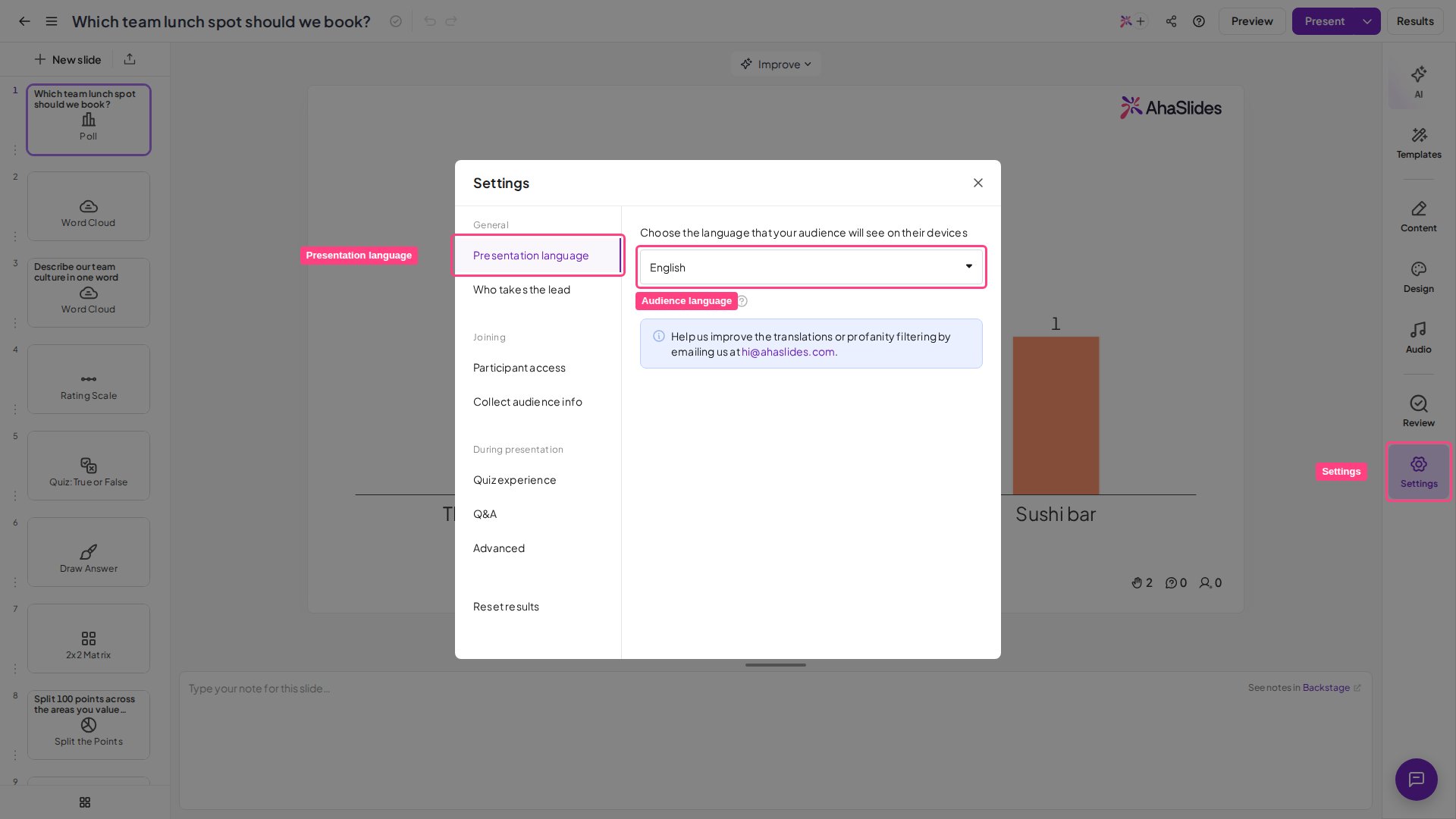
Some languages are available for the audience display but not for the presenter interface, including Bahasa Indonesia, Dansk and Svenska.
What the language settings do and do not change
Both language settings control the AhaSlides interface only: menus, buttons, the join screen, and system labels such as Submit or Waiting for the presenter. Neither setting translates the content you have written yourself. The question titles, answer options, and any other text you typed into your slides stay exactly as you entered them, in whatever language you wrote them in.Frequently asked questions
How do I change the language of the AhaSlides interface?
How do I change the language of the AhaSlides interface?
Click the globe icon in the top-right corner of the dashboard. In the dropdown, type in the search box to filter the list — the most popular languages are pinned at the top — then select your preferred language. The interface switches instantly, and the setting applies to your whole account.
How do I change the language my audience sees on their devices?
How do I change the language my audience sees on their devices?
Open the presentation, click the Settings icon in the right-hand panel, click Presentation language, then select your audience’s language from the dropdown. This setting is per presentation, so different presentations can use different audience languages.
Which languages does AhaSlides support?
Which languages does AhaSlides support?
The presenter interface is available in 34 languages, and the audience display is available in 39 languages. The two lists differ slightly, so a language may be available for one but not the other.
Does AhaSlides support Hebrew, Arabic or other right-to-left (RTL) languages?
Does AhaSlides support Hebrew, Arabic or other right-to-left (RTL) languages?
Yes, in the text you write. AhaSlides detects the direction of each paragraph from its first letter, so Arabic, Hebrew and other right-to-left text reads right to left in your slides, both in the editor and on your audience’s devices. This covers slide titles, answer options, text and bullet slides, and what participants type, such as open-ended answers and Word Cloud entries. English and other left-to-right text stays left to right, even on the same slide.Arabic is also available as a presenter interface language and an audience display language. It appears in both language lists as العربية (Beta). Hebrew is not among the languages listed above. If you need another interface language, email us at hi@ahaslides.com so we can log your request.
Why is my audience seeing a different language than my presenter app?
Why is my audience seeing a different language than my presenter app?
The presenter interface language and the audience display language are two independent settings. Changing your menus does not change what your audience sees, and changing the audience display language does not change your menus.
I changed the language but my questions and slides are still in English — why?
I changed the language but my questions and slides are still in English — why?
This is expected. The language settings localise the AhaSlides interface — menus, buttons, the join screen, and system labels — but they do not translate the content you authored. Your slide text stays exactly as you typed it, so if you wrote your questions in English they remain in English whichever language you select. To run the presentation in another language, write the slide text in that language yourself.If you are still stuck, email us at hi@ahaslides.com.