

Enable Participant Verification
1
Open your presentation
Open the presentation you want to protect.
2
Go to Participant access
In the presentation editor, click the Settings icon in the right-hand toolbar, then open the Participant access tab. To turn verification off later, select Participants are free to join in the same tab.
3
Require login
Enable the option Participants must log in to join.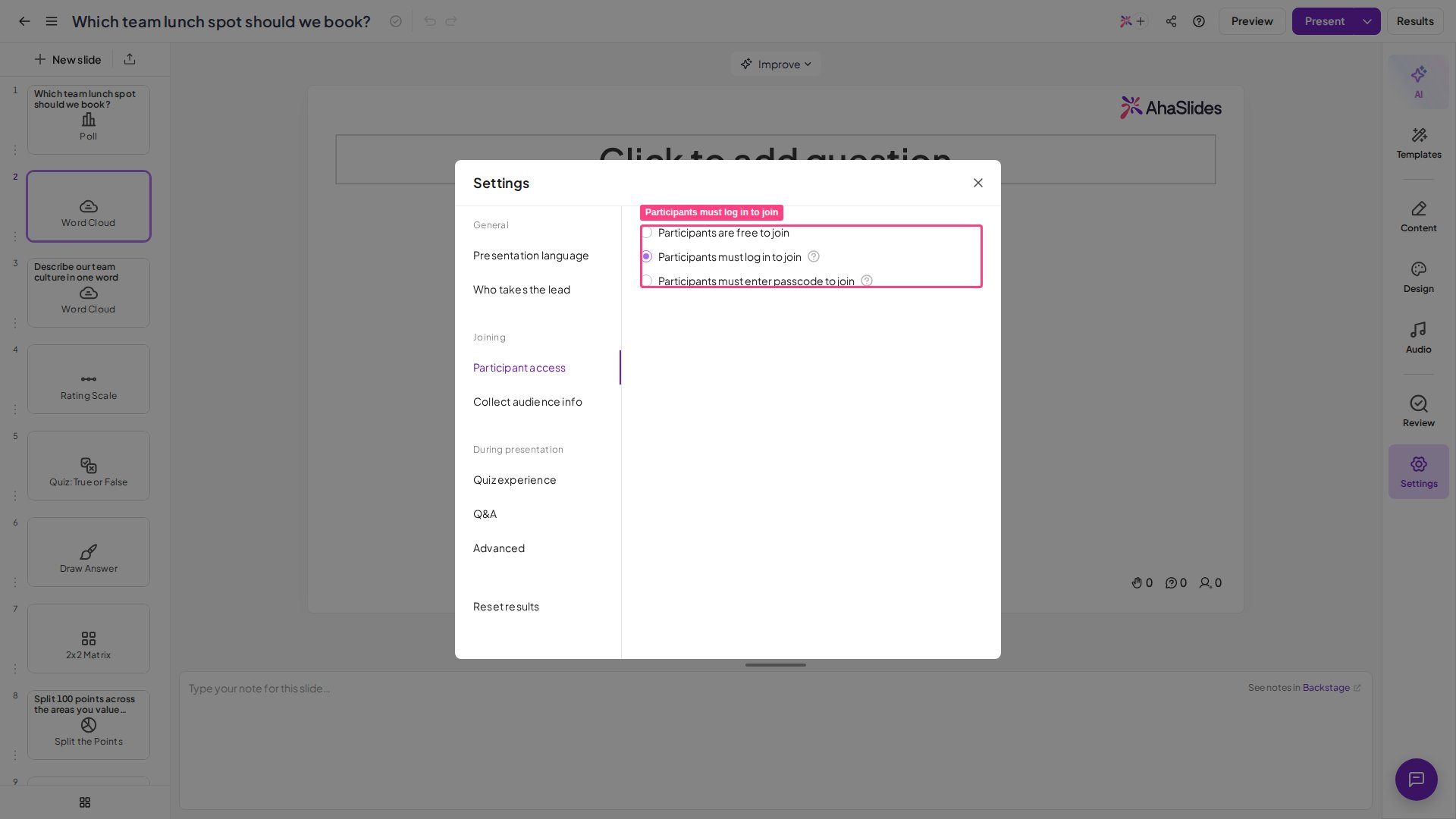
What participants see
Once you enable this feature, all participants must authenticate with Google, Microsoft, or SSO to access the presentation. If a participant is already logged in with one of these accounts, the login step is skipped and they join the presentation as normal.When to use Participant Verification
This feature is valuable for:- Corporate training and webinars: restrict access to employees or registered attendees to protect sensitive company information and training materials.
- Educational settings: verify student identities before sharing coursework, exams, or grade-related content.
- Confidential client meetings: ensure only authenticated users can access proprietary discussions or client data.
- Invitation-only events: control attendance at exclusive presentations or restricted briefings.
We’re continuously improving Participant Verification. Future updates will add more authentication options and controls.