

The AhaSlides app for RingCentral Events is a third-party integration surfaced through RingCentral’s own App Store listing. Exact menu steps and naming can change on RingCentral’s side — if something below doesn’t match what you see, check the listing itself or RingCentral’s support for the current App Store layout.
Before you start
To use AhaSlides on RingCentral Events, you need both:- A RingCentral Events account on a paid plan.
- Any AhaSlides plan (Free works; some advanced AhaSlides features need a paid subscription).
Run AhaSlides in RingCentral Events
1
Create your presentation on AhaSlides
Build the presentation you want to run during your event as you normally would.
2
Install the AhaSlides app from the RingCentral Events App Store
From your RingCentral Events organiser dashboard, open the App Store and find AhaSlides under Fun & games or Polls & surveys. Add it to your organisation.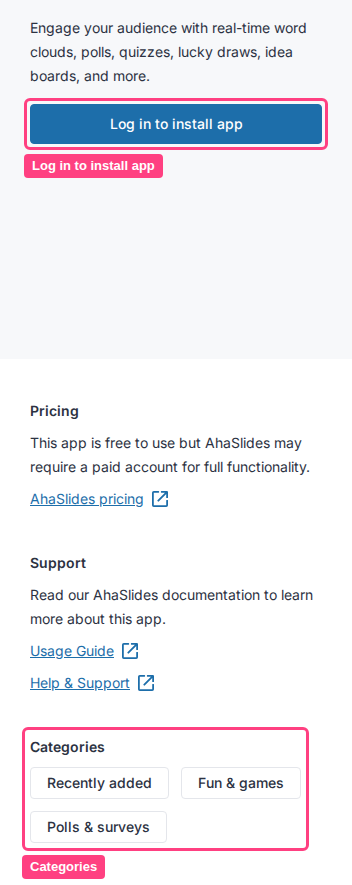
3
Get your presentation's access code
In your AhaSlides account, find the presentation you want to use and copy its access code — it’s shown directly on the dashboard.
4
Add AhaSlides to an event area
In your event’s dashboard, open the activity panel for the Stage, Session, Expo Booth or Reception you want, add the AhaSlides app, and paste in your presentation’s access code to connect it.