The points score adjustment feature lets you manually add or remove points from any quiz player. It’s a handy way to run bonus rounds, reward good behaviour, or correct a score.

Awarding or deducting quiz points

Point adjustments work on both the Leaderboard slide and the pop-up Leaderboard.
If you add bonus points on a Leaderboard slide, deleting that slide will also delete the bonus points. To make sure the bonus points are kept, add them using the pop-up Leaderboard instead.
1

Open the leaderboard

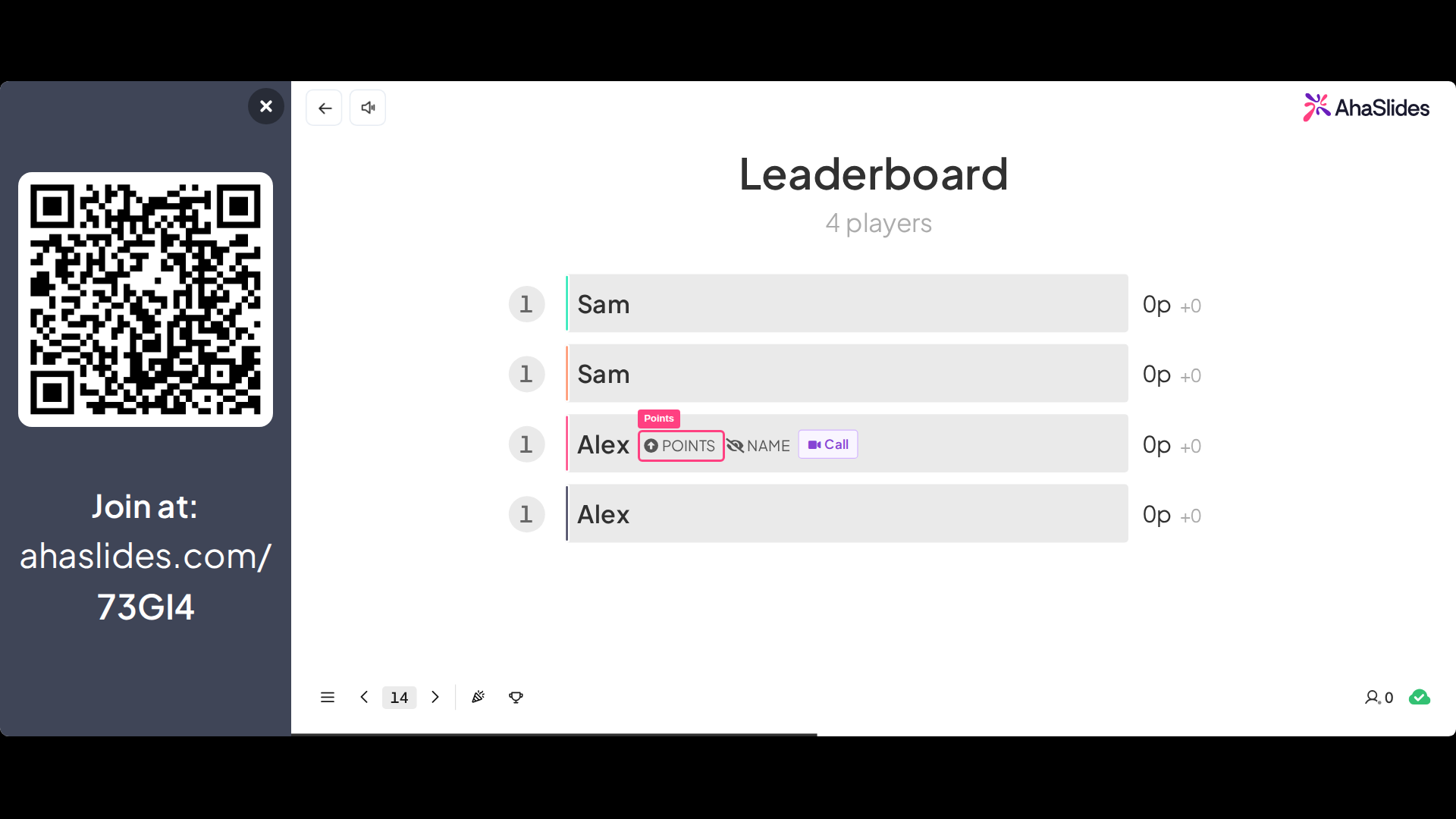
Navigate to the leaderboard and hover your mouse over the player you want to award or deduct points from.
2

Click Points

Click the ⇧ Points button.
3

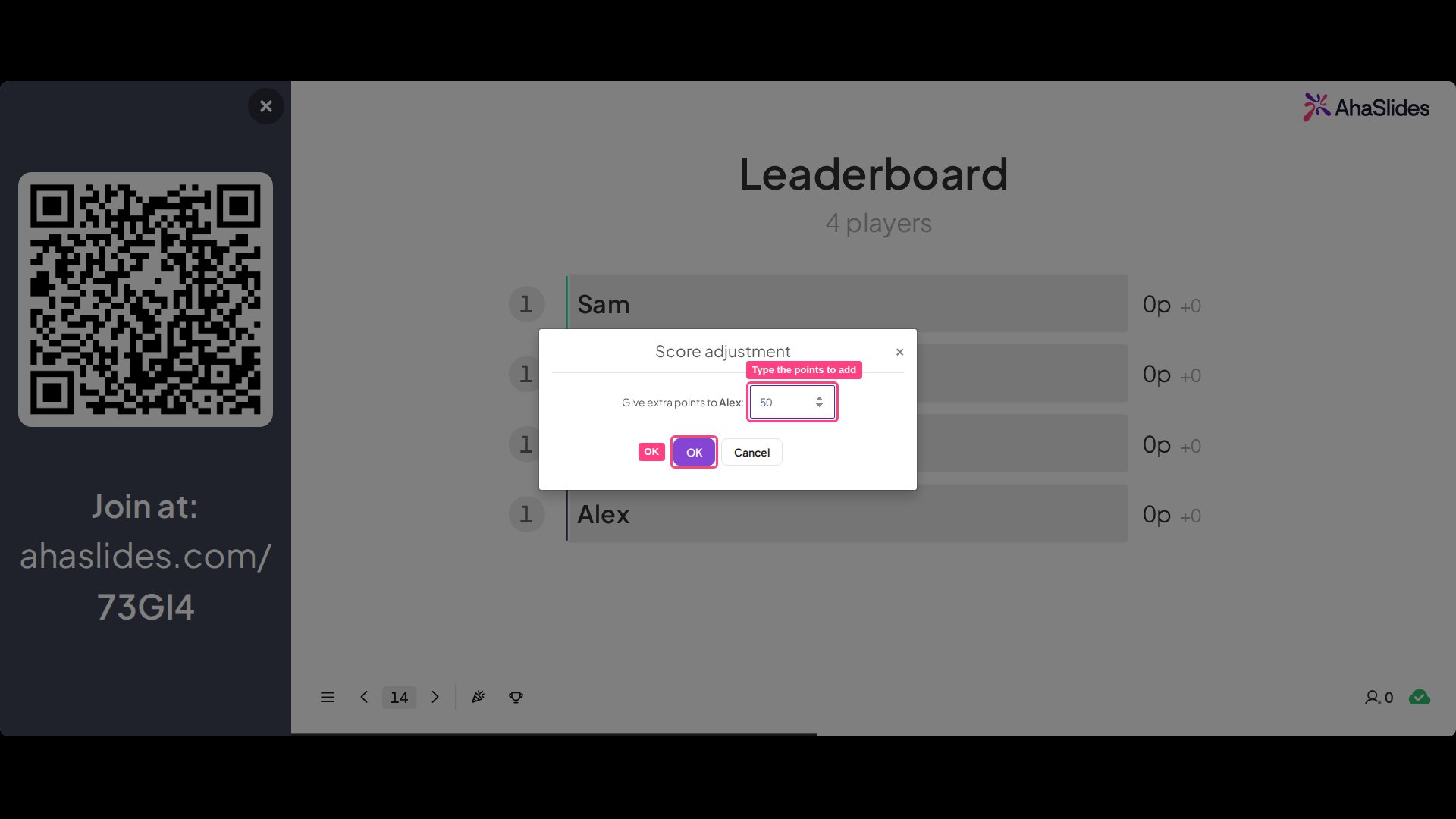
To add points

Type in the number of points you want to add.
4

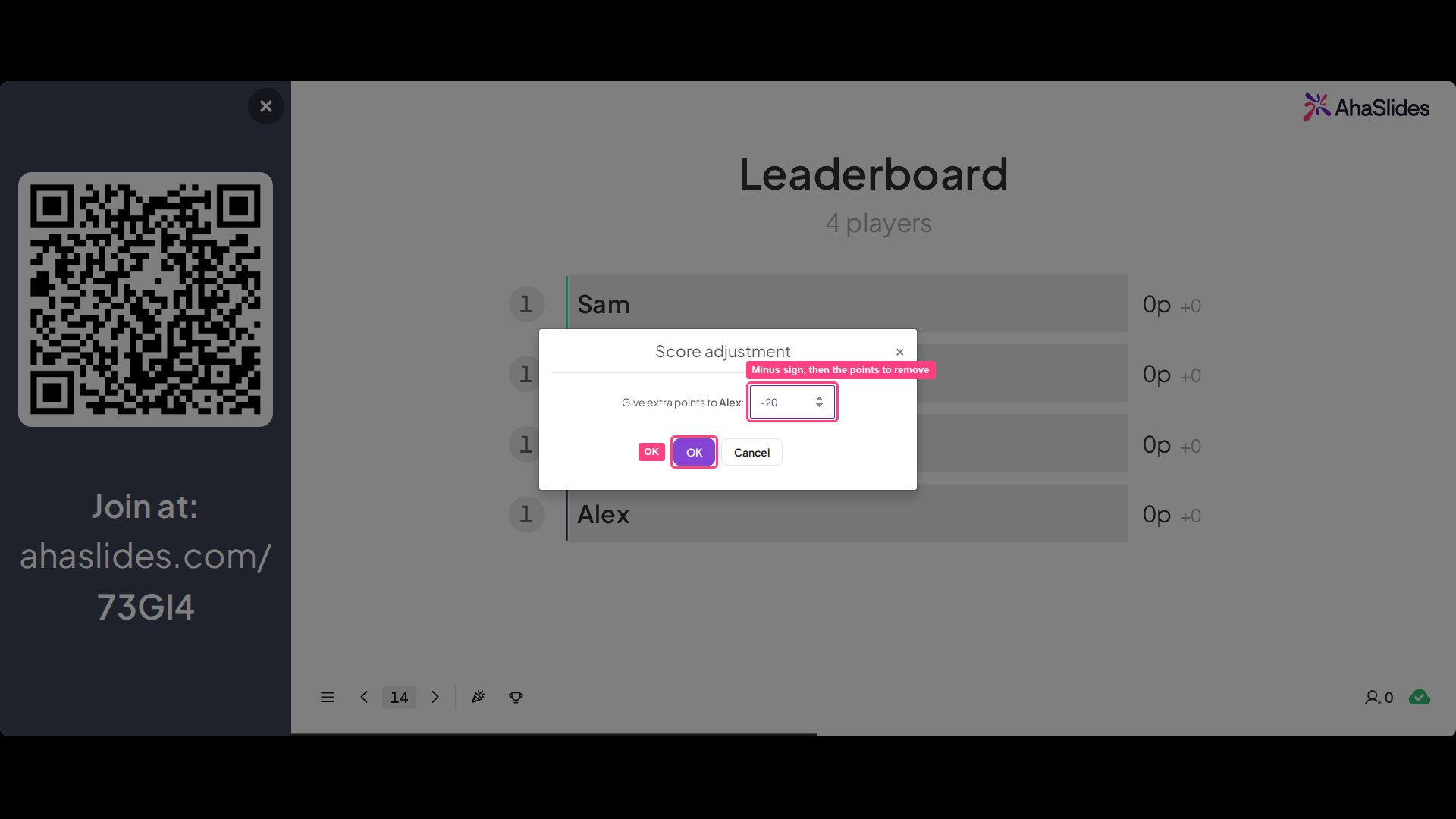
To deduct points

Type a minus symbol (-) followed by the number of points you want to remove.
After awarding or deducting points, you’ll see a confirmation of the player’s new total and, if the change moved them, their new position on the leaderboard. The leaderboard then updates automatically, and players see their updated scores on their phones.

Reading the updated leaderboard

On the updated leaderboard you’ll see 3 numbered columns:
  1. The total number of points for each player in the quiz.
  2. The number of points gained since the last leaderboard was shown.
  3. The difference in points from awarding and deducting.
For more on adding, removing, and re-enabling leaderboards, see Adding and deleting a leaderboard on your quiz.