

How It Works
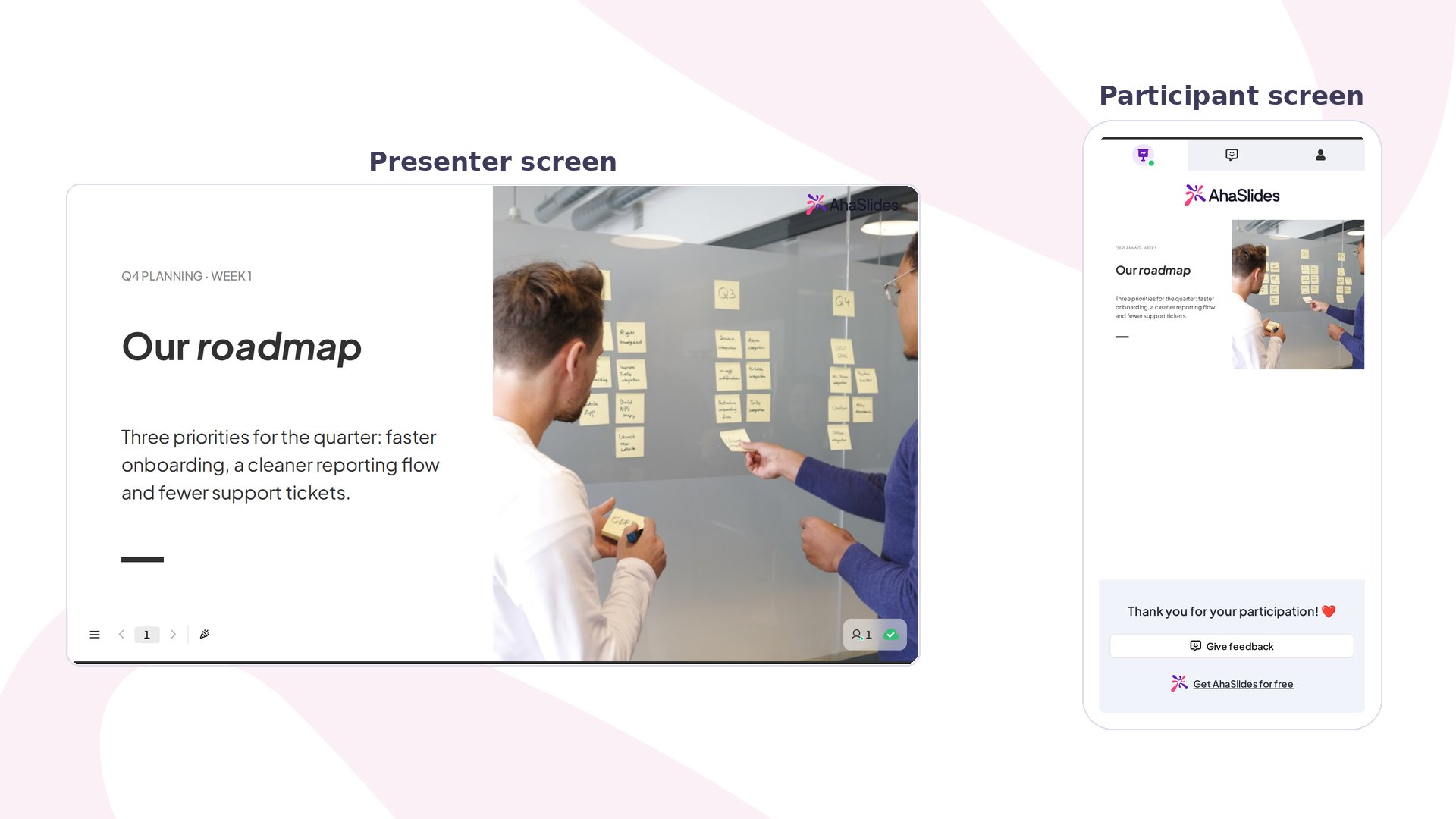
Like the original Content slide, Content v2 is non-interactive — participants see the slide on their screens but can’t submit a response. The upgrade is in the authoring experience: a structured block system replaces the free-floating canvas, giving you a richer set of content types and purpose-built layout templates.Adding a Content v2 Slide
1
Add a new slide
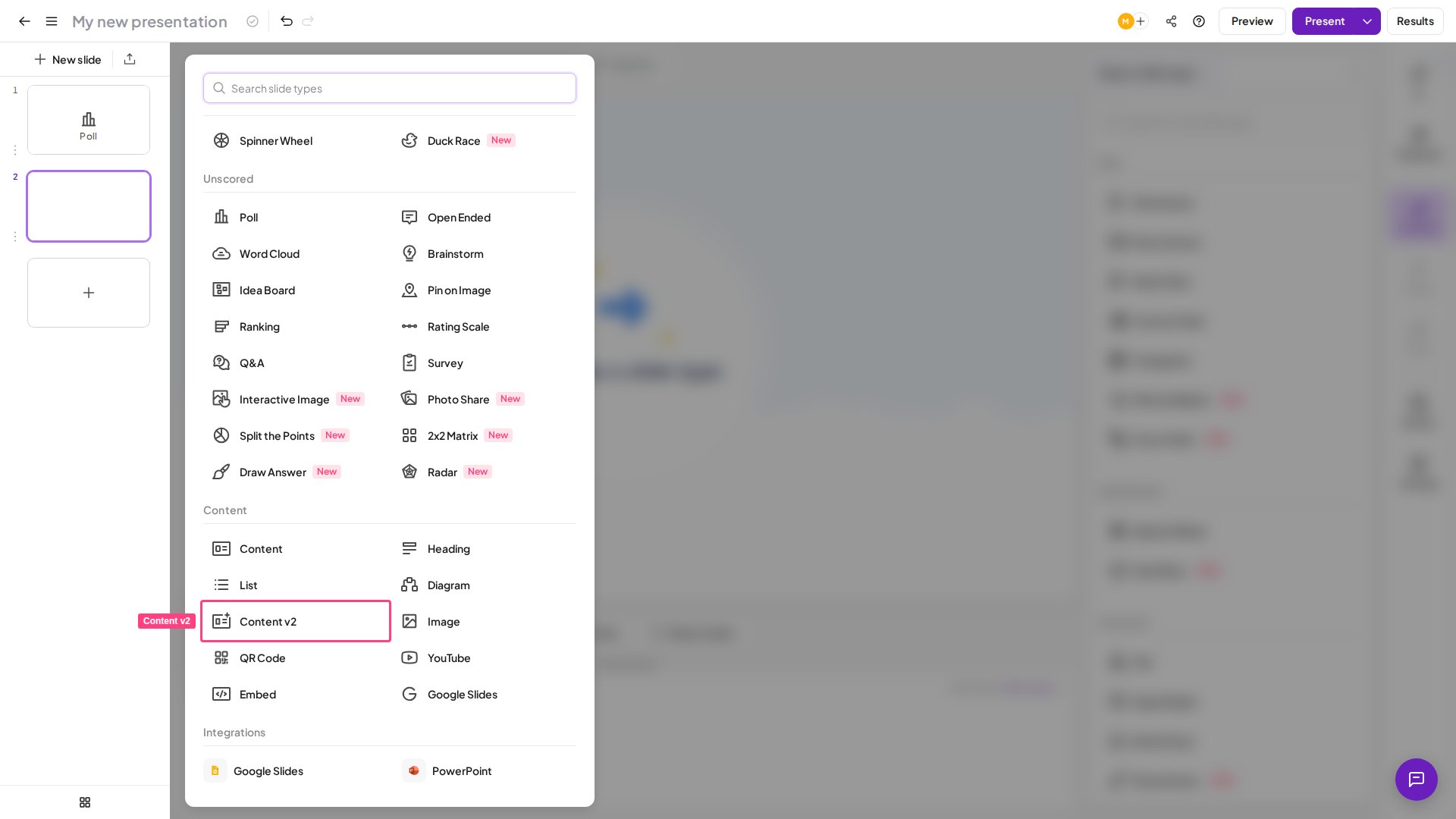
Click New slide, then scroll to the Content section of the slide type picker.
2
Select Content v2
Choose Content v2. The slide opens with a prompt: “Choose a layout or insert elements →“
Two Ways to Build Your Slide
Option 1: Start from a layout
Option 1: Start from a layout
AhaSlides ships a growing gallery of named, pre-designed layouts — cover slides, agenda grids, callout cards, comparison tables, image-and-text pairs, and more. Examples include Cover Hero, Agenda, Feature matrix, Pull quote, and Process steps — but the full gallery inside the editor is the authoritative list, since it’s regularly expanded.To browse it, look for the Layouts section in the right panel (visible when no block is selected), then click Browse all → to open the full picker. Scroll or search by name for a starting point that matches your content. Clicking a layout fills the canvas with a matching arrangement of pre-styled blocks — each independently editable straight away.
Option 2: Insert blocks manually
Option 2: Insert blocks manually
Click + Insert at the top of the right panel to open the block picker, which has a search bar to filter by name. Blocks are grouped into five categories:
Each block you insert appears on the canvas and can be repositioned, resized, and styled independently.
Editing Blocks
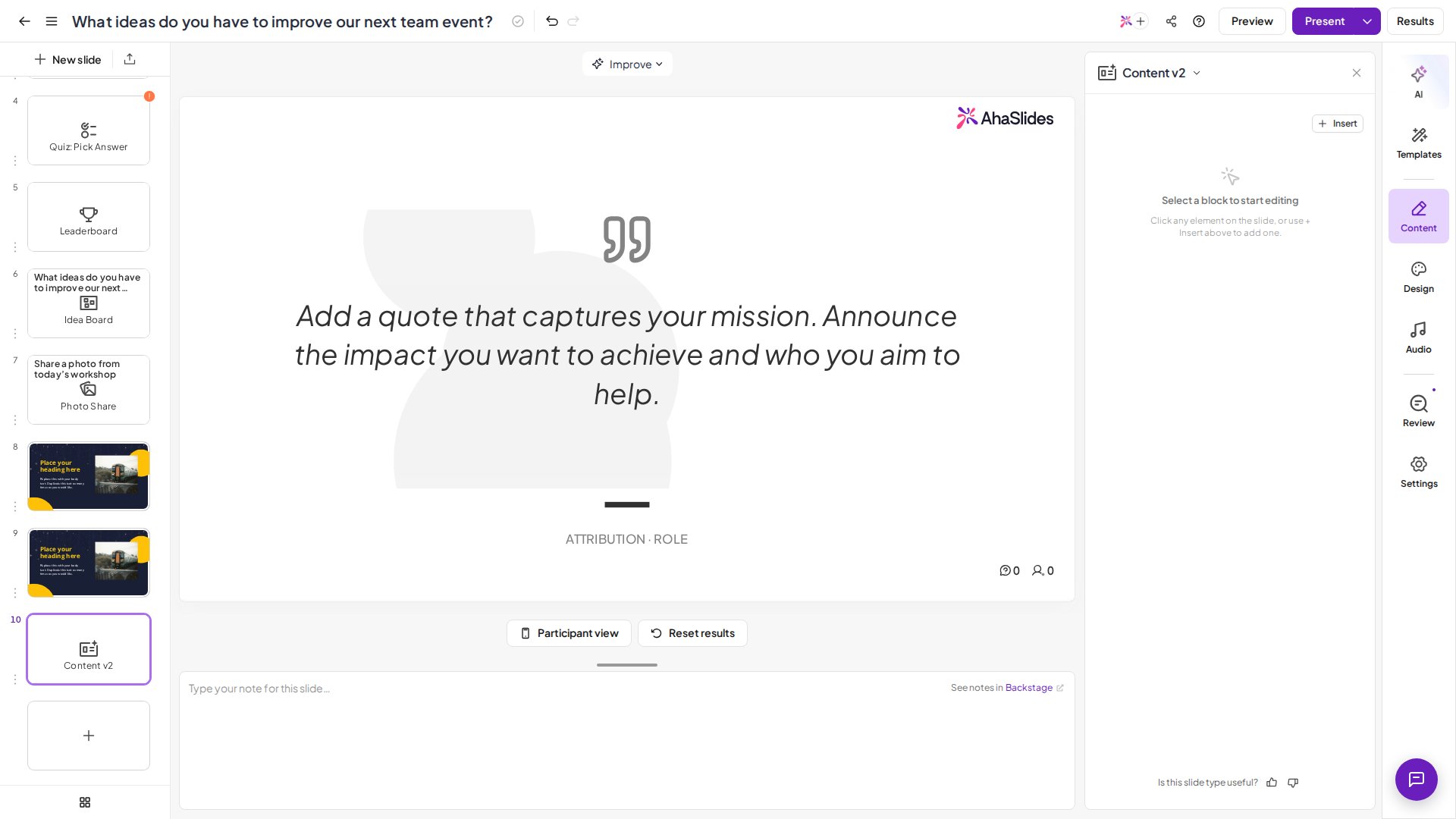
Click any block to select it. The right panel switches to that block’s settings across three tabs:- Style — font family, formatting, and colour controls, plus a Markdown input (blocks accept Markdown syntax, so
# Heading,**bold**, and- list itemall render correctly). - Layout — size, position, and alignment options for the selected block.
- Animate — animation settings for when the block appears during a presentation.
Animating and Sequencing Blocks
Each block can animate as it appears while you present. Select a block and open the Animate tab to set it up:- Animation — the entrance effect: Fade in, Slide (up, down, left, or right), Scale in, Zoom in, or Bounce. Choose None to remove it.
- Trigger — Auto plays the animation as soon as you reach the slide; On click keeps the block hidden until you click to advance to its step.
- Step (On click only) — the block’s place in the click sequence. Give several blocks the same step number to reveal them together on one click.
- Timing — a Delay before the block animates, and the animation Duration.
Formatting with Markdown
All text blocks accept Markdown: type into the Markdown text area in the Style tab and the canvas renders the output live. Standard syntax works — headings (#, ##), bold (**text**), italic (*text*), bullet lists (-), numbered lists (1.), inline code (`code`), and links ([label](url)).
Using the AI Assistant
Click Improve with AI on any selected block to open the AI assistant for that block — it can rewrite, expand, or shorten the block’s text based on your instructions. The Improve button in the editor header bar opens the AI assistant for the whole slide.Adding Audio
Audio is an insertable block. Click + Insert, open the Media category (or search Audio), and choose Audio, then upload your audio file — use it for background music, a voiceover, or a sound effect. You can add a track name as an optional caption. Once inserted, the audio element behaves like any other block: select it to resize, reposition, or replace it, and use the delete option that appears on hover to remove it.Presenting
When your presentation reaches a Content v2 slide, the canvas fills the presenter screen. Participants viewing on their phones or browsers see the same layout in a read-only view — no response is required.Content v2 vs. Content
Use Content v2 for polished, well-structured slides — cover slides, data callouts, FAQs, or branded layouts. Use the original Content slide when you need freeform, pixel-precise drag-and-drop placement.
Content v2 slides aren’t currently supported by the AhaSlides MCP
create_slides() tool. Add them manually in the editor.Frequently Asked Questions
How do I add a countdown or break timer to a slide?
How do I add a countdown or break timer to a slide?
Insert a Timer block: click + Insert, open the Media category (or search Timer), and choose Timer. With the block selected, set the countdown length using the minutes and seconds inputs in its Style settings. You can also add a Label under the digits (e.g. Coffee break), change the When finished text shown at zero (defaults to Time’s up), and pick a Color.Turn on Auto-start when slide opens to start the countdown as you reach the slide, or leave it off to get a Start timer button on the presenting screen — you can Start, Pause, Resume, and Reset it while presenting, and it stays in sync on your audience’s screens.The Timer block is a visual countdown only: it doesn’t play a sound when it ends, and it’s separate from the quiz Time Limit setting, which caps how long participants have to answer and locks their responses.