

Before you start
The Import Spreadsheet feature lets you import a list of quiz questions into AhaSlides. You create the question list in Excel or Google Sheets, then import that list as a series of Pick Answer slides in your presentation. To find it, open your presentation, click the Import icon next to New slide in the top-left corner of the editor, then click Import spreadsheet. You don’t need to add a Pick Answer slide first — the import creates the slides for you.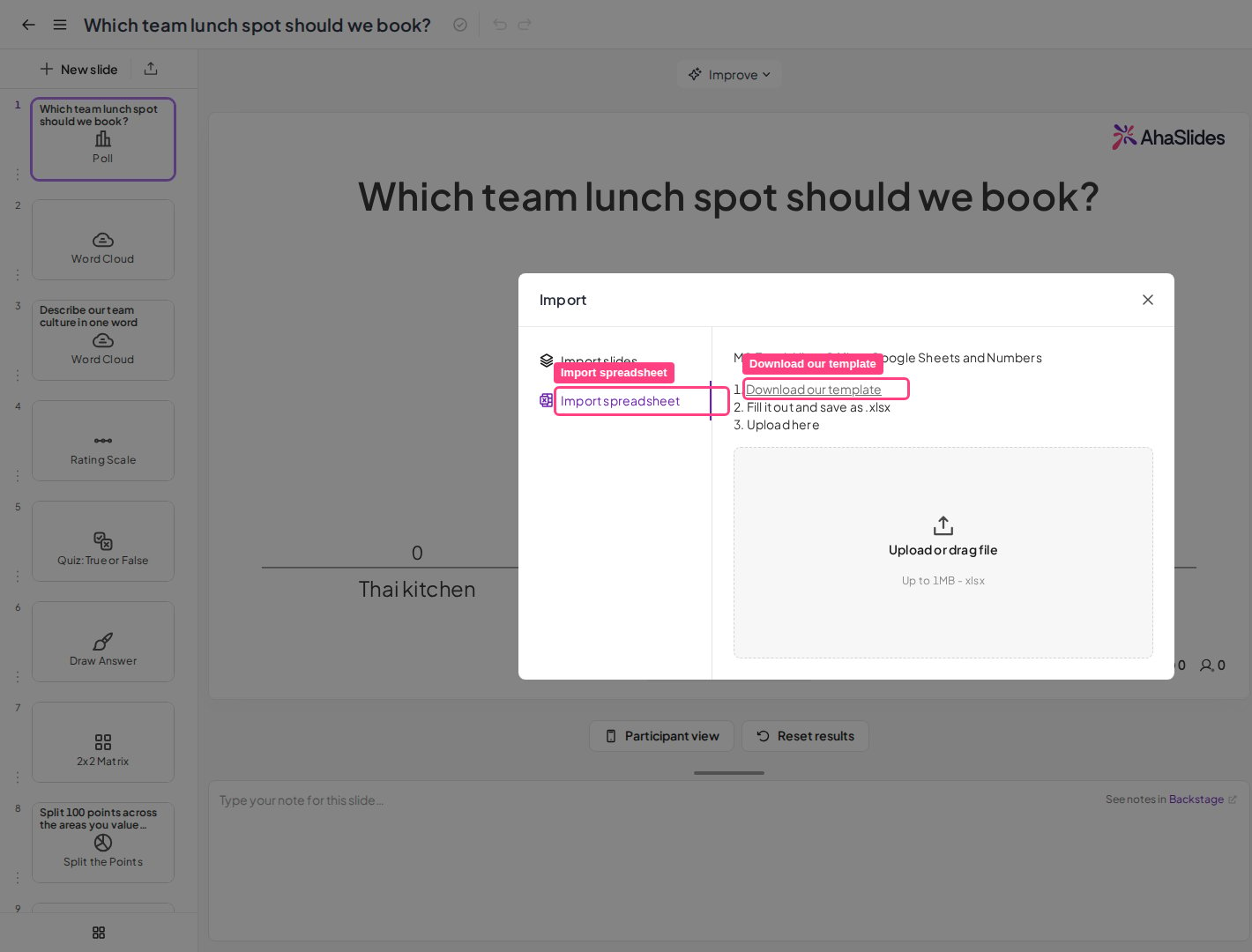
Create and import a spreadsheet for a quiz
1
Open Import spreadsheet
In the editor, click the Import icon (the upload arrow) next to New slide in the top-left corner. In the Import slides window, click Import spreadsheet. The questions are added to the presentation you have open.To start a new presentation from a spreadsheet instead, click Import on your My Presentations dashboard and choose Import spreadsheet there.
2
Download the AhaSlides template
Click Download our template. You can also download the template spreadsheet here.This downloads an
.xlsx file that you can open for editing in Excel, Google Sheets, LibreOffice, or Numbers.3
Enter your questions and their settings
In the template spreadsheet, create your questions and answer options — either by typing manually or pasting from elsewhere. You can also set the basic settings of each question on the right side of the spreadsheet.For a quiz question to import successfully without needing further editing in AhaSlides, it must contain:
- A question (maximum 300 characters)
- At least 2 answer options (maximum of 8)
- A time limit (chosen from the provided list)
- One or more answers marked as correct
- Either yes or no selected in the column labelled “faster answers get more points”
4
Save and import
Once finished, save or export the file as a Microsoft Excel file (
.xlsx) of up to 1 MB. Then upload it in the Import spreadsheet window.If the import fails, the window shows Please recheck your file or contact support. Check that the file is an .xlsx of up to 1 MB, that your questions are still on the template’s sheet, and that the import doesn’t add more slides than your presentation has room for.When you import, a leaderboard slide is automatically generated after the final quiz question. You can add more leaderboard slides by opening the settings of any quiz question slide and toggling on the leaderboard — see Adding and Deleting a Leaderboard on your Quiz.