

Enable reactions
1
Open Settings
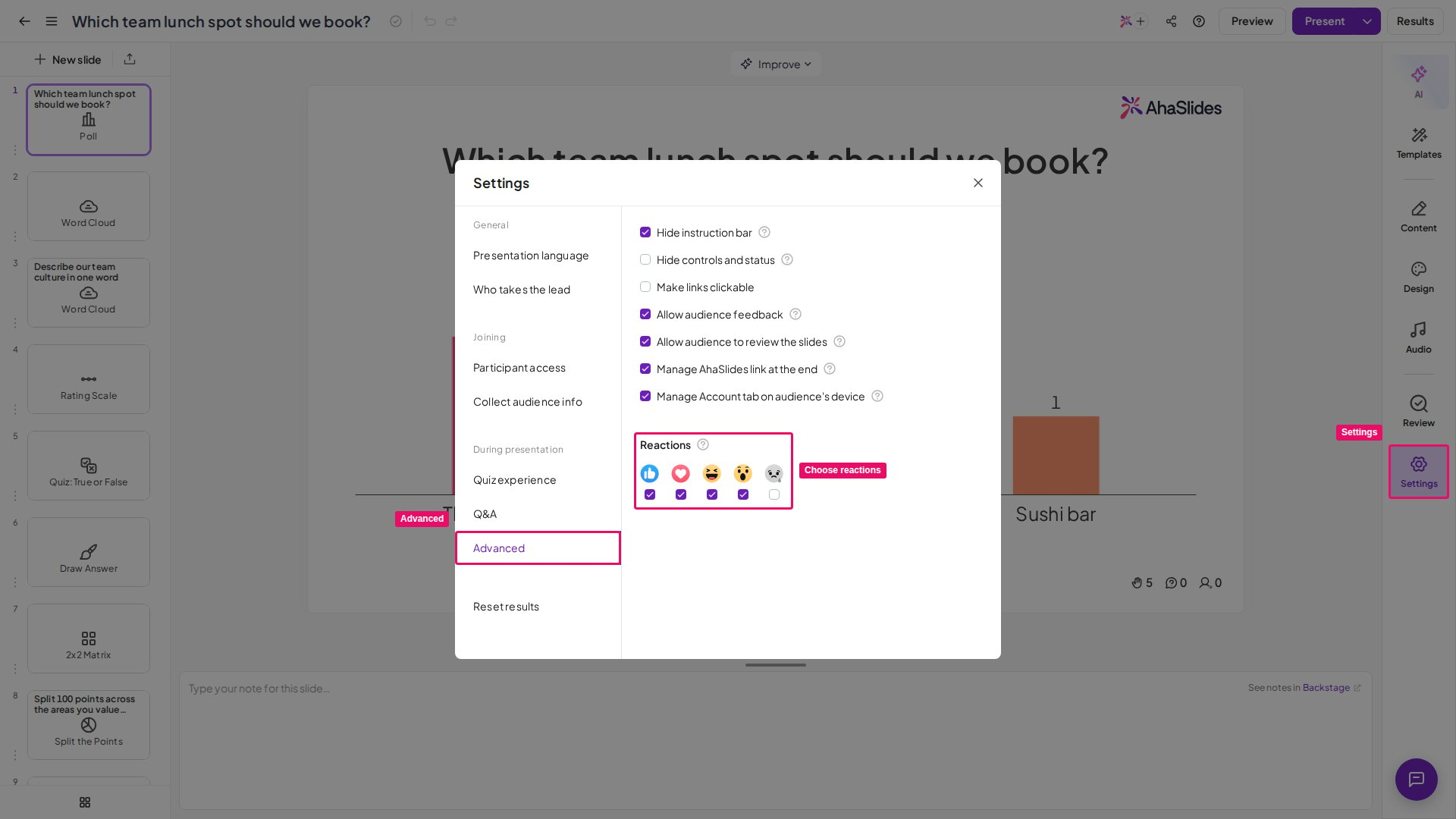
While editing your presentation, click Settings.
2
Open Advanced
Click Advanced.
3
Choose your reactions
Choose which reactions your audience can send during the presentation by checking the boxes under them: Like, Love, Haha, Wow, and Sad.
Turn reactions off
There is no single on/off switch, so you turn the feature off by unchecking all reactions. With none checked, no reaction bar appears on your participants’ screens.1
Open the presentation you want to change
In your dashboard, open the presentation in the editor.
2
Go to Settings
Click Settings in the editor.
3
Click Advanced
This is where the reaction options live.
4
Find the Reactions section
You will see the five reactions, each with its own checkbox below it.
5
Uncheck all reactions
Uncheck every reaction, one by one, until none are left checked. Reactions are now off for this presentation.
Reactions are set per presentation, so unchecking them here turns them off for this presentation only — your other presentations keep their own settings.
Frequently asked questions
How do I remove the reaction emojis from the bottom of the screen?
How do I remove the reaction emojis from the bottom of the screen?
Go to Settings, click Advanced, and uncheck all five reactions. With none checked, no reaction bar appears on participants’ devices.
How do I let my audience send reactions during a presentation?
How do I let my audience send reactions during a presentation?
While editing your presentation, click Settings, click Advanced, and check the boxes under the reactions you want to enable. Your audience can then tap them on their devices during the presentation.
Which reactions can my audience send on AhaSlides?
Which reactions can my audience send on AhaSlides?
Your audience can send Like, Love, Haha, Wow, and Sad reactions.
How do I choose which reactions are available?
How do I choose which reactions are available?
Under Settings then Advanced, check the boxes under the reactions your audience can send. Only the ones you choose appear on participants’ devices.
Do reactions interrupt my presentation?
Do reactions interrupt my presentation?
No. Reactions let participants respond in the moment without interrupting the flow, and they appear live on screen during your presentation.