

How preview mode works
Preview mode is a separate mode that lets you see and interact with your own slides, the way your audience would during a real event. To open Preview mode, go to the presentation editor and click the grey Preview button in the top bar.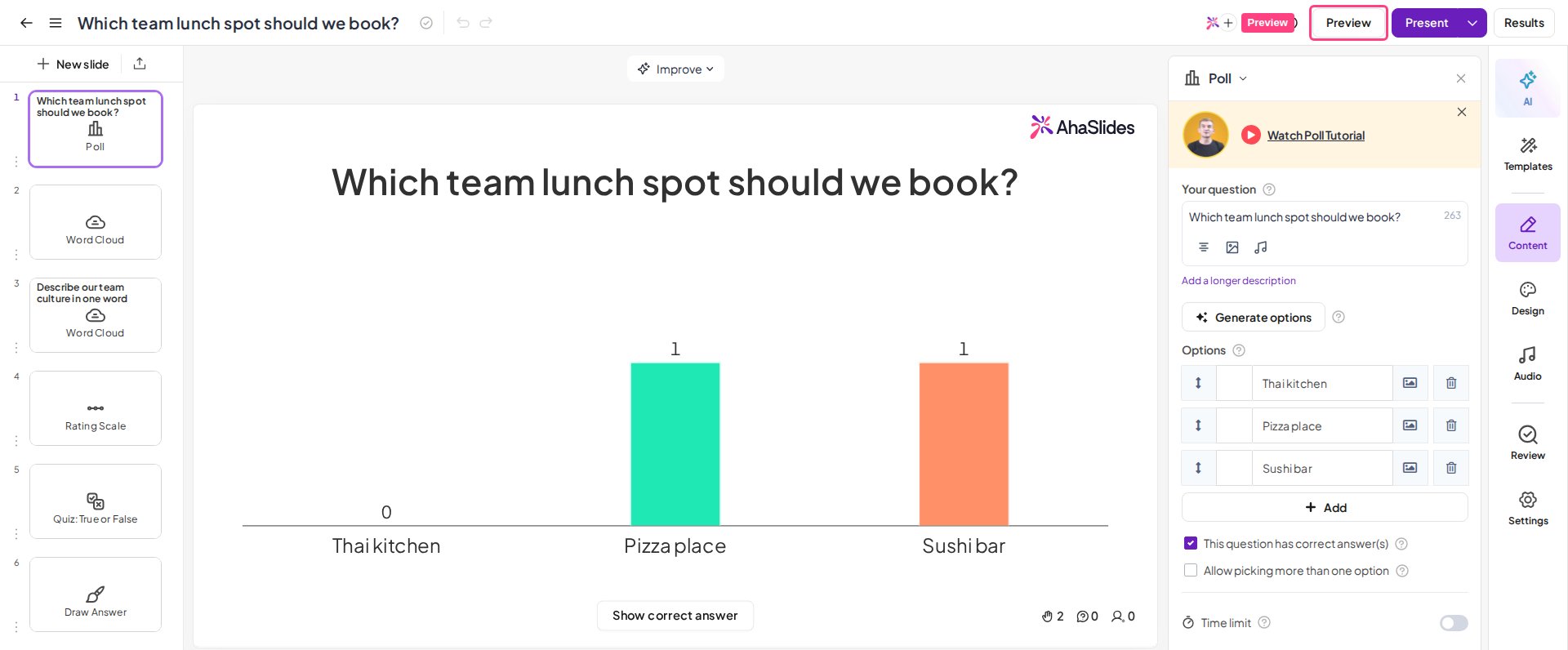
- The presenter screen: what your screen looks like during the presentation. This is the screen you share with your audience during your event.
- The participant screen: what each participant’s screen looks like during the presentation.
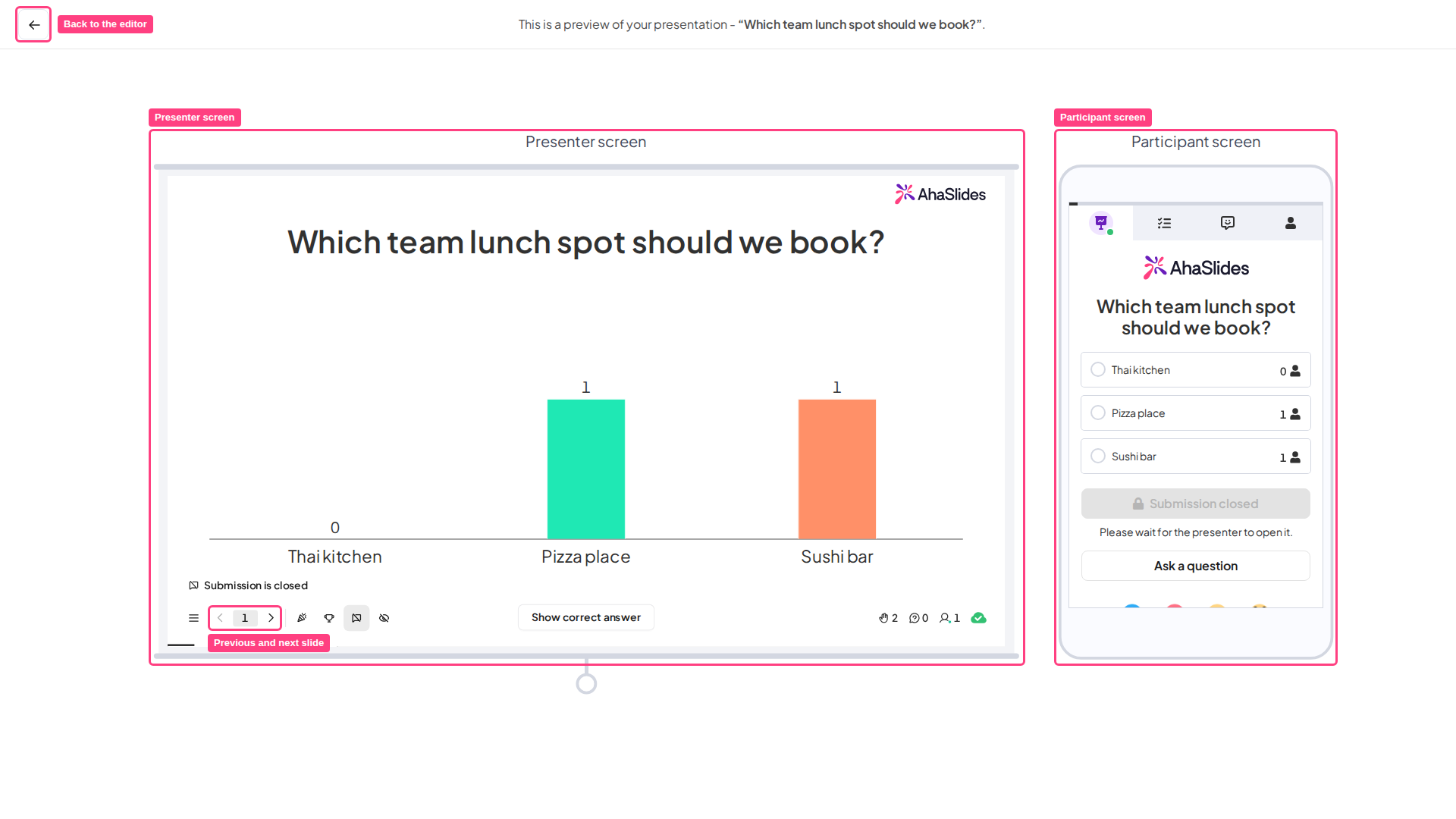
Exit preview mode
Once you have finished testing, return to the editor by clicking the back-arrow icon in the top-left corner.Frequently asked questions
What is Preview mode on AhaSlides?
What is Preview mode on AhaSlides?
Preview mode is a separate mode that lets you see and interact with your own slides the way your audience would during a real event, so you can test every interaction before you present.
How do I preview my AhaSlides presentation before presenting?
How do I preview my AhaSlides presentation before presenting?
In the presentation editor, click the grey Preview button in the top bar. You then see the presenter screen and the participant screen side by side.
How do I test how my audience will interact with my slides?
How do I test how my audience will interact with my slides?
Use the participant screen on the right to interact with the presenter screen on the left. Move through your slides with the previous and next arrows in the bottom bar of the presenter screen, or the left and right arrow keys.
Can I see the Participant view while I am presenting?
Can I see the Participant view while I am presenting?
Yes, in two ways: open your join link in another browser tab, or join on your own phone with the QR code or access code. Either one shows you what participants see.
How do I exit Preview mode?
How do I exit Preview mode?
Click the back-arrow icon in the top-left corner to return to the editor.