

Before you start
You’ll need:- An AhaSlides account (free or paid)
- An AI assistant that supports custom MCP connectors — Claude, ChatGPT, or Claude Code
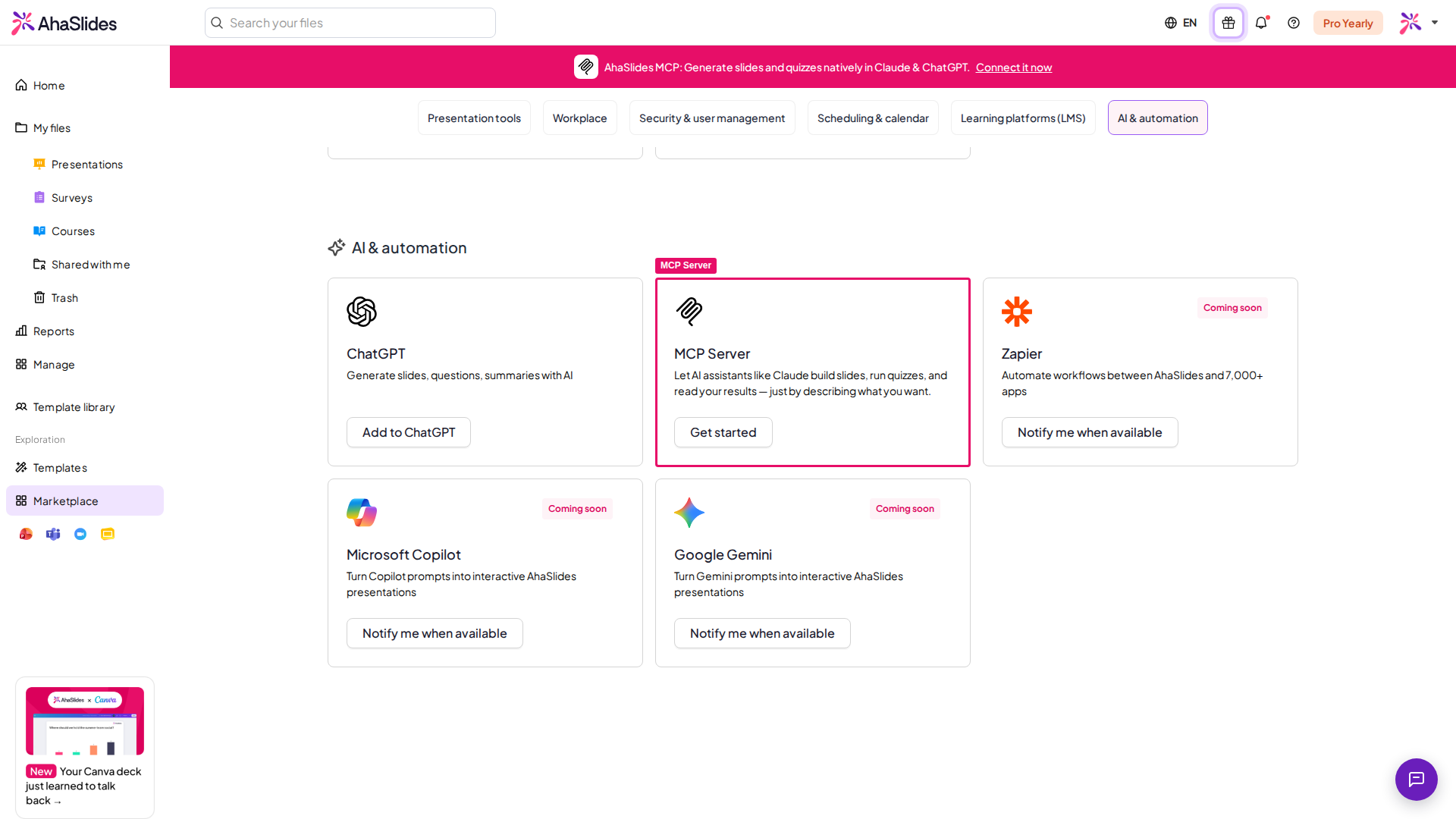
Setup: Adding AhaSlides to Claude (no code)
This is the easiest way for most people — a few clicks, no terminal.1
Open your connector settings
Click your profile, then go to Settings → Connectors.
2
Add a custom connector
Click Add custom connector, paste
https://mcp.ahaslides.com/mcp into the Remote server URL field, then click Add.3
Sign in to AhaSlides
The first time you use an AhaSlides tool, Claude opens a browser window for you to sign in with your AhaSlides account (email/password, Google, or Microsoft). After signing in, you’re all set.
Adding connectors in Claude requires a paid Claude plan.
Setup: Adding AhaSlides to ChatGPT (no code)
ChatGPT can use AhaSlides too, and this doesn’t require a paid ChatGPT account.1
Turn on Developer mode
Click your profile, then go to Settings → Security and login and turn on Developer mode — this lets you add custom connections.
2
Browse plugins
Open the Plugins tab and choose Browse plugin.
3
Add the connection
Click the plus (+) icon, paste
https://mcp.ahaslides.com/mcp into the Connection field, then click Create.4
Sign in to AhaSlides
The first time you use an AhaSlides tool, you’ll be asked to sign in with your AhaSlides account. After signing in, you’re all set.
Setup: Adding AhaSlides to Claude Code (for developers)
If you use Claude Code (CLI, desktop app, or VS Code / JetBrains extension), you can add the server directly.Option 1: Quick add via CLI
Run this command in your terminal:Option 2: Manual Configuration
Add the following to your Claude Code MCP settings (settings.json or .mcp.json):Signing in to Claude Code
The first time you use an AhaSlides tool, Claude Code will open a browser window for you to sign in with your AhaSlides account (email/password, Google, or Microsoft). After signing in, you’re all set.What you can do with AhaSlides MCP
Once connected, just describe what you need. Here’s everything the MCP server supports: Presentations- Create a new presentation
- View full presentation details (slides, theme, structure)
- Create slides of 17+ types — quizzes, polls, word clouds, brainstorms, content slides, and more
- Edit slide content (titles, options, answers, paragraphs, images)
- Configure slide properties (timers, scoring, display settings, chart types)
- Reorder slides within a presentation
- Delete slides
- Skip slides during a live presentation (hide from audience without removing)
- Browse all available themes (official, custom, and team-shared)
- Apply a theme to any presentation
- Query audience response data across all your presentations
- Analyse a specific presentation’s session data (participation, quiz scores, poll results)
- Use built-in recipes and save your own — see Built-in recipes and your own
- Build a PowerPoint (.pptx) deck with live AhaSlides quizzes, polls and other interactive slides built in — see Create a PowerPoint deck with live AhaSlides slides
Create a PowerPoint deck with live AhaSlides slides
Ask your AI assistant for a PowerPoint presentation with interactive slides, and it hands you one .pptx file with live AhaSlides quizzes, polls, word clouds and other interactive slides built in. When you present it in PowerPoint, those slides run live: your audience joins on their phones and responds, just as they would in AhaSlides. Behind the scenes, the assistant creates the interactive slides in a new presentation in your AhaSlides account, builds the PowerPoint deck, and places each interactive slide in it through the AhaSlides PowerPoint add-in.What you need
- AhaSlides MCP connected to your AI assistant. See the setup steps for Claude, ChatGPT or Claude Code on this page.
- An AI assistant that can create files and run code, such as Claude or Claude Code. Building the .pptx file happens on the assistant’s side.
- The PowerPoint desktop app for Windows or Mac with the AhaSlides add-in installed. See Set up the add-in.
Example prompts
- “Create a PowerPoint presentation with interactive quizzes about our new product range.”
- “Make me a .pptx deck for Monday’s team meeting with a live poll and a word cloud.”
- “Build a PowerPoint for my workshop with a few audience participation questions between the topics.”
Where the slides run live
The interactive slides run live only in the PowerPoint desktop app with the AhaSlides add-in. Everywhere else — PowerPoint for the web, a PDF export or printout, or a computer without the add-in — each one shows a placeholder image instead of a blank slide.If you send the file to someone else to present, they need the AhaSlides add-in installed in their own copy of PowerPoint for the slides to run live.
Built-in recipes and your own
A recipe is a saved set of instructions that tells your AI assistant how to build a certain kind of presentation, survey or course. AhaSlides comes with built-in recipes, and you can save your own. To see them, ask your assistant: “What AhaSlides recipes do you have?” Then name the one you want in your request, for example “Using the Classroom lesson recipe, build a lesson on…”
The list also includes recipes for icebreakers, training workshops, town hall Q&As, retrospectives, surveys and workplace courses. For classroom prompts you can copy, see AhaSlides MCP for teachers.
Save your own recipe
Describe how you want your presentations built, then ask your assistant to save it: “Save this as an AhaSlides recipe called ‘My quiz style’: four answer options, wrong answers based on common mistakes, 20 seconds per question, and a leaderboard after every five questions.” Next time, ask for it by name. Keep these in mind:- You can save up to 50 recipes of your own.
- A recipe title can be up to 80 characters and the instructions up to 4,000.
- Built-in recipes can’t be edited. To change one, ask your assistant to save a copy as your own recipe and edit that.
- You can ask your assistant to update or delete a recipe you saved.
Supported slide types
Example MCP prompts
Here are example prompts to get started:Tips for best results with MCP
Be specific about what you want:- Instead of “Make a quiz”, try “Make a 10-question multiple choice quiz on workplace safety for new hires, with 4 answer options each”
- “Add a poll to my presentation called ‘Sales Kickoff 2025’”
- “Create an outline for a 15-minute product training session, then build it in AhaSlides”
- “Read my meeting agenda from Google Docs, then create an AhaSlides presentation from it”
- “Show me which quiz questions had the lowest correct answer rate in my last training session”
Troubleshooting AhaSlides MCP
MCP security and privacy
- No API keys to manage — authentication uses secure OAuth 2.0 (the same standard used by Google, GitHub, etc.)
- You sign in with your existing AhaSlides account — no extra credentials to create or store
- The AI can only access presentations in your account
- The MCP server only performs actions you explicitly request
- You can revoke access anytime from your AhaSlides Account Settings
- Your sign-in session will expire automatically — you’ll be prompted to re-authenticate when needed
Frequently asked questions
Where can I find my API key?
Where can I find my API key?
AhaSlides doesn’t have a public REST API, so there’s no API key to look up. If you want an AI assistant like Claude to work with your AhaSlides account, use AhaSlides MCP instead — it connects via your existing AhaSlides account sign-in, no API key needed. See the Setup section above to add it to Claude Code.