

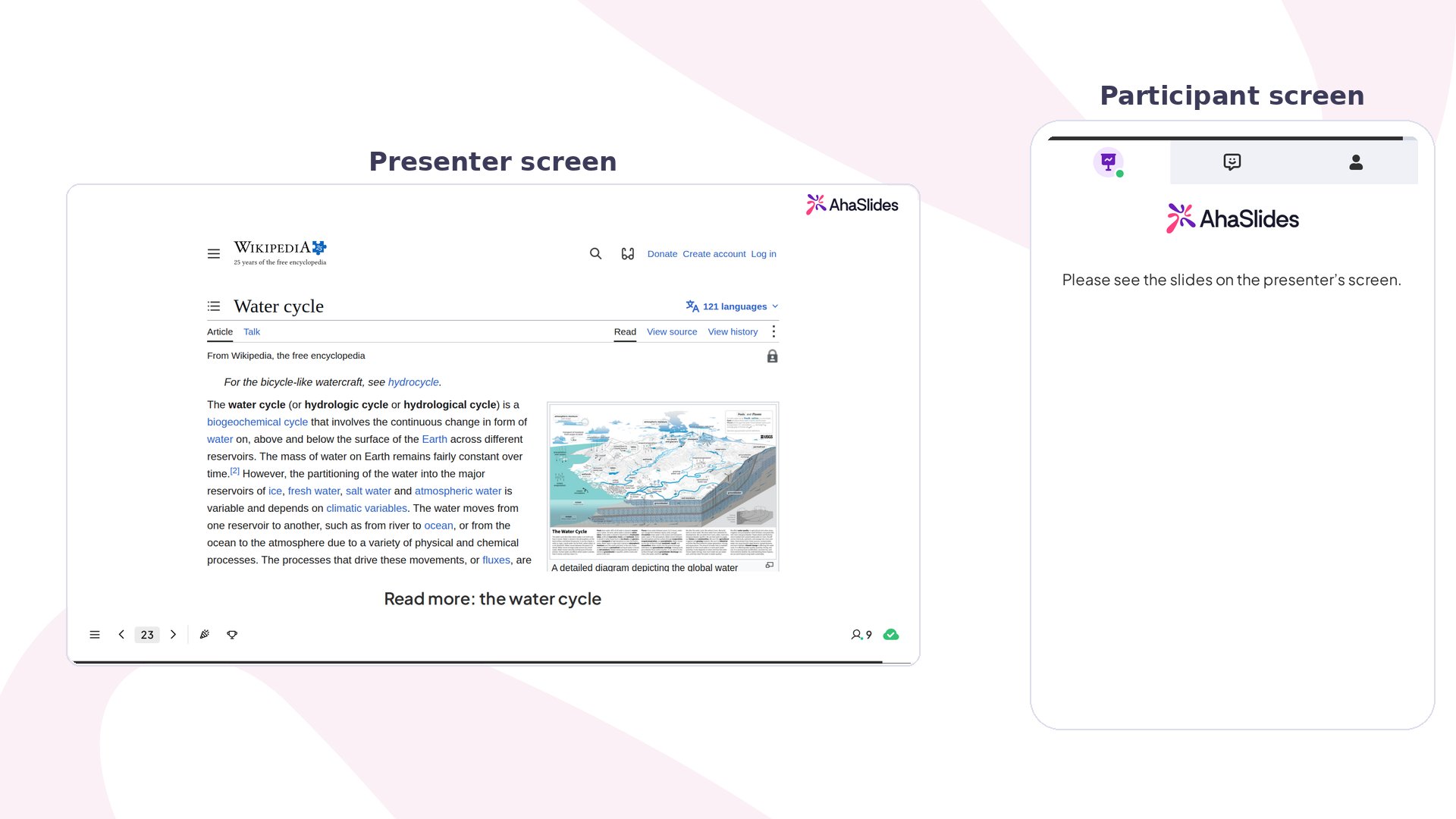
Some content can’t be embedded because of copyright restrictions and can only be viewed on its original platform.
Embed slide at a glance
Create an Embed slide
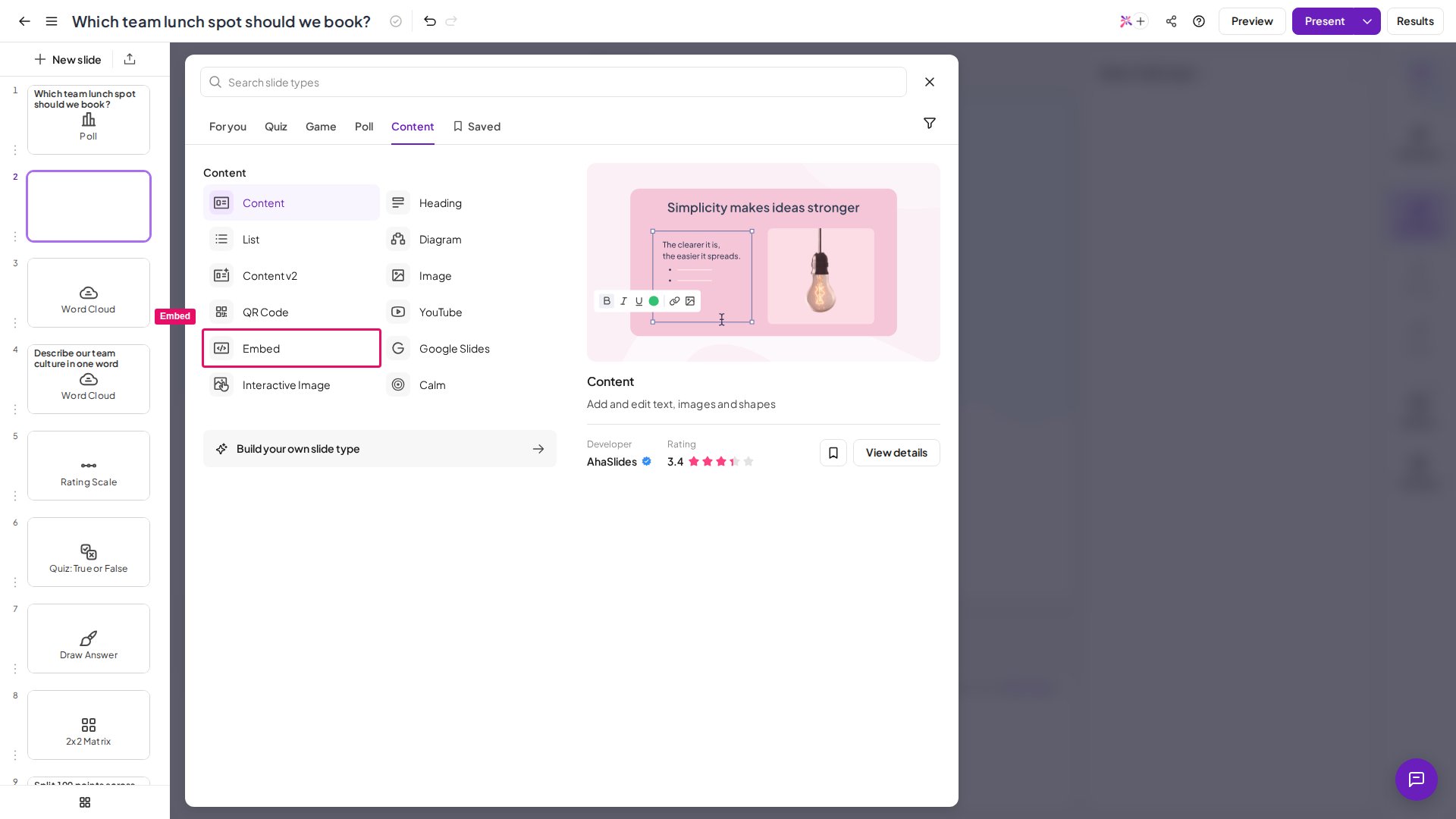
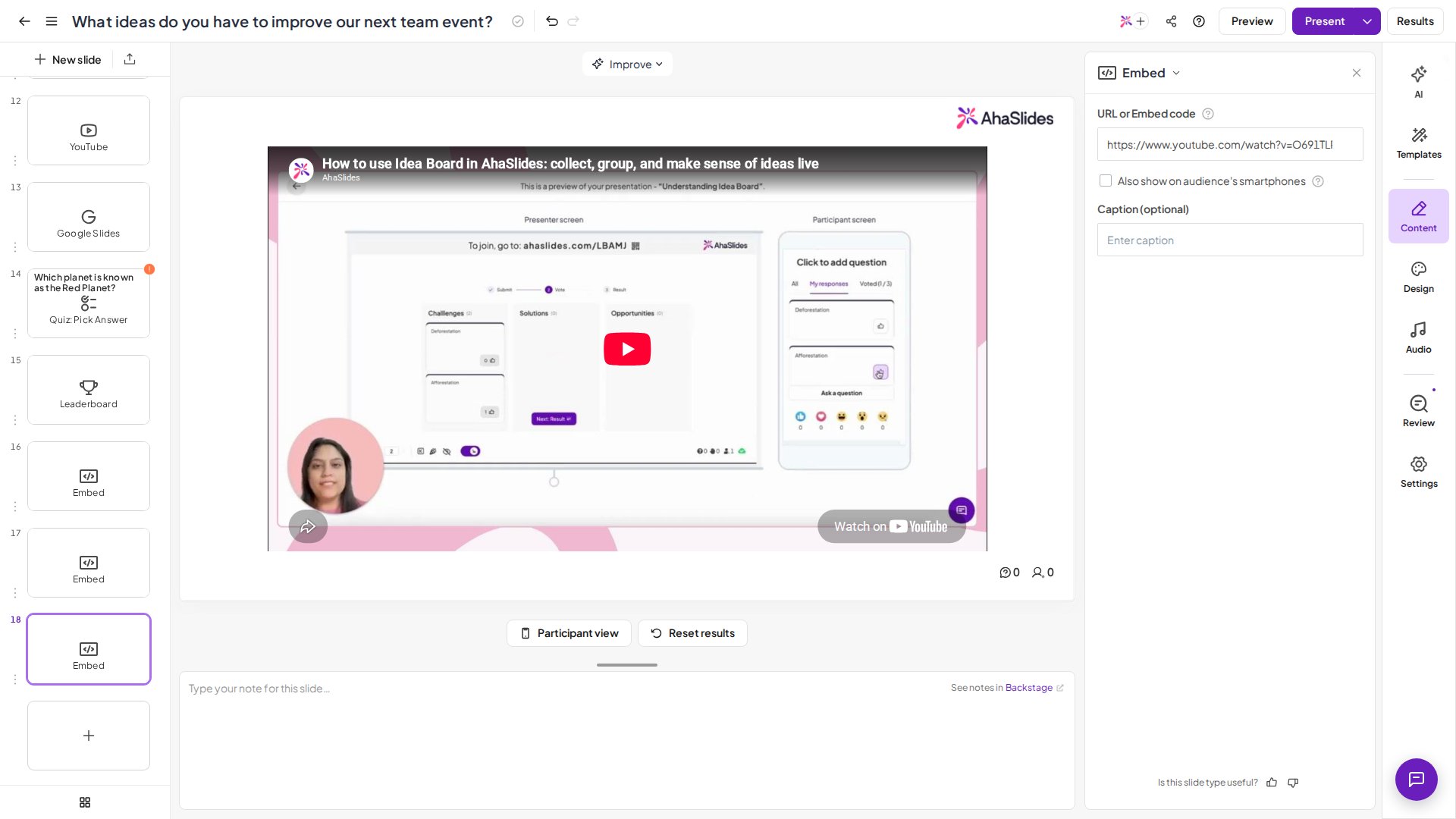
Add a URL
Supported URL formats include:- YouTube:
https://youtube.com/watch?v=…orhttps://youtube.com/embed/{videoId} - Vimeo:
https://vimeo.com/{videoId} - Google Docs, Sheets, Slides: the link from Publish to the web
- Miro:
https://miro.com/app/board/{boardId} - Skoletube:
https://skoletube.dk/e/{videoId}
Add embed code
You can also paste HTML embed code in the form<iframe src="https://webname.com" …>. For example, this embeds a YouTube video:
Embed slide settings
Have a question?
Contact our support team — if you’re logged in, use the chat bubble in the bottom-right of your dashboard; otherwise contact us here or email hi@ahaslides.com.
Want to connect with other users? Join the AhaSlides community to share tips, request features, and see how others engage their audiences.