

This is different from importing a PowerPoint presentation into AhaSlides. The add-in embeds a live AhaSlides display inside PowerPoint; importing brings a PowerPoint file into AhaSlides.
Before you start
- Available for installed Microsoft Office 2019 and later. On earlier versions you’ll need to upgrade to use this integration.
- Works in the PowerPoint desktop app for Windows or Mac only. The add-in is not available in PowerPoint for the web (PowerPoint Online): opening it there shows a message asking you to use the desktop app instead.
- The Presenter role does not work with the PowerPoint add-in. If several people need to run the same presentation at once, each needs their own copy.
Does the add-in read my PowerPoint content?
No. The add-in does not read, access, or store any of your PowerPoint slide content. It only embeds a remote display of your AhaSlides presentation.Can I add an AhaSlides survey in PowerPoint?
Not as a standalone survey. The add-in lists your presentations only, under My Presentations and Shared with Me, so surveys you made in the Surveys tool don’t appear there. To use one in PowerPoint, add a Survey slide to a presentation, link your survey with Add an existing survey, then insert that presentation with the add-in. See Run a Survey inside your presentation.Set up the add-in
1
Download the AhaSlides add-in
In PowerPoint, on the Home tab, select Add-ins, then choose More Add-ins to browse the store. Your interface may look slightly different depending on your PowerPoint version.On a Mac, current versions of PowerPoint use the same Home tab and Add-ins button. On older builds, the store is on the Insert tab instead: in the Add-ins group, select Get Add-ins (if you only see My Add-ins, click that first).Search for AhaSlides and click Add. The AhaSlides add-in window appears on your slide — you can delete the default PowerPoint content blocks and stretch the window to fit the slide.
2
Choose your presentation
The add-in signs you in through your web browser, not inside the PowerPoint pane. In the add-in, click Log in (or Sign up if you’re new to AhaSlides). The add-in then shows Connect your AhaSlides account in browser and opens your browser automatically. If it doesn’t, click Continue in browser.In the browser, log in to AhaSlides if you aren’t already, make sure the account shown under Signed in as is the one you want (use Switch account if not), then click Connect. Only connect if you just started signing in from the add-in. When the browser says You are connected, close the tab and go back to PowerPoint. The add-in signs you in on its own.In the presentation list, click Select presentation next to the presentation you want. To find one quickly, click the magnifier icon above the list and type in Search presentations... The search covers your own presentations and folders as well as ones shared with you.
3
Add your slides or presentation
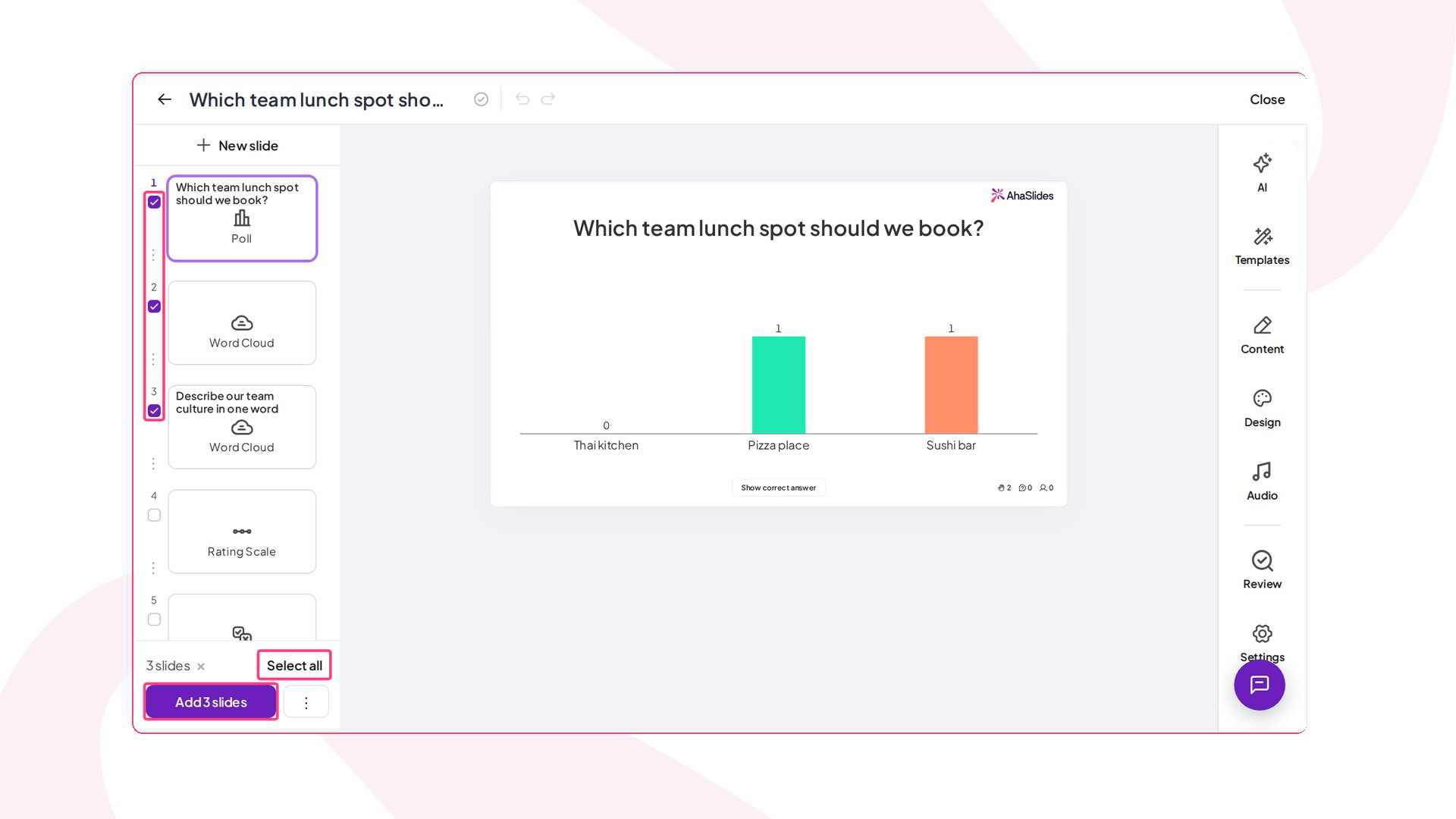
Adding one or more slides — the presentation opens with a tick box next to each slide in the left sidebar. Tick the slides you want, or click Select all, then click Add slides at the bottom of the sidebar (the button shows how many you picked, for example Add 3 slides). The first slide you ticked goes on the current PowerPoint slide, and each of the others gets its own new PowerPoint slide right after it, in presentation order.Adding a whole presentation — click the ⋮ button next to Add slides, then click Add presentation to confirm. The whole presentation is added as one PowerPoint slide, and you can control it just as you would when presenting on AhaSlides.
Editing or adding more slides later
While you’re editing your PowerPoint deck (not presenting it), go to a PowerPoint slide that has AhaSlides on it. A small menu in the bottom-left corner of the add-in has two options, and both open your presentation in a larger popup window:- Edit slides — make your changes in the full AhaSlides editor, then click Close at the top right of the window. The add-in picks up your changes when the window closes.
- Add slides — tick the slides you want and click Add slides. Each one gets its own new PowerPoint slide straight after the one you’re on, and the slide you started from stays as it is. To add the whole presentation as one new PowerPoint slide instead, use ⋮ and Add presentation.
What if I don’t see the tick boxes?
Some versions of PowerPoint can’t insert several slides at once, such as PowerPoint on iPad and volume-licensed versions like Office 2024 LTSC. There, the add-in uses its older view: open the AhaSlides slide you want and click Select this slide below the canvas, or click Select presentation to add the whole presentation. To edit a slide, turn on Edit mode and use the Content tab.Adding leaderboards 🏆
If you added a quiz slide and want to show scores:- Use the pop-up leaderboard by pressing L on your keyboard (or the trophy icon in the control bar), or
- Manually add a leaderboard slide the same way you add other slides.
Moving between slides with the arrow keys
While you present, you can use the left and right arrow keys to move through your deck, even when the AhaSlides add-in has keyboard focus. How the keys behave depends on how you added AhaSlides:- If you added a single AhaSlides slide to a PowerPoint slide, the arrow keys move your PowerPoint deck as normal.
- If you added a whole AhaSlides presentation inside one PowerPoint slide, the arrow keys walk through the AhaSlides slides first; when you reach the last one, the next press moves your PowerPoint deck on.
Reloading slides
Hover over the Menu option in the lower-left corner of the add-in to open a side panel with a Reload option. If you make changes to your slide on AhaSlides, click Reload to pull those updates into PowerPoint.Ending a quiz when you move to another slide
When you run a quiz slide through the PowerPoint add-in and then move on to an ordinary PowerPoint slide (one without an AhaSlides slide on it), the quiz automatically resets to its lobby. This keeps the audience’s view in step with the slide you are actually showing, so a quiz you have left behind no longer keeps running its timer in the background. It happens automatically — there is no setting to turn on. If you move back to the quiz slide, it’s ready to run again from the lobby.Clear responses before presenting to a new group
Responses from an earlier session stay on the AhaSlides presentation until you reset them, because the PowerPoint add-in shows the AhaSlides presentation you selected. Resetting slide by slide isn’t needed. To clear every slide at once, open the presentation in the AhaSlides editor and click Reset results below the slide canvas. The earlier responses stay in the presentation’s report. See Resetting the results for the other ways to reset.Let an AI assistant build the deck for you
If you use an AI assistant such as Claude, connect it to AhaSlides MCP and ask for a PowerPoint presentation with interactive slides. It creates the interactive slides in your AhaSlides account and gives you a .pptx file with them already added through this add-in, so you don’t have to insert them one by one. The slides run live in the PowerPoint desktop app with the add-in installed. See Create a PowerPoint deck with live AhaSlides slides.Remove the add-in
If you no longer need the add-in, remove it from the same My Add-ins list you install it from:1
Open the add-ins window
On the Home tab, select Add-ins, then choose More Add-ins and open the My Add-ins tab. Your interface may look slightly different depending on your PowerPoint version.
2
Remove AhaSlides
Right-click the AhaSlides add-in (or open its three-dot menu), then choose Remove. Confirm if PowerPoint asks.
Removing the add-in only takes it off this copy of PowerPoint. It doesn’t affect your AhaSlides account or your presentations, and you can add it again at any time from the store or from the manifest file.
Troubleshooting the PowerPoint add-in
If you can’t install the add-in from the Microsoft Store
If Add-ins won’t load, the search returns nothing, or the install fails, you can install the add-in from its manifest file instead of going through the store. Download the AhaSlidesmanifest.xml file, then follow the steps for your computer. The steps are different on Windows and Mac.
On Windows
1
Open PowerPoint
Start the PowerPoint application on your computer.
2
Open the add-ins window
On the Home tab, select Add-ins, then choose More Add-ins and open the My Add-ins tab.
3
Add the add-in from the manifest file
In the Office Add-ins window, click Manage My Add-ins, choose + Add from file, then browse to and select the
manifest.xml file you downloaded.4
Check that it installed
The add-in appears under My Add-ins and you can start using it in PowerPoint right away.
On Mac
PowerPoint for Mac has no Add from file option. Instead, you place the manifest file in a folder that PowerPoint checks when it starts.1
Open the add-ins folder
In Finder, press Cmd+Shift+G to open Go to Folder, then enter
~/Library/Containers/com.microsoft.Powerpoint/Data/Documents/wef. If the wef folder doesn’t exist, go to the Documents folder at that path and create a new folder named wef.2
Copy the manifest file
Copy the
manifest.xml file you downloaded into the wef folder.3
Restart PowerPoint
Quit PowerPoint completely if it’s open, then start it again and open a presentation.
4
Open the add-in
On the Home tab, select Add-ins, then choose AhaSlides from the menu. On older builds, go to the Insert tab and click the small arrow next to My Add-ins; AhaSlides is listed under Developer Add-ins in that menu, not in the My Add-ins window.
This installs the add-in on your own copy of PowerPoint. Anyone else who needs it has to install it too, either from the store or from the same manifest file.
The sign-in window doesn’t open or the add-in is stuck on “Connect your AhaSlides account in browser”
A pop-up blocker or a browser restriction can stop the sign-in page from opening.1
Try the button again
In the add-in, click Continue in browser. If your browser asks, allow pop-ups for the add-in.
2
Copy the sign-in link instead
Click Copy the sign-in link under “Browser didn’t open?”, then paste the link into your browser’s address bar and finish signing in there.
3
Start over if it times out
If the add-in shows Code expired or Request denied, click Start over to get a fresh sign-in.
The QR code is cut off in presentation mode
The add-in only draws inside the area its object occupies on the PowerPoint slide. If that object is smaller than the slide, the AhaSlides display is cropped — and the join QR code is usually the first thing to disappear.1
Open the slide in edit mode
Leave the slideshow and open the PowerPoint slide for editing.
2
Remove leftover PowerPoint placeholders
Delete any default PowerPoint title or content boxes still sitting on the slide so the add-in object has room.
3
Stretch the add-in object
Click the AhaSlides add-in object once, then drag its corners or edges outward until it fills the PowerPoint slide area.
4
Check it in presentation mode
Start the slideshow again and confirm the QR code is fully visible.