

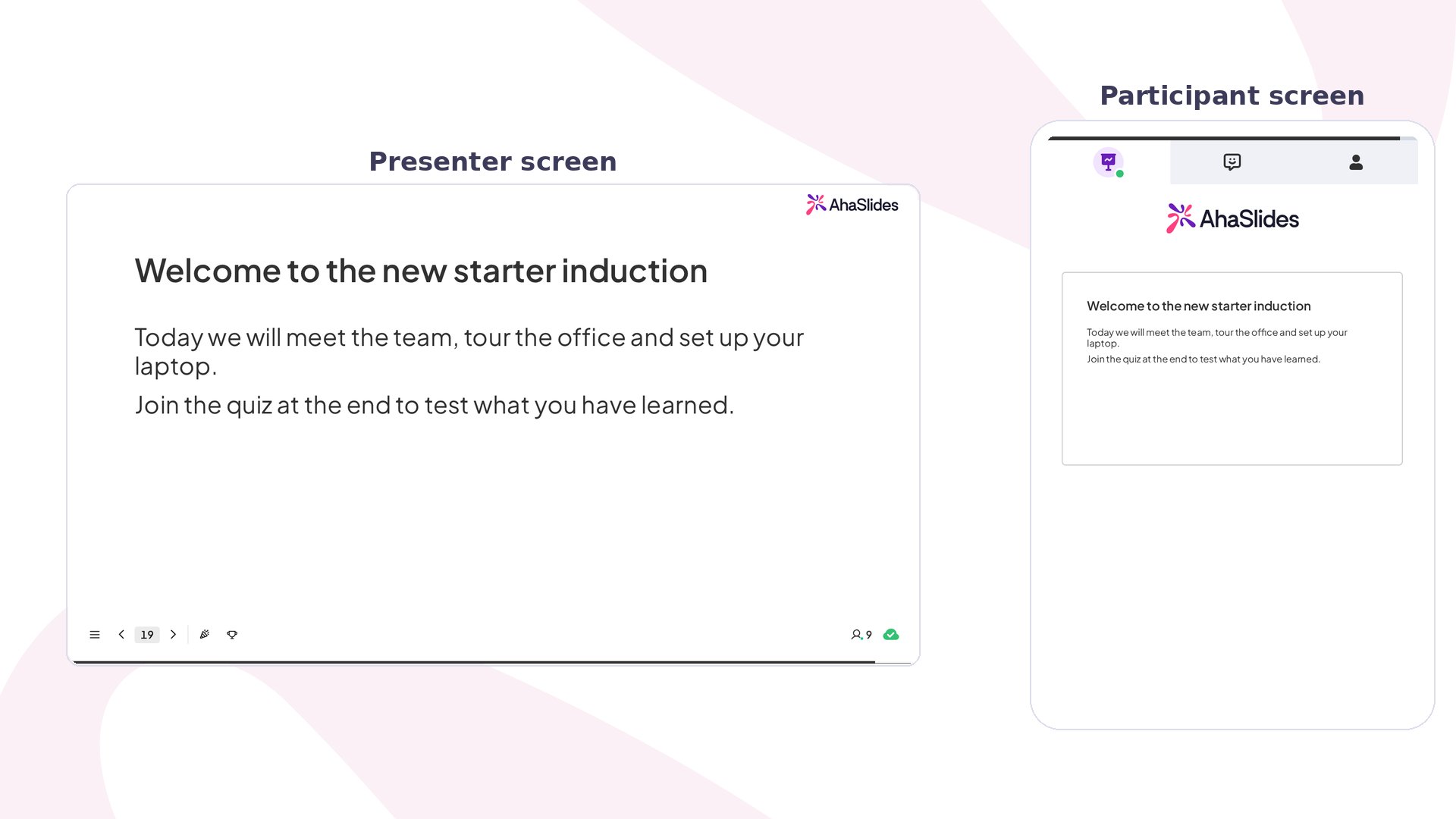
Content slide at a glance
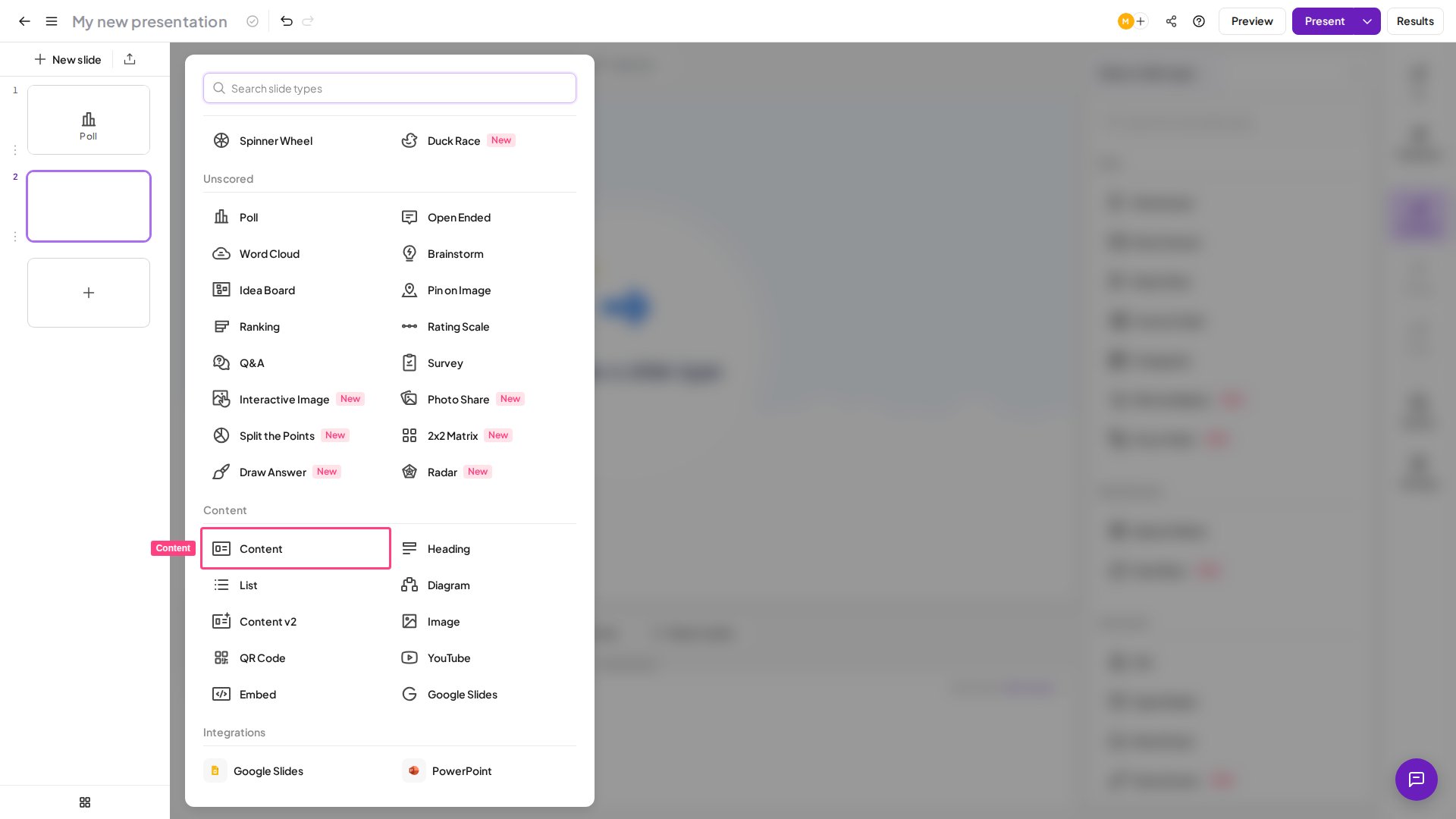
Create a Content slide
Edit blocks
1
Select a block
Click a block once to move or rotate it, and reveal options to duplicate or delete it.
2
Edit block content
Click the block again to edit its text, formatting, colour, alignment, images, and more.
Add new blocks
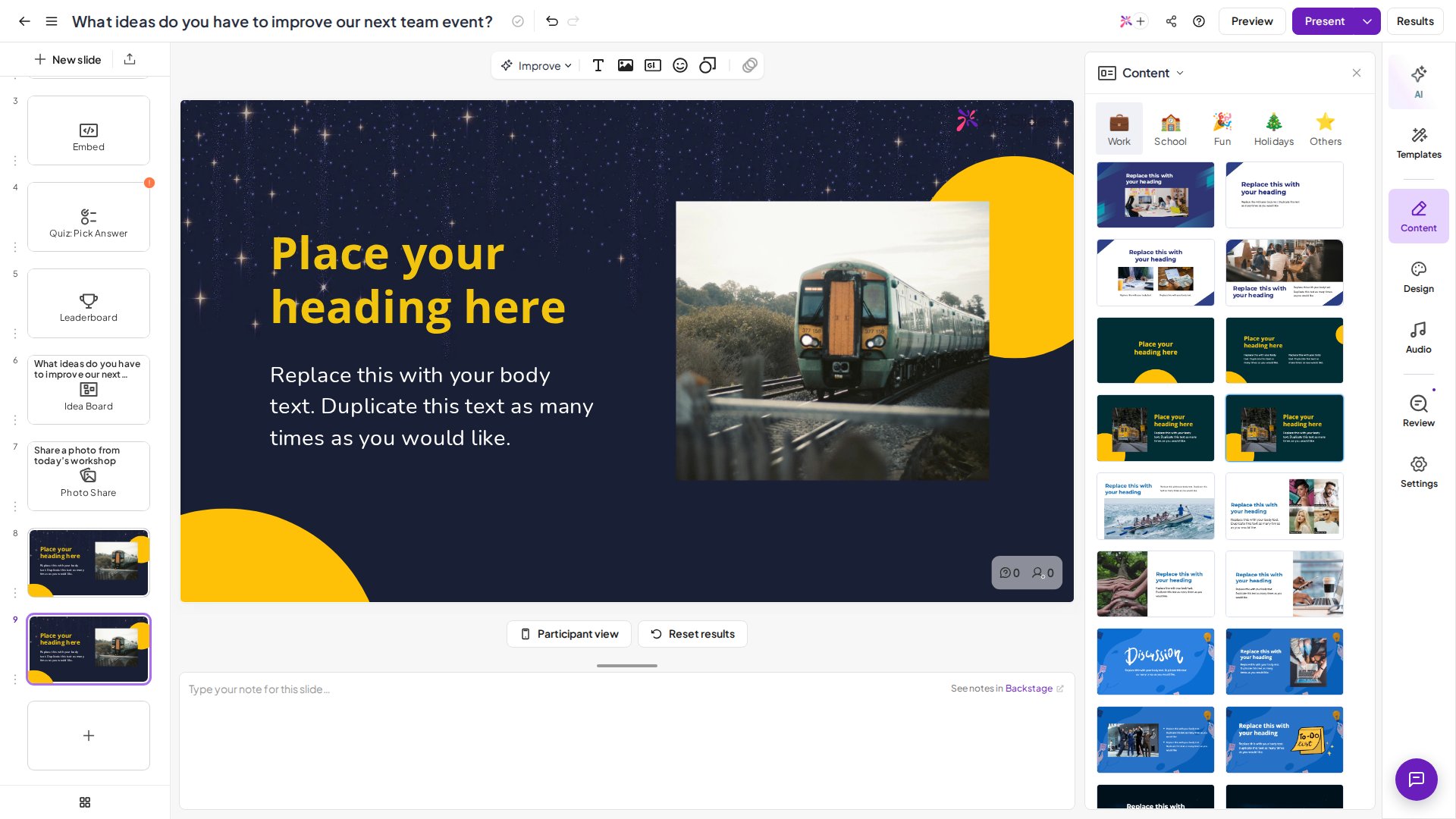
Use the 5 icons at the top of the slide to add new blocks:Position blocks
Blocks have a layered structure — a block on top of another will obscure it. Bring a block forward or send it backward to change its layering. Use the alignment guides to centre blocks precisely: drag a block toward the middle of the canvas and it snaps into position along the vertical line, the horizontal line, or both.Add animation
1
Select a block
Click the block you want to animate.
2
Open the Animation icon
Click the Animation icon in the toolbar above the slide. It stays greyed out until you select a text, image, emoji, shape or line block. The Animation panel then opens in the right-hand column.
3
Choose an effect
Pick the animation effect you want applied to the block. The Animation panel of the Content slide offers these effects: Fade In, Slide In, Zoom In, Bounce, Pulse, Flash and Shake. Select No animation at any time to remove it.
Content slide animations are entrance effects that play when you reach the slide — every animated block plays its effect together at that point. Each block can hold one animation at a time. To reveal blocks one at a time on click (the PowerPoint-style sequence), use the Content v2 slide instead, which supports per-block On click step sequencing. Content v2 is also the slide with a Timer block, so use it if you need a countdown timer on a slide.