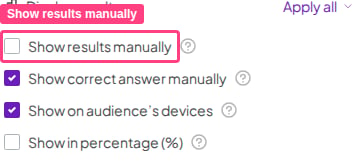
Avoid biased results by hiding the results in your presentation. You can hide the results from the screen so that they don’t influence people who haven’t answered yet.
This function is available on Poll, Open-Ended, Word Cloud, Idea Board, Ranking, Pin on Image, and Rating Scale slides.For quiz slides, use the Manually show correct answers option under the general quiz settings instead. See How to Make and Run a Quiz for details.

Hide results from the Edit view

1

Select the slide

Select the slide you want to hide results on.
2

Open the Content tab

Open the Content tab.
3

Check Hide results

Check the box Hide results.
To hide or show results for all question slides (Poll, Open-Ended, Word Cloud, and Rating Scale) at once, click the Apply on all questions button.

Hide results from the Presentation view

You can hide the results during your presentation by clicking the Hide results icon on the toolbar. To display the results again, press H on your keyboard or click the Show results button or icon on the toolbar.