

This is different from two other Google Slides features. This article covers importing a Google Drive presentation into AhaSlides. To embed a published Google Slides deck as a single slide, see Using your Google Slides presentation with AhaSlides. To build interactive slides inside Google Slides, see Using the AhaSlides add-on in Google Slides.
How to import from Google Drive
1
Open the Import slides modal
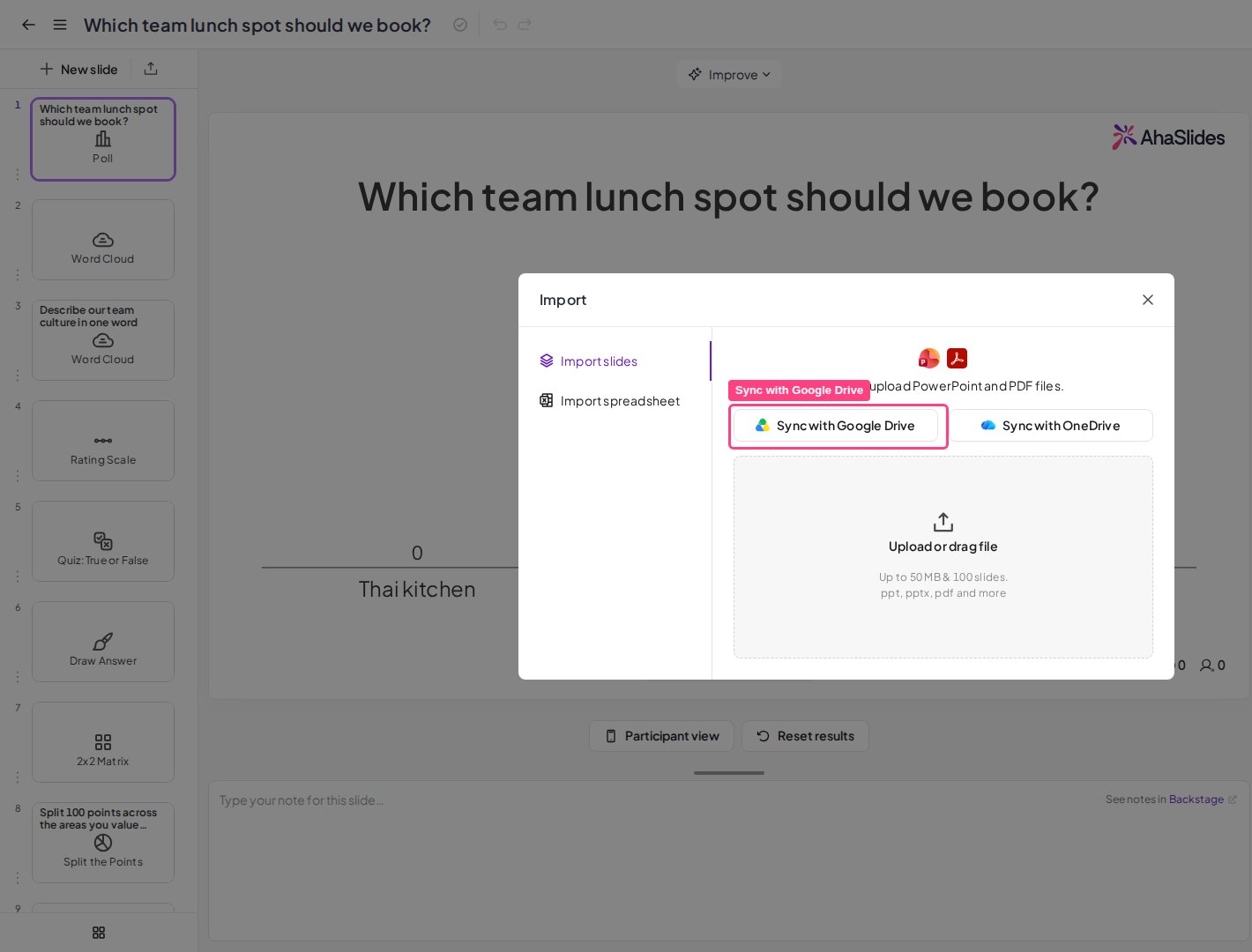
In the AhaSlides editor, open the presentation you want to add the slides to, then click the Import button. This opens the Import slides modal, where you can sync or upload PowerPoint and PDF files.
2
Choose Sync with Google Drive
In the modal, click Sync with Google Drive. Sign in to your Google account when prompted, then pick a Google Slides or PowerPoint presentation from your Drive.
3
Let the import finish
AhaSlides brings the presentation in and adds each slide to your deck. The imported slides stay connected to the source file so you can update them later.
How to import from OneDrive
1
Open the Import slides modal
In the AhaSlides editor, open the presentation you want to add the slides to, then click the Import button to open the Import slides modal.
2
Choose Sync with OneDrive
Click Sync with OneDrive and sign in with your Microsoft account when prompted. Both personal and work or school accounts are supported. Then pick a PowerPoint or PDF file from your OneDrive.
3
Let the import finish
AhaSlides imports the file and adds each slide to your deck, connected to the OneDrive original in the same way as a Google Drive import.
If you see “This Microsoft account doesn’t have OneDrive”, the account you signed in with has no OneDrive. Sign in with a different account, or ask your IT administrator whether your Microsoft 365 plan includes OneDrive.
A small cloud icon appears next to each synced slide in the slide panel. Hover over it to see Synced with Google Drive (or Synced with OneDrive), so you can tell at a glance which slides came from a connected source.
Keeping slides in sync
When a synced slide is selected, a cloud-sync toolbar appears above it, showing the source file name and a cloud status icon. From the toolbar you can:1
Update
Click Update to pull the latest version of the file from Google Drive or OneDrive and refresh the imported slides. The toolbar shows when the deck was last synced.
2
Open the source to edit
Click the pencil (edit) button to open the original file in a new tab — in Google Slides for a Google Drive file, or in OneDrive for a OneDrive file. Make your changes there, then come back and click Update to bring them into AhaSlides.
3
Disconnect from source
Open the three-dots menu and choose Disconnect from source. The imported slides stay in your presentation as standalone slides but no longer sync with the original file.
4
Log out
In the same three-dots menu, choose Log out from Google Drive (or Log out from OneDrive) to sign out of the connected account.
Disconnecting keeps the slides you already imported — they simply stop syncing. To reconnect later, import the file again from Google Drive or OneDrive.
What happens to synced slides
Each imported slide is displayed as a separate Content slide containing a static image of the original. As with any imported PowerPoint or PDF file, animations, embedded audio, embedded video, and links are not carried across, but you can still add text, images, GIFs, and emojis to each Content slide, and place interactive AhaSlides slides between them.Frequently asked questions
How do I import slides from Google Drive?
How do I import slides from Google Drive?
In the AhaSlides editor, open a presentation and click the Import button. In the Import slides modal, click Sync with Google Drive, sign in, and pick a Google Slides or PowerPoint presentation from your Drive.
Can I import only some of the slides from my Google Drive or OneDrive file?
Can I import only some of the slides from my Google Drive or OneDrive file?
No. Syncing imports every slide in the file, and clicking Update pulls in the whole file again. To leave slides out, remove them from the source file in Google Slides or OneDrive, then import it or click Update.
How do I update my slides after I change the original in Google Slides?
How do I update my slides after I change the original in Google Slides?
Select a synced slide, then click Update on the cloud-sync toolbar. AhaSlides pulls the latest version from Google Drive and refreshes the imported slides. You can also click the pencil button on the toolbar to open the source file in Google Slides first.
How do I stop my slides from syncing?
How do I stop my slides from syncing?
Select a synced slide, open the three-dots menu on the cloud-sync toolbar, and choose Disconnect from source. The slides stay in your presentation as standalone slides and no longer sync with the original file.
Can I sync from OneDrive?
Can I sync from OneDrive?
Yes. In the Import slides modal, click Sync with OneDrive, sign in with a personal or work or school Microsoft account, and pick a PowerPoint or PDF file.
What happens to animations and videos in my imported slides?
What happens to animations and videos in my imported slides?
Each slide is imported as a static image on a Content slide, so animations, embedded audio, embedded video, and links are not imported. See Importing a PowerPoint presentation or PDF file for how to add a video back as its own slide.