

Before you start
The team quiz feature isn’t available on every plan; if yours doesn’t include it, you’ll be prompted to upgrade.
How a team quiz works
When teamplay is enabled, players join teams to compete for points against other teams. Before presenting, you set up the teams and the scoring rules. When a player joins, they are asked to select one of the teams you created.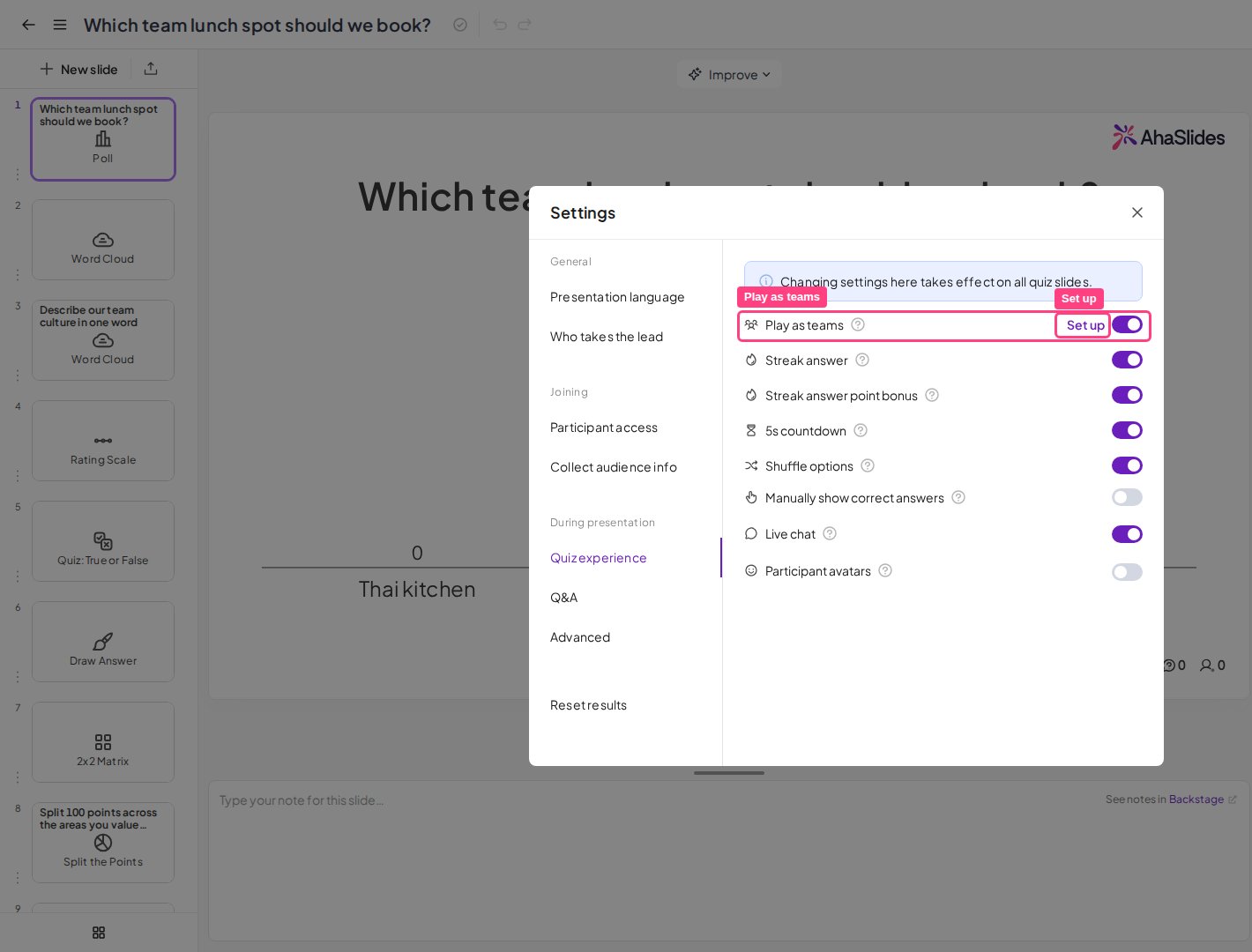
Set up your teams
1
Open the Quiz settings
In the presentation editor, go to Settings, then Quiz experience.
2
Turn on Play as teams
Click the switch next to Play as teams, then click the blue Set up text. The team setup menu appears.
3
Set the number of teams and team size
Set the number of teams that will play and the maximum number of players allowed in each team. If you do not know these numbers yet, estimate a high number so everyone can join the team they want.
- Maximum number of teams: 500
- Maximum team size: 1200
4
Choose how teams score points
Choose one of three scoring rules:
- Average score of all members, including zero points for members who answer incorrectly or do not answer.
- Total score of all members. This rule handicaps teams with fewer members.
- Fastest answer only, which registers only the score of the fastest answer from each team, even if it is incorrect.
5
Name your teams
Click Set team names… to change the team names. A team name can be up to 20 characters. If you plan to let players choose their own team names, they need to tell you the name so you can enter it here.
6
Hide the individual leaderboard (optional)
To hide individual rankings on the players’ screens, turn on Hide individual leaderboard. As the presenter, you can still switch between team and individual leaderboards.
Individual teams have no delete button. To remove a team, lower the number of teams in the team setup. AhaSlides removes empty teams first and keeps any team that already has players, so you can drop an unused team without disturbing the rest. You cannot reduce the number below the count of teams that already have members — if you try, AhaSlides tells you the number cannot be lowered while those teams have players.
How participants join teams
When you present your quiz, participants are asked to enter their name, choose an avatar, and select one of the teams you set up. While they are still on the lobby screen, they can change team by clicking the (change team) text. On the presenter screen, you can see which players joined which team in the quiz lobby.You can add a new team from the quiz lobby by clicking the + Add a team button in the centre. Players can join the new team immediately, but you cannot edit its name.
Frequently asked questions
How do I run a team quiz on AhaSlides?
How do I run a team quiz on AhaSlides?
In the presentation editor, go to Settings, then Quiz experience, turn on the switch next to Play as teams, and click Set up. From there you set the number of teams, team size, scoring rules, and team names.
How do teams score points in a team quiz?
How do teams score points in a team quiz?
You choose one of three scoring rules: the average score of all members (including zeros), the total score of all members (which handicaps larger teams less), or the fastest answer only from each team.
How do participants join a team?
How do participants join a team?
When you present, participants enter their name, choose an avatar, and select one of the teams you set up. They can still change team from the lobby screen by clicking (change team).
Can I hide the individual leaderboard during a team quiz?
Can I hide the individual leaderboard during a team quiz?
Yes. In the team setup, turn on Hide individual leaderboard to hide individual rankings on players’ screens. As the presenter, you can still switch between team and individual leaderboards.
How do I remove a team?
How do I remove a team?
Individual teams have no delete button. Lower the number of teams in the team setup and AhaSlides removes teams without any players first, keeping the teams that already have members. For example, with five teams where four have players and one is empty, setting the number to four removes the empty team. You cannot go below the count of teams that already have members.
Which plans support team quizzes?
Which plans support team quizzes?
The team quiz feature isn’t available on every plan; if yours doesn’t include it, you’ll be prompted to upgrade.