

Edit slides without grid view
To quickly select multiple slides, use the navigation column on the left of the editor.- Hold CTRL and click each slide to select it.
- Hold SHIFT and click to select a range of slides from one point to another.
Deleting a single slide
To delete one slide, right-click the slide in the navigation column and choose Delete, or select the slide and press Delete or Backspace. The slide is deleted straight away, with no confirmation step. A message with an Undo button appears after the slide is deleted: click Undo, or press Ctrl/Cmd + Z, to bring the slide back. See Undo and redo. The Trash on your dashboard holds deleted presentations, not single slides.What is grid view?
Grid View shows all the slides in your presentation in a grid, so you can preview the whole presentation at once. For presentations with many slides, Grid View is the easiest way to rearrange, delete, and edit multiple slides.Edit slides with grid view
Open grid view
To open Grid View, click Grid View at the bottom of the left-hand panel. To close it, click Close in the right corner of the bottom panel.Select multiple slides
To select multiple slides, click the Select button in the top panel, click the slides you want, then click Done when finished. You can also use keyboard shortcuts: hold CTRL and click each slide to select it, or hold SHIFT and click to select a range of slides.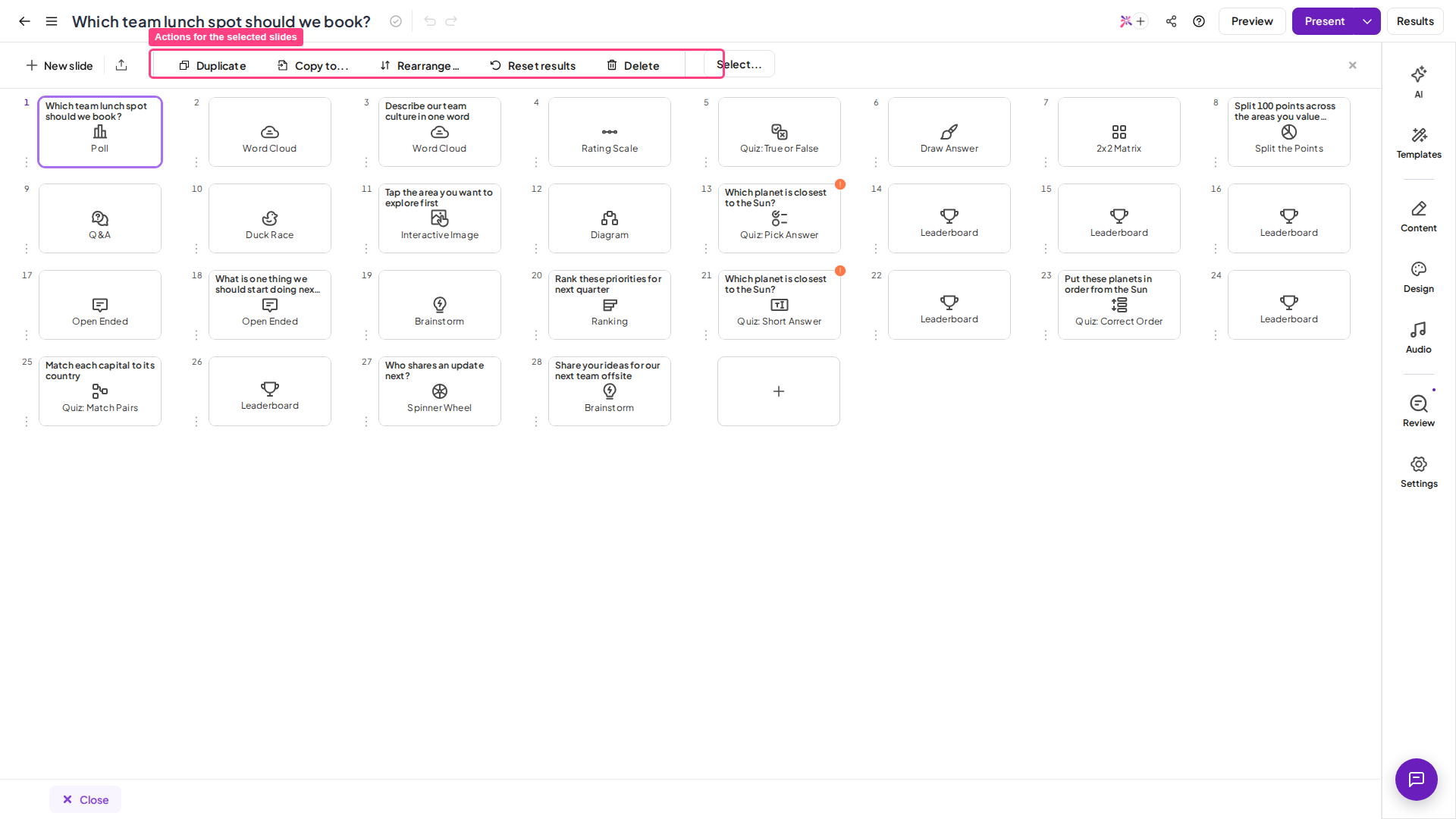
Edit multiple slides
Grid View lets you edit the backgrounds and audio of multiple slides at the same time. Select the slides you want to edit, then use the right-hand panel:- Under the Design tab, you can change text colour, base colour, background image, and background visibility.
- Under the Audio tab, you can add an audio track and edit its playback settings.
Move individual or multiple slides
In Grid View, you can drag and drop one or more slides to a different position.- To move a single slide, select it and drag it to your desired position.
- To move multiple slides, select the slides, drag them to your desired position, then click Done when finished.
Duplicate multiple slides
To duplicate multiple slides at once, select the slides you want and click the Duplicate button in the bottom panel.Copy multiple slides to other presentations
To copy slides to another presentation, select the slides and click the Copy to button in the bottom panel. Then select the destination presentation and the position for the copied slides within it.This is a quick way to merge two presentations into one. Create a new presentation, then use the Copy to button to copy the slides you want from each existing presentation into it.
Clear audience response data on multiple slides
To erase audience response data across multiple slides, select the slides, then click Clear result in the panel.Delete multiple slides
To delete multiple slides at once, click the Select button, select the slides you want to delete, and click Done. Then click the Delete button in the panel.Frequently asked questions
How do I select multiple slides at once in AhaSlides?
How do I select multiple slides at once in AhaSlides?
In the navigation column or in Grid View, hold CTRL and click each slide, or hold SHIFT and click to select a range. In Grid View you can also click the Select button, click the slides, then click Done.
What is Grid View and how do I open it?
What is Grid View and how do I open it?
Grid View shows all your slides in a grid so you can preview the whole presentation at once, which makes rearranging, deleting, and editing many slides easier. Open it by clicking Grid View at the bottom of the left-hand panel.
How do I edit the background or audio of multiple slides at once?
How do I edit the background or audio of multiple slides at once?
In Grid View, select the slides, then use the right-hand panel. The Design tab edits text colour, base colour, background image, and background visibility, and the Audio tab adds a track and edits its playback settings.
How do I duplicate or copy multiple slides?
How do I duplicate or copy multiple slides?
Select the slides in Grid View, then click Duplicate in the bottom panel. To copy them into another presentation, click Copy to, then choose the destination presentation and position.
How do I delete multiple slides at the same time?
How do I delete multiple slides at the same time?
Click the Select button, select the slides you want to delete, click Done, then click the Delete button in the panel.
Is there a maximum number of slides in one AhaSlides presentation?
Is there a maximum number of slides in one AhaSlides presentation?
Yes. One AhaSlides presentation can have up to 500 slides. When a presentation reaches 500 slides, the AhaSlides editor shows the Presentation too large message and you can’t add more slides to that presentation. To keep adding slides, remove some slides from the presentation or create a new presentation.