

Before you start
You need a Google Slides deck you are happy to publish to the web, because AhaSlides embeds the published link. See Google Slides embed limitations for what the embed can’t do.Publish your Google Slides deck
1
Open your Google Slides presentation
Go to slides.google.com and open the deck you want to embed.
2
Open the Publish to web dialog
Click File → Share → Publish to web.
3
Click Publish
In the dialog that appears, click Publish to generate a public link.
4
Confirm
Click OK to confirm that you want to publish the presentation.
5
Copy the published link
Copy the URL that appears — you’ll need it in the next step.
Publishing to the web makes your slide content viewable by anyone with the link. Do not publish decks containing sensitive, confidential, or personal information.
Embed the deck in AhaSlides
1
Open AhaSlides
Log in to AhaSlides and create a new presentation or open an existing one.
2
Add a new slide
Click the + Add Slide button in the slide panel.
3
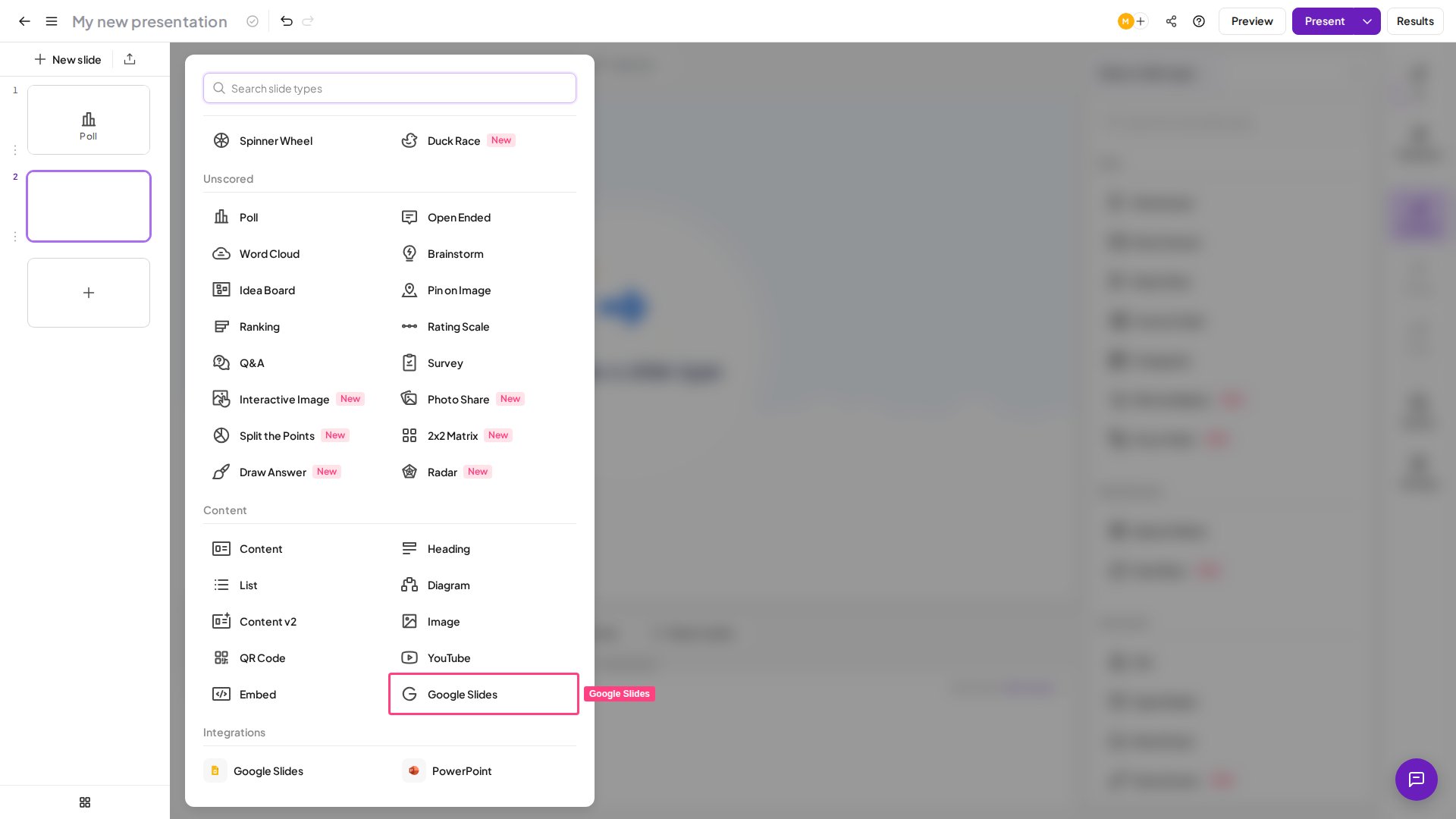
Select 'Google Slides' as the slide type
Choose Google Slides from the list of available slide types.
4
Paste the published link
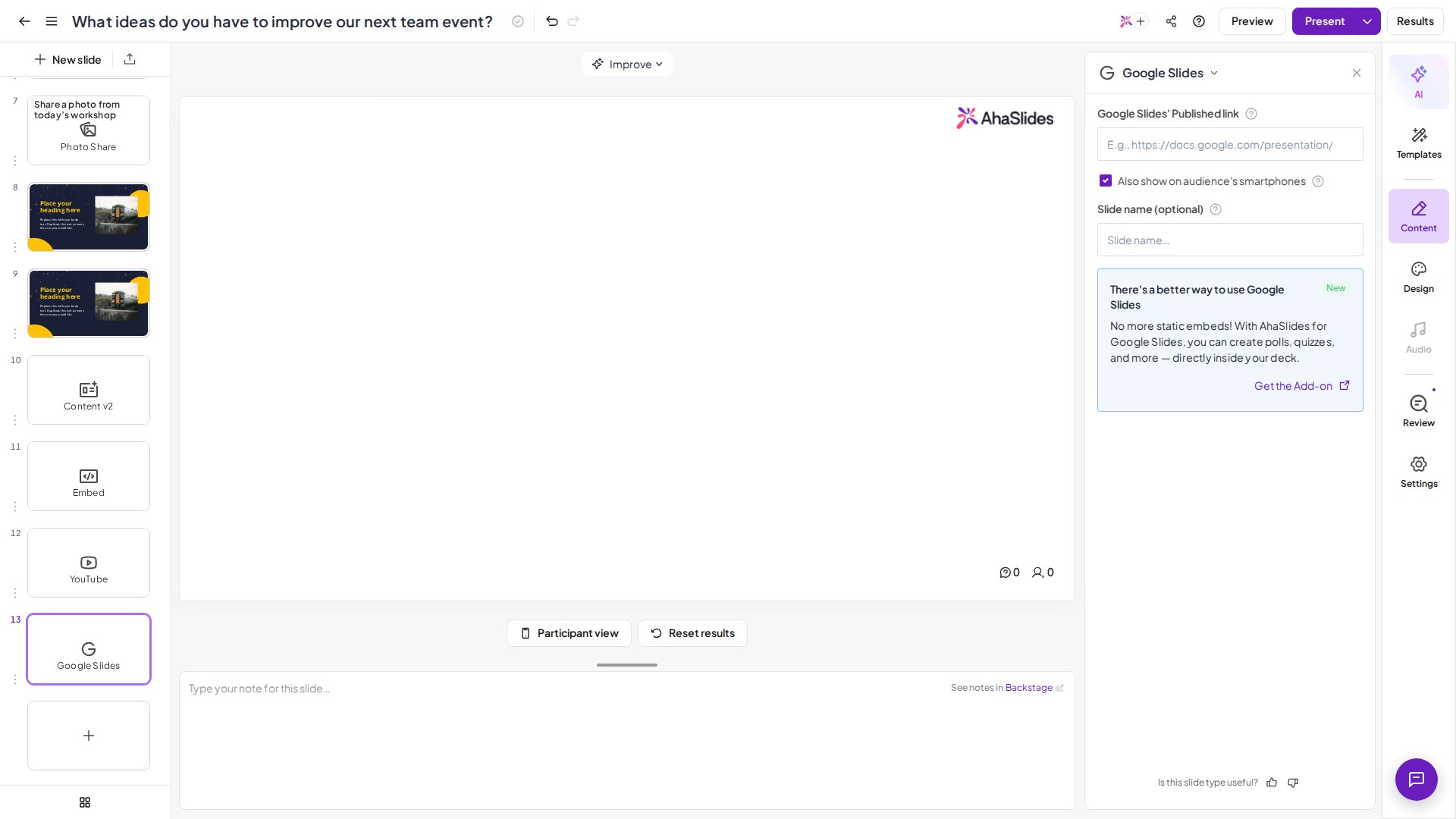
Paste the URL you copied in Step 1 into the Google Slides’ Published link field.
5
Save
Click Save. Your Google Slides deck now appears as a slide in your AhaSlides presentation.
Navigate your deck while presenting
Use the navigation arrows in the bottom-left of the Google Slides embed to move between your Google slides during a live presentation. The three-dot menu inside the embed gives you access to additional controls:- Speaker Notes — view your slide notes while presenting
- Laser Pointer — highlight areas of the slide for your audience
- Pen tool — draw or annotate directly on the slide
- Full-Screen Mode — expand the Google Slides embed to fill the screen
- Auto-Play — advance slides automatically on a timer
Add interactive slides around your content
1
Position your cursor in the slide panel
Click the + Add Slide button at the position in the slide panel where you want to insert an interactive slide — before, after, or between your Google Slides content.
2
Choose an interactive slide type
Select from available types such as Poll, Quiz, Word Cloud, Rating Scale, Open Ended, and more.
3
Configure and save
Set up your question, options, and settings, then save the slide.
The Google Slides embed displays your deck as it was when you published it. If you update your Google Slides after publishing, re-publish the deck using the same steps above to reflect those changes in AhaSlides.
Google Slides embed limitations
- Public content only — publishing to the web makes your slides visible to anyone with the link. Do not embed decks containing sensitive or confidential information.
- No real-time sync — edits you make in Google Slides after publishing do not appear automatically in AhaSlides. You must re-publish to pick up changes.
- Animations not supported — slide transition animations and builds from Google Slides do not play inside the AhaSlides embed.
- Fonts and custom assets — fonts or images that require a Google account to view may not render correctly for all audience members.
Frequently asked questions
Can I use a private or restricted Google Slides deck?
Can I use a private or restricted Google Slides deck?
No. The deck must be published to the web (set to publicly viewable) before AhaSlides can embed it. Restricted or private decks will not load correctly.
How do I update my embedded slides after making changes?
How do I update my embedded slides after making changes?
Go back to File → Share → Publish to web in Google Slides and click Publish again. AhaSlides will pick up the updated content the next time the slide is loaded.
Can I embed multiple Google Slides decks in one AhaSlides presentation?
Can I embed multiple Google Slides decks in one AhaSlides presentation?
Yes. Add a separate Google Slides slide for each deck you want to embed. You can intersperse them with as many interactive slides as you like.
Will my Google Slides animations and transitions play?
Will my Google Slides animations and transitions play?
No. Slide transition animations and build effects from Google Slides are not supported inside the AhaSlides embed. Static slide content displays normally.
Do participants see the Google Slides content?
Do participants see the Google Slides content?
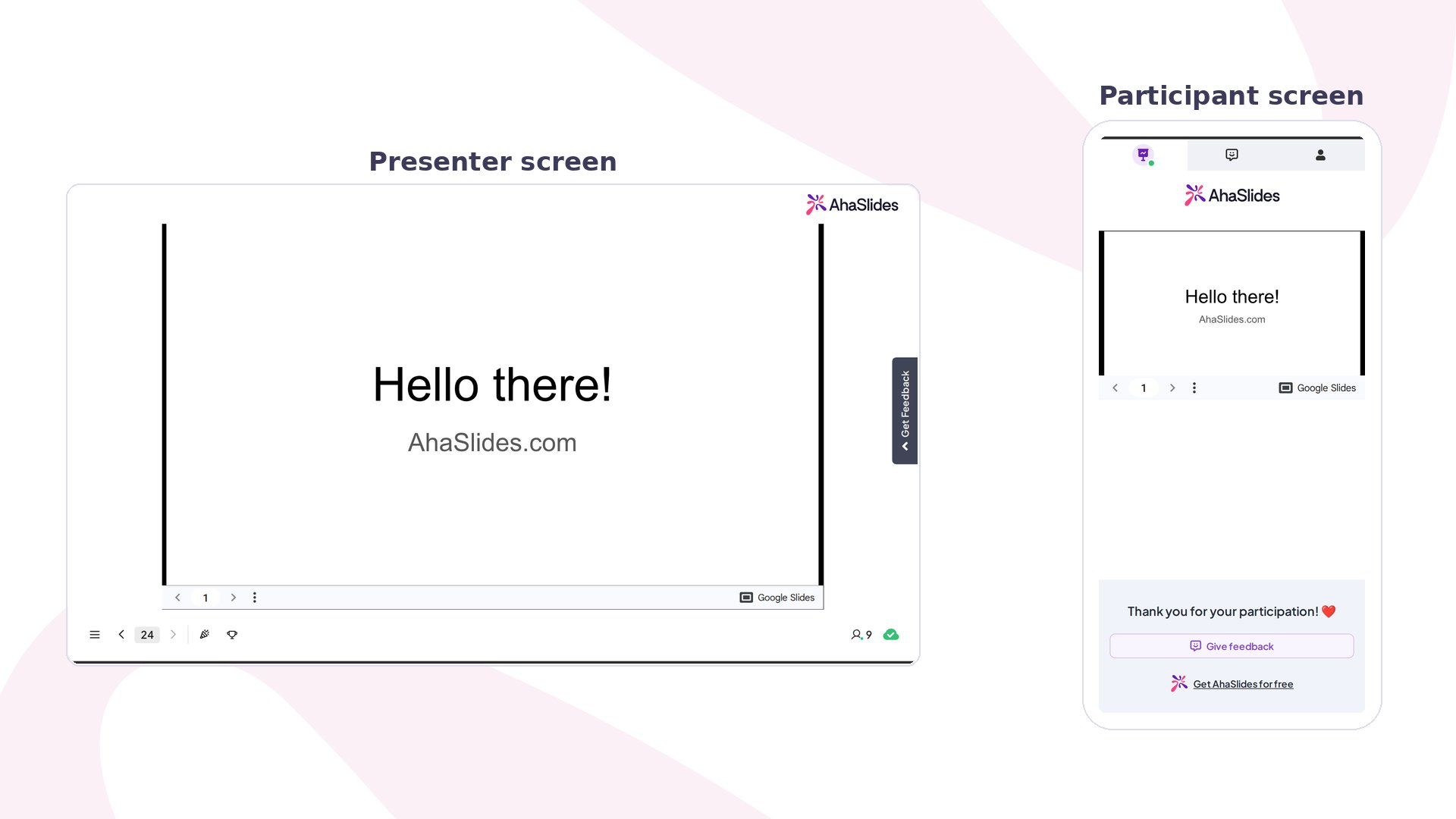
Yes. The embedded deck is visible to participants on both the presenter screen and the audience view during a live session.