

Not to be confused with Using your Google Slides Presentation with AhaSlides. That article covers embedding a published Google Slides deck as a slide inside AhaSlides. This article covers the AhaSlides add-on you install inside Google Slides to build interactive slides there.
Step 1: Install the AhaSlides add-on
1
Open your presentation
Open your Google Slides presentation.
2
Go to Get add-ons
In the side panel on the right of your screen, click the + button (Get add-ons).
3
Search and install
Type AhaSlides in the search bar and press Enter, then click Install under the app in the results.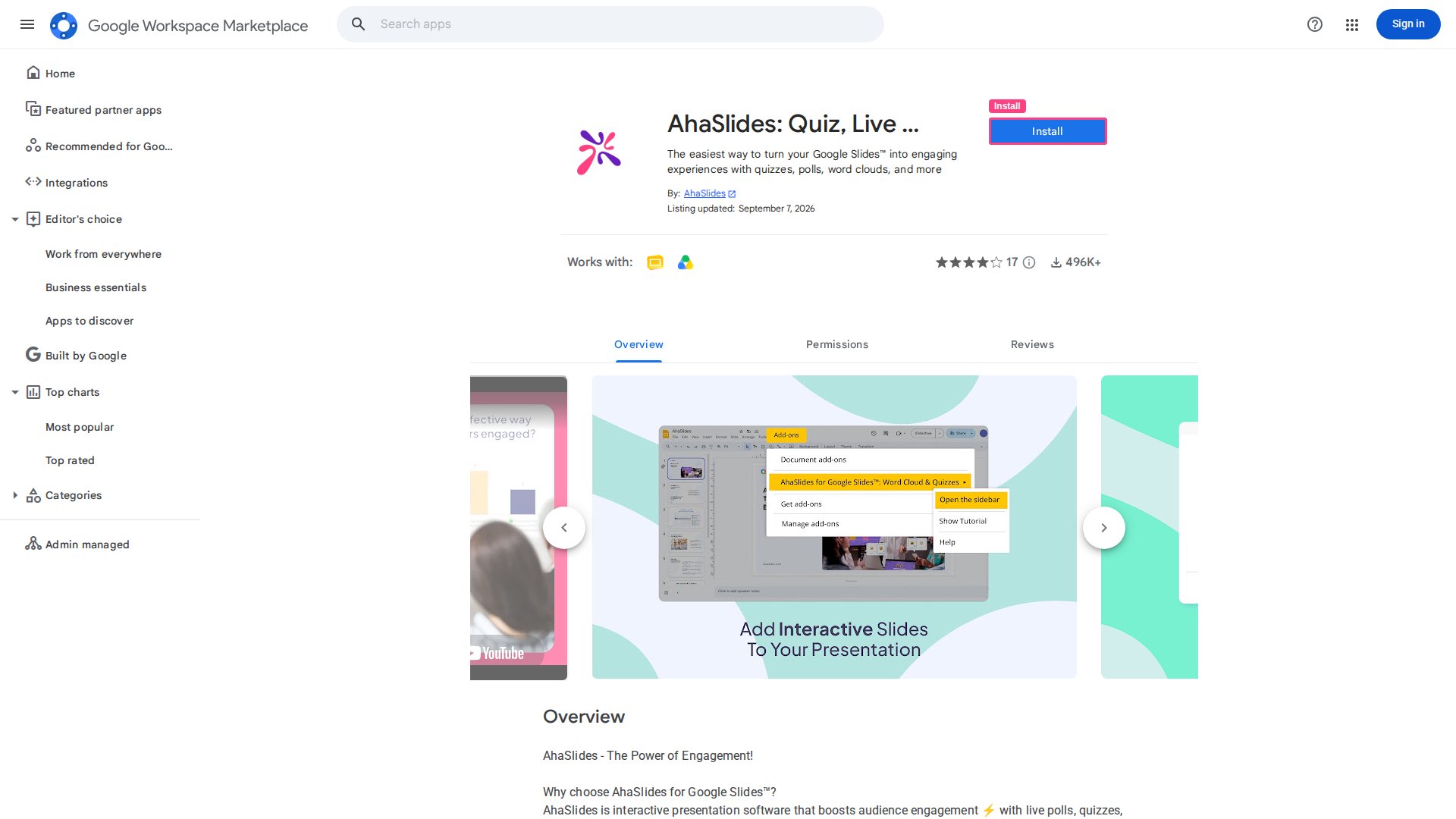
4
Open the sidebar
Once installed, go back to Extensions and select AhaSlides > Open Sidebar to open the AhaSlides add-on sidebar.
Step 2: Add an interactive slide
1
Log in
In the sidebar, log in to your AhaSlides account as usual.
Multi-login note: If you’re signed in to several Google Accounts at once, you may have trouble accessing add-ons and web apps — Google doesn’t support multi-login for Apps Script add-ons. If you hit this, either log out of all Google Accounts and sign in to only the one with the add-on, or open a private/incognito window and sign in to the Google Account you use for AhaSlides.
2
Choose a slide type
From the sidebar, choose the interactive slide type you’d like to add (e.g. Poll, Pick Answer, Word Cloud).
3
Customise the slide
Customise the slide content directly from the AhaSlides sidebar. To edit it later, select the slide and click Edit this slide in the sidebar.