

Before you start
Collaborating with members of your team plan is available on all plans. See Managing your team members. Collaborating with individuals outside your team isn’t available on every plan, though all users can use external collaboration during the current promotional offer.
Add collaborators to a presentation
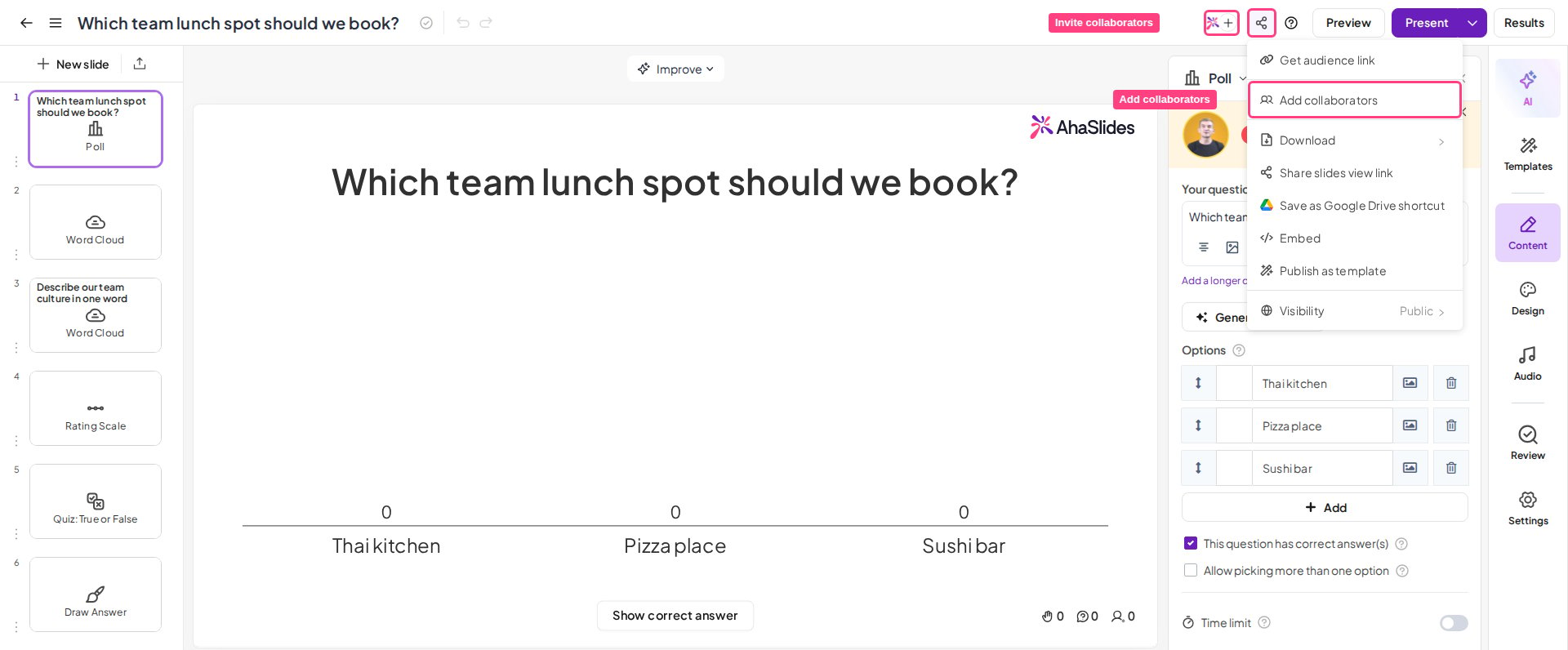
There are two ways to add collaborators to a presentation:- In the presentation editor toolbar, click the icon that shows your profile image and a + icon.
- Click the Share menu button and choose the Add Collaborators tab.
For more on the Presenter role, see Multiple presenters, one presentation with the Presenter role.
Inviting editors via link
You can also invite Editors using Invite editors via link in the Share menu. This option does not support the Presenter role.1
Turn on the toggle
Turn on the Invite editors via link toggle.
2
Copy the link
A shareable link appears. Click Copy to copy it.
3
Send the link
Send the link to your collaborators.
Add collaborators to a folder
1
Select the folder
In My Files, locate and select the folder you want to share.
2
Open Share
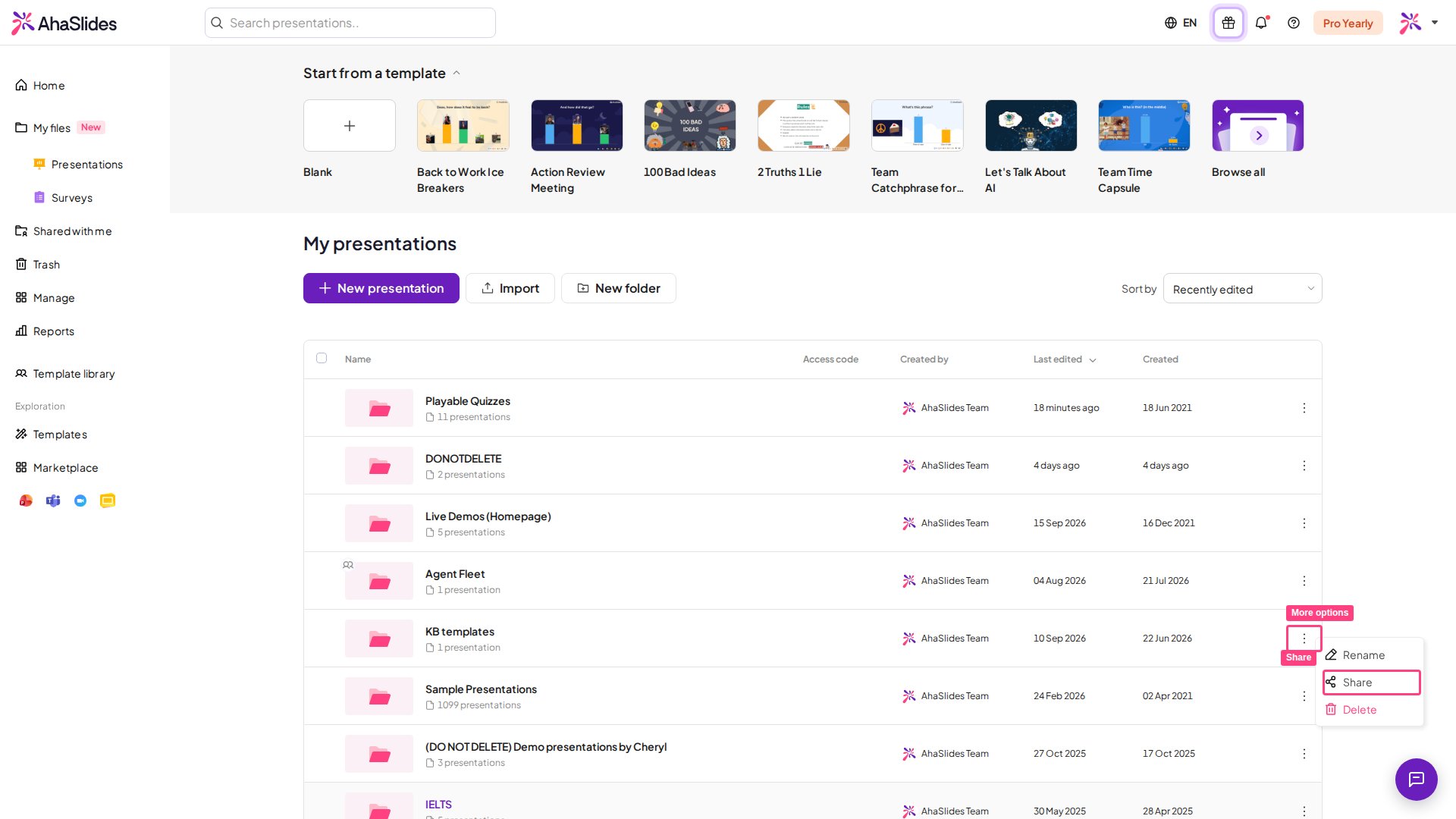
Click the 3-dot button to the right of the folder, or right-click the folder, and choose Share.
3
Invite collaborators
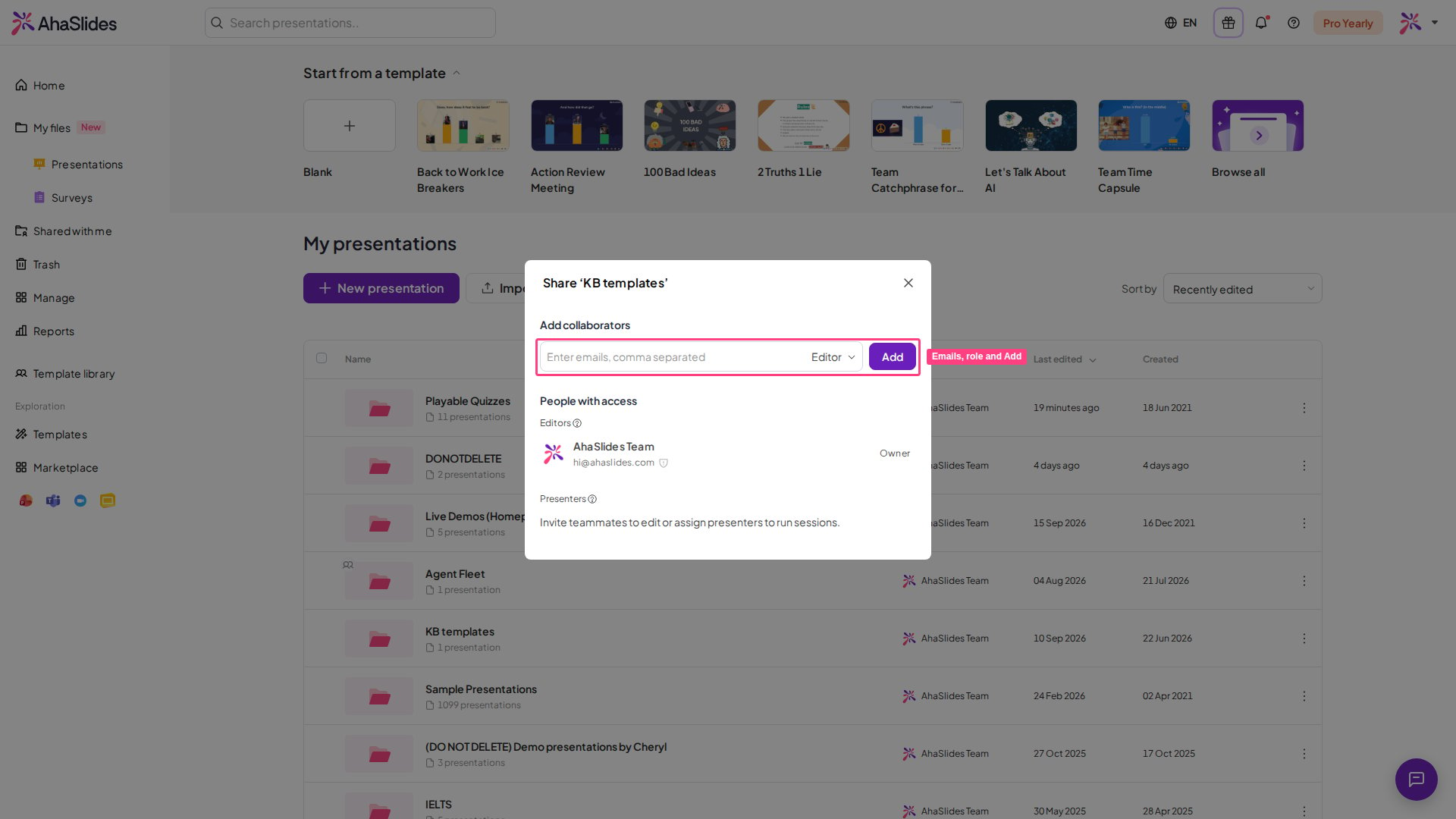
Type the collaborators’ email addresses, select a role, then click Add to grant access.
Add collaborators to a survey
You can invite people to work on an AhaSlides survey with you, in the same way you share a presentation. Because a survey has no live session, surveys use two roles only — Editor and Viewer — and there is no Presenter role.1
Open the Share menu
In the survey editor top bar, click Share and choose Add collaborators. The other option, Share with respondents, is the existing respondent link for collecting answers.
2
Invite by email
In the Add collaborators window, type one or more email addresses in the Enter emails, comma separated field, choose a role for them, then click Add. Invitations go to people who already have an AhaSlides account.
3
Choose a role
Pick Editor (Edit and view results) to let someone change the survey and see its responses, or Viewer (View results only) to let them see the responses without editing.
There is a daily limit on how many people you can invite to a survey. If you reach it, wait 24 hours and try again. People you have already invited keep their access.
Edit and view a presentation together
It is not yet possible for two people to edit a presentation at the same time. Collaborators can edit and present the same presentation, but only one person can actively edit or present at any given time. Collaborators can view the presentation while it is being edited. When a collaborator is viewing the same presentation, their profile picture appears in the top toolbar beside the Invite button. When one person is editing and another is viewing, the viewer sees a bar at the top of the editor with two options:- Take over: pressing this immediately makes you the editor and turns the current editor into a viewer.
- Refresh: pressing this refreshes the page so you can view the latest changes made by the editor.
Find shared presentations or folders
As the owner, any presentation or folder you share still appears in My Files alongside everything else you created. As a collaborator, any presentation or folder you were invited to appears in the Shared with Me tab. To leave a presentation or folder you were invited to, right-click it or click its 3-dot button, then choose Leave.Moving presentations across folders
You can move a presentation to a folder only if you have edit access to all three of the following: the source folder, the presentation, and the destination folder. To let collaborators move your presentations, move the presentations into a folder and invite the collaborators to that folder as Editor. Only presentations you own can be moved to the root folder of your My Presentations page.
1
Select the presentation
Click the checkbox next to the thumbnail of the presentation. You can select multiple presentations, and the checkbox appears only for presentations you are able to move. Then click Move to on the toolbar at the bottom of the page. You can also right-click a presentation, or open its option menu, to find Move to.
2
Choose the destination
Choose the destination folder and click Move.
3
Confirm the move
The result depends on the folders involved. Moving a presentation from one private folder to another private folder happens immediately. In all other cases, a message about changing access rights appears first; click Move to proceed, and the presentation moves to the destination folder.
Frequently asked questions
Can two people edit the same AhaSlides presentation at the same time?
Can two people edit the same AhaSlides presentation at the same time?
No. Collaborators can edit and present the same presentation, but only one person can actively edit or present at any given time. A viewer can press Take over to become the editor.
How do I invite editors with a link?
How do I invite editors with a link?
In the Share menu, turn on the Invite editors via link toggle, then click Copy and send the link. Recipients sign in and gain Editor access. This option does not support the Presenter role.
Which plans support collaborating with people outside my team?
Which plans support collaborating with people outside my team?
External collaboration isn’t available on every plan, though all users can use it during the current promotional offer. Collaborating with members of your own team plan is available on all plans.
Can everyone in my audience join if a collaborator presents my presentation?
Can everyone in my audience join if a collaborator presents my presentation?
The participant limit for a presentation comes from the plan of the account that is presenting, not from the plan of the presentation’s owner. Sharing a presentation does not share the owner’s participant limit with the collaborator. The participant limit is the number of participants who can be online at the same time. If a collaborator on the Free plan presents your presentation, the Free plan’s participant limit applies. Participants over that limit cannot join and see the Participant limit exceeded screen. To let more participants join, present from your own account or ask the collaborator to upgrade their plan. A collaborator can see the participant limit of their own plan on the My Plan page. See Raising your participant limit.