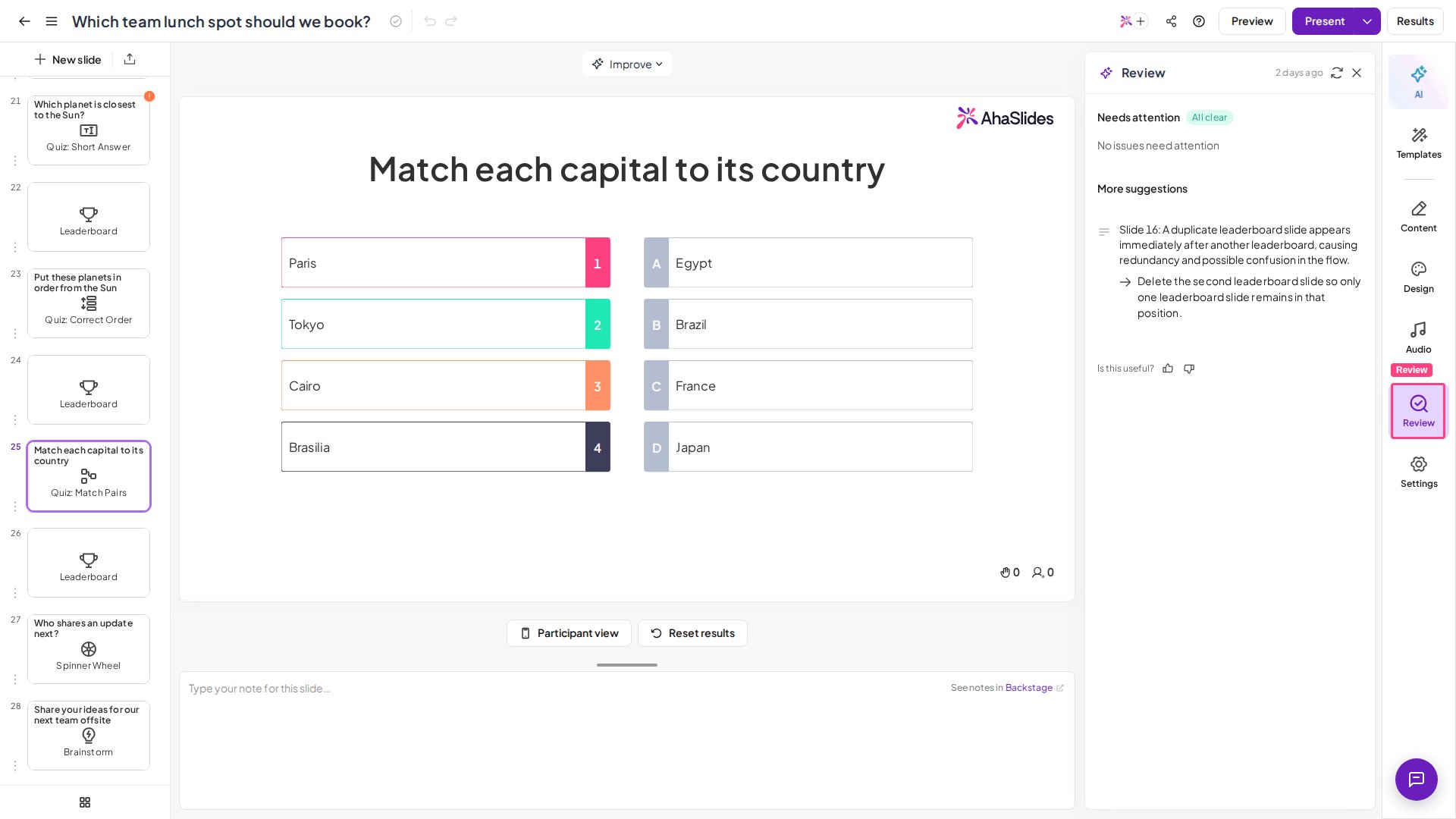
Where to find the Spell Checker
The Spell Checker is on the right-hand toolbar of the presentation editor, on the Review tab (a magnifying-glass icon), alongside the other panels such as AI, Content, and Design. Selecting it opens the Potential Issues panel on the right. When the panel is closed, a small status dot appears on the Review tab whenever there are spelling issues to review, so you can see at a glance that something needs your attention.Run a spell check
1
Open the Spell Checker
In the presentation editor, open the Review tab on the right-hand toolbar. The Potential Issues panel opens on the right.
2
Review the flagged words
Any likely spelling mistakes are listed under a Spelling heading, each showing the word AhaSlides thinks is misspelt.
3
Accept or dismiss each issue
For every flagged word you can choose:
- Accept — applies the suggested correction to your slide.
- Dismiss — ignores the suggestion and leaves the word as you wrote it (useful for names, brands, or deliberate spellings).
4
Keep editing and re-check
The Spell Checker works from the text currently on your slides and refreshes as you edit, so you can keep writing and run through the list again to catch anything new.
What the Spell Checker checks
The Spell Checker is content-based: it looks at the text you have actually typed on your slides, such as titles, question text, and answer options, and updates as you make changes.Spell checking is separate from how a quiz grades answers. On a short-answer quiz you can add other accepted answers so close spellings from your audience still count as correct — that is answer matching during play, not the editor’s Spell Checker. To improve the wording of your slides rather than just their spelling, use Improve Writing.
Readiness Checker
Where it’s available, the same Review tab becomes a broader Readiness Checker — an AI pre-flight review you run before presenting. Its Potential Issues panel goes beyond spelling and sorts what it finds into two groups, Needs attention and More suggestions, covering things such as:- Spelling mistakes in your slide text.
- Quiz questions whose time limit looks too long or too short.
- Inconsistent reward points across your quiz.
- Low contrast between your text and its background, which can hurt readability.
- Too many static (non-interactive) slides for an engaging session.