

The Video Call feature isn’t available on every plan; if yours doesn’t include it, you’ll be prompted to upgrade. Free users may get limited access for a limited time.
How video calls work
You can chat with participants through a video call on AhaSlides. Activate the feature by clicking the Call button, which appears after you hover over a response left on:- An Open Ended slide.
- A Q&A slide.
- A Leaderboard slide.
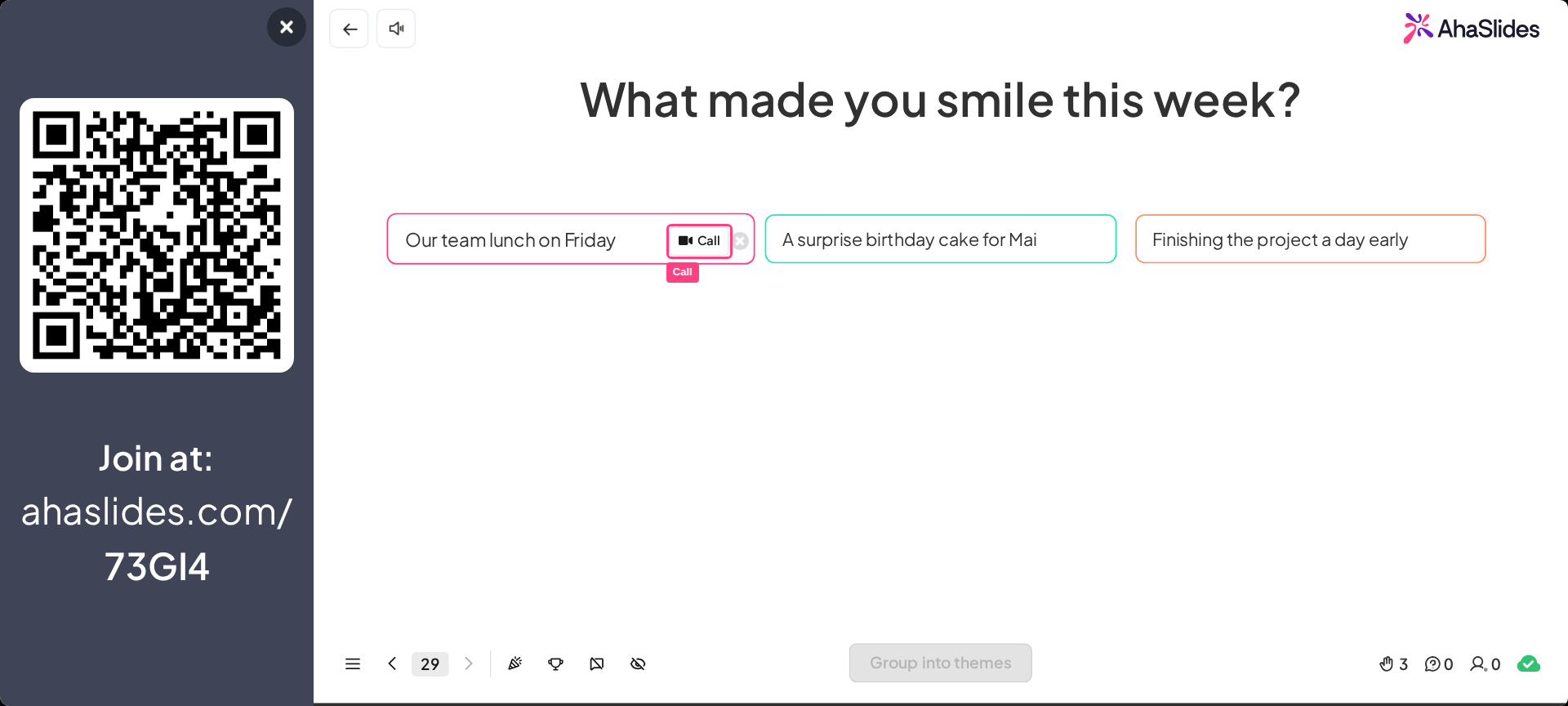
- They’ll see their camera feed on their own phone screen.
- Their camera and audio are broadcast to the presenter screen for all other participants to see and hear.
When called for the first time, the participant receives a pop-up asking for permission to use the camera and microphone. This feature won’t work without the participant’s permission.
Video call audio
When calling, the audio works one way. The participant’s voice is picked up through the microphone on their phone and plays through the presenter’s screen. The presenter’s voice is not picked up through their laptop and broadcast to the participant’s phone — this is so the presenter can carry on talking through the method they’re already using to present.Frequently asked questions
Can I call when the participant does not have the presentation open?
Can I call when the participant does not have the presentation open?
No. The participant only gets an invitation to accept or decline the call while they have your presentation open on their phone. If they’re on another browser tab or another app, they won’t get the invitation. This means the video call feature does not work when the audience take the lead on your presentation.
Will the call work if my participants are using devices other than their own phones?
Will the call work if my participants are using devices other than their own phones?
Yes. As long as the device your participant is using has a camera and a microphone, they can take part in a video call.