

Keyboard shortcuts
Display QR code
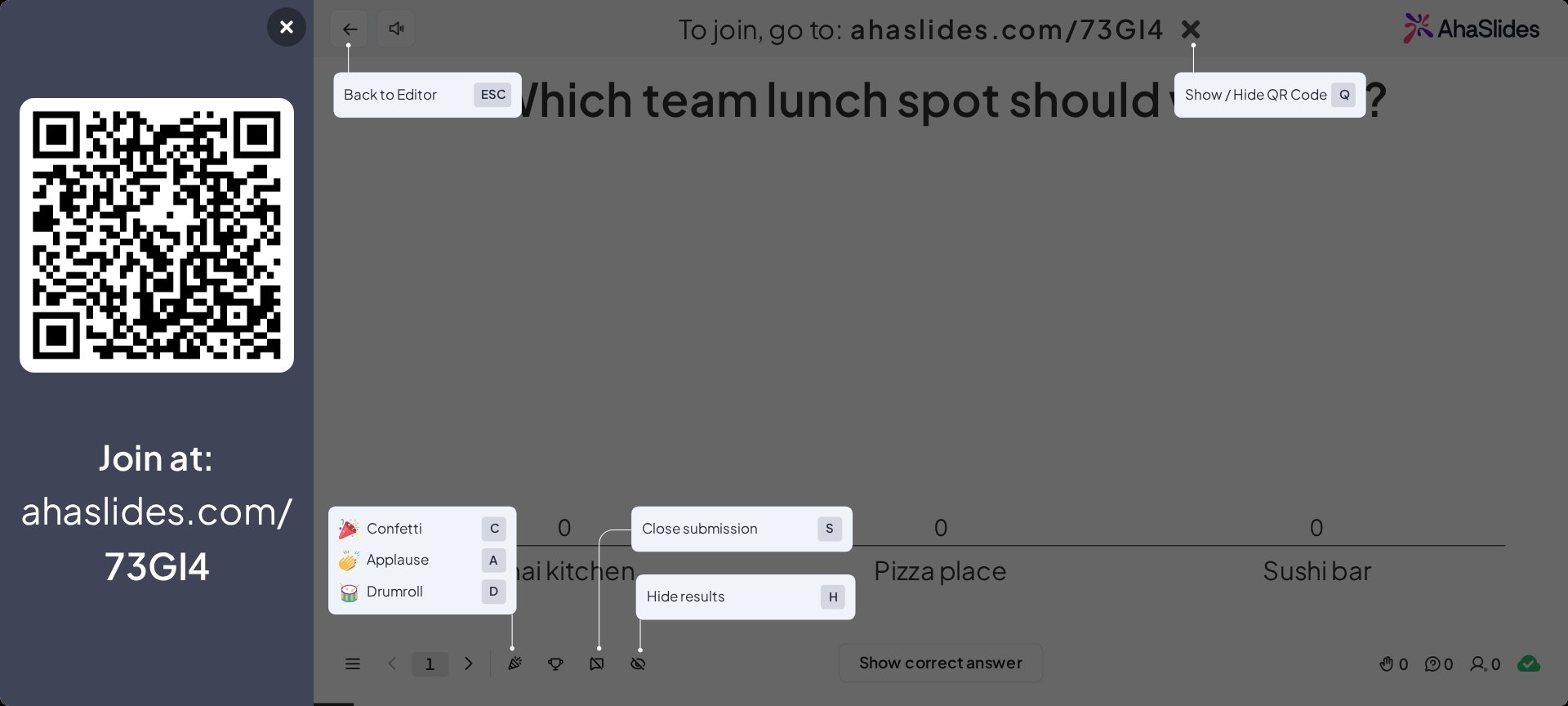
To quickly display both ways for your audience to join, press Q while presenting. It shows or hides the join panel on the left of the slide, which holds your QR code and, under Join at:, your join link with the access code.Start presenting
If you’re in the editor and ready to start your presentation, press Shift + P. Presenting opens in a window unless you tick Full screen in the Present drop-down (the arrow beside the Present button); AhaSlides remembers your choice. While presenting, you can also open Menu at the bottom left and choose Switch to full screen or Switch to windowed view.Return to editor
During your presentation, return to the editor by pressing the Esc key.Show / hide results
- Show results: press H while presenting to display the results on screen.
- Hide results: press H again to hide them.
Open / close submission
- Open submission: press S while presenting to allow participants to submit responses.
- Close submission: press S again to stop accepting responses.
Effects
AhaSlides offers a variety of fun effects to enhance your presentation. To access these, hover over the Effect icon in the bottom-left menu while presenting. The available effect hotkeys are:- Confetti: press C to shower the screen with confetti.
- Applause: press A to play an applause sound.
- Drumroll: press D to start a drumroll.
Leaderboard shortcut
- Show leaderboard: press L while presenting to display the leaderboard.
- Close leaderboard: press L again, or click anywhere outside the leaderboard, to close it.