

Creating a Survey
1
Open Surveys
Log in to AhaSlides and click Surveys in the left-hand menu. Surveys live in their own dashboard section, separate from your presentations.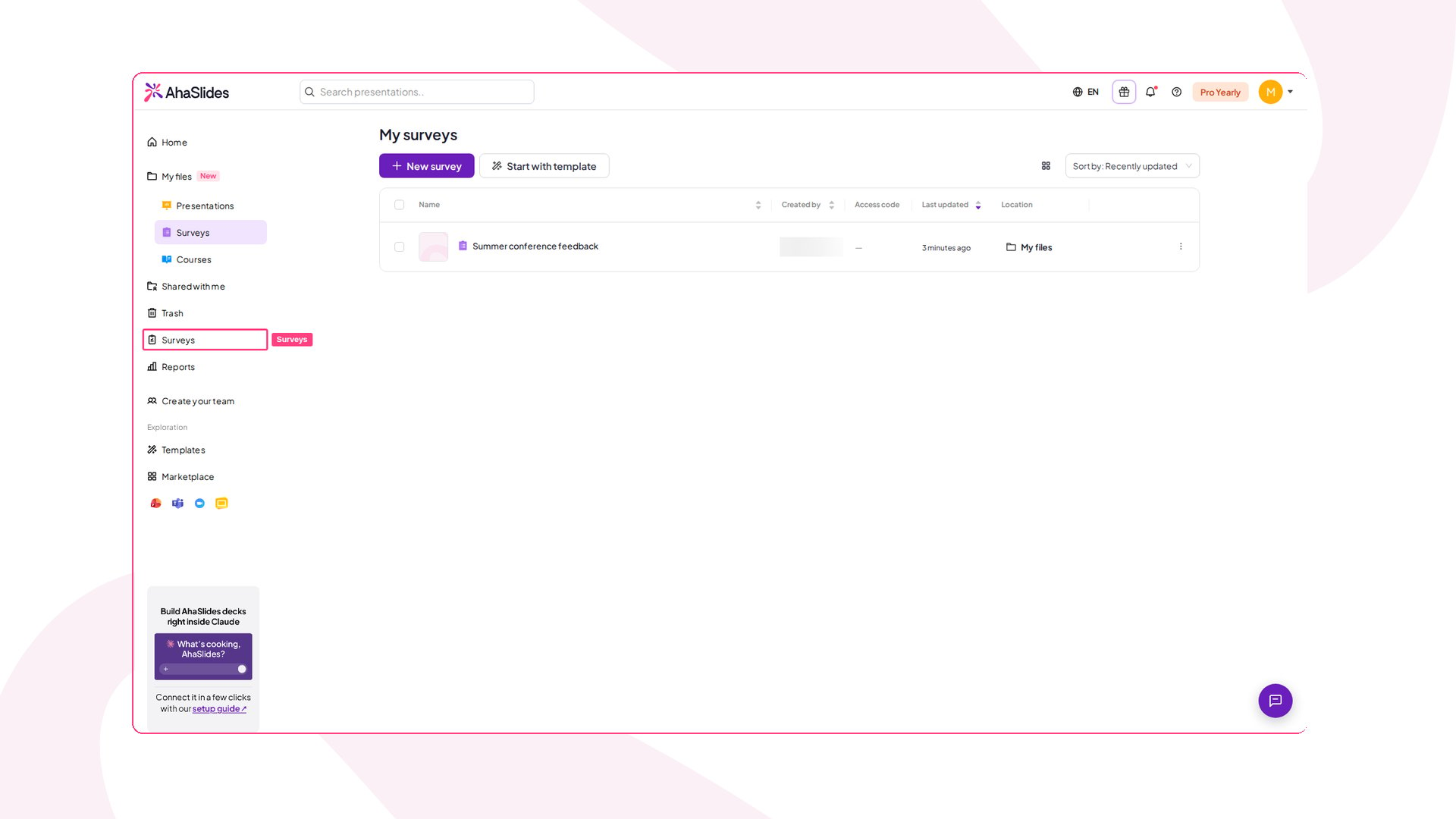
2
Choose how to start
Click Create survey. In the editor, pick Create with AI to describe your Survey and let AhaSlides draft the questions, Use a template to start from a ready-made survey, or Add a question to build it yourself.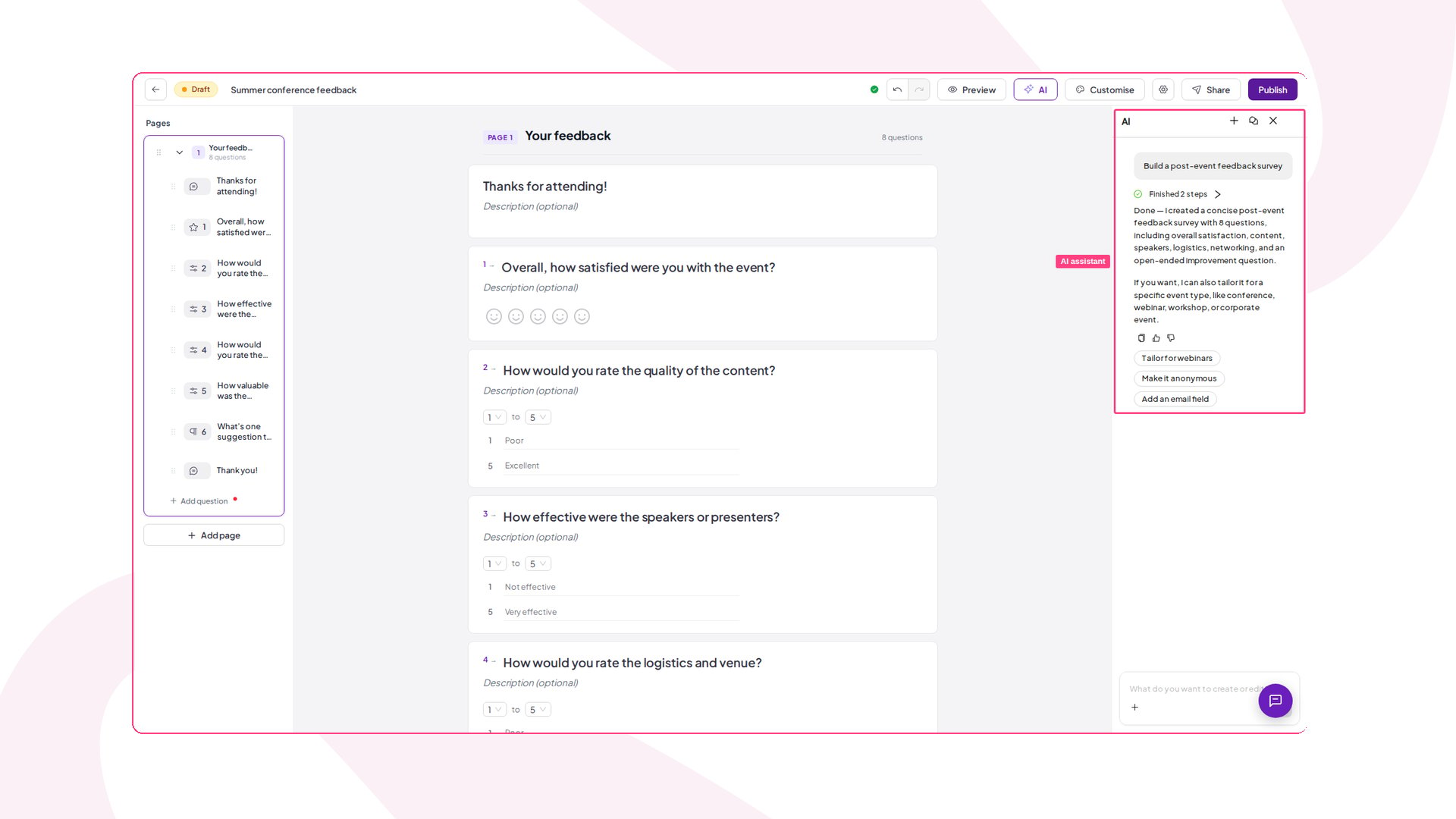
The AI options in Surveys follow your account’s On-demand AI setting. If AI is switched off for your account — or by your team admin — the AI starting points and the editor’s AI assistant are inactive, while everything else in Surveys keeps working. See How AhaSlides uses AI and what you should know.
Question Types
Mix as many question types as you need in a single Survey:Multiple Choice
Respondents pick one option from a list you define — or turn on Multiple answers so they can select as many as apply.
Rating scale
A slider between two labels you set — for example, Not useful to Extremely useful.
Rating (5-star)
A quick 5-star rating — a simpler visual alternative to the slider scale.
Net Promoter Score
A fixed 0–10 scale — from Not at all likely to Extremely likely — asking how likely respondents are to recommend you. Results are auto-calculated as a Net Promoter Score: the share of Promoters (9–10) minus the share of Detractors (0–6), from -100 to +100.
Short answer
A single-line box for a brief free-text answer.
Long answer
A multi-line paragraph box for longer written feedback.
Matrix
Several sub-questions sharing the same answer choices — great for Likert tables.
Date
Respondents pick a specific date, with a format you can customise.
Ranking
Respondents drag options to order them from most to least preferred.
Contact Information
One block that collects Name, Email, Phone, and Company together.
Add a Theme to Your Survey
Give your Survey your own look by applying a theme — the same themes AhaSlides presentations use, so respondents see a branded, consistent form instead of the plain default.1
Open Customise
In the Survey editor, click Customise in the top action bar. The Customise panel opens on the right with a gallery of themes.
2
Pick a theme
Choose a look from My themes, Team themes, or AhaSlides themes — each card previews its background and palette. Click a card to apply it instantly; the editor updates so you see exactly what respondents get. Pick Default to return to the plain look.
- Background — the theme’s background colour, or image, fills the Survey.
- Colour palette — the first colour in the theme’s palette becomes the accent for interactive elements like buttons and links.
- Font and text colour — questions and answers render in the theme’s font, and body text follows the theme’s own text colour for readability.
If your Survey is linked to a presentation, it follows that deck’s theme automatically — the panel shows Theme follows your linked presentation and the Default reset is switched off. Picking a different theme still works and syncs back to the presentation.
Publishing and Sharing
While a Survey is a Draft it isn’t collecting responses. When you’re happy with your questions, publish it — the status changes to Published and it’s ready for respondents.Method 1: Run it as a standalone survey
Method 1: Run it as a standalone survey
A published Survey can be shared three ways: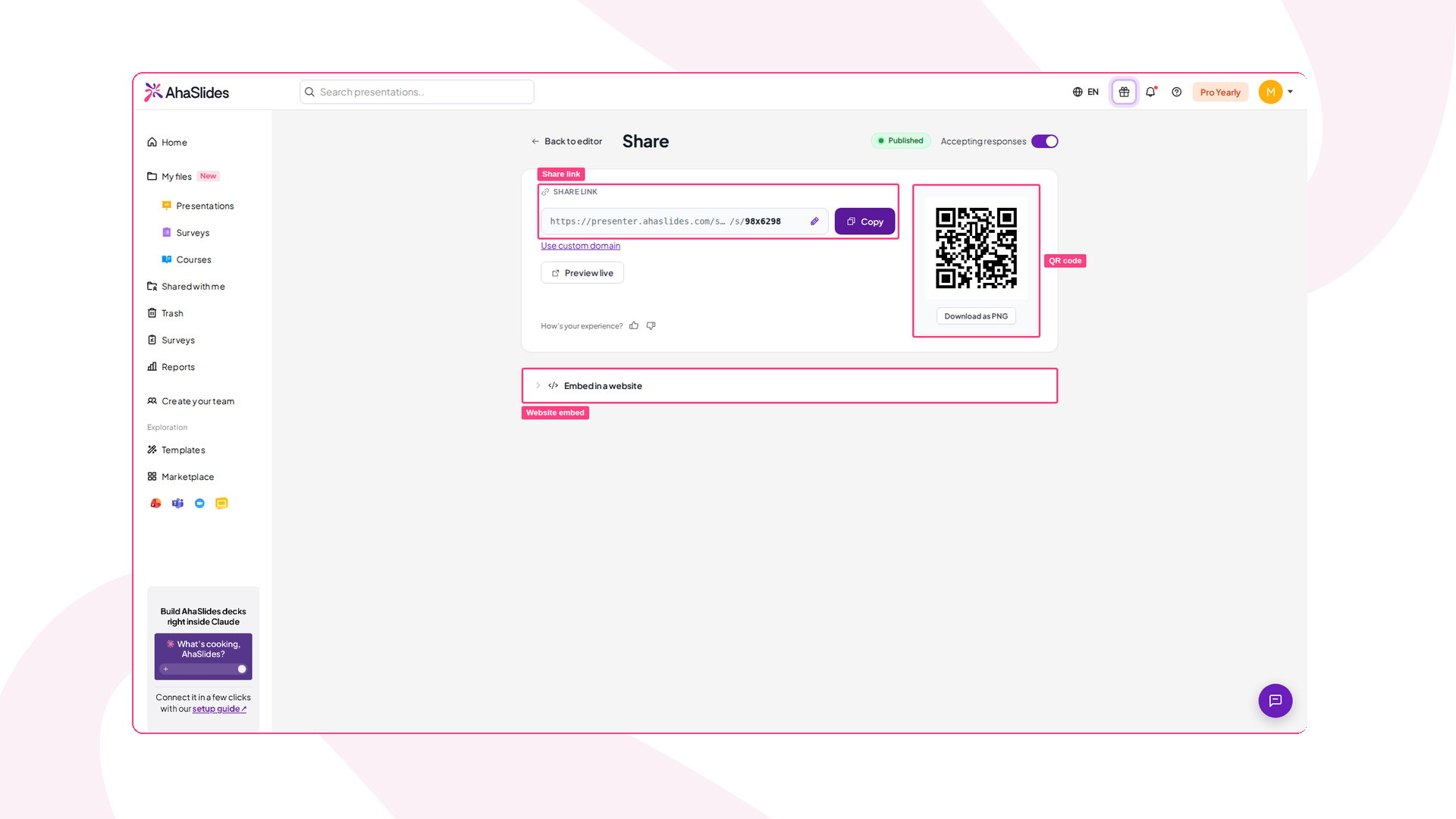
- Share link — copy the link and send it anywhere (email, Slack, LMS, poster). You can edit the link to a custom, memorable slug — the QR code updates automatically to match.
- QR code — display or download the QR code for print, slides, or on-screen scanning.
- Website embed — embed the Survey directly on any web page, so people can answer without leaving your site.
Method 2: Run it inside your presentation
Method 2: Run it inside your presentation
Use this when you want structured feedback from your audience while they’re still in the room — end-of-session forms, mid-workshop check-ins, event feedback.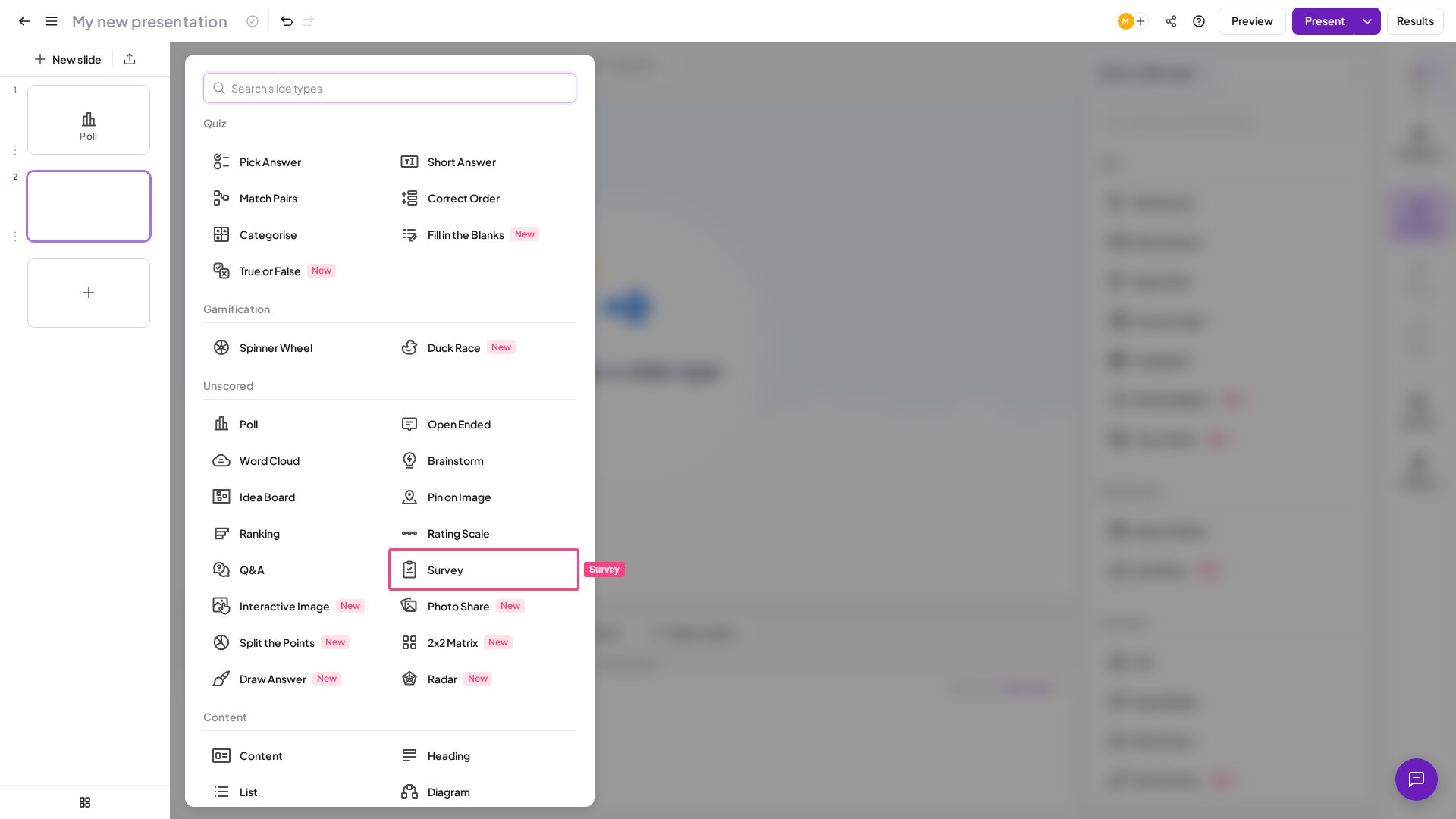
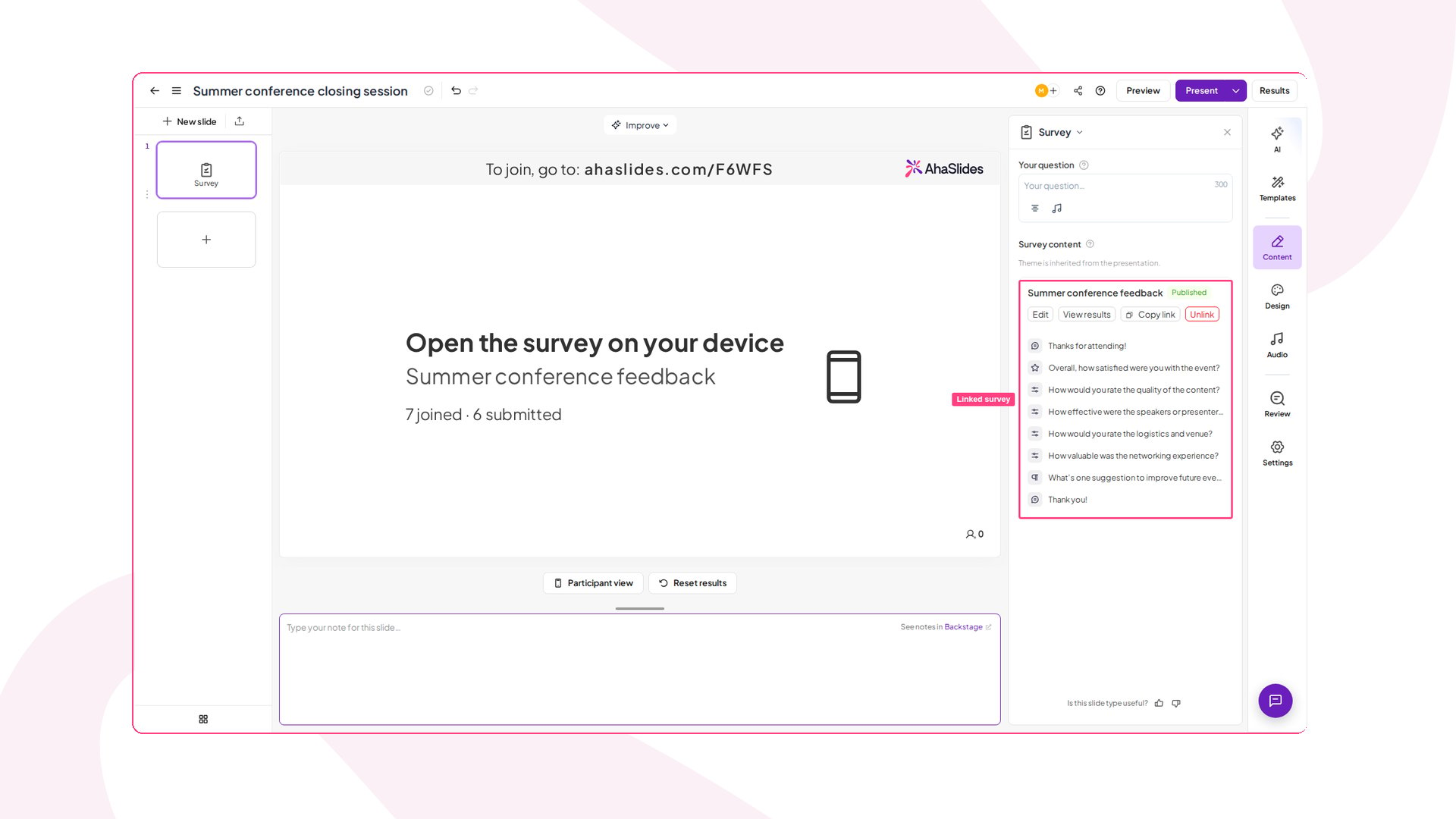
- Open your presentation in the editor and add a new slide.
- Select the Survey slide type.
- Under More ways to fill this slide, click Add an existing survey, then Select your Survey. Any of your surveys can be linked, including drafts — linking publishes it automatically.
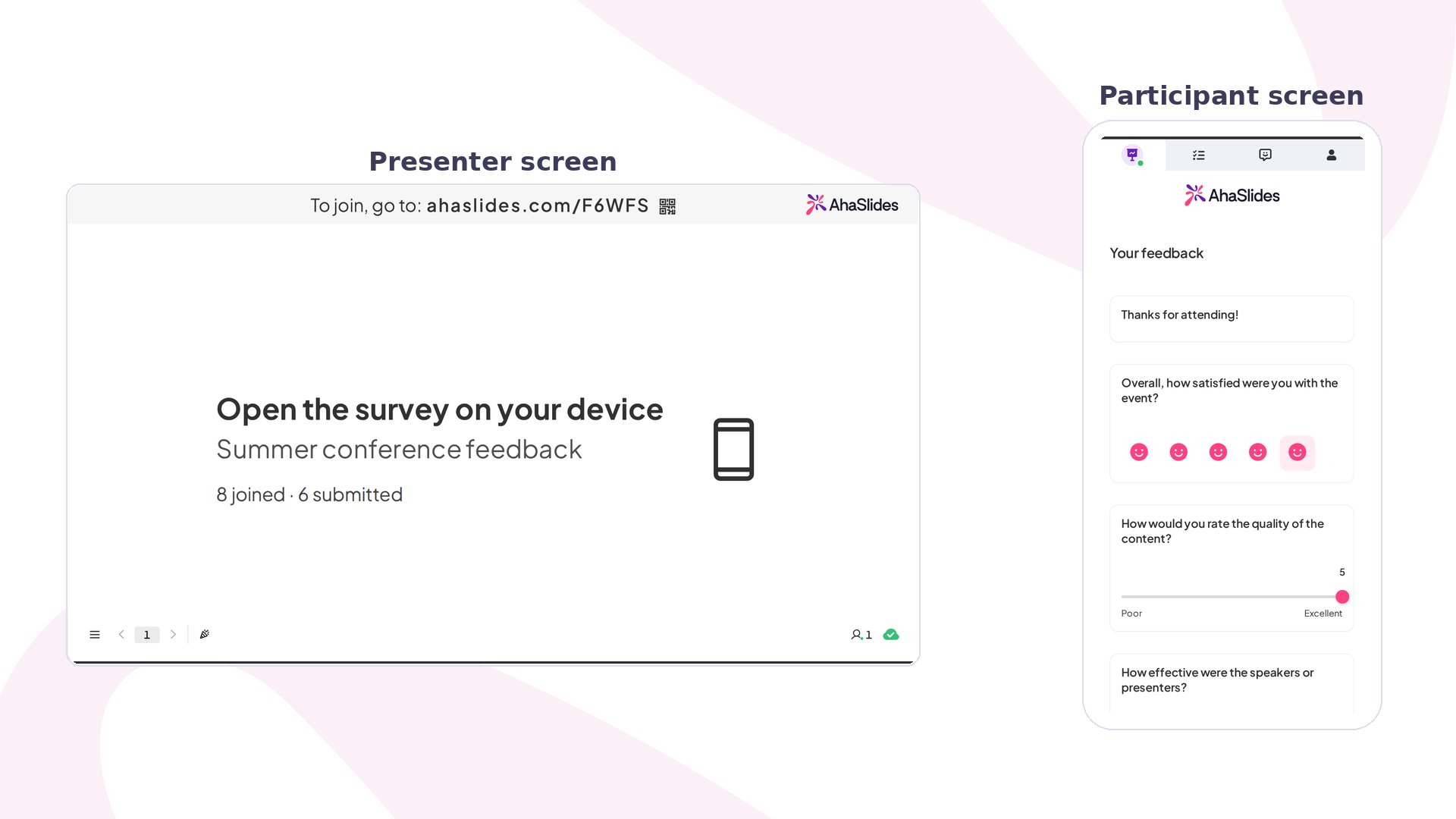
- Present your deck as usual — participants join with the normal join code or QR code.
- When you reach the Survey slide, the Survey is revealed on every participant’s device.
- Each participant scrolls through the questions, answers them, and presses Submit.
Add Collaborators
Invite others to work on a Survey with you. In the Survey editor, click Share → Add collaborators, enter an email, pick a role, then Add:- Editor — can edit the Survey and view all its results.
- Viewer — can view the Survey and its results, but can’t edit.
Anonymous or Signed-In Responses
By default, a standalone Survey collects anonymous responses — no name, email, or sign-in is asked for. When you need to know who answered, require respondents to sign in with an AhaSlides account first. In the Survey editor, click the Survey settings gear in the top action bar, then under Respondent identity pick one of two options:- Anonymous (the default) — respondents answer without signing in, and each response shows as Anonymous in your results.
- Require sign-in — respondents sign in with their AhaSlides account before answering, and their name and email are attached to each response.
Turning on Require sign-in makes the Survey no longer anonymous — respondents are told up front that their identity is collected. Keep it on Anonymous when honest, unattributed feedback matters more than knowing who answered. Sign-in isn’t available inside an embedded Survey — a respondent on a website embed is asked to open the Survey in its own browser tab to sign in.
Checking Your Responses
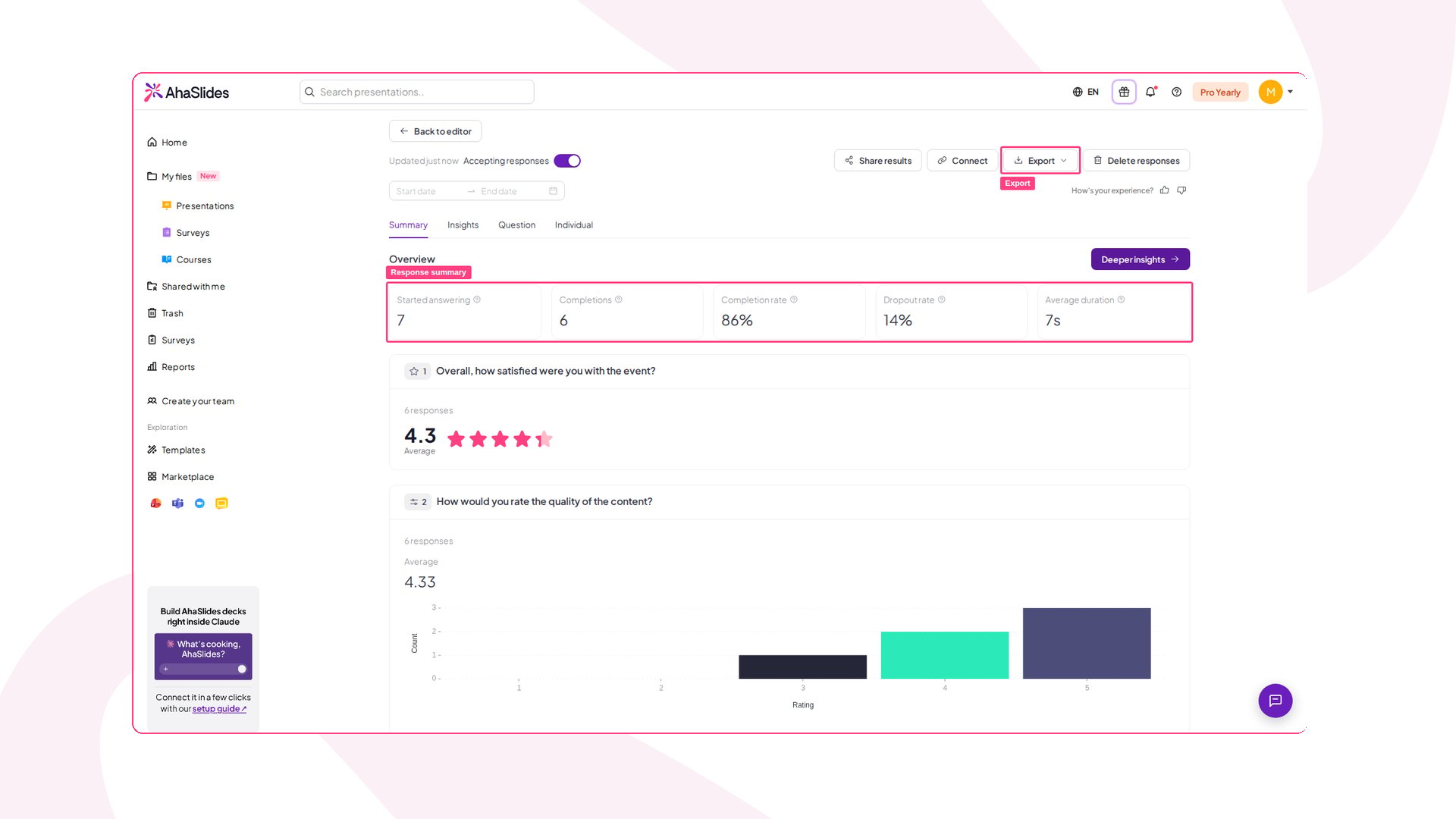
You can check results at any time. Open a Survey and click View results, or find every Survey’s results together under the main Reports page — the Surveys tab — with search and date filters to narrow things down. At the top of the results page, a summary shows five key metrics at a glance:- Started answering — how many people began the Survey.
- Completions — how many submitted it.
- Completion rate — the share of starters who finished.
- Dropout rate — the share who started but didn’t finish.
- Average duration — how long a response took on average.
Frequently Asked Questions
What is the difference between a Survey and a Poll slide?
What is the difference between a Survey and a Poll slide?
A Poll slide asks one question at a time with results shown live while you present. A Survey is a multi-question form participants scroll through and submit once. Use polls for in-the-moment reactions; use a Survey for structured, multi-question feedback.
Do participants need an account to answer a Survey?
Do participants need an account to answer a Survey?
No. Participants just open the link or scan the QR code and answer in any browser — nothing to install.
Can responses be anonymous?
Can responses be anonymous?
Yes — Anonymous is the default. To know who answered, open Survey settings and set Respondent identity to Require sign-in: respondents sign in with an AhaSlides account before answering, and their name and email attach to each response. You can also add a Contact Information question to collect details while keeping the Survey itself anonymous.
How many people can respond to a Survey?
How many people can respond to a Survey?
A Survey has no response limit of its own. How many people can take part is set by your plan’s participant allowance, with no cap on the total responses you collect over time. For the limit that applies to your account, see what is included in the free account or check your My Plan page.
Can I set up branching or skip logic so the next question depends on the answer?
Can I set up branching or skip logic so the next question depends on the answer?
Not at the moment. Every respondent moves through the same questions in the order you arrange them — there’s no conditional branching that shows a different next question based on a previous answer. To route people down different paths, build a separate Survey for each path and share the relevant link.
Can I export my Survey results?
Can I export my Survey results?
Yes. From the results page you can export all responses to Excel (.xlsx) or CSV and work with the raw data in your own tools.
Can I delete responses?
Can I delete responses?
Yes. As the Survey owner you can delete a single response or clear all of them from the results page. Deleted responses never appear in the public shared-results view.
Can I recover a Survey after deleting it?
Can I recover a Survey after deleting it?
No. Deleting a Survey is permanent, and its responses go with it. If you might need the data later, export your results first, then delete the Survey once you’re sure.
Why isn't my Survey collecting responses?
Why isn't my Survey collecting responses?
Check the Survey’s status in your Surveys list. If it’s still Draft, it hasn’t been published yet — participants can’t see it until you publish.
Why are the AI options in my Survey inactive?
Why are the AI options in my Survey inactive?
Surveys use the same On-demand AI setting as the rest of AhaSlides. If it’s switched off in Account settings → AI preferences, or by your team admin, the AI options stay visible but inactive — hover over one to see why. Switch On-demand AI back on and reload the Survey; the change applies in around 30 seconds. Everything else in Surveys works normally either way.
Can I brand my Survey with my own colours and fonts?
Can I brand my Survey with my own colours and fonts?
Yes. In the editor, click Customise and apply a theme — it sets the Survey’s background, colour palette, font, and text colour in one step. Theme customisation isn’t available on every plan; if yours doesn’t include it, you’ll be prompted to upgrade.
Can I test my Survey before sending it out?
Can I test my Survey before sending it out?
Yes. Click Preview to see how it looks on respondent devices and submit a test response. Remember to remove your test submission from the results before sharing the Survey for real.
Can I remove the A, B, C letters from Multiple Choice options?
Can I remove the A, B, C letters from Multiple Choice options?
Yes. In the question’s settings panel, turn off the Option labels toggle to hide the letter chips (A, B, C…) and show only the answer text. The same toggle applies to Ranking questions, and the Label style control lets you switch the chips between letters (A, B, C) and numbers (1, 2, 3).