

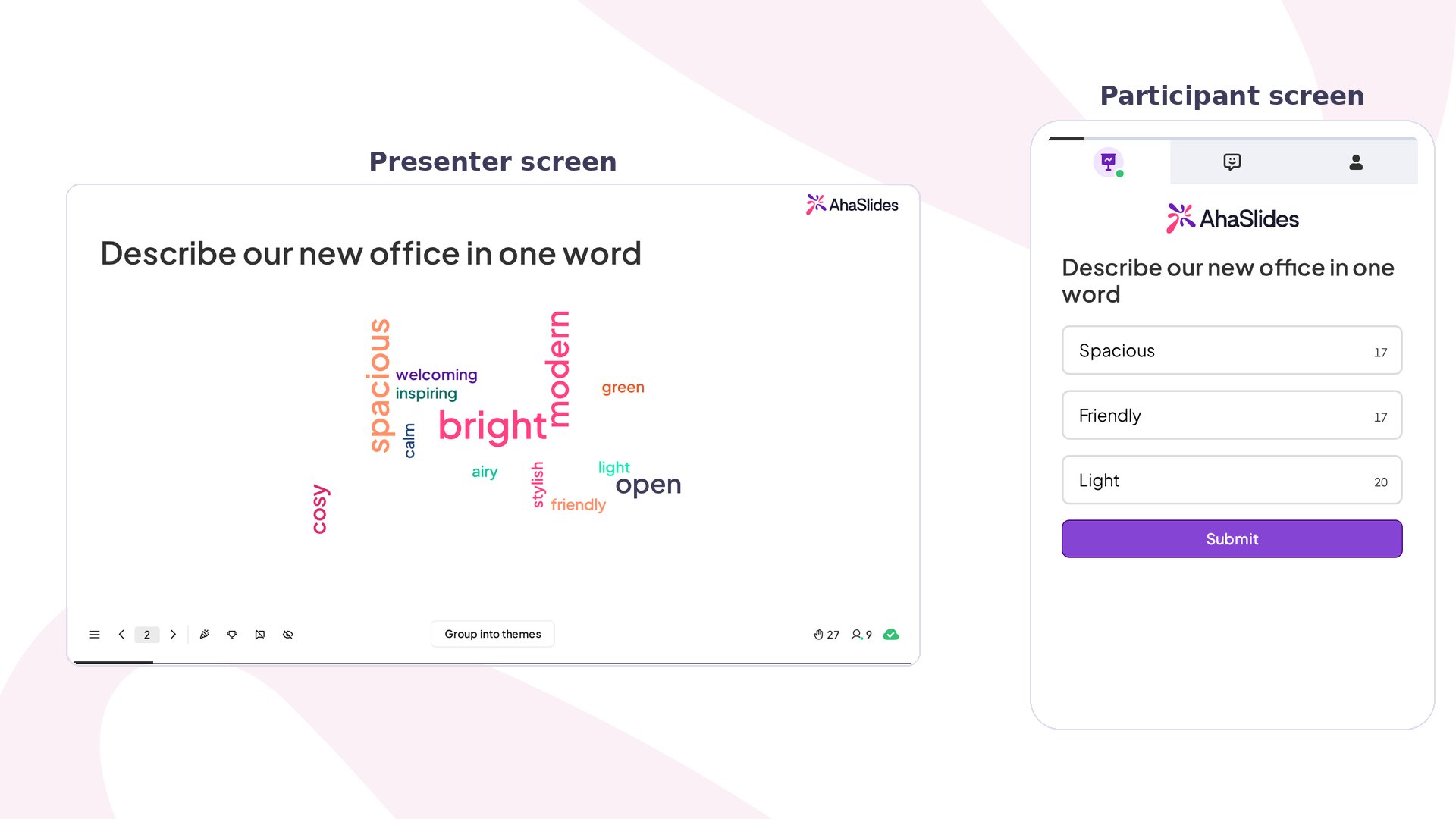
Word Cloud at a glance
The Word Cloud counts as a Poll-type slide, and Poll and Open Ended slides count in the same group. For any limit on how many of these you can use on the free plan, see what is included in the free account or check your My Plan page. Each response is built for single words and short phrases: participants see a live remaining-character count and can’t submit anything longer.
Create a Word Cloud slide
1
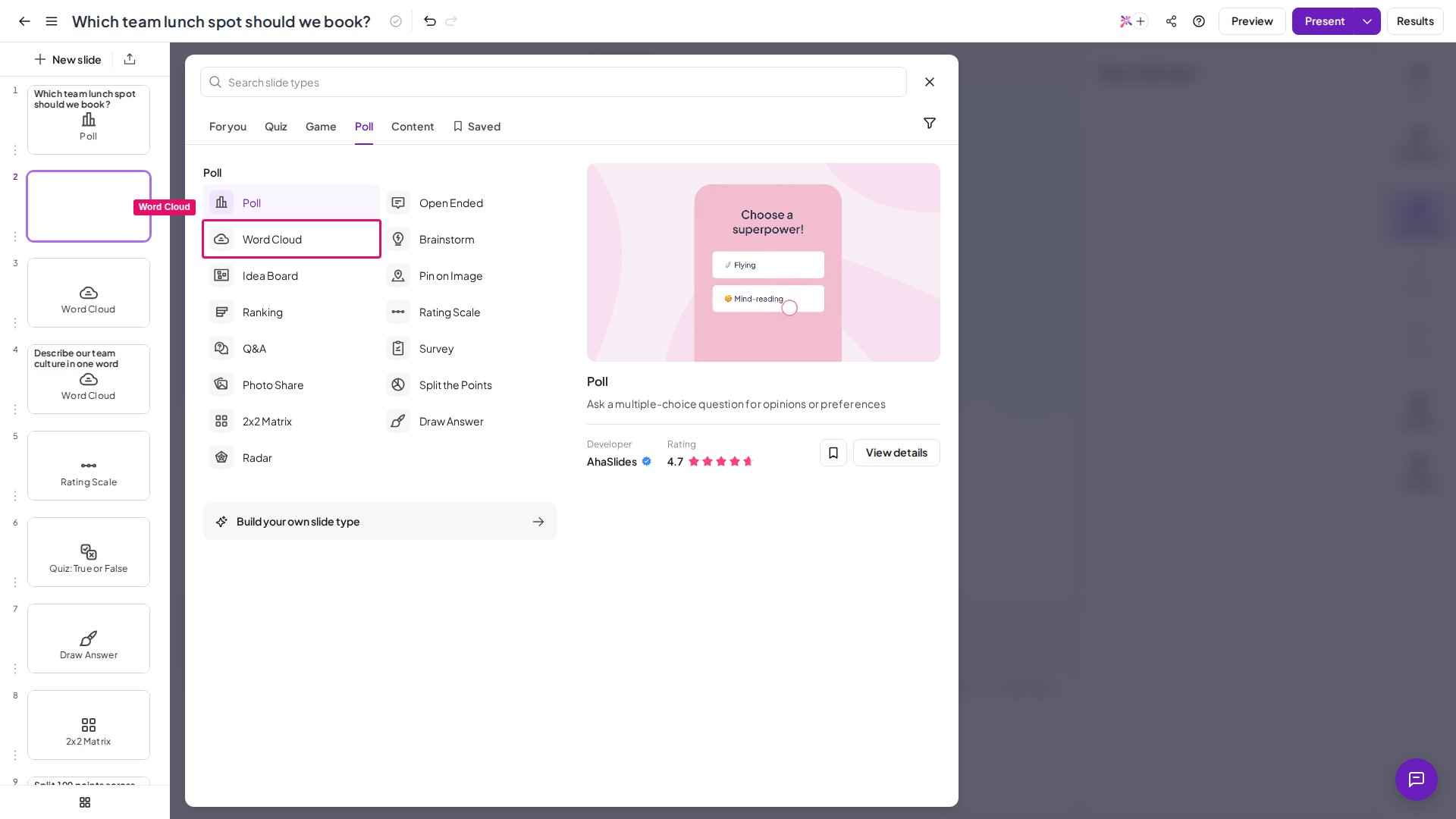
Add a new slide
Click the + button in the slide panel to insert a new slide into your presentation.
2
Select Word Cloud
Choose Word Cloud from the list of available slide types.
3
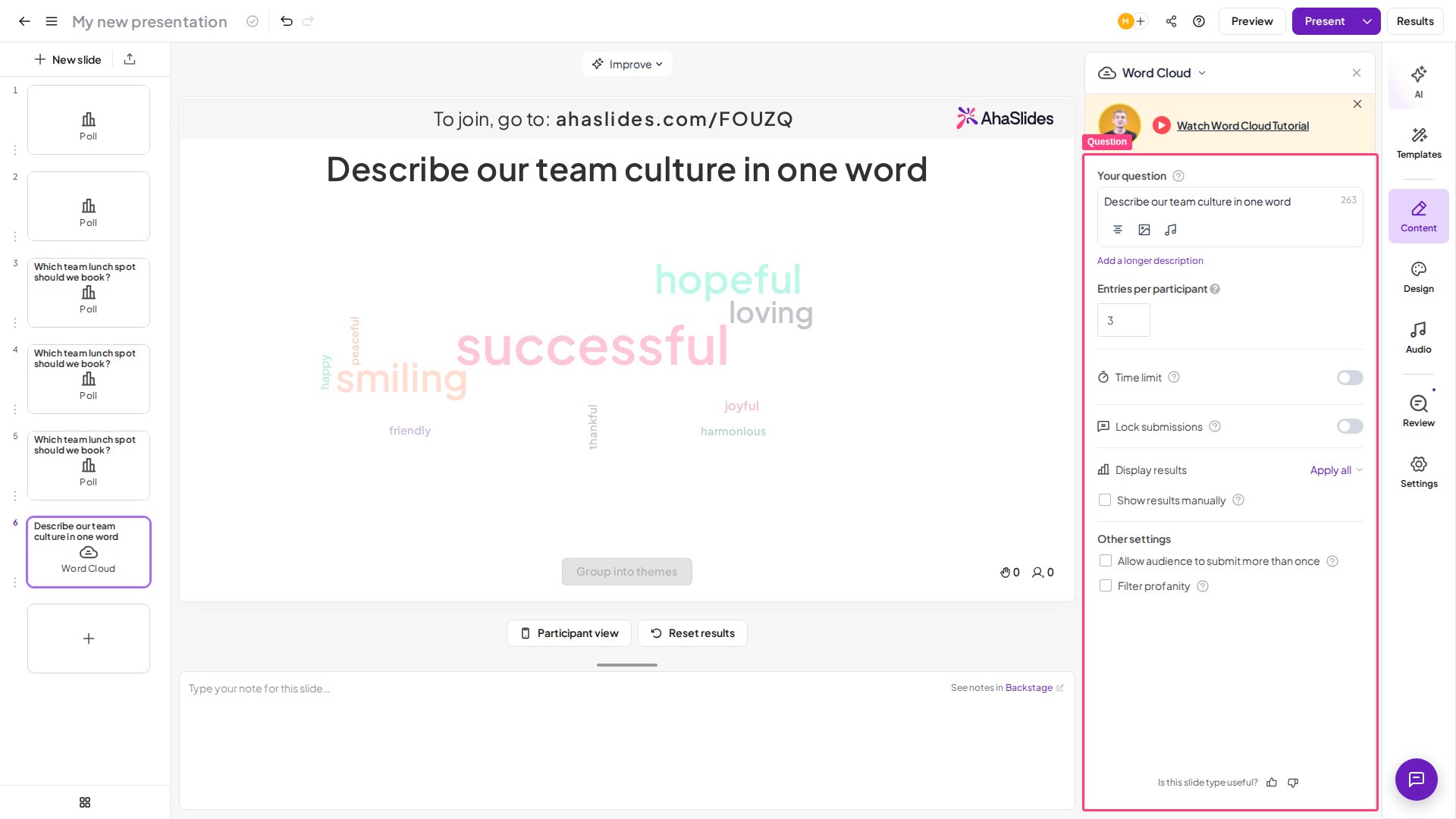
Type your question or prompt
Enter the prompt you want participants to respond to — for example, “Describe today’s workshop in one word” or “What comes to mind when you think of innovation?”
4
Configure settings
Adjust the settings (see Word Cloud settings) to control how many submissions per person, whether to show results manually, and whether to enable the profanity filter.
5
Present
Navigate to the slide during your presentation. Participants open the session link on their devices and start submitting words. The cloud updates live as each submission arrives.
- Set a tight time limit (30–60 seconds) for focused responses — a short window encourages instinctive, honest answers rather than overthought ones.
- Increase entries per participant for brainstorm sessions — allowing 5–10 submissions per person generates the volume needed to surface a genuinely useful idea landscape.
Present a Word Cloud slide
Navigate to the slide and participants submit words from their devices; the cloud updates live as each submission arrives.Group similar words with Smart Grouping
AhaSlides can automatically cluster similar words and synonyms so that semantically related submissions count toward the same visual group. There’s nothing to switch on in the editor: while presenting, click Group into themes on the presenter screen. Click Ungroup to return to the original cloud. For example, words like “happy”, “happiness”, and “joyful” may be grouped under a single cluster, making the dominant themes in your audience’s responses easier to read at a glance. Smart Grouping is especially useful when participants use varied phrasing for the same underlying idea.Delete words live
During presenting, hover over any word in the cloud and click the × icon to remove it immediately. The word disappears from the cloud in real time and does not reappear even if more submissions of the same word arrive after deletion. If you remove the most popular word, the next most common one takes its place at the centre. Use this to moderate inappropriate entries, remove off-topic words, or clean up the cloud before screenshotting it for a summary slide.Export Word Cloud responses
Word Cloud submissions are included in your presentation’s data export. After your session, download the full set of responses as a spreadsheet — see Export data to Excel.Word Cloud settings
Can participants use emoji? Yes — emoji are accepted in word cloud entries and appear in the cloud like any other submission, within the 25-character limit. A few punctuation and symbol characters aren’t accepted and prompt the participant to remove them, but letters, numbers, and emoji all go through.
Ideas for using Word Cloud
- Use it as an icebreaker opener — a word cloud at the start of a session signals interactivity immediately and gets everyone’s fingers on their phones early.
- Combine with a follow-up Poll — after the cloud reveals the dominant themes, create a Poll that asks participants to vote on the top two or three words that appeared most.